JAWS UEB MATHS/Nemeth Settings-Word and Braille Math Editor
If you’ve ever struggled to get JAWS to read math correctly on your computer, this walk-through will make your life much easier. In this video, I demonstrate how to set JAWS for either UEB Maths or Nemeth math using the JAWS UEB/Nemeth Settings, then show you how to create accessible math using Word’s Math Editor and the Braille Math Editor. Whether you’re a TVI (Teacher of the Blind), a student, or an AT (Access Technology) specialist, these steps will help you produce clear, accurate, and accessible math every time.
WORD MATH EDITOR Setup
1. Open the Math Editor
Alt + =
2. Open the Equation Tools tab
Alt + J, E
3. Open Math Options (Settings)
T, 1 (This opens the Math Options dialog.)
4. Set Alignment to Left Inside the Math Options dialog:
Alt + J → moves to Justification
L → Left alignment
Alt + D → Set as Default
Tab, Tab → to OK
Enter
When asked to save as default, choose Yes (This saves the settings to the Normal template.)
5. Check Conversion (if math looks wrong)
While inside a math zone:
Alt + =
Alt + J, E
C → Convert
Make sure it is set to Professional
WORD MATH EDITOR — Command Sequence (JAWS + Keyboard)
Open the Math Editor
Press Alt + = This inserts a new math zone and opens the Word Math Editor.
Move in and out of the math zone
Right Arrow → move into the math zone
Right Arrow again → move through elements
Left Arrow → move backward
Esc → exit the math zone and return to normal text
Insert common structures
Fraction → Ctrl + /
Exponent → Ctrl + Shift + =
Subscript → Ctrl + =
Square root → type \sqrt then press Space
Matrix → type \matrix then press Space
Parentheses → type ( then ) (Word auto‑sizes them)
Can’t Log in, forgot password: Computer showing errors
Forgotten Passwords & Login Problems
When you can’t log in — whether you forgot your password, never received the code, or your computer refuses to move past the first screen — everything stops. The frustration hits instantly, and it happens to everyone. The good news is that most login problems have simple, safe fixes. This guide walks you through the most effective steps to get back into your accounts, clean up the issues that cause login failures, and set up your devices so you don’t get locked out again — or at least know exactly what to do when a computer update suddenly changes your options. Keep that in mind: the problem may not be you. Sometimes an update quietly shifts the settings behind the scenes, and you just need to adjust to the new way your computer handles logins.
Forgotten Passwords & Login Problems: A Clear, Safe Guide to Getting Back In
People search for this more than almost any other tech issue. You are in Good company. Here’s a simple, accessible guide to help you get back into your accounts — and prevent future lockouts.
Start Easy: Hard Refresh the Page (Ctrl + Shift + R) on a PC and Command + Shift+ R on a Mac
1️.Locked Out of an Account? Start Here
Common symptoms
Password suddenly not working
Reset link not arriving
Multi‑factor authentication (MFA) asking for a code you can’t access
Endless login loops
These problems usually come from:
Browser cache issues
Old passwords stored in auto-fill
Conflicting authentication methods
Out‑of‑date recovery information
2️. Clear Your Browser Cache (This Fixes 50% of Login Problems)
Chrome
Press Ctrl + Shift + Delete
Choose Cached images and files
Click Clear data
Edge
Press Ctrl + Shift + Delete
Select Cached images and files
Click Clear now
Firefox
Press Ctrl + Shift + Delete
Select Cache
Click Clear
This removes corrupted login data and forces the site to load fresh.
Also Check Your Saved Passwords (Old Ones Cause Login Failures Too-delete them!)
After you clear your cache, take one more quick step: open your browser’s saved passwords and delete the outdated ones. Old passwords often override the new ones you type, which creates endless login loops.
Chrome
Press Alt + E to open the menu
Press S to jump to Settings
Select Auto-fill and Passwords
Open Google Password Manager
Search for the site you’re trying to log into
Delete any old or duplicate passwords
Edge
Press Alt + F to open the menu
Press S for Settings
Select Profiles
Choose Passwords
Search for the website
Delete outdated or incorrect entries
Firefox
Select Settings
Choose Privacy & Security
Scroll to Logins and Passwords
Open Saved Logins
Remove old or incorrect passwords
Why this matters
Browsers love to “help” by auto-filling passwords — even when they’re wrong. When you delete the old ones:
Your new password works correctly
The login screen stops looping
The reset process finally sticks
You avoid the “I know I typed it right!” frustration
3️. When You Set Up a Password — ALWAYS Connect It to Your Phone
This is the single most important step for preventing lockouts.
Set up the same password manager on your computer to pair with phone
Why?
Your phone becomes your identity key. If you forget your password, the system can verify you instantly.
You can also quickly go into your password manager and look up the password you need for any site on your computer.
Set Up the Same Password Manager on Your Phone and Computer
Using the same password manager on both devices keeps everything synced. When you update a password on your phone, it instantly updates on your computer — and that prevents almost every future lockout. And remember, you don’t have to use the password manager every time you log in. As you create accounts, save your usernames and passwords in your browser so you can keep logging in the same easy way you always have. The password manager simply becomes your reliable backup when something goes wrong.
Below are simple, universal steps that work for any major password manager (Microsoft Authenticator, Bitwarden, 1Password, etc.).
Step 1: Install the Password Manager on Your Phone
Open the App Store (iPhone) or Google Play Store (Android).
Search for your chosen password manager.
Tap Install.
Open the app and sign in or create an account.
Turn on sync if the app asks (most do automatically).
Your phone now becomes your secure “master key.”
Step 2: Install the Same Password Manager on Your Computer
Open your browser
Go to the password manager’s official website.
Download the desktop app or browser extension.
Sign in with the same account you used on your phone.
This pairs your computer and phone instantly.
Step 3: Turn On Sync Between Device
Most password managers sync automatically, but here’s how to confirm:
Open the password manager on your phone.
Go to Settings.
Look for Sync, Cloud Sync, or Account Sync.
Make sure it’s turned ON.
Now every password you save on one device appears on the other.
Step 4: Import or Save Your Password
You can now:
Save new passwords directly into the manager
Import passwords from your browser
Update old passwords and let the manager store them–This ensures you never rely on outdated browser auto-fill again.
Step 5: Choose How you want to Log in: Password Manager or From Browser
Option A: Keep using your browser’s saved passwords
This is the fastest way to log in day‑to‑day. Your browser auto-fills your username and password, and you move on with your work.
Option B: Use the password manager when needed
If something breaks —
a password doesn’t work
a browser update wipes your autofill
a site forces a reset — you can open your password manager and instantly look up the correct username and password.
This is the key detail: Your password manager acts as your backup vault, so you never lose access even if your browser forgets or changes something.
Why This Matters
When your phone and computer share the same password manager:
You always have the correct password stored somewhere safe
You can keep using your browser for fast logins
You avoid lockouts caused by old autofill entries
You stay in control even when updates change things
It’s the perfect balance of speed and security.
4️.Choose ONE Authentication Method (Not All of Them)
Using multiple authenticators confuses systems and causes login loops.
Here are the three main types, with simple visuals you can describe to your audience:
🔵 Option 1: Text Message (SMS)
Visual: A phone with a speech bubble containing a 6‑digit code. Best for: Beginners Pros: Easy, no app needed Cons: Not as secure as app‑based codes
🟢 Option 2: Authenticator App (Microsoft Authenticator, Google Authenticator, Duo)
Visual: A shield icon with a rotating 6‑digit code. Best for: Most users Pros: Fast, secure, works offline Cons: Must be installed on your phone
🟣 Option 3: Email Verification
Visual: An envelope with a key inside. Best for: People who check email constantly Pros: Simple Cons: Slow, sometimes goes to spam
5️. Windows Login Problems: Safe Steps You Can Do
Sometimes Windows won’t let you log in because of:
A stuck update
A corrupted profile
A password mismatch
A login option that’s blocking access (PIN, fingerprint, picture password)
Use SHIFT + RESTART to Access Windows Recovery Options
This is the only safe, built‑in way to reach troubleshooting tools.
Steps
On the login screen, click the Power icon (bottom right).
Hold SHIFT on your keyboard.
While holding SHIFT, click Restart.
Windows will open the Advanced Startup Menu.
From here, you can safely access:
✔ Startup Repair
Fixes boot issues.
✔ Safe Mode
Lets you log in with minimal drivers.
✔ Command Prompt
For advanced repairs (not needed for most users).
✔ Reset Password (Microsoft Account)
If you use a Microsoft account, you can reset it from here.
6️. Prevent Future Lockouts: Use a Password Manager on Your Phone
This is the long‑term solution that saves people from ever being locked out again.
Recommended password managers:
Microsoft Authenticator (has password storage built in)
Bitwarden (free, secure, cross‑platform)
1Password (paid, excellent for families)
Google Password App
LastPass (popular, but had past breaches — use with caution)
Why store passwords on your phone?
Your phone is always with you
You can look up usernames and passwords instantly
Syncs with your computer
Works even if your computer won’t turn on
You’re not alone — login problems happen to everyone. With these steps in place, you’ll stay in control and avoid the frustration of being locked out again.
This video takes you through setting up the Tiger 9 software from ViewPlus Technology for translating math equations into braille so you can emboss Math with Tiger. Dr. Robinson demonstrates how to access the Tiger ribbon, open her existing profile settings, and configure options like the braille type and math notation style. She also shows how to adjust ink settings if needed for embossing printed text alongside braille. Then she translates the math and gets it ready to emboss for student.
Tiger 9 Math Translation and Editing
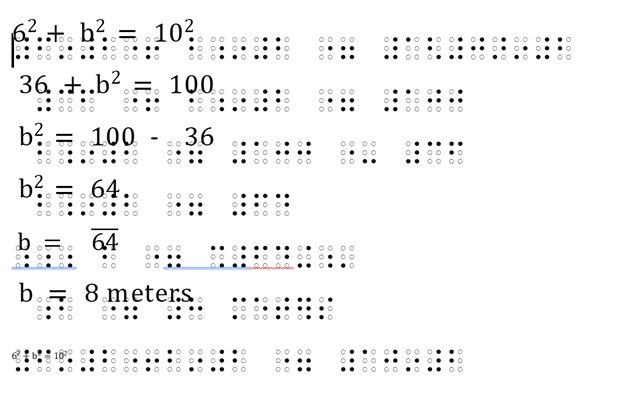
Dr. Robinson demonstrates how to use Tiger 9, to translate math content in Word. She use a 40 cell FOCUS braille display but emphasizes the importance of using an 80-cell braille display if the student is going into math or STEM fields. Dr. Robinson also explains how to use the WORD math equation editor or Braille math editor on the Braille display to emboss Math with Tiger. She concludes by solving a right triangle problem using the math contents then embossing the math for hard copy if desired.
Emboss Work with Tiger 9 in WORD
Go onto learn how to emboss graphics in WORD using Tiger software also for students to feel all needed math symbols and pictures to learn on their own. Ideally, all students have embossers at home. ViewPlus embossers with software are fully accessible for all exclusive screen reader users.
Digital Math in WORD and Braille Math Editor for Nemeth or UEB Input/Output via MathCat with JAWS or NVDA. This lesson empowers you to learn skills for teaching yourself and others Nemeth or UEB math. By incorporating Math AI, you can transform inaccessible math images into usable formats in just seconds, significantly speeding up the learning process compared to transcribing character by character. While the video covers some essential skills, the following links provide comprehensive lesson details from the Digital Math in WORD Video.
MathCat with JAWS or NVDA
Learning how to teach or learn Nemeth math using assistive technology can seem challenging, but with the right tools and approach, it becomes manageable and effective. Whether you’re a parent helping your child, an educator supporting students, or an independent learner, using a Focus 40 Braille Display and JAWS screen reader provides an accessible way to master Nemeth code. In this guide, I will walk you through setting up your technology and using the Braille Math Editor to confidently teach and learn math concepts from basic arithmetic to advanced algebra. Let’s simplify the process and enhance your skills.
Setup your computer to work the best with Screen readers and Digital Math in WORD
Before beginning the challenge of learning Nemeth or UEB with screen readers, make sure you Optimize your Windows 11 computer for Efficiency with Screen Readers with Key Settings and Configurations. Optimizing Windows 11 Efficiency for Screen Reader with Key Settings and Configurations takes an hour most often 2 or so to complete. Longer if you are new to screen reader and how Windows 11 works. It is different than other OS systems so give yourself grace as you learn all there is to know about this system. As you move through your keyboard and discover you would like a particular key somewhere, like the applications key, you can remap a key to create that yourself. AND, you MUST have Local Admin on School Computers.
Mathkicker.AI
Mathkicker for digital math access with Jaws or NVDA-Login Page
Dr. Denise M. Robinson, PhD, CTVI, AT, and CEO of TechVision, LLC, leads worldwide remote teaching for blind and low vision students. Her YouTube channel, @DrDeniseMRobinsontech and this website, showcases making digital math accessible with MathCat with JAWS, or NVDA. This video provides 8 different ways to complete digital math with several options using the Braille Math Editor in WORD for UEB or Nemeth math, highlighting the advantages of Nemeth or UEB via MathCat. Links with full video lessons from this video follow. She also demonstrates reading math on a Braille display and creating or making complex formulas accessible. AI tools like MathKicker.AI enhance efficiency. The series includes geometry and graphing with Desmos. Dr. Robinson emphasizes that digital access is crucial for competitive education and inclusion with peers. Learn how to teach or Learn UEB Math Code.
Nemeth or UEB via MathCat: 8 videos on Math Access in WORD and Braille Math Editor with JAWS or NVDA
Life IS a competition and Digital access is key with Instruction
Life is a competition, and digital access is essential. It levels the playing field, enabling equal opportunities for everyone. Digital tools enhance skills and productivity. They open doors to education and employment. Having a qualified access technology instructor is crucial for teaching students Nemeth and UEB math codes to access everything their peers do. Embracing technology is vital for success and inclusion in today’s world. MathKicker. AI for Matrices with NVDA or JAWS-Speed in completing Work
In this tutorial, Dr. Denise M. Robinson shows how to use JAWS with Braille Math and Word Math Editors. This video on UEB Math with JAWS empowers blind and visually impaired students and professionals. It provides tools and techniques to excel in mathematics. Set up WORD properly first, then continue.
UEB Math in Braille Math Editor
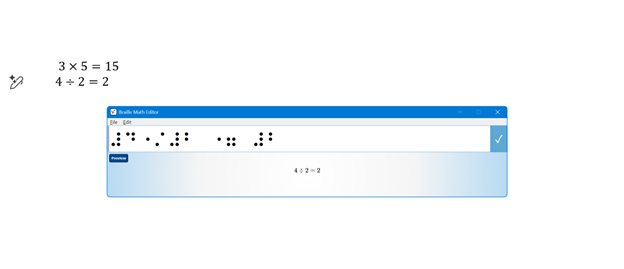
First, the tutorial introduces essential software and hardware. This includes JAWS, a Focus Braille Display, or NVDA and the necessary math editors. Dr. Robinson guides viewers through the setup process. She ensures all components are correctly configured for optimal performance.
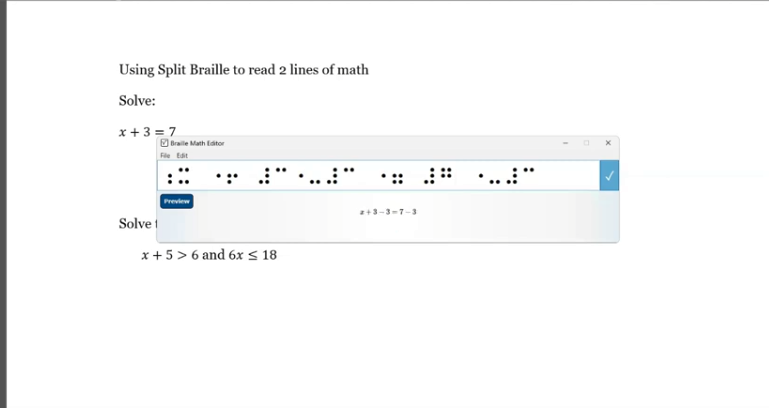
Next, the video explores the practical application of these tools. Viewers learn to input mathematical expressions using the Braille Math Editor. They navigate complex equations and use the split-braille-for-buffer mode to enhance workflow. Dr. Robinson offers clear, step-by-step instructions. This makes it easy for users to follow along and practice.
By the end of this tutorial, UEB math in braille math editor viewers understand how to use JAWS and Braille Math Editors efficiently. They can create, edit, and review UEB math content. This video is an invaluable resource. It helps enhance digital math literacy and achieve greater independence in academic or professional pursuits.
The new Split Braille™ for Buffer Mode in WORD for math is a feature in JAWS 2024. It offers powerful functionality for Braille display users. So, it allows viewing content from different locations on the same Braille line and a longer display is more advantageous to use. Complete Proper Word setup First, then continue.
Now let’s Enable Split Braille View-To enable a Split Braille view, press ALT+INSERT+V (or ALT+CAPS LOCK+V in Laptop layout) to open the Select Braille View dialog box. Focus Braille display users can press LEFT SHIFT+DOTS 1-2-7. In the dialog box, select your desired view and click OK. The active view remains for the current JAWS session and resets upon restarting JAWS.
Using Split Braille for Buffer Mode View in WORD for Math
By default, your current location appears in the left region, and the active view results appear in the right region. So, to swap these regions, reopen the Select Braille View dialog box and select the Swap split button mode. You can also change braille modes with a simple command
Navigating and Selecting Text
In most views, you can navigate and select text independently in the split region. Use the Right NAV rocker to pan and the Right Rocker bar to move by line. To select text for copying and pasting, press SHIFT button with a Cursor Router at the start and end of the selection. Dots 7 and 8 indicate the selection, which is automatically copied to the clipboard.
Commands for HumanWare Displays
For the Brailliant BI 40 series and Mantis Q40 displays:
Open Select Braille View dialog: Fourth Thumb Key+C1+C2+C3+C6 (or ALT+CAPS LOCK+V on Mantis Q40).
Toggle Buffered Text mode: C1+C2+C3 (not on Mantis Q40).
Pan split view region: Third and Fourth Thumb Keys.
Navigate by line: C6+Third and Fourth Thumb Keys (not on Mantis Q40).
Select text: First Thumb Key + Cursor Router.
For newer HumanWare displays:
Open Select Braille View dialog: K1 + pan Easy Access Bar right.
Swap regions: K1 + pan Easy Access Bar left.
Pan split view region: K4 + pan Easy Access Bar right/left.
Navigate by line: K4 + pan Easy Access Bar up/down.
Available Views
No Split View Mode: Uses the full display length for the current line (default).
Buffered Text: Captures text at your current location and displays it in the right half.
In this video, Dr. Denise M. Robinson demonstrates how to use the WORD Math Editor and Braille Math Editor with JAWS using LaTeX or Braille. This tutorial is designed for screen reader users, with or without braille displays, who want to improve their math skills.
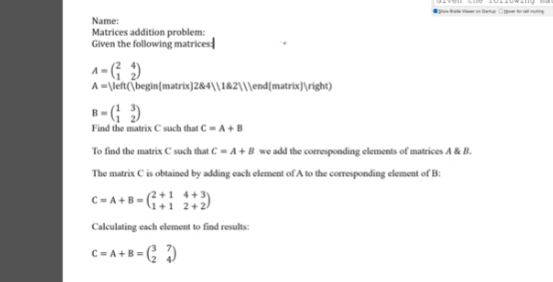
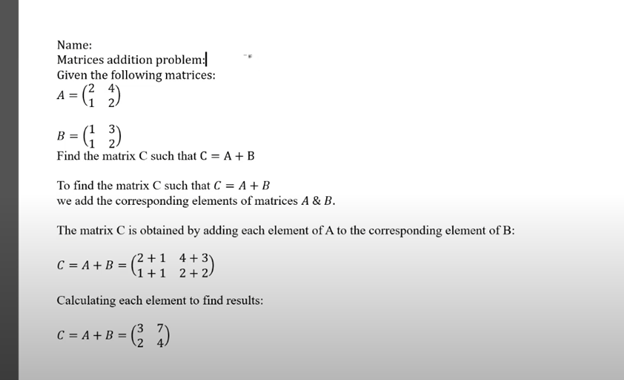
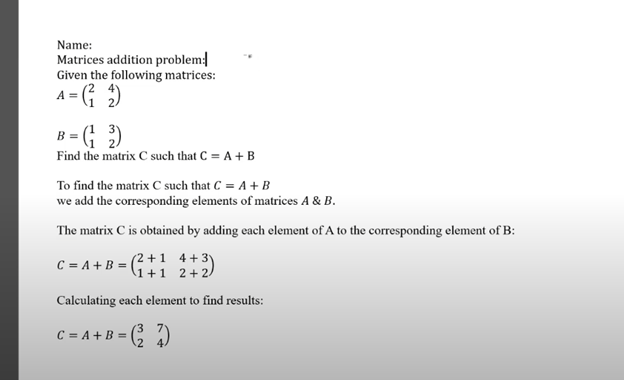
First, Dr. Robinson introduces the essential tools for using matrices in WORD, including JAWS, a Braille display (if desired), and the WORD Math Editor. She explains how to set up each tool to work together smoothly, which is crucial for creating and editing math content.
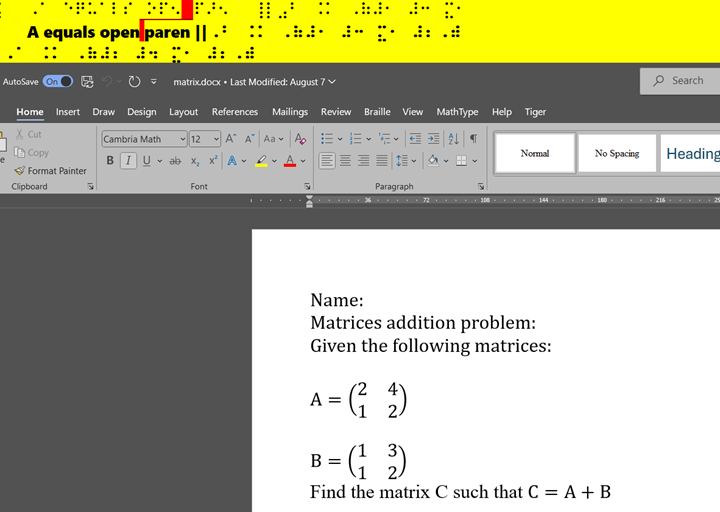
Next, the video focuses on creating matrices. Dr. Robinson uses LaTeX to input mathematical expressions. She explains each step clearly, making it easy to follow along. Viewers will learn how to enter rows and columns in a matrix, helping them understand matrix structure.
Then, Dr. Robinson demonstrates how to use auditory feedback, which allows users to hear the math content they are working on. This feature helps ensure accuracy and makes it easier to catch mistakes. Additionally, she shows how to switch between auditory and Braille feedback, providing flexibility for different learning styles.
The video also covers using the Braille display with the math editors. Dr. Robinson explains how to navigate through the matrix using Braille and provides tips on reading and editing the content efficiently. This section is particularly helpful for users who rely on Braille for their work.
Finally, the tutorial concludes with a review of the key points. Dr. Robinson summarizes the steps for creating and editing matrices. She encourages viewers to practice using the tools and techniques demonstrated in the video. By the end of the tutorial, users will feel more confident in their ability to work with math content.
In this video, Dr. Denise M. Robinson demonstrates how to use the WORD Math Editor and Braille Math Editor with UEB and NVDA. The tutorial, focused on Digital Math with UEB, is specifically designed for screen reader users, with or without braille displays, who want to improve their math skills.
First, Dr. Robinson introduces the essential tools needed for using matrices in WORD using UEB Math. These include NVDA though Jaws can be used, a Braille display (if desired), and the WORD Math Editor. She carefully explains how to set up each tool to work seamlessly together. This setup is crucial for creating and editing math content efficiently.
Next, Dr. Robinson focuses on creating matrices using LaTeX. She walks viewers through each step, making it easy to follow along. The video shows how to enter rows and columns in a matrix, helping users understand the structure of matrices. Dr. Robinson’s clear explanations ensure that even complex steps are understandable.
The video then demonstrates how to use auditory feedback with the math editors. Dr. Robinson shows how users can hear the math content they are working on. This feature helps in catching mistakes and ensuring accuracy. Additionally, she explains how to switch between auditory and Braille feedback. This flexibility is particularly useful for different learning styles and preferences.
Dr. Robinson also covers how to navigate through the matrix using a Braille display if desired. She offers practical tips on reading and editing the content efficiently. This section is especially beneficial for those who rely on Braille for their work.
Finally, the video concludes with a summary of the key points of working in WORD using UEB Math. Dr. Robinson encourages viewers to practice the tools and techniques demonstrated in the video. By the end, users will feel more confident in their ability to create and edit math content using JAWS and the WORD Math Editor
Creating and editing math content using the Digital UEB Math & Braille Math Editor in Word with JAWS UEB Mode is a powerful tool for blind and low vision users. First, ensure that JAWS is properly installed and set to UEB (Unified English Braille) mode. This setup is crucial for accurate Braille input and output when working with mathematical content. Proper Set up of WORD is also essential.
Next, open Microsoft Word and access the Math Editor. This built-in tool allows users to create complex equations and math symbols directly within a Word document. Additionally, the integration with JAWS in UEB mode ensures that the content is accessible through Braille displays or auditory feedback.
Moreover, MathCat, a key component in this setup, enhances compatibility between Word’s Math Editor and JAWS. It allows users to seamlessly transition between editing in UEB and accessing the content through JAWS. This integration provides a smooth experience, whether reading equations line by line or navigating through complex math expressions.
Mastering Digital UEB Math Transition
Transitioning to digital math tools like this one offers significant advantages. Blind and low vision users can now work on math assignments in real-time, alongside their sighted peers. Furthermore, the ability to edit and review mathematical content directly in Word makes this tool invaluable in educational and professional settings. With the necessary instruction, anyone can complete math in WORD.
For those new to this tool, this website & our YouTube video tutorials are available. These videos provide step-by-step guidance on setting up and using the Digital UEB Math & Braille Math Editor. They demonstrate how to navigate through Word with JAWS in UEB mode, making the learning process straightforward.
In conclusion, the Digital UEB Math & Braille Math Editor in Word with JAWS UEB Mode is a game-changing tool. It empowers users to create, edit, and access math content efficiently, ensuring full participation in math-intensive activities.