Low Vision Driving Aids: Man driving with Bioptic glasses
Many students with low vision can increase independence through safe and well-designed optical tools. Low Vision Driving Aids such as bioptic telescopes, prism glasses, and adaptive driving technology help students identify road signs, lane markings, and distant objects with greater clarity. These devices do not replace safe driving skills, but they support eligible students who meet vision requirements and receive proper training. Teachers and parents play a central role by learning these options early, guiding students toward evaluations, and helping them build strong visual skills long before driving becomes possible.
Bioptic Telescopic Lenses
Bioptic telescopes are small telescopes mounted on glasses. They magnify distant objects such as road signs and traffic signals. The driver uses normal vision for steering but briefly glances through the telescope for critical details.
How bioptics work: A small telescope at the top of the lenses increases clarity for distant targets.
How drivers use them: Drivers use natural vision for general driving and glance through the telescope to read signs or detect details.
Safety: Research shows bioptic drivers succeed with training. Proper instruction remains essential for safety and confidence.
Adaptive Driving Technology (ADAS)
Many students benefit from modern vehicle safety systems such as:
Lane-keeping assist
Blind-spot detection
Adaptive cruise control
Automatic emergency braking
These systems improve awareness and support safe driving decisions. They do not replace skill, but they strengthen safety for drivers with visual limitations.
Vision Enhancement Devices
Some students use electronic eyewear or enhanced optical devices to support mobility. Tools like eSight improve clarity for reading street names, viewing dashboards, or spotting road markers. These devices help with general visual access rather than driving tasks themselves.
Prism Glasses for Low Vision
What Prism Glasses Do
Prism glasses bend light to move an image into a student’s stronger visual field. They help the student locate print and objects more quickly. They do not change the eye, but they make vision tasks easier and less tiring.
Who Benefits
Prism glasses help students who:
Miss objects on one side
Lose their place when reading
Experience double vision
Have trouble tracking words
Struggle with visual focus
Have CVI or field loss
Prisms reduce searching and help the brain find information faster.
How Prism Glasses Help in School
Prisms can:
Improve tracking
Reduce eye strain
Support board-to-desk copying
Increase reading stamina
Strengthen early print recognition
Teachers often see smoother reading, fewer errors, and better endurance.
Types of Prism Glasses
Students may use:
Reading prisms for near work
Field-shifting prisms to move images into better visual fields
Yoked prisms to shift the entire image
Non-yoked prisms for specific alignment issues
A low vision optometrist chooses the correct type.
Legal and Clinical Requirements
State Laws and Bioptics
Thirty-seven states permit some form of bioptic driving. Each state sets different rules about visual acuity, visual field, telescope power, and required training. Some states allow drivers to meet acuity standards through the bioptic if they reach a level such as 20/40 through the telescope.
DMV -Department of Motor Vehicles- Vision Standards
Most state DMVs require:
Minimum acuity (often 20/40 for unrestricted licenses)
A certain visual field range
Medical reports from a low-vision specialist
Where to Go for Evaluations and Training
Low Vision Optometrists
Families should begin with a low vision optometrist who can:
Test remaining vision
Evaluate driving potential
Determine whether bioptics or prism glasses will help
Prescribe optical devices
Search using IALVS or regional low vision centers.
JAWS UEB MATHS/Nemeth Settings-Word and Braille Math Editor
If you’ve ever struggled to get JAWS to read math correctly on your computer, this walk-through will make your life much easier. In this video, I demonstrate how to set JAWS for either UEB Maths or Nemeth math using the JAWS UEB/Nemeth Settings, then show you how to create accessible math using Word’s Math Editor and the Braille Math Editor. Whether you’re a TVI (Teacher of the Blind), a student, or an AT (Access Technology) specialist, these steps will help you produce clear, accurate, and accessible math every time.
WORD MATH EDITOR Setup
1. Open the Math Editor
Alt + =
2. Open the Equation Tools tab
Alt + J, E
3. Open Math Options (Settings)
T, 1 (This opens the Math Options dialog.)
4. Set Alignment to Left Inside the Math Options dialog:
Alt + J → moves to Justification
L → Left alignment
Alt + D → Set as Default
Tab, Tab → to OK
Enter
When asked to save as default, choose Yes (This saves the settings to the Normal template.)
5. Check Conversion (if math looks wrong)
While inside a math zone:
Alt + =
Alt + J, E
C → Convert
Make sure it is set to Professional
WORD MATH EDITOR — Command Sequence (JAWS + Keyboard)
Open the Math Editor
Press Alt + = This inserts a new math zone and opens the Word Math Editor.
Move in and out of the math zone
Right Arrow → move into the math zone
Right Arrow again → move through elements
Left Arrow → move backward
Esc → exit the math zone and return to normal text
Insert common structures
Fraction → Ctrl + /
Exponent → Ctrl + Shift + =
Subscript → Ctrl + =
Square root → type \sqrt then press Space
Matrix → type \matrix then press Space
Parentheses → type ( then ) (Word auto‑sizes them)
Can’t Log in, forgot password: Computer showing errors
Forgotten Passwords & Login Problems
When you can’t log in — whether you forgot your password, never received the code, or your computer refuses to move past the first screen — everything stops. The frustration hits instantly, and it happens to everyone. The good news is that most login problems have simple, safe fixes. This guide walks you through the most effective steps to get back into your accounts, clean up the issues that cause login failures, and set up your devices so you don’t get locked out again — or at least know exactly what to do when a computer update suddenly changes your options. Keep that in mind: the problem may not be you. Sometimes an update quietly shifts the settings behind the scenes, and you just need to adjust to the new way your computer handles logins.
Forgotten Passwords & Login Problems: A Clear, Safe Guide to Getting Back In
People search for this more than almost any other tech issue. You are in Good company. Here’s a simple, accessible guide to help you get back into your accounts — and prevent future lockouts.
Start Easy: Hard Refresh the Page (Ctrl + Shift + R) on a PC and Command + Shift+ R on a Mac
1️.Locked Out of an Account? Start Here
Common symptoms
Password suddenly not working
Reset link not arriving
Multi‑factor authentication (MFA) asking for a code you can’t access
Endless login loops
These problems usually come from:
Browser cache issues
Old passwords stored in auto-fill
Conflicting authentication methods
Out‑of‑date recovery information
2️. Clear Your Browser Cache (This Fixes 50% of Login Problems)
Chrome
Press Ctrl + Shift + Delete
Choose Cached images and files
Click Clear data
Edge
Press Ctrl + Shift + Delete
Select Cached images and files
Click Clear now
Firefox
Press Ctrl + Shift + Delete
Select Cache
Click Clear
This removes corrupted login data and forces the site to load fresh.
Also Check Your Saved Passwords (Old Ones Cause Login Failures Too-delete them!)
After you clear your cache, take one more quick step: open your browser’s saved passwords and delete the outdated ones. Old passwords often override the new ones you type, which creates endless login loops.
Chrome
Press Alt + E to open the menu
Press S to jump to Settings
Select Auto-fill and Passwords
Open Google Password Manager
Search for the site you’re trying to log into
Delete any old or duplicate passwords
Edge
Press Alt + F to open the menu
Press S for Settings
Select Profiles
Choose Passwords
Search for the website
Delete outdated or incorrect entries
Firefox
Select Settings
Choose Privacy & Security
Scroll to Logins and Passwords
Open Saved Logins
Remove old or incorrect passwords
Why this matters
Browsers love to “help” by auto-filling passwords — even when they’re wrong. When you delete the old ones:
Your new password works correctly
The login screen stops looping
The reset process finally sticks
You avoid the “I know I typed it right!” frustration
3️. When You Set Up a Password — ALWAYS Connect It to Your Phone
This is the single most important step for preventing lockouts.
Set up the same password manager on your computer to pair with phone
Why?
Your phone becomes your identity key. If you forget your password, the system can verify you instantly.
You can also quickly go into your password manager and look up the password you need for any site on your computer.
Set Up the Same Password Manager on Your Phone and Computer
Using the same password manager on both devices keeps everything synced. When you update a password on your phone, it instantly updates on your computer — and that prevents almost every future lockout. And remember, you don’t have to use the password manager every time you log in. As you create accounts, save your usernames and passwords in your browser so you can keep logging in the same easy way you always have. The password manager simply becomes your reliable backup when something goes wrong.
Below are simple, universal steps that work for any major password manager (Microsoft Authenticator, Bitwarden, 1Password, etc.).
Step 1: Install the Password Manager on Your Phone
Open the App Store (iPhone) or Google Play Store (Android).
Search for your chosen password manager.
Tap Install.
Open the app and sign in or create an account.
Turn on sync if the app asks (most do automatically).
Your phone now becomes your secure “master key.”
Step 2: Install the Same Password Manager on Your Computer
Open your browser
Go to the password manager’s official website.
Download the desktop app or browser extension.
Sign in with the same account you used on your phone.
This pairs your computer and phone instantly.
Step 3: Turn On Sync Between Device
Most password managers sync automatically, but here’s how to confirm:
Open the password manager on your phone.
Go to Settings.
Look for Sync, Cloud Sync, or Account Sync.
Make sure it’s turned ON.
Now every password you save on one device appears on the other.
Step 4: Import or Save Your Password
You can now:
Save new passwords directly into the manager
Import passwords from your browser
Update old passwords and let the manager store them–This ensures you never rely on outdated browser auto-fill again.
Step 5: Choose How you want to Log in: Password Manager or From Browser
Option A: Keep using your browser’s saved passwords
This is the fastest way to log in day‑to‑day. Your browser auto-fills your username and password, and you move on with your work.
Option B: Use the password manager when needed
If something breaks —
a password doesn’t work
a browser update wipes your autofill
a site forces a reset — you can open your password manager and instantly look up the correct username and password.
This is the key detail: Your password manager acts as your backup vault, so you never lose access even if your browser forgets or changes something.
Why This Matters
When your phone and computer share the same password manager:
You always have the correct password stored somewhere safe
You can keep using your browser for fast logins
You avoid lockouts caused by old autofill entries
You stay in control even when updates change things
It’s the perfect balance of speed and security.
4️.Choose ONE Authentication Method (Not All of Them)
Using multiple authenticators confuses systems and causes login loops.
Here are the three main types, with simple visuals you can describe to your audience:
🔵 Option 1: Text Message (SMS)
Visual: A phone with a speech bubble containing a 6‑digit code. Best for: Beginners Pros: Easy, no app needed Cons: Not as secure as app‑based codes
🟢 Option 2: Authenticator App (Microsoft Authenticator, Google Authenticator, Duo)
Visual: A shield icon with a rotating 6‑digit code. Best for: Most users Pros: Fast, secure, works offline Cons: Must be installed on your phone
🟣 Option 3: Email Verification
Visual: An envelope with a key inside. Best for: People who check email constantly Pros: Simple Cons: Slow, sometimes goes to spam
5️. Windows Login Problems: Safe Steps You Can Do
Sometimes Windows won’t let you log in because of:
A stuck update
A corrupted profile
A password mismatch
A login option that’s blocking access (PIN, fingerprint, picture password)
Use SHIFT + RESTART to Access Windows Recovery Options
This is the only safe, built‑in way to reach troubleshooting tools.
Steps
On the login screen, click the Power icon (bottom right).
Hold SHIFT on your keyboard.
While holding SHIFT, click Restart.
Windows will open the Advanced Startup Menu.
From here, you can safely access:
✔ Startup Repair
Fixes boot issues.
✔ Safe Mode
Lets you log in with minimal drivers.
✔ Command Prompt
For advanced repairs (not needed for most users).
✔ Reset Password (Microsoft Account)
If you use a Microsoft account, you can reset it from here.
6️. Prevent Future Lockouts: Use a Password Manager on Your Phone
This is the long‑term solution that saves people from ever being locked out again.
Recommended password managers:
Microsoft Authenticator (has password storage built in)
Bitwarden (free, secure, cross‑platform)
1Password (paid, excellent for families)
Google Password App
LastPass (popular, but had past breaches — use with caution)
Why store passwords on your phone?
Your phone is always with you
You can look up usernames and passwords instantly
Syncs with your computer
Works even if your computer won’t turn on
You’re not alone — login problems happen to everyone. With these steps in place, you’ll stay in control and avoid the frustration of being locked out again.
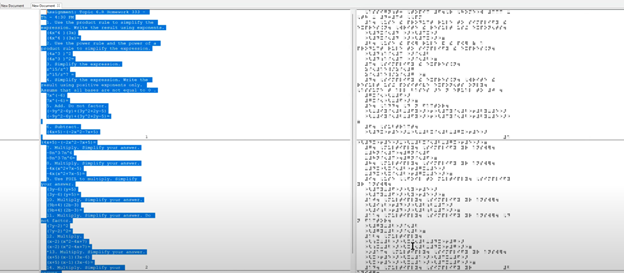
This video takes you through setting up the Tiger 9 software from ViewPlus Technology for translating math equations into braille so you can emboss Math with Tiger. Dr. Robinson demonstrates how to access the Tiger ribbon, open her existing profile settings, and configure options like the braille type and math notation style. She also shows how to adjust ink settings if needed for embossing printed text alongside braille. Then she translates the math and gets it ready to emboss for student.
Tiger 9 Math Translation and Editing
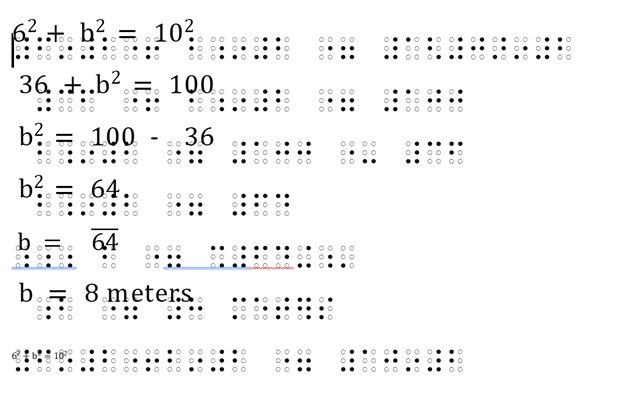
Dr. Robinson demonstrates how to use Tiger 9, to translate math content in Word. She use a 40 cell FOCUS braille display but emphasizes the importance of using an 80-cell braille display if the student is going into math or STEM fields. Dr. Robinson also explains how to use the WORD math equation editor or Braille math editor on the Braille display to emboss Math with Tiger. She concludes by solving a right triangle problem using the math contents then embossing the math for hard copy if desired.
Emboss Work with Tiger 9 in WORD
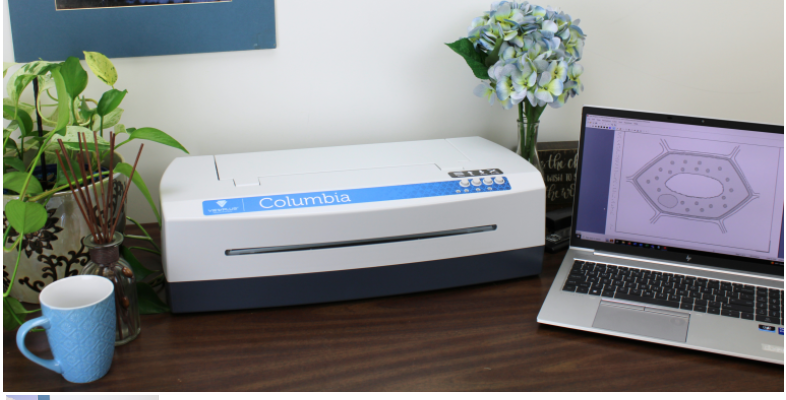
Go onto learn how to emboss graphics in WORD using Tiger software also for students to feel all needed math symbols and pictures to learn on their own. Ideally, all students have embossers at home. ViewPlus embossers with software are fully accessible for all exclusive screen reader users.
Dr. Denise M. Robinson, PhD, CTVI, AT, and CEO of TechVision, LLC, leads worldwide remote teaching for blind and low vision students. Her YouTube channel, @DrDeniseMRobinsontech and this website, showcases making digital math accessible with MathCat with JAWS, or NVDA. This video provides 8 different ways to complete digital math with several options using the Braille Math Editor in WORD for UEB or Nemeth math, highlighting the advantages of Nemeth or UEB via MathCat. Links with full video lessons from this video follow. She also demonstrates reading math on a Braille display and creating or making complex formulas accessible. AI tools like MathKicker.AI enhance efficiency. The series includes geometry and graphing with Desmos. Dr. Robinson emphasizes that digital access is crucial for competitive education and inclusion with peers. Learn how to teach or Learn UEB Math Code.
Nemeth or UEB via MathCat: 8 videos on Math Access in WORD and Braille Math Editor with JAWS or NVDA
Life IS a competition and Digital access is key with Instruction
Life is a competition, and digital access is essential. It levels the playing field, enabling equal opportunities for everyone. Digital tools enhance skills and productivity. They open doors to education and employment. Having a qualified access technology instructor is crucial for teaching students Nemeth and UEB math codes to access everything their peers do. Embracing technology is vital for success and inclusion in today’s world. MathKicker. AI for Matrices with NVDA or JAWS-Speed in completing Work
To emboss math with braille blaster content from Microsoft Word, start by creating equations in the Math Editor. This tool helps you write complex mathematical expressions clearly. Once you finish, save the document in a .DOCX format, which is compatible with Braille Blaster and other embossing software.
Next, open Braille Blaster and import your Word document. The software automatically converts your math content into Nemeth code, the Braille standard for mathematics. This conversion ensures visually impaired readers can understand the material. Moreover, Braille Blaster allows quick switching between Unified English Braille (UEB) and Nemeth codes, offering flexibility based on the user’s needs.
After conversion, to emboss math with Braille Blaster, send the document directly to a Braille embosser. This machine prints the digital Braille content as physical Braille that can be read by touch. Transitioning from digital to physical Braille is quick and efficient with this process.
Furthermore, this workflow supports various mathematical formats, making it versatile for different educational levels. For instance, whether you’re working on basic arithmetic or advanced calculus, the combination of Word and Braille Blaster handles it smoothly. This versatility is crucial in educational environments where diverse math content is necessary.
Advanced Features
Educators can also take advantage of Braille Blaster’s advanced features, such as the ability to preview the Braille output before embossing. This step allows for checking accuracy and making any necessary adjustments. It’s particularly useful when dealing with intricate math equations that require precise formatting. If you would like to combine this with a graph, Desmos is your key with Tiger software.
Moreover, the ability to seamlessly switch between UEB and Nemeth within the same document saves time and ensures consistency across educational materials. This dual-mode capability is essential for creating comprehensive resources that cater to different learning needs.
Using Word’s Math Editor, Braille Blaster, and a Braille embosser not only streamlines the creation of accessible math materials but also enhances the educational experience for visually impaired students. This efficient process ensures that high-quality Braille math content is readily available, supporting inclusive education and empowering students to succeed in their studies. By implementing this workflow, educators can deliver timely, accurate, and accessible learning materials that meet the diverse needs of all students. Here are options if you would like to use NVDA for Math. And to take any math 1 step further in creating graphics, Tiger and graphic embosser will take you there.
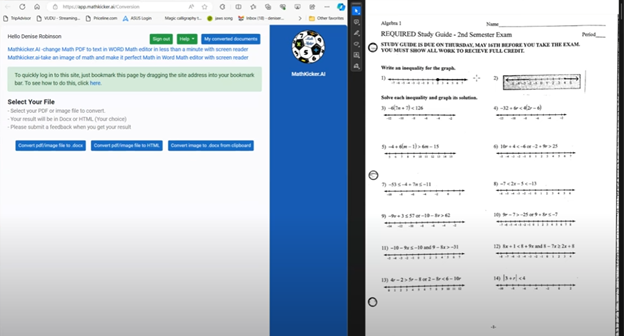
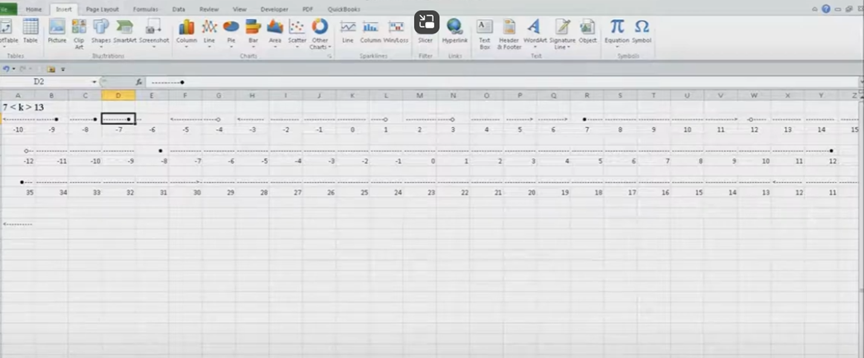
Dr. Robinson guides transcribers through the process of math image conversion for accessibility, specifically focusing on converting math images into accessible Word documents using MathKicker.AI. She begins by highlighting that transcribers will easily recognize an image when it turns blue upon clicking it when opened in PDFs. These images, often blurry due to repeated copying by teachers, require careful description for students who cannot feel the number lines. Dr. Robinson emphasizes the importance of adjusting the level of detail based on the student’s age and familiarity with number lines during the math image conversion access process.
To begin the process to learn how to convert math images into accessible Word documents for students with accessibility needs, Dr. Robinson gives step-by-step video instruction using “Windows + Shift + S” to capture the image and then select “Convert Image to Doc” using the clipboard in Mathkicker.AI. This method is particularly useful for large documents. Once converted, the image opens in Word, where it is important to enable editing with F6. She advises saving the document with a simple name, like “Line Work,” and placing it in the downloads folder from Mathkicker.AI.
Dr. Robinson demonstrates how to work side-by-side with the original image and the converted document. By adjusting the zoom to 200%, transcribers can compare the math accurately. She notes that sometimes images may contain extra elements, like a punched hole, which the software might misinterpret. These should be corrected during math image conversion for access.
Accuracy for Math image conversion access
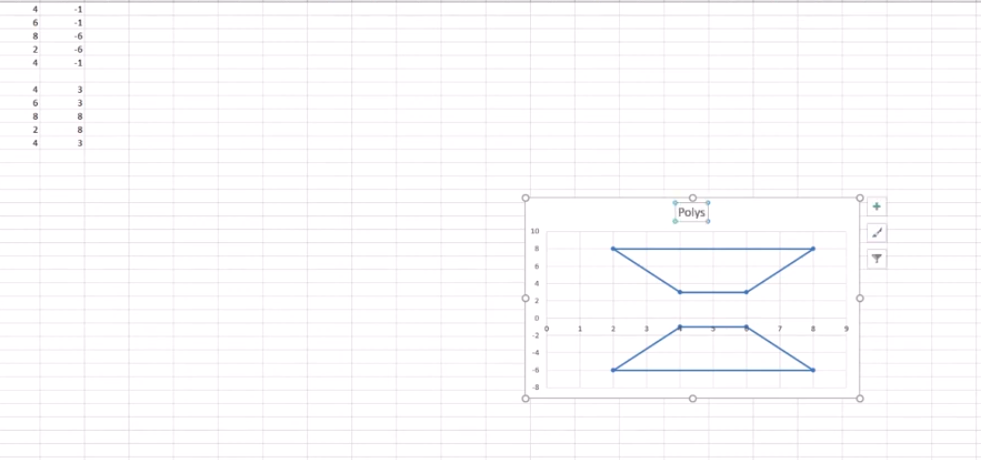
For further accuracy, Dr. Robinson recommends using alternative text (alt text) for the graphic line. This helps students and sighted individuals, such as teachers or parents, understand the content. She explains that leaving the graphic in the document with added alt text is beneficial. A user can add the braille Math editor into use in WORD also for more options or even using EXCEL.
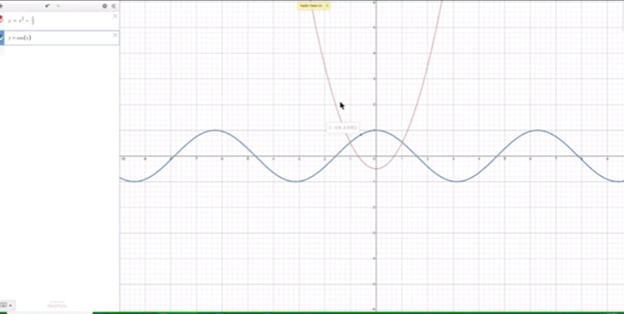
Moving to more complex math for math image conversion access, she instructs on using the Desmos graphing calculator. Students can use “Alt + Print Screen” to capture and paste graphs into the Word document. Describing shaded areas or specific graph features is crucial for clarity. Finally, Dr. Robinson shows how Math Kicker efficiently converts math into text, creating clean, accessible documents. This method, combining math image conversion access and alt text descriptions, significantly speeds up the transcription process while ensuring students receive accurate, accessible math content. Dr. Robinson concludes by encouraging transcribers to reach out with any further questions. At times, you need to adjust Margins, etc.
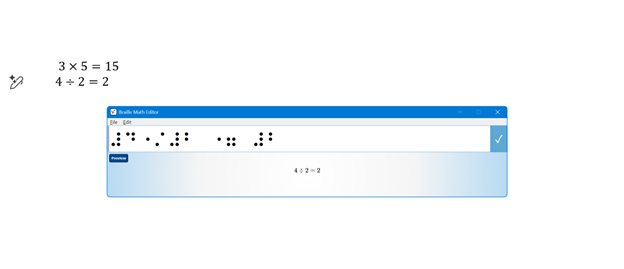
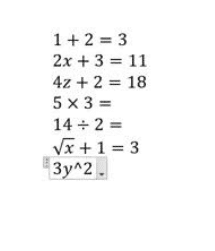
After installing MathCAT, Dr. Robinson begins demonstrating basic math commands in Word. She starts by pressing “Alt + Equals” to insert an equation, then types a simple addition problem, such as “1 + 2 = 3.” She checks the Braille viewer to confirm that the equation displays correctly in UEB math. Using the arrow keys, she navigates through the equation, ensuring each character is correctly interpreted.
Next, she demonstrates more complex equations. For example, she types “2x + 3 = 11” and highlights how NVDA reads the equation character by character. She emphasizes the importance of using arrow keys to review the entire equation, especially for those who rely solely on auditory feedback.
LaTex and more Advanced MathCat NVDA in WORD Options
Dr. Robinson also shows how to input advanced math symbols like the times sign and division symbol using backslash commands, such as “\times” and “\div.” She explains how these symbols are visually represented and confirms their accuracy in the Braille viewer.
To demonstrate radicals, she uses the “\sqrt” command to insert a square root symbol, followed by an expression like “\sqrt{x+1} = 3.” She guides users through the process of checking and navigating through the equation using the arrow keys.
Finally, Dr. Robinson addresses potential issues with inserting equations, such as when “Alt + Equals” doesn’t work correctly. She advises using “Alt + N” and navigating through the ribbon to insert equations manually if needed.
This tutorial provides a guide for performing UEB math in Word using NVDA, ensuring accurate and accessible math solutions for users with visual impairments.
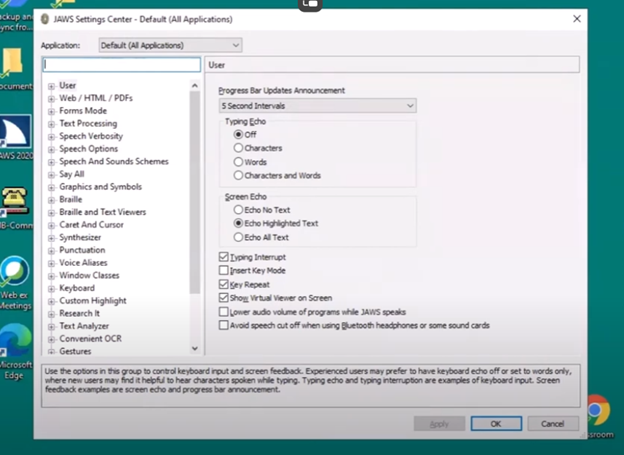
Dr. Robinson guides users through setting up Braille mode via Default profile by typing it in the edit box. She types “Braille Mode” in the search box, and F6 to access different settings. She uses “F6” to navigate to the desired options, then “Alt + F” to select language profiles. To access MathCat option via alt D to details then tab to Nemeth and change to MathCat then OK.
Dr. Robinson explains how to select the correct Braille code, such as UEB math with JAWS or Nemeth code. She walks through the process of applying these settings and closing the settings dialog.
Once set up, Dr. Robinson demonstrates how to solve math problems using JAWS in Word. Dr Robinson explains the process of entering equations using “Alt + Equals” to open the math editor. She highlights how to type out equations, like “X squared plus 3 equals 11.” Then how to navigate through the math content using keyboard commands.
She also explains complex math using UEB Math with Jaws, such as using square roots and other mathematical symbols, by using Unicode and LaTeX commands. Dr. Robinson shows the equation tools in Word by pressing “Alt + J” E to equation menu. Then explains how to convert equations between professional and linear formats using “Alt + JE + C.”
Throughout the tutorial, Dr. Robinson ensures users understand the commands necessary for navigating and editing math content effectively. She also provides troubleshooting tips, such as using the Math Viewer with insert space + = . This gives more detailed navigation of hearing each symbol, particularly useful for more complex equations.
Dr. Robinson concludes by encouraging users to explore more advanced math problems and settings. This ensures that they can confidently use JAWS for UEB math in various applications. If you experience computer issues in general, set it up to work the most efficiently with screen readers.
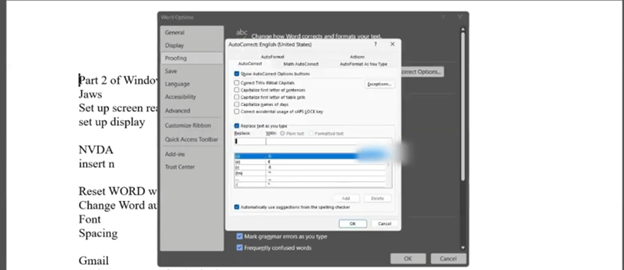
Student Hayes has issues completing math in WORD as her label number do not read. Dr. Robinson demonstrates how to resolve issues with auto-numbering in Word. She first identifies that automatic numbering is causing issues for the student using dot 2 and space in the Brailliant Braille display, especially when numbers appear incorrectly on the Braille display. To address this, she instructs to press “Alt + F” to open the File menu, followed by “T” for options, then “P” for proofing, and finally “Alt + A” to access AutoCorrect options.
She guides users through unchecking five specific boxes that affect text formatting, ensuring the correct settings are applied. Dr. Robinson emphasizes the importance of turning off automatic numbered lists, which often causes unexpected changes in documents.
After confirming the settings, she instructs on how to apply these changes by pressing “Enter” to save them. This step ensures the document is correctly formatted and ready for the student to use in MathKicker.AI.
Braille Viewer to accurately solve math problems
Next, Dr. Robinson advises turning on the Braille viewer. Using the Jaws context menu and U, to navigate to the utilities to access the Braille viewer. Braille viewer allows the teacher to view the math problems correctly on student screen in Braille. While student uses fingers to read display.
Then Dr. Robinson explains how to use the Math Viewer by pressing “Insert + Space + Equals.” This enables the student to navigate through the math content character by character. This command helps ensure accuracy in reading and solving math problems, especially when using Braille displays.
Finally, she explains how to open the Braille Math Editor now that auto numbering issues are resolved. Eventually, she will learn how to use split braille on her display. Student can braille equations in Nemeth code, and ensure that each step of the problem is correct to accurately solve math problems. Dr. Robinson highlights how the Math Editor will not accept incomplete or incorrect inputs. The student cannot close the editor without fixing errors. This method reinforces correct equation formatting. It ensures students accurately solve math problems using auditory and Braille math tools.
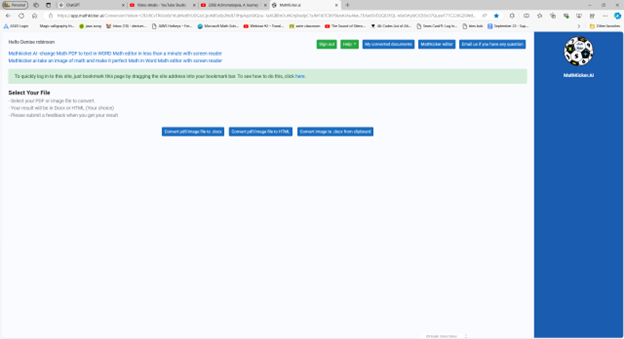
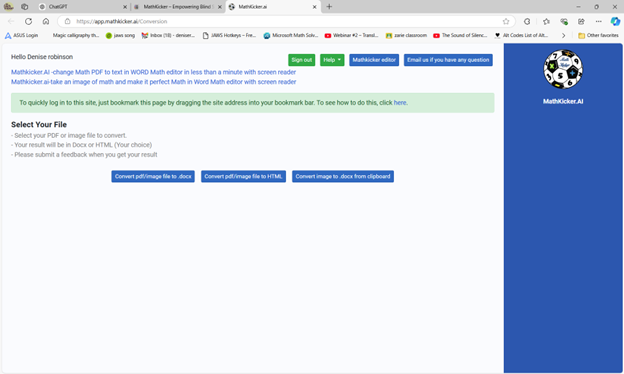
Dr. Robinson introduces Mathify, now called Mathkicker.AI, an AI program designed to convert inaccessible math content into accessible formats. This tool is especially beneficial for the blind community, providing a solution for one of the most challenging aspects of accessible education: converting math from inaccessible formats into usable, accessible ones.
In this tutorial, Dr. Robinson demonstrates how to use Mathify to convert a PDF image file into a DOCX file. She focuses on a table of math, one of the most problematic types of files to translate. Dr. Robinson opens the file, which prompts a save and loads in a private window. This process is typically faster in a standard window.
As the document loads, Mathkicker.AI effectively transforms the original images of X and Y tables into accessible tables. These tables allow students to later convert them into graphs, giving them the ability to independently create and emboss their graphs. Dr. Robinson scrolls through the document, highlighting the images now converted into accurate math tables. Small squares around each equation make them easily identifiable.
She explains that students can use the “Alt + Equals” command in Word’s math editor to navigate to the last cell in the table and type out their equations. This feature highlights how Mathify translates PDFs into accessible, editable text. The original PDF is titled “Equivalent Ratios Practice Number One.” It converts successfully into clear and accessible text.
Now a New Mathkicker Editor
Dr. Robinson emphasizes that Mathkicker AI continues to improve with user feedback. She notes her preference for left alignment and how the program adapts to these preferences. Despite being a new tool, Mathkicker excels at handling math and other content, making it a versatile resource. Dr. Robinson encourages viewers to use Mathkicker and look forward to more tutorials, as the program has continued to evolve and improve utilizing a Mathkicker editor now.
Using a Focus 40 Braille Display and JAWS, students can efficiently complete algebra assignments in Word, ensuring both speed and accuracy. They can navigate through documents, input mathematical symbols for their Algebra work, and graph equations using Desmos. The Braille Display provides tactile feedback while JAWS offers audio guidance, allowing students to efficiently edit, correct mistakes, and organize data into tables. With these tools, they can seamlessly complete algebraic tasks and submit their work via email, ensuring full participation in math activities.
To complete algebra problems in Word using a Focus 40 Braille Display and JAWS, students should follow these steps for effective Algebra with Focus Display:
FOCUS and JAWS Display Commands
Using the Focus 40 Braille Display, Dr. Robinson demonstrates how to efficiently braille out algebra problems in Word.
Set the Braille Display to Input Mode: Begin by pressing G.7 + Space to switch through the display modes. Set it to Input Mode for algebra.
Navigate the Document: Use 1 + Space to move to the top of the document. To navigate the document, students press the left-side buttons for backward movement. They then use the right-pan buttons to move forward, ensuring smooth progress while working on Algebra with the Focus Display.
Enter Algebraic Symbols: Students can easily type algebraic symbols, like Delta (Δ), by using the keyboard. After typing, copy the symbol using Shift + C to avoid repeating it manually later.
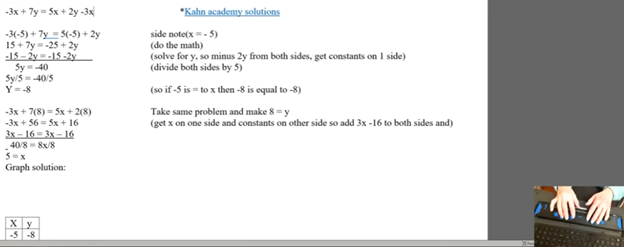
Work with Mathematical Formulas: To type formulas like “Rise over Run” (Δy/Δx), use the keyboard to input characters. Make sure to add spaces around operations for clarity, especially when sharing with sighted peers. For example, input the formula as “Δy = 2” and “Δx = 3” with a the Focus Display and JAWS.
Navigate Through Graphing: To access graph, students can use the rocker bars or 1 + Space for upward navigation and 4 + Space for downward movement.
Input Values into Desmos: After entering algebraic equations, students can switch to Desmos by pressing Shift + 4 + 5 (Alt + Tab equivalent). They can then input values and trace graphs using the Alt + T command for audio tracing.
Copy and Paste Graphs: Once the graph is complete in Desmos, use Alt + Print Screen to capture the graph. Paste it into Word with Shift + V for documentation.
Submit the Assignment: When the algebra problem is finished, the student can email the document by navigating to File using Alt + F and attaching it in Outlook. Then open Outlook, use F9 to quickly send the email once Outlook is open.
These steps help students efficiently solve algebra problems in Word while using their Braille Display for input. Additionally, students can smoothly navigate Desmos for graphing, enhancing their algebra skills with the Focus 40 Display
Enable Students to Efficiently complete Algebra with Focus Display
Using Tables for Data: If the algebra assignment involves creating tables, students can use Alt + N to insert a table. On the Braille Display, press 6 + 8 + Space to activate the Alt command and navigate to the Table option. Once a table is created, pressing Tab will move between cells, and 4 + 5 + Space adds more rows as needed, making tables part of their Algebra workflow using a Focus Display.
Auto-fitting Tables: To ensure tables fit content properly, use Alt + J + L to access the layout options. Select AutoFit Contents to adjust the table size automatically. This helps in organizing the data neatly for submission in Algebra with Focus Display assignments.
Editing and Correcting Mistakes: If a student makes an error, they can use 3 + Space on the Braille Display to move by character and correct the mistake. Use Shift + 6 + 7 + Space to select the incorrect portion and retype it. The Braille Display’s tactile feedback helps ensure precision when editing formulas.
Reviewing the Work: To review algebra problems, students can move back through the document using 1 + 4 + Space to navigate line by line. Press Insert + Up Arrow to have JAWS read back the current line, ensuring that everything is correct before submission.
Final Submission Process: Once the assignment is complete, the student can go to Alt + F to access the File menu. Choose Share. From there, they can attach the document directly in an email. Using F9 forces Outlook to send the email quickly. Make sure their work is submitted on time, thereby completing their Algebra with Focus Display workflow.
More Lessons for Math
By following this step-by-step guide, students can efficiently complete algebra problems using the Focus 40 Braille Display, JAWS, and Word. The tactile feedback from the display, combined with JAWS’ audio guidance, enhances both speed and accuracy. This combination helps students solve math problems, graph equations, and organize data effectively. When using the Focus Display, students experience seamless transitions between tasks, ensuring smooth navigation throughout their algebra assignments.
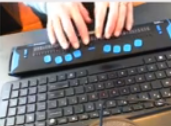
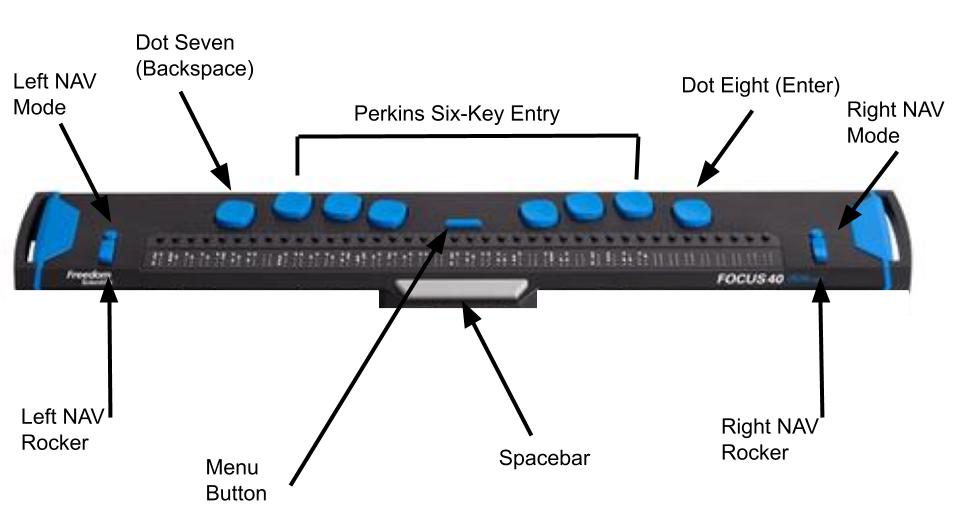
Dr. Robinson demonstrates how to navigate with the Focus 40 Braille Display, highlighting various commands and features for efficient use. She introduces the Focus 40 Braille Display, explains the importance of navigation commands, and demonstrates various navigation techniques. Additionally, she covers Focus Display Navigation Options to help users maximize their efficiency.
Focus Display Navigation Options Video Highlights
Introduction to navigation
Dr. Robinson introduces the Focus 40 Braille Display.
Explains the importance of navigation commands.
Prepares to demonstrate various navigation techniques.
Basic navigation commands
Shows how to move to the top and bottom of the display.
Uses specific key combinations for navigation:
Move to Bottom: Press dots 4-5-6 + Space.
Move to Top: Press dots 1-2-3 + Space.
Emphasizes the logic behind the commands.
Line and word navigation
Demonstrates moving one line at a time.
Uses key combinations for precise movement:
Move Down One Line: Press dot 4 + Space.
Move Up One Line: Press dot 1 + Space.
Explains how to navigate by words:
Move Forward One Word: Press dot 5 + Space.
Move Back One Word: Press dot 2 + Space.
Other Display Navigation
Focus Braille Display navigation options using router keys
Router keys and mode buttons
Highlights the use of router keys for quick cursor movement.
Introduces mode buttons for different navigation options:
Router Keys: Press the router key above the desired character.
Mode Buttons: Located on the left and right sides.
Shows how to navigate by paragraphs and sentences:
Move Forward One Paragraph: Press the right rocker switch down.
Move Back One Paragraph: Press the right rocker switch up.
Move Forward One Sentence: Press the left rocker switch down.
Move Back One Sentence: Press the left rocker switch up.
Panning and rocker switches
Explains the function of panning buttons:
Move Forward One Display Width: Press the right panning button.
Move Back One Display Width: Press the left panning button.
Demonstrates the use of rocker switches for line navigation:
Move Up One Line: Press the right rocker switch up.
Move Down One Line: Press the right rocker switch down.
Highlights the benefits for sighted individuals working with Braille learners.
Benefits of Focus Display
The Focus 40 Braille Display offers numerous benefits. Firstly, it enhances Braille literacy through intuitive navigation commands. Additionally, its versatile features support efficient reading and writing. Moreover, students can easily move through text, improving their skills. The Focus Display can be used exclusively to control the computer–that means, you DO NOT need to use the keyboard if you cannot or do not want to. This makes for VERY efficient math calculations. The device’s compatibility with various screen readers ensures accessibility. Furthermore, its portability allows seamless use in different environments. Overall, the Focus 40 empowers users, boosting their independence and confidence in learning.
The current page provides instructions on creating a food chain for a class using talking software. It includes steps for saving a document in a specific format and navigating through menus using keyboard shortcuts. Additionally, it references the video below to help you each step of the way.
F12 and save as 97-2023 so after you F12 you will have file and tab once and down arrow or up arrow to 97-2023 doc and enter, then the commands will work for you.
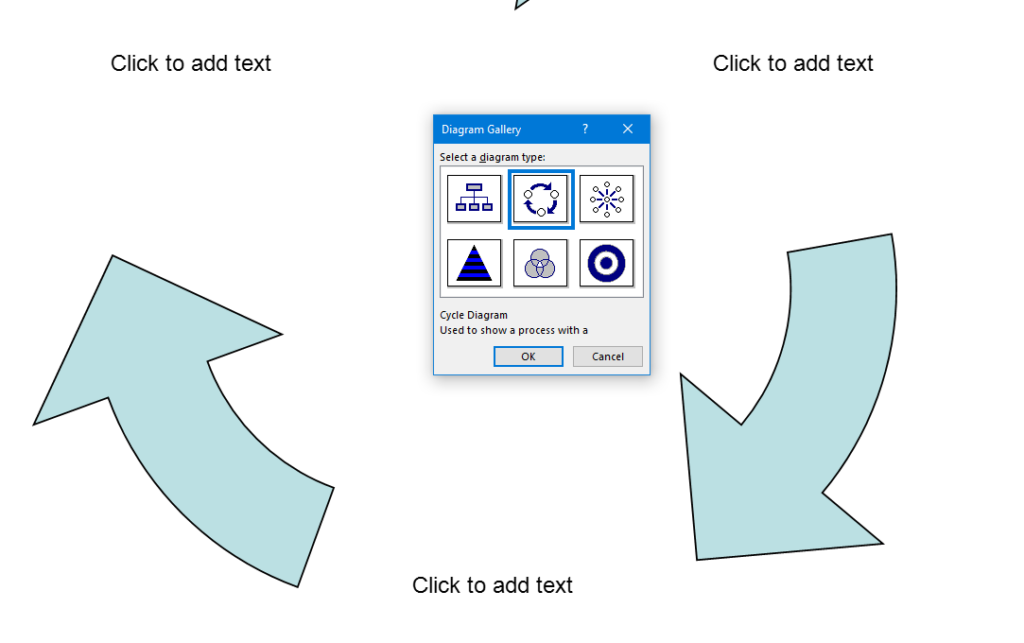
Alt + N then M and right arrow to Food Chain and enter
Listen to recording to add information as you need
WORD accessible food chain and why we use them
A food chain is a sequence that shows how energy and nutrients flow from one organism to another within an ecosystem. Here’s a simple breakdown:
Producers: These are usually plants or algae that create their own food through photosynthesis. They form the base of the food chain.
Primary Consumers: Herbivores that eat the producers. Examples include rabbits and deer.
Secondary Consumers: Carnivores that eat the herbivores. For instance, a fox that eats rabbits.
Tertiary Consumers: These are predators that eat secondary consumers. An example would be an eagle that eats foxes.
Decomposers: Organisms like bacteria and fungi that break down dead plants and animals, returning nutrients to the soil.
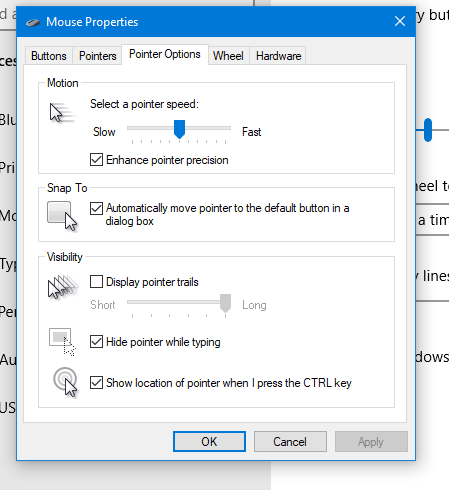
Using keyboard commands to quickly access and adjust mouse settings allows for efficient changes to mouse size and behavior, such as “Snap To” functions. These options are accessible through the Mouse Properties window in Windows, which you can open by pressing Windows + R and typing main.cpl. Once inside, you can navigate tabs and options using Ctrl + Tab and arrow keys, adjusting the mouse size or enabling the “Snap To” feature. This provides an easier and faster way to customize your mouse for improved accessibility and functionality.
To quickly change mouse settings in Windows, use keyboard commands to access Mouse Properties: Another way
Open Mouse Properties: Press Windows and type Mouse then press Enter.
Tab to additional mouse options and enter
Ctrl + Tab to Pointers and Change Mouse Size: arrow to inverted large or extra large based on need
Navigate to the Pointer Options using Ctrl + Tab, then press Tab to “Snap To” or ALT + U to check box
Then press Alt + S to check “Show location of pointer when I press the CTRL key.”
Apply Changes: Press Alt + A to apply the settings and enter to close the window.
Commands to change mouse
These steps streamline navigation without relying on the mouse.
To efficiently convert Braille files to text or HTML, you can change extensions as shown in the video or open the Braille file in software like Duxbury Braille Translator or Braille Blaster. Export the file as plain text. Use a text editor to manually add HTML tags or employ a conversion tool for HTML formatting. This method ensures the content is accessible in both text and web formats, making it easier to efficiently convert Braille files to HTML and Word.
Guidance on converting Braille files into HTML or text files from this video:
Efficiently converting Braille files to HTML and Word requires specific software and keyboard commands. Below is the method I used in the Video
Extract Files:
Applications Key: Press Applications Key, then Down Arrow to select “Extract”.
Rename Files:
Rename: Press Applications Key, then Up Arrow to “Rename”, and Enter.
Change Extension: Use Right Arrow to navigate, Backspace to delete .txt, and type .html, then Enter.
Open Files in Notepad:
Open File: Press Enter on the file to open it in Notepad.
Save As HTML:
Save As: Press Alt + F, then Down Arrow to “Save As”, and Enter.
Change File Type: Press Tab to navigate to the file type dropdown, select “All Files”, and Enter.
Rename Extension: Press Shift + Tab to navigate back, use Right Arrow to move to the extension, Backspace to delete .txt, type .html, and Enter.
Copy and Paste Text:
Select All: Press Ctrl + A.
Copy: Press Ctrl + C.
Paste in Word: Open Word, then press Ctrl + V.
Show File Extensions:
Open File Explorer: Press Alt + D.
Open Organize Menu: Press Tab to navigate to the “Organize” button, and Enter.
Folder Options: Press Down Arrow to “Folder and search options”, and Enter.
View Tab: Press Ctrl + Tab to switch to the “View” tab.
Show Extensions: Press Tab to navigate to “Hide extensions for known file types”, press Spacebar to uncheck, and Enter.
These commands should help you efficiently manage and convert your files.
Here is another way to convert files
Extract the Braille File: Use software like Duxbury (DBT) or Braille Blaster Translator to open BRF or BRL files. This software can convert Braille files into readable text.
Export to Text Format: After extraction, use the “Export” function in DBT or other Braille translation software to save the file as a plain text (.txt) file.
Convert to HTML: Use a text editor to open the .txt file. You can manually add HTML tags to structure it as an HTML file or use a basic converter tool to help automate the process.
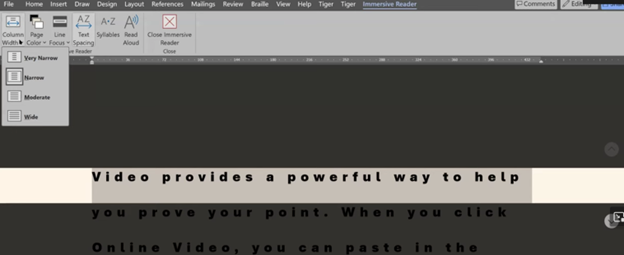
The most modern way as of 2024 to adapt work for blind or low vision students is using programs like MathKicker.ai, WORD Immersive Reader and Google Docs, follow these steps to ensure full accessibility for both English, Math and other content:
Use MathKicker.ai for Math Content:
Upload or paste math equations into MathKicker.ai. This tool converts complex math problems into formats accessible for screen readers like JAWS or NVDA.
Once converted, paste the accessible math text into Google Docs or other word processing platforms for students to use with their screen readers.
Convert Images to Descriptive Text in Google Docs:
When images contain important information, use Google Docs’ built-in alt text feature. Right-click the image, select “Alt text,” and enter a detailed description of the image, focusing on its relevance to the content.
For math-specific images (e.g., graphs, equations), describe the visual elements and provide the corresponding math in text form or, if needed, through MathKicker.ai to ensure clarity for students using auditory or Braille output.
How to Adapt Work and Why
3. Leverage Google Docs Collaboration Features:
Share Google Docs with students, allowing them to access the document using their preferred screen reader.
Enable real-time collaboration by ensuring that students can work in the document with peers or teachers, making the experience inclusive.
4. Use Heading and Structure Tools:
Make sure to structure documents with proper headings and styles in Google Docs to aid screen readers in navigating the document efficiently.
By combining MathKicker.ai for math accessibility and using Google Docs to convert visual content into descriptive text, blind or low vision students can access both English and math content effectively.
There are many ways to adapt work for inclusion. Inaccessible work creates barriers—choose the right tools, because together we achieve more than apart.
Essential WORD keyboard commands to help teachers who teach blind with talking software or sighted who just want to move faster. These are some of the most essential commands everyone should know, especially those mastering the essential commands for WORD keyboard users.
Here’s a summary of essential WORD keyboard commands for video users.
Keyboard shortcuts for all WORD versions.
Open Word: Press Windows + 5 to start Word from the taskbar.
Zoom In: Use Alt + V + Z to zoom to 200%.
Change Defaults:
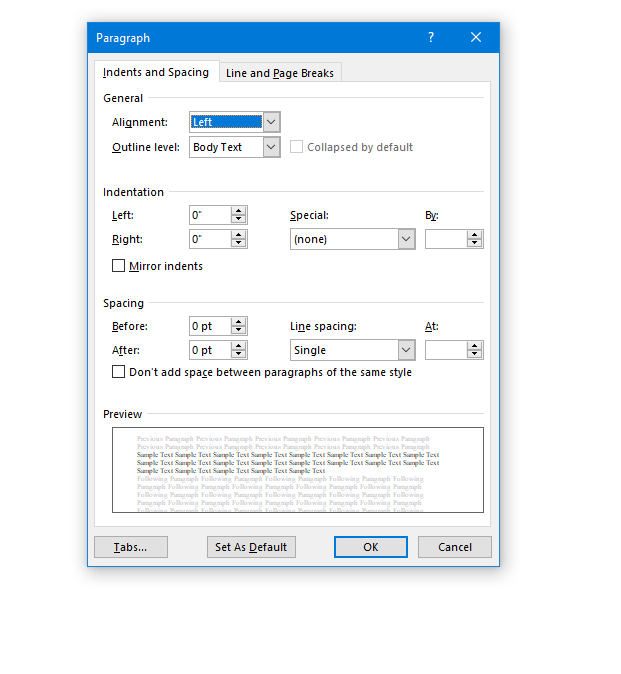
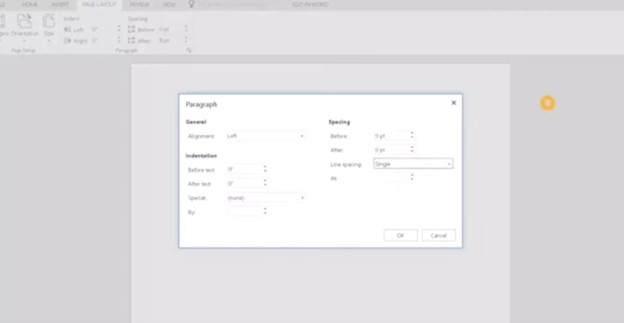
Open Paragraph Spacing: Press Alt + O + P.
Set Spacing to Single: Press Alt + P and change to single spacing.
Set Default for All Documents: Press Alt + D followed by Alt + A and then Enter.
Customize Document further
Change Font:
Select All Text: Press Ctrl + A.
Open Font Dialog: Press Ctrl + D.
Change Font to Times New Roman: Type “Times New Roman” and set size to 12.
Set Default for All Documents: Press Alt + D followed by Alt + A and then Enter.
Create Columns:
Open Page Layout: Press Alt + P.
Select Columns: Press J for columns.
Set Number of Columns: Press Alt + O + C and choose the number of columns.
Change Page Color:
Open Page Layout: Press Alt + P.
Open Colors: Press PC.
Select Color: Use arrow keys to choose a color and press Enter.
Add Border:
Open Borders: Press Alt + O + B.
These commands will help you efficiently navigate and customize documents. See other Setup options
Essential WORD keyboard commands for windows page setup for defaults
Office 365 online is fully accessible with screen readers, enhancing the user experience for visually impaired users. Through straightforward keyboard shortcuts, users can navigate and manage their documents efficiently. The interface supports major screen readers like JAWS, NVDA, and VoiceOver, ensuring users can access emails, calendars, and all Office apps without a mouse. This integration empowers users to perform complex tasks seamlessly, from editing documents to collaborating in real time, ensuring a barrier-free environment for all users.
These shortcuts are integral for quick editing and formatting within Office 365 online access for applications, streamlining the process of document creation and modification.
In Office 365 applications like Word, you can quickly apply or change text styles using the Styles pane. The shortcut to open the Styles pane is ALT + CTRL + Shift + S. This allows you to apply predefined styles to your text efficiently. Additionally, you can use CTRL + Shift + S to open the Apply Styles dialog box, where you can type and apply a style name directly to the selected text. These shortcuts help streamline formatting and ensure consistent document styling.
Other Online Office 365 online access commands
Here are some essential commands for using Office 365 online efficiently:
Save: Ctrl + S
Undo: Ctrl + Z
Redo: Ctrl + Y
Open: Ctrl + O
Print: Ctrl + P
Copy: Ctrl + C
Paste: Ctrl + V
Cut: Ctrl + X
Bold: Ctrl + B
Italic: Ctrl + I
Underline: Ctrl + U
Insert Hyperlink: Ctrl + K
Refresh the Document: F5
Find: Ctrl + F
Replace: Ctrl + H
These shortcuts are fundamental for navigating and managing documents in Office 365 online, making your workflow quicker and more efficient.
Here are more helpful tips for using Office 365 effectively:
Quick Access Toolbar Customization:
Customize your Quick Access Toolbar by adding frequently used commands. Right-click any command in the ribbon and select “Add to Quick Access Toolbar.”
Use “Tell Me” Feature:
Use the “Tell Me” feature (light bulb icon or ALT + Q) in the ribbon to quickly find features or help with commands you’re unsure about.
Keyboard Shortcut Customization:
Customize keyboard shortcuts through the Word Options dialog to tailor your workflow preferences.
Use Version History:
Use Version History to view and restore previous versions of your documents, especially useful in collaborative settings.
Collaborate in Real-Time:
Use the collaboration tools in Word, Excel, and PowerPoint to work with others in real-time, seeing changes as they happen.
A Perfect Shot at the Wrong Target does not work-aim for the right target=success
Here is your post with the accurate Matt Emmons lesson worked in:
Matt Emmons was one of the best marksmen in the world.
At the 2004 Athens Olympics, he was positioned to win gold. All he needed was one final shot.
He aimed. And fired. He hit a bullseye.
But it was the wrong target.
The shot was perfect, but it did not count.
That mistake cost him the gold medal in that event, but it did not end his story. He kept competing and later won more Olympic medals.
That part matters too.
A perfect shot at the wrong target can cost you greatly, but it does not have to end your future.
That same lesson matters in access technology.
A blind student can become very skilled with a tool, but if that tool does not prepare them for college, employment, documents, math, email, file management, and real-world digital work with peers, they may be aiming at the wrong target.
A tablet or note-taker may support some tasks.
But the world runs on computers and it takes a good decade of instruction from a skilled access tech instructor to teach all the skills needed.
Students need PC skills, screen reader skills, keyboard commands, Word, Google tools, braille displays, file management, and real digital workflows just as their peers.
The goal is not just completing today’s assignment.
The goal is access to college, employment, independence, and a future with options.
A perfect shot only counts when it hits the right target and prepares the student for a stronger future.
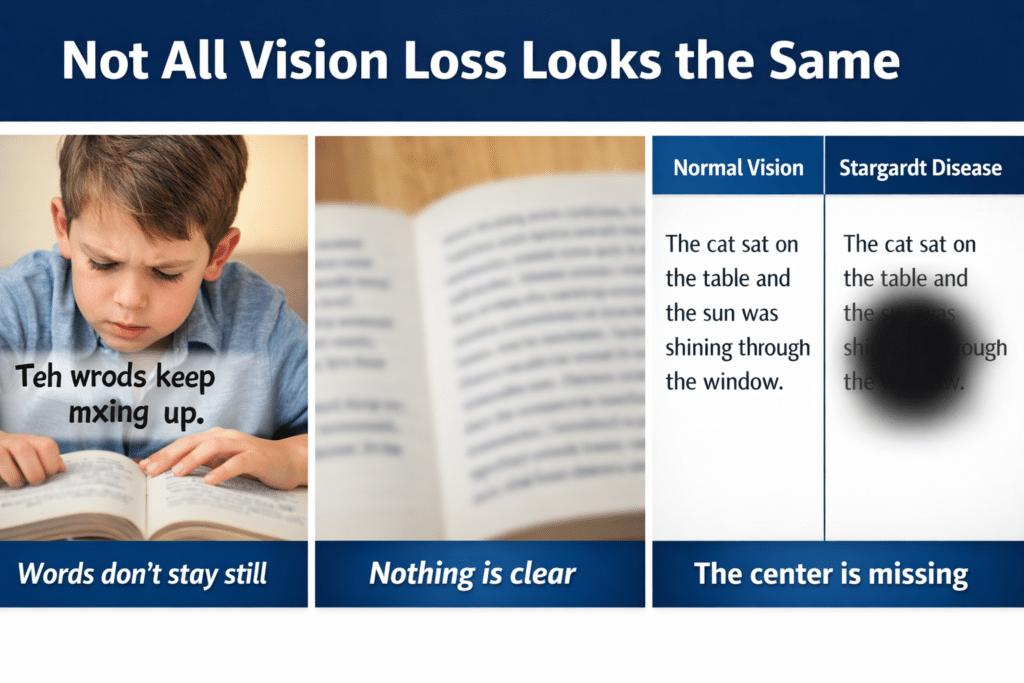
How to Read, Write, and Learn with Low Vision: How vision loss can appear
2.2 Billion People Live With Vision Impairment
Vision loss is one of the most common disabilities on earth, and it’s growing fast. If you work in healthcare, tech, education, or policy, these numbers matter for accessibility, product design, and funding.
Over 51.9 million adults in the U.S. report some level of vision difficulty. About 6–7 million Americans have significant vision loss or blindness. Globally, 2.2 billion people have vision impairment.
But those top-line numbers hide urgent trends. Here’s the breakdown with the latest 2024-2026 data, what’s driving it, and what to do about it.
Tools + Techniques That Build Real Independence
Students and adults with vision challenges do not learn one way. They require the right tools, combined with direct, targeted training.
Success happens when tools match the vision need and instruction builds efficiency
Tools + Training by Vision Need
1. Dyslexia (Processing and Decoding)
Dyslexia affects how the brain processes text. It often overlaps with vision-related challenges.
Tools
Text-to-speech: JAWS, NVDA
Speech-to-text (dictation)
Immersive Reader
Audiobooks: Bookshare, Learning Ally
Training Focus
Pair listening with reading
Build strong keyboarding for writing
Navigate digital text efficiently
Goal Improve comprehension while reducing reading fatigue
2. Blurred or Reduced Vision (Low Vision)
Tools
Magnification: ZoomText, Windows Magnifier
High contrast and color filters
Enlarged text and screen scaling
Screen readers: JAWS, NVDA
Training Focus
Use magnification efficiently without losing place
Strengthen visual tracking
Transition smoothly to audio when needed
Master keyboard navigation
Goal Maximize usable vision while increasing speed and accuracy
3. Central Vision Loss
(Stargardt, macular degeneration)
Tools
Screen reader (primary): JAWS, NVDA
Refreshable braille display
Audio + braille combination
OCR tools for printed content
Training Focus
Full keyboard control
Braille literacy (UEB and Nemeth)
Strong auditory processing
Goal Achieve full independence through non-visual access
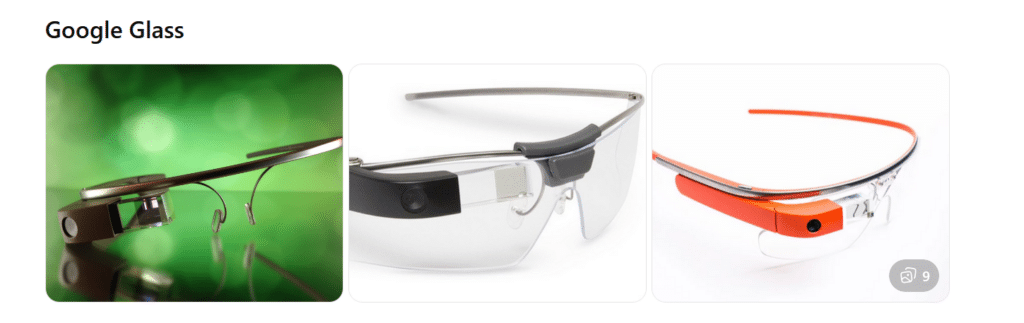
What they are: Lightweight smart glasses with a small display above the right eye. Originally released for consumers, now mostly used in enterprise and medical settings.
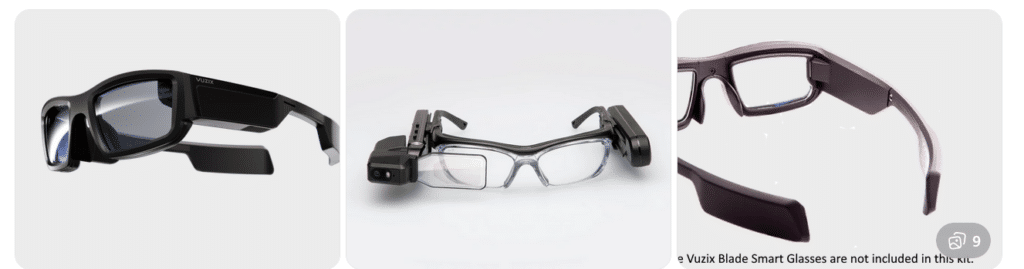
What they are: A family of AR smart glasses built for industrial, medical, and field environments. Models vary in shape and display size.
Key features:
Larger, brighter AR displays
Camera options up to 4K
Rugged designs for work environments
Voice, touch, and head-tracking controls
Works with Android-based apps
Aira and Smart Glasses for Blind Navigation: Modern Tools for Safe, Independent Travel
Whether you’ve been blind for years or you’re just beginning to lose vision, today’s tools offer more options than ever for navigating the world with confidence. Smart glasses and services like Aira give you access to real‑time visual information—indoors, outdoors, at work, on campus, or in everyday life. For some, it’s an exciting next step in expanding independence. For others, it’s a gentle bridge toward accepting support without feeling like they’re giving up who they are. Wherever you are on that journey, these tools can help you move safely, work more efficiently, and stay connected to the world around you.
If you want, I can also craft a shorter version for a carousel cover slide or a more emotional version that speaks directly to the reader.
Helping a Young Adult Losing Vision: When They’re Not Ready for the Cane… Yet
Losing vision as a young adult is complicated. It’s not just about mobility—it’s about identity, pride, and the fear of being seen as “blind” before they’re ready to claim that word for themselves.
Many young adults tell us:
“I don’t want people staring at me.”
“I’m not blind enough for a cane.”
“I can still get by if I try harder.”
“I don’t want to look different.”
These feelings are real. They deserve respect, not pressure.
But they also deserve safety, dignity, and access to the world.
That’s where Aira can become a bridge—not a replacement for cane skills, not a long‑term solution, but a gentle first step toward accepting support.
Why Aira Works for Someone Who Isn’t Ready for the Cane
Aira gives visual information without announcing disability to the world.
For a young adult who is still grieving vision loss, this matters.
Aira lets them:
Move through a college campus without guessing at signs
Navigate stores, offices, or new environments without pretending
Read menus, labels, and screens without asking friends
Travel safely in unfamiliar places
Do their job or schoolwork without feeling exposed
It’s discreet. Very private. It’s on their terms.
And most importantly—it gives them a taste of what independence with support feels like.
That experience often becomes the turning point.
The Emotional Shift: From “I Don’t Want to Look Blind” to “I Deserve to Move Safely”
When a young adult uses Aira, something powerful happens:
They realize they don’t have to choose between:
Looking blind and
Being unsafe
Aira shows them that support doesn’t take away independence—it protects it.
Once they feel the relief of not guessing, not hiding, not pretending… they often become more open to the cane.
Not because someone forced them. But because they finally understand:
Independence isn’t about doing everything alone. It’s about having the right tools at the right time.
Real Examples: A Young Adult Losing Vision Who Wants a Career in Film, Photography, or Other Visual Fields
Let’s say this young adult has 20/200–20/400 vision or worse and dreams of photography, cinematography, or other highly visual careers that require sharp editing and image capture.
They’re talented. They are creative. They’re determined.
But they’re also scared of being seen as “blind.”
Aira can help them:
Frame shots
Check lighting
Review images
Navigate sets
Identify equipment
Move safely in unfamiliar locations
They get to keep their identity as a creator and keep their dignity. They get to keep their dreams alive.
And slowly, gently, they begin to understand:
Blindness doesn’t take away creativity. It just changes the tools.
How We Bring Them Along—Without Shame, Pressure, or Fear
Here’s the message we give young adults:
“You don’t have to be ready for the cane today. But you do deserve to move safely today. Aira can help you do that while you figure out the rest.”
We meet them where they are and honor their feelings. We give them a tool that supports them privately. And we let confidence do the rest.
Because once they feel what safe, supported independence is like… the cane stops looking like a symbol of blindness and starts looking like a symbol of freedom.
Real Example for all users with Airport Navigation and Traveling Using Aira
Airports can be some of the most challenging environments for blind and low‑vision travelers—constant construction, changing layouts, crowded terminals, and signage that’s almost entirely visual. Aira gives travelers real‑time visual support from the moment they step out of the rideshare to the moment they reach their gate. And when paired with Aira’s own smart glasses—designed to look just like the everyday eyewear everyone else is wearing—travelers get discreet, hands‑free access to visual information without standing out or feeling different.
In fact, the only way anyone would know a traveler is blind is if they’re using a cane. You can even call an Aira Agent while the plane is still on the runway so you’re fully set up to step off the aircraft and head confidently to your next gate with live guidance. Agents can help locate check‑in counters, identify the correct security line, read flight boards, navigate terminals, find restrooms or restaurants, and guide travelers through gate changes or last‑minute updates. Whether you’re a seasoned blind traveler or someone newly adjusting to vision loss, Aira adds a layer of confidence and clarity that makes airport travel smoother, safer, and far less stressful.
Best Computer PC Specs buying Guide for 2025 and beyond: RAM, CPU, SSD, graphics card, gaming and more explained
If you’re planning to buy a computer now, pause before diving into the best PC specs. Keep in mind that dealers often clear out older models during holiday sales. To make sure you know exactly what you’re getting, skip down to the section on ‘Older and Newer Naming’ of laptops.
Specs You Need and PC Details Explained
Memory (RAM): 64 GB DDR5 (4800–5600 MHz, dual channel, expandable to 128 GB on some models). Continue for more detailed advice, for Best Computer Specs Guide.
Storage (SSD): 2 TB PCIe Gen 4 NVMe SSD (blazing fast read/write speeds, optional dual SSDs up to 4–8 TB total)
Display: 14‑inch UHD (3840 × 2160) Mini‑LED, 120 Hz refresh rate, HDR support or 14- 16‑inch OLED, 240 Hz for gaming/creative workloads
Reduce Eye Strain with a High Resolution Curved Screen
Ultra HD / 4K: 3840 × 2160 pixels
8K UHD: 7680 × 4320 pixels
Highest Resolutions Available (2025)
8K UHD (7680 × 4320):
Currently the highest mainstream resolution for TVs and monitors.
It is Extremely sharp, but requires powerful GPUs and large screens to notice the difference.
Best Curved Monitors (2025)
Brand
Best Model
Size / Resolution
Use Case
Key Strengths
Samsung
Odyssey OLED G9
49″ Dual QHD (5120×1440)
Gaming / Immersion
240 Hz refresh, deep 1000R curve, HDR OLED
Dell / Alienware
Alienware AW3425DW
34″ QD‑OLED (3440×1440)
Gaming / Esports
Fast response, vivid colors, G‑Sync Ultimate
Dell UltraSharp
U4025QW
40″ 5K2K (5120×2160)
Productivity / Multitasking
Huge workspace, USB‑C hub, color accuracy
LG
UltraGear 45GR75DC
45″ WQHD (3440×1440)
Gaming / Creative
OLED panel, 240 Hz, immersive ultrawide
HP
E45c G5
45″ Dual QHD (5120×1440)
Productivity / Office
Replaces dual monitors, ergonomic design
Gigabyte
G27FC
27″ Full HD (1920×1080)
Budget Gaming / Entry Level
Affordable, decent curve, FreeSync support
Quick Recommendations
For Gaming Immersion: Samsung Odyssey OLED G9 or Alienware AW3425DW.
For Productivity/Work: Dell UltraSharp U4025QW or HP E45c G5.
For Budget Buyers: Gigabyte G27FC.
For Hybrid Use (Gaming + Creative): LG UltraGear 45GR75DC.
Other items you need for laptop and more USBs for a desktop
Ports & Connectivity:
2 × Thunderbolt 4 / USB‑C
3 × USB‑A 3.2
HDMI 2.1
Ethernet RJ‑45
Wi‑Fi 7 + Bluetooth 5.4
Keyboard: QWERTY keyboard, with Applications/Menu key
Around 4 pounds ≈ 1.81 kilograms.
How to Find Your Computer Specs (Windows 11, December 2025)
1: Using System Settings
Press Windows key + E to open File Explorer.
Press Shift + Tab to move focus to the Navigation Pane.
Arrow down to This PC (usually near the bottom).
Right‑click on This PC and choose Properties (or press Enter).
A window will open showing basic system information, including:
Device name
Processor (CPU)
Installed RAM
System type (32‑bit or 64‑bit)
Windows edition and version
2: Using Settings → About
Press Windows key + I to open Settings.
Navigate to System.
Scroll down and select About.
Under Device specifications, you’ll see:
Processor (CPU)
Installed RAM
Device ID
Product ID
System type
Under Windows specifications, you’ll see:
Edition (e.g., Windows 11 Pro)
Version and build number
3: Advanced Specs (Optional)
For deeper details like graphics card, storage, and drivers:
Press Windows key + R, type dxdiag, and press Enter.
This opens the DirectX Diagnostic Tool, showing CPU, RAM, GPU, and driver versions.
Summary
Basic specs (CPU, RAM, Windows version) → System → About or This PC → Properties.
Detailed specs (graphics card, drivers) → dxdiag.
These steps work with keyboard navigation and are accessible for screen reader users.
Find information in MSINFO32
MSINFO32 is the command that opens the System Information utility in Windows.
It provides a comprehensive overview of your computer’s hardware, software, and system components.
Unlike the simple “About” page, MSINFO32 gives deep technical details useful for troubleshooting, upgrades, or support.
How to Open MSINFO32
Press Windows key + R to open the Run dialog.
Type msinfo32 and press Enter.
The System Information window will appear.
What You’ll See in MSINFO32
System Summary (default view):
OS name and version
System manufacturer and model
Processor type and speed
Installed RAM
BIOS version/date
Boot mode (UEFI or Legacy)
Hardware Resources:
IRQs, DMA, I/O ports, memory addresses
Useful for diagnosing hardware conflicts
Components:
Display (graphics card details)
Storage (drives, controllers)
Network (adapters, protocols)
Input devices
Software Environment:
Loaded drivers
Running tasks
Services
Environment variables
Why It’s Useful
Troubleshooting: Quickly check BIOS version, drivers, and hardware conflicts.
Upgrades: Confirm RAM slots, CPU type, and expansion options.
Support: Export system info to share with IT or tech support.
Memory Details
These values describe how your computer uses RAM (physical memory) and virtual memory:
Installed Physical Memory (RAM): 64.0 GB The total amount of RAM physically installed in your system.
Total Physical Memory: 63.8 GB The usable portion of your installed RAM. A small amount is reserved for system hardware.
Available Physical Memory: 56.2 GB The amount of RAM currently free and available for use by applications and the system.
Total Virtual Memory: 67.8 GB This includes physical RAM plus page file space. Virtual memory allows your system to use disk space as extra memory when RAM is full.
Available Virtual Memory: 58.9 GB The portion of virtual memory that’s currently unused and available.
Page File Space: 4.00 GB The size of the page file (a reserved portion of your hard drive used as virtual memory).
Go to Programs and features and make sure you have all your security and power to run programs so do a find command for “run” and look for your .nets.
What .NET Does for a Computer—let’s just say it IS REALLY IMPORTANT
Runs Applications:it is software framework/platform .NET provides the Common Language Runtime (CLR), which acts like a virtual machine. It takes code written in languages like C#, F#, or VB.NET and makes sure it runs correctly on your computer.
Manages Resources: The CLR handles memory management, security, thread management, and error handling. This means programs don’t have to reinvent these functions — they rely on .NET to do it safely.
Provides Libraries: The Framework Class Library (FCL) is a huge collection of pre‑built code for everyday tasks:
Reading/writing files
Connecting to databases
Networking and internet communication
User interface controls
Math, cryptography, and more
Supports Multiple Languages: Developers can write programs in C#, F#, VB.NET, and others. .NET makes them interoperable, so code written in one language can work with another.
Cross‑Platform Evolution:
Go get those important computer items at: Ninite.com
Beat Graphics card for computers using screen readers or other access technologies: NVIDIA
GRAPHICs card RUN that screen reader–get a good one GAMING computers will get you the specs you need for a screen reader or just regular use
NVIDIA RTX cards dominate the high‑end market with unmatched ray tracing, AI features (DLSS, CUDA, Omniverse), and raw compute power.–the BEST for screen readers and older students–middle school up
AMD Radeon RX cards offer better value for money, strong rasterization performance, and more efficient power use, especially at 1440p and 4K gaming.
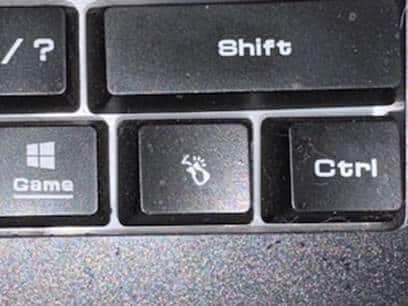
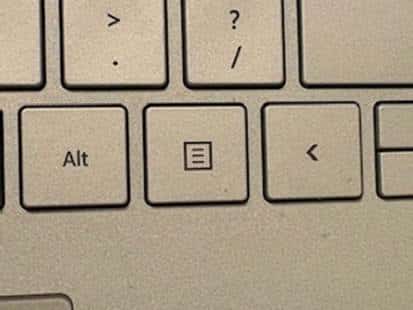
The applications key– is KEY of importance-the funny looking horseshoe on a gaming computer or square with lines in it on general computers–it is a right click of a mouse or 1 press of a key.
Basic specifications for a laptop: gaming computer will have the speed and video card needed for performance
Processor (CPU): some use the words i5, i7, i9 but the new words are Ultra 5,7 or 9 on machines–i9 is compared to ultra 9 and so on like this
Intel Naming Shift
Older naming convention (up to 13th Gen): so if you have this then know it is an older model and during holidays, this is what companies are selling cheaply to get rid of–so just be aware–
Intel Core i3, i5, i7, i9
Example: Intel Core i7‑12700H
New naming convention (14th Gen and newer):
Intel Core Ultra 5, Ultra 7, Ultra 9
Example: Intel Core Ultra 9 185H
The “Ultra” branding emphasizes AI acceleration and new architecture (Meteor Lake, Lunar Lake).
How They Compare
Core i5 → Core Ultra 5
Core i7 → Core Ultra 7
Core i9 → Core Ultra 9
Intel Core Ultra 9 285HX (24 cores, up to 5.5 GHz turbo) or AMD Ryzen 9 7945HX (16 cores, up to 5.4 GHz turbo)
Memory (RAM): 64 GB DDR5 (4800–5600 MHz, dual channel, expandable to 128 GB on some models)
Storage (SSD): 1 TB PCIe Gen 4 NVMe SSD (with option for dual SSDs up to 4 TB total)
Display: 17.3‑inch UHD (3840 × 2160) Mini‑LED, 120 Hz refresh rate, HDR support or 16‑inch OLED, 240 Hz for gaming/creative work
Favorite computers for running software such as JAWS, NVDA and other blind ware–You must have HIGH RAM and speed
Top Favorite: ASUS
ASUS Laptop Weights–based on student–
ZenBook Series (ultralight)
New ZenBook A14: as low as 2.18 lbs (0.99 kg)
VivoBook Series (mid‑range everyday use series)
ROG Gaming Series (heavy duty)
Zephyrus G14: ~3.53 lbs (1.6 kg)
Strix G15: ~5.07 lbs (2.3 kg)
Pic of ASUS-ROG-heavier with numpad
Surface Pro-top Favorite
Microsoft Surface Pro Weights–lightest and most powerful of laptops
Surface Pro 3–7: ~1.7 lbs (0.77 kg)
Surface Pro 8–10: ~1.94–1.96 lbs (0.88–0.89 kg)
Surface Pro 11 (latest): ~1.96 lbs (0.89 kg)
Surface Pro X (ARM model): ~1.7 lbs (0.77 kg)
comparing true laptop form factors, ASUS ultrabooks and Surface Laptop models are closer in weight, while Surface Pro remains the lightest option in the 2‑in‑1 category.
Different versions and do not suggest this collapsible one for students, that flips up–just too easy to flip down
Get Surface Pro with a true laptop lid that opens easily
HP computers
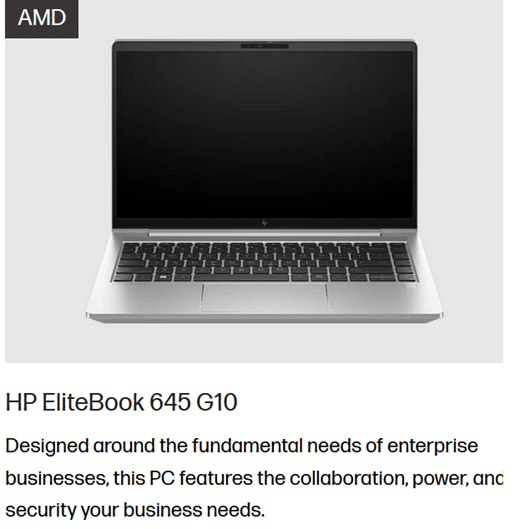
Be careful as most do not come with applications key any more–yes you can use Insert F10 but … takes 2 keys to implement a keystroked of right click
HP EliteBook 645 G10 includes a dedicated Applications/Menu key on its keyboard layout.
Build your computer: EliteBook 645 G10 is a lightweight, secure, and efficient business laptop with AMD Ryzen 7000 series power
Processor Options:
AMD Ryzen 5 7530U: 6 cores / 12 threads, up to 4.5 GHz-elementary and middle school
AMD Ryzen 7 7730U: 8 cores / 16 threads, up to 4.5 GHz-high school
These are efficient 7nm chips with solid multitasking and productivity performance.
Graphics:
Integrated AMD Radeon RX Vega 6 GPU
Suitable for office work, media playback, and light graphics tasks
Not designed for gaming or heavy 3D rendering.–but that is fine as that is not why you buy it
Memory:
Configurable up to 64 GB DDR4 RAM
Dual SO-DIMM slots, user-upgradable.
Storage:
PCIe SSD options, typically up to 1 TB
HP HP EliteBook 870 G11 (17‑inch) -4.1 lbs–keep in mind you want a laptop carry case for laptops
High‑Performance PC Laptop Models
HP ZBook Fury 16 G11 – workstation powerhouse for engineering, CAD, and 3D rendering
MSI Raider 18 HX AI – top‑tier gaming laptop with desktop‑class GPU
ASUS ROG Strix G18 / Zephyrus G16 – high‑end gaming and creator laptops
Do NOT overdo bump dots on keyboard to find position for touch typing-then student start counting dots to get to keys–create muscle memory which means you want to have them repeat typing skills–explanation below dot placements.
Place bump dots on keys: 5 and 0 on num row above qwerty keys-backspace is already large
Place dots on F4, F12–if all the keys run together then either F8 or F9. My F keys are broken up in panels from F1 to F4 and F5 to F8 and F9 to F12 so I do not need any bump dots–a gaming keyboard is divided up for speed of access so no bump dots needed
Many computers share the arrow keys with home, end pg up and pg down–only put a bump dot on up arrow to quickly move hand to the right while left hand holds down the FN key and right hand to do the pg up and so forth
Remember, the keyboard already has built in bump dots on f and j so do not place any more bump dots on keys
Dell is not my top choice of a computer but is a fine machine with specs you can get with:
Processors: Intel Core Ultra 7/9 or AMD Ryzen 9 HX — powerful x86 chips for heavy workloads.
Serviceability: Easier to upgrade storage, RAM, and wireless adapters
Memory: Configurable up to 64–128 GB DDR5 RAM, far beyond Surface’s 16–32 GB.
Storage: Options up to 2–8 TB PCIe NVMe SSDs.
Graphics: Dedicated NVIDIA RTX GPUs (e.g., RTX 5090 or workstation Ada cards).
Displays: Larger 16–18″ screens, often 2.5K or 4K OLED, high refresh rates.
Weight: Heavier (≈4 lbs / 1.8 kg), but more versatile for gaming, AI, or workstation tasks.
What I Use on a Daily Basis-I work very long hours
So I do have a Ultra HD / 4K: 3840 × 2160 pixels and it has changed my life with no more headaches from long hours at my screen and always have night light on-if you do not know about this feature, press your windows key and type night and night light will generate–decrease the brightness to more muted colors and it takes out more blue light which reduces eye strain. But the 4k does that by itself, then the night light takes away brightness–I am very light sensitive so light in general causes my eyes pain which gives headaches (I no longer have that issue with the 4k.). I use my screen reader often–hence the needed power in general.
My PC Computer Specs Explained
CLX computers are made by CLX Gaming, which is a division of Cybertron International Inc., a long‑standing U.S. system integrator based in Wichita, Kansas and an incredible company to work with for any product they sell.
About CLX
Founded: January 29, 2016, as a brand under Cybertron International.
Focus: Custom gaming PCs, workstations, and desktops tailored for gamers, content creators, and professionals.
Specialty:
Fully customizable builds (CPU, GPU, RAM, cooling, case design).
Award‑winning custom paint and chassis designs.
Product families named after Egyptian mythology (Ra, Set, Scarab, Horus, Osiris, Anubis).
Support: Free lifetime technical support, up to 3 years parts warranty, and lifetime labor coverage.
Why CLX Stands Out and why I picked it–I could build exactly what I wanted and needed and their service support is exceptional in the industry as if or when you call, you get a person who knows anything you ask.
Customization: You can configure nearly every component, from Intel/AMD CPUs to NVIDIA/AMD GPUs.
Performance: Builds range from mid‑tier gaming rigs to extreme workstations with 64–128 GB RAM and multi‑GPU setups.
Design: Known for bold, artistic case designs and RGB lighting.
Reliability: As part of Cybertron International (established in 1997), CLX benefits from decades of PC integration experience.
Takeaway
CLX computers are custom‑built in the USA by CLX Gaming (Cybertron International), offering high‑performance, highly customizable systems for gamers and professionals who want both power and personalization.
The CLX is the Best machine I have every owned and then I go portable with my Surface Pro which is also exceptional for power and portability
What Screen Readers Can’t See: A Wake-Up Call for Educators
Many teachers rely on tools like Snip & Clip or download entire packets of image-based worksheets. But it’s important to understand that most resources on popular teacher websites—especially those behind paywalls—are completely inaccessible to blind and low vision students. These materials are often just images or scanned PDFs. Consequently, screen readers can’t read this type of content at all.
This video demonstrates how these inaccessible formats appear to a screen reader user. It shows how nothing reads, nothing speaks, and the content remains out of reach.
It also shows how older students who have been taught tech skills for years, transcribers or teachers, can quickly make the material accessible. This is especially helpful for a screen reader user who is not yet able to do it independently.
Google slide image of work-all inaccessible to a screen reader user
Commands to know: Use EDGE and its built in AI with -CTRL+Shift+period, so the AI can see the pages you are on. (Do not do banking of any kind without using a private window and a non-AI browser.)
Watch the video to get all the steps down. It can change your life to the inaccessible world. Alternatively, transcribers and teachers can do it for you until you learn the skills well yourself.
Other School Platforms that are inaccessible can be resolved with this solution also now
To configure the Focus Braille Display SD card and Scratchpad, allowing you to copy files to and from the Micro SD card, make sure the unit is powered off and the supplied USB cable is connected to your PC. Next, press and hold the Left Panning button while simultaneously inserting the USB cable. The display powers on and the PC recognizes the Focus as a removable USB drive.
Note: If you use a screen reader such as JAWS over USB, it is recommended that you turn on speech or use a Bluetooth connection as braille will currently not work over USB when the Focus is being used as a storage device. You will also not be able to use the Scratchpad while in this mode.
Create .brf or .brl files in Braille Blaster or Duxbury or other braille translation APPs
Create .txt files in WORD, WordPad or another Braille editor
To transfer BRF and TXT files to the Micro SD card:
On the PC, open the folder containing the files you want to copy, select the files you want, and then press CTRL+C. This is key step when managing the Focus Braille Display SD card and Scratchpad option.
Windows E to file explorer and navigate to and open the USB drive to display the contents of the Micro SD card in navigation pane.
Open FSI, Focus5, Scratchpad, and then open the folder where you want to place the files and press CTRL+V. Files you want to edit should be placed into the Notes folder. Files placed into the Books folder cannot be modified.
To transfer TXT files created in Scratchpad:
Navigate to and open the USB drive to display the contents of the Micro SD card. Under This PC and navigation pane typically
Open FSI, Focus5, Scratchpad, Notes, and then select the TXT files you want to copy and press CTRL+C.
Navigate to the folder on your PC where you want to place the files and press CTRL+V. You can now use Notepad or another text editor to access these files.
Once you have finished transferring files, press the APPLICATIONS key on your computer while focused on the USB drive, and choose Eject. Power the Focus off and back on and you will once again be able to use the Scratchpad as well as receive braille output from your screen reader over USB.
Press right shift + x to close current file if u make changes it will prompt you to save or discard so you can use cursor router button or dot 8 to navigate thru options
If you want to temporarily leave the scratchpad in the background and resume connection to computer do menu +B (space + dot 1,2)
Get out of file by pressing menu and it pops to file menu and rocker down to file, open, etc. and enter on choice
Rocker down to open or what you want
Select folder-I save most books in books so I open that with enter
Rocker down to file you want to open
To edit and type in the Scratchpad of a Focus Braille Display (like the Focus 40 Blue), you’ll be using its onboard notepad feature. This is a standalone function that lets you jot down notes directly on the device without needing a connected screen reader. Here’s how to navigate and use it:
Accessing and Using the Scratchpad
Enter Scratchpad Mode
Press Menu button (in center of dots 1 and 4) and rocker down until you reach Scratchpad or N+Menu for new file and enter for options-fastest but sometimes does not work so go Menu option rocker down
Press a cursor router button above the word “Scratchpad” to select it or enter to open.
Brailling and Editing
Use Braille input keys to type your content.
Use cursor router buttons to move the cursor to specific characters.
Use DOTS 7 + character to delete backward.
Use DOTS 8 to insert a new line or confirm actions.
Save Your Work
After brailling what you want just right shift + X and enter and it will prompt you to save.
Exit Scratchpad
Right Shift + X
Connect to computer will be B space to switch back and forth between your Notes folder with file to type in info and your computer. See video
Tips for Efficient Use
You can transfer Scratchpad files to a PC via USB or SD card in reader on your PC.
Scratchpad supports BRF and TXT formats, ensuring that the Focus Braille Display and SD card work harmoniously.
Tips & Limitations
Only plain text (.TXT) files are editable in NOTES folder
Files transferred from PC must be in UTF-8 or ASCII format which is .txt as it takes all format out
Dr. Robinson demonstrates Tech Tricks on How to Properly Format a Paper. Such as how to correct formatting issues in a document, emphasizing the importance of proper indentation, font usage, and spacing. She also explains how to rebuild a normal template, adjust page views, and input a header correctly. Lastly, she discusses the process of correcting formatting issues in a document, particularly for works cited or reference pages, and stresses the importance of following specific requirements when formatting papers.
Step by Step directions on:
Properly Format of a Paper
When your word template is not adjusting or working the way it needs to, then rebuild it.
Delete Normal Template
Windows R and type %appdata%\Microsoft\Templates and enter.
Press N for normal and hit delete and get rid of it. Alt F4 and close
Go back to WORD
Rebuild the Normal template
Alt O then P to your paragraph spacing.
Alt F to “after” spacing and you will hear 8 pt, so type 0
tab once hit S for single spacing and make sure it is selected then tab.
save as default with Alt D then Alt A to save all documents based on the normal template.
Close dialog box
Now control D to your font dialog box and you can select any font that is required by APA or MLA, but we typically use Times New Roman so type Tim
Down arrow to Times New Roman
Tab twice and make sure the font size is 12.
Set default with Alt D then Alt A for all documents based on the normal template.
Close dialog box
Your WORD Template is now ready to go for a Properly Formatted Paper
If you have already written your paper, then open it up
select it all with ctrl A then ctrl C to copy it.
Alt Tab to the new WORD document and you will paste in using this option to get rid of all formats.
Alt H to home, V to paste and T to keep text only.
Ctrl A to select all and Ctrl 1 to truly make sure it is single spaced.
If you start a New writing assignment-keep it single spaced and then when done, do the following also. We are humans and make mistakes.
Control home to make sure you are at the top of the paper.
Down arrow one line at a time and listen for any line that says blank and backspace or delete and get rid of it.
You do not want any blank lines in this document because it is now single space. If you are just typing it out, do not hit enter twice but only when you begin a new paragraph
When you hear: Works Cited or References: press control enter to make a brand-new page to stand alone. Do this for all: Works Cited or References for a new page
When you get to the bottom of your References or if you are typing it out, then when at the end
control shift up arrow to select all your citations then do a Ctrl T for hanging indent which means the first line is the longest and every line thereafter will be indented ½ inch.
How to Properly Format a Paper
To Begin a Proper Paper or to Double check it
F12 to save as and name it properly and place it in proper folder:
Ctrl Shift N makes a new folder,
type the name of the class and enter to solidify name of class.
Then enter to open folder
Alt n to file name again to make sure it is correct. Retype if it changed.
Alt S to save it.
place paper there and all other drafts.
Enter into the header first (that is the white space of the margin) with Alt V, H
Insert your page number first:
Alt N to insert NU to number (listen for top of page and enter or right arrow to open)
down arrow to Plain number 3 which places your number on the right-hand side of your header and press enter.
Now type in your last name and press space to put a space between your last number and page number and hit escape to get out of your header.
Now type a proper heading:
Type your name and enter.
Type the professors or teachers’ name and enter.
Type the subject and enter.
insert the date the professor requires for either MLA or APA with Alt N, D, then down arrow to the proper format requested and enter and it will automatically insert into paper.
Now Check Format of Paper
control home
Make proper paragraphs.
Ctrl down arrow jumps you 1 paragraph at a time so tab 1 time and hear indent 1.5 inches. That means margin is 1 inch and indent is .5 inches.
Listen carefully and feel your display as when you ctrl down arrow and you see spaces then there is already a bad indent there so delete it until it is 1 inch which you can feel on your display also, then tab and hear 1.5 inches and continue. Be incredibly careful that you do not go into the works cited page so listen carefully and stop at the end of the paper.
When done with indents, Ctrl home.
control A to select the whole document and control 2 for double space.
Down arrow to your title and control E to center your title and make sure it is in title case. Insert f3 takes you through case formats so you do not need to retype.
Now control home once again and press F7 for the editor .
Your screen reader will tell you what percentage score you have, and you want to get it to 100 percent.
Tab once and make sure it says formal writing. You have three options under here, but formal writing is the default:
Tab to corrections and you hear spelling then down arrow to grammar and make sure those are down to zero when you are done.
Tab to refinements then down arrow through clarity, conciseness, formality, inclusiveness, punctuation conventions, resume, sensitivity geopolitical references and vocabulary.
Keep in mind if it starts selecting proper nouns you can always tab to ignore as you are going through your options.
When you lose focus of the editor or escape to jump back into paper to add or change paper details, just F7 to resume editor.
Tab To the next option of similarity and check for similarity to online sources (this is what your professor or teacher does to make sure you did not plagiarize. Make corrections as needed so you are not plagiarizing.
Tab to insights where document stats will be and enter.
This dialog box tells you what level you are writing at so if you need to write at a college level make sure you are writing at your grade level or above.
As you make all the corrections that the editor suggests it will immediately improve your scores.
If you check your paper and you accept improper formats or spelling, then do the following to tell the editor to recheck your paper.
Alt F to file and T to tools then P to proofreading:
First, Alt w to writing style and make sure you have the grammar and refinements option selected.
alt K to recheck your paper and enter to close, then F7 to recheck your paper again.
Continue Learning on how to Properly Format a Paper with:
Low-vision users enhance visibility and accessibility using tech tricks for screen scaling, mouse visibility, and reading tools. Immersive Reader in Microsoft Word, accessible from the View tab, adjusts text spacing, column width, and background color. UsersThese Low Vision Computer Tricks improve readability by customizing these settings to suit their visual needs efficiently. In Microsoft Edge, Immersive Reader activates on supported pages to simplify reading and navigation. These tools combine to provide low-vision users with a personalized, accessible digital experience.
Dr. Robinson teaches strategies to enhance accessibility using low-visionLow toolsVision Computer Tricks in Microsoft Word, Edge, and system settings. First, she demonstrates how to adjust display settings for optimized visibility using the Windows key. By typing “display,” users can access scaling options, which enlarge screen content for better readability. Additionally, increasing mouse pointer size and inverting its color improves navigation while reducing eye strain.
Next, in Microsoft Word, Dr. Robinson highlights Immersive Reader, available in the View tab, to enhance readability and adjust text settings. For instance, users can change font styles and sizes with Ctrl+A and Ctrl+Shift+> or Ctrl+Shift+< for better clarity. These Low Vision Computer Tricks include changing font styles and sizes with Ctrl+A and Ctrl+Shift+> or Ctrl+Shift+< for better clarity. Furthermore, the Line Focus feature reduces clutter by focusing on one or a few lines, aiding users with dyslexia. Moreover, Read Aloud, activated with Alt+Ctrl+Space, provides text-to-speech support with adjustable speed and voice options.
In Edge, pressing F9 activates Immersive Reader, which simplifies web pages by removing clutter for a cleaner reading experience. Users can also customize text preferences or enable Read Aloud for auditory assistance. These Low Vision Computer Tricks also include customizing text preferences or enabling Read Aloud for auditory assistance. Notably, Dr. Robinson recommends Edge for its built-in accessibility commands, though Chrome and Firefox offer similar tools.
Immersive reader for low vision
Finally, she emphasizes using Night Light mode to reduce blue light exposure and protect long-term eye health. These tools, combined with her strategies, empower low-vision users to navigate technology effectively.
Learning how to teach or learn Nemeth math using assistive technology can seem challenging, but with the right tools and approach, it becomes manageable and effective. Whether you’re a parent helping your child, an educator supporting students, or an independent learner, using a Focus 40 Braille Display and JAWS screen reader provides an accessible way to master Nemeth code. In this guide, I will walk you through setting up your technology and using the Braille Math Editor to confidently teach and learn math concepts from basic arithmetic to advanced algebra. Let’s simplify the process and enhance your skills.
Setup Nemeth with JAWS
Start by setting JAWS to the proper Nemeth settings. Access the JAWS Settings Center with Insert + 6 then Control+Shift+D to set default: type “Braille m” in the search box. Navigate to “Braille Mode” and make sure you hear “Structured” mode, ensuring that both the active cursor and Braille cursor follow each other. This will allow you to track what the student is doing on their display.
Alt + F to language profiles, and alt + D to details. Once open Alt + M to math options and up arrow to Nemeth if it is not selected. This will ensure that math expressions are correctly read and displayed in Nemeth Braille. Enter to close, Alt + A to apply and enter to close.
Teach or learn Nemeth JAWS, braille display and BME
Using the Braille Math Editor is key to teaching and learning math effectively. Type out equations like “1+2=3” or more complex algebraic expressions, and feel the Braille output directly on your Braille display. Correct mistakes quickly using the Braille display and JAWS auditory feedback, making it easy to follow along. Use the Braille Viewer to see it visually and compare with the Braille Display by opening JAWS context menu, go to Utilities and Braille Viewer to turn it on.
This step-by-step approach works for basic arithmetic to complex math such as algebra, Trigonometry, calculus and beyond. Both the Braille Math Editor and Word Math Editor can help you visualize and interact with Nemeth code to easily learn it and/or teach others. Practice consistently to improve your tactile reading skills and build confidence in math.
By following this guide, you’ll gain the tools to teach and learn Nemeth math efficiently, whether for yourself or for your students.
In this lesson, you’ll learn how to teach and practice Unified English Braille (UEB) math using a Focus or Brailliant Braille display with JAWS. Start by setting up the correct Braille settings in JAWS, ensuring your Braille display and cursor follow each other for accurate feedback. Adjust your language profiles and choose UEB Grade 2 for output and input. Navigate through basic arithmetic and algebra problems using JAWS’ Braille Math Editor, making corrections easily. This step-by-step method will help both new and experienced teachers guide students in learning UEB math effectively.
First, set up JAWS properly by accessing the JAWS Settings Center Insert + 6 followed by (Ctrl+Shift+D) to set default. Type out and Navigate to “Braille mode” and ensure your display is set to “Structured” mode. Enable the settings that allow the active cursor to follow the Braille display and vice versa. This ensures that wherever your student is on the screen, you can follow along on your display. Turn on the Braille Viewer also to see the braille at the top of your monitor if you have sight.
Next, Alt + F to Language profiles then Alt + D to details and open and confirm UEB Grade 2 and Unicode by default. You can continue to Tab or Alt + M for math and select the UEB Math option in JAWS settings. Enter to close then Alt A to apply and enter to close. You are ready to go.
Practice using the Braille Math Editor
For practicing, you’ll use JAWS Braille Math Editor to create and edit math expressions as 1 option. Other options are WORD Math editor and LaTex as another as you become more advanced. Start with basic arithmetic, typing out equations such as “1+2=3,” and use the Braille display to feel the corresponding Braille output. This method works for both teaching and self-learning. As you advance to algebra, geometry, Trigonometry and calculus, use the WORD Math editor or Braille Math Editor to navigate complex equations. The editor allows easy error correction, reinforcing concepts as students work through problems.
Teach Math with Jaws and braille display-Basic to advanced math formulas
This method also helps auditory learners who can listen to JAWS while simultaneously feeling the Braille on the display. Practicing consistently with both the Braille Math Editor and JAWS will solidify UEB math skills and improve teaching efficacy.
To enter college, you need a foundation in Algebra and Geometry. For STEM fields, add Calculus and Trigonometry. Trigonometry studies the relationships between angles and sides of triangles. With tools like Trigonometry with Math Editor, Braille Math Editor and screen readers, you can easily explore these relationships. It uses sine, cosine, and tangent functions to relate angles to side lengths. These functions are essential in physics, engineering, and astronomy. They help solve problems involving distances and angles. For example, trigonometry determines the height of a building or the distance across a river without direct measurement.
Trigonometry provides tools to model and solve problems involving angles and distances. It is fundamental to mathematics and its applications.
Going to College
If you go into STEM field IN college, you need advanced classes in but not limited to college algebra, trigonometry and calculus. When you are a screen reader and Braille user, these skills will allow you the options and opportunities to complete work as sighted peers.
Let’s talk about: Trigonometry which is a branch of mathematics that studies the relationships between the angles and sides of triangles
Right triangle for Trigonometry with math editor
You can copy this content and paste into WORD OFFICE 365. Make sure you select Math 1 at a time and alt = to turn into true math. Then you can Ctrl = to change to professional or keep the LaTex then enter and braille it in again using Nemeth or UEB Math or practice LaTex.
Problem 1: Finding the Length of a Side
Given: A right triangle with one angle of 30° and the hypotenuse of 10 units. Find: The length of the side opposite the 30° angle.
More options for JUST auditory learners or braille learners and taking totally inaccessible images of WORD and making them accessible using Mathkicker.AI.
Optimizing Windows 11 Efficiency for Screen Reader with Key Settings and Configurations takes an hour most often 2 or so to complete. Longer if you are new to screen reader and how Windows 11 works. It is different than other OS systems so give yourself grace as you learn all there is to know about this system. As you move through your keyboard and discover you would like a particular key somewhere, like the applications key, you can remap a key to create that yourself. AND, you MUST have Local Admin on School Computers.
How to setup Computer for Optimizing Windows 11 Efficiency
Change Taskbar Settings
Update Computer every day
Go to task manager and disable anything you do not need at start up
Go to Power Options and change from Sleep to Shut Down when you press Shut down button
take off sleep options in general unless you are advanced user
Keep in mind that your screen reader cannot reset or the RAM clear if you computer is in sleep mode or hibernate mode
Turn off Touch pad- if you do not your palm will touch the mouse pad and auto activate items or move your cursor on your computer. This equals huge frustration to a screen reader user.
Windows T and clear that taskbar–this is million dollar real-estate to access programs fast
Setup WORD
Go to control panel and setup Sound card options
Windows and adjust other sound options using sndvol.exe
Setup Gmail and Drive and learn new commands
Setup Outlook
Taskbar setting for Windows 11 setup
Efficiency for Screen Readers and other Setup Skills
Proper Set up Windows 11 to work with screen readers and braille displays is crucial for visually impaired users. This configuration ensures smooth interaction with the system, giving users full access to information and applications such as Gmail for optimizing access..
1. Accessibility and Independence
Configuring Windows 11 for screen readers like JAWS, NVDA, or Narrator, and integrating braille displays, provides full independence. Without proper setup, tasks such as reading documents, browsing, or using software become challenging. A well-configured system ensures all functions are accessible.
2. Productivity and Efficiency
Screen readers and braille displays let users interact quickly with the system. Setting up Windows 11 for compatibility speeds up responses to commands. It also ensures smoother transitions between applications, making multitasking more efficient. Proper configuration prevents lag or software conflicts, which increases productivity in school and work settings.
3. Customization for Personalized Needs
Each user has different needs. Windows 11 allows users to customize screen reader settings (e.g., speech rate, verbosity, and key commands) and braille displays (e.g., output type and formatting). These adjustments create a personalized experience, improving comfort and reducing frustration.
4. Enhanced Braille Support
Windows 11 offers enhanced braille support when paired with leading screen readers. Proper setup lets users access seamless braille input and output for text and math. It also allows advanced navigation of documents. Correct braille display configuration ensures accurate reading and editing of both simple text and more complex content.
5. Compatibility with Updates
As Windows 11 updates, keeping screen readers and braille displays integrated is essential. A well-maintained setup ensures new features or security updates don’t disrupt accessibility tools. This is vital for maintaining ongoing access such as the new Google Commands for navigation.
Key Setup Steps for Optimizing Windows 11 for Accessibility:
Ensure Compatibility: Install the latest versions of screen readers and braille display drivers compatible with Windows 11.
Enable and Configure Narrator: Windows 11 includes Narrator, which can be set up for basic tasks if needed.
Customize Keyboard Shortcuts: Set up shortcuts for easier navigation and quicker interaction.
Adjust Accessibility Settings: Go to “Accessibility” in the Settings app to adjust visual and audio cues like contrast and text size.
Test with Braille Displays: Pair and calibrate braille displays for reading and input in UEB or Nemeth, depending on preferences.
With proper set up, Windows 11 for screen readers and braille displays furthers accessibility. This setup enhances independence, productivity, and ease of use in the digital world.
TechVision Access Instruction is the TechVision Difference. Dr. Robinson and her Tech Vision team provide one-on-one and school team remote instruction for visually impaired individuals in real time. They enhance technology skills for students, adults, and groups by teaching them to use assistive technologies like PC computers, screen readers (JAWS, NVDA, Narrator), and Braille displays. This approach ensures students complete their work alongside peers without needing extra time
TechVision Access Instruction aims to transform education for the blind and visually impaired. They combine the right technology with effective instruction. They offer teaching internships to advanced students, providing hands-on job skills that enhance resumes for future employment or college applications. Their goal is to empower visually impaired individuals to achieve their full potential and navigate the world confidently.
TechVision Website
Our Mission and Purpose is enable blind and visually impaired students the ability to access and complete work as their sighted peers. This requires, screen readers, braille displays and other access technology.
Technology that gives you VISION with Access Instruction
The TechVision mission and purpose, led by Dr. Robinson and her highly skilled TechVision Specialists, are to change lives via instruction in access technology, enabling inclusion and educational equality.
The TechVision Specialists are uniquely skilled in teaching blind and low vision students. They focus on direct instruction on all technology like computers(requires Local Admin Access), screen readers, Braille displays, and smartphones. This approach has revolutionized the educational experience for blind and low vision students and clientele. Their expertise and global reach have significantly impacted students. They empower students to access information and navigate the world on an equal footing with sighted peers.
Additionally, TechVision collaborates with school districts and private entities to address the evolving needs of education. This collaboration promotes independence and inclusion in both classrooms and the job market. By equipping students with essential skills, TechVision creates an environment of true equality. As a result, opportunities become accessible to everyone, regardless of visual impairment.
TechVision specializes in teaching all subjects, especially advanced mathematics, to blind and visually impaired students. This enables them to succeed academically. Many of these students pursue majors in Applied Mathematics at prestigious institutions, including Harvard University. They use innovative methods to ensure blind and low vision students perform at the same high level as their sighted peers.
Integration
Additionally, TechVision integrates tools like Artificial Intelligence (AI), word processors, screen readers, and Braille displays to support student success. These tools allow visually impaired students to produce work comparable to their classmates. Consequently, this promotes integration and equal opportunities in academic environments: Even to the point that you can Make an Electronic Signature -Then insert it into a Document.
Learning Spanish Braille involves understanding the unique characteristics of the Braille system used for the Spanish language. Then build on the foundational skills of Braille reading and writing. Here’s how to approach it:
1. Understand the Braille Alphabet in Spanish
Spanish Braille follows the same 6-dot system as English Braille.
Extra characters are included to represent letters with accents and special characters used in Spanish.
Key additions include:
Ñ: Represented by a unique Braille symbol.
Accented vowels: Á, É, Í, Ó, Ú have distinct Braille symbols.
Punctuation: Spanish uses inverted question marks (¿) and exclamation marks (¡), and these have their own symbols in Spanish Braille.
2. Start with the Basics
– Begin by learning the standard Braille alphabet for unaccented letters, numbers, and common punctuation marks.
– Practice reading and writing these basic symbols to build fluency.
3. Familiarize Yourself with the Extra Characters
– Learn the Braille symbols for accented vowels (á, é, í, ó, ú) and ñ.
– Read and practice with materials specifically written in Spanish Braille to develop fluency.
– You can find books, articles, or educational materials written in Spanish Braille to improve your reading skills online.
5. Engage with Digital Tools
– Tools like Braille displays and screen readers can be set to Spanish to help reinforce learning. See below list of all Spanish symbols
– Software like JAWS or NVDA can be configured to support Braille output in Spanish. This allows for real-time practice with written content.
6. Practice Writing Spanish Braille
– Use a Braille writer to practice writing in Spanish Braille. Focus on mastering punctuation and special characters.
– The fastest and easiest to edit option will be to practice typing or brailling on a display. The FOCUS 40 Braille Display or Brailliant Braille Display to write out Spanish words and sentences.
7. Learn through Immersive Activities
– Reinforce learning, engage in practical activities like labeling objects in Spanish Braille. Work with bilingual Braille texts (Spanish and English).
8. Find a Teacher or Tutor
– If possible, work with an instructor who is fluent in Spanish Braille and the language. They can guide you through the nuances of the language and provide feedback on your progress.
– Organizations specializing in Braille education, like TechVision, can help offer resources or tutors for Spanish Braille.
8. Go to a Spanish Speaking Country
-Totally immerse yourself within a culture that will speak the language you want to learn well.
Spanish-Española Symbols
Spanish-Española 1. Jaws settings: Set up braille profile – insert 6 (ctrl shift D) for default. After completing the steps, open settings again to ensure they apply only to Word settings. Next, type “braille mode” twice, press F6, and use Alt+G to access languages and set your preferences. For those requiring a Spanish Braille display or keyboard, ensure your device is compatible with your software settings. More Video lessons can help.
This lesson is Spain (international) Input and Output are Spanish Grade 1
2. Tab to profile languages and set those up and enter to close Jaws settings
3. Alt 8 to make sure dots 7,8 show on display-accept and close settings
1. Set up Voice profile in Jaws-open context menu, options, voices, add a profile
1. In Word-change voice quickly: 2 options: on keyboard- ctrl shift window L to change profile or on Focus -2,3,4,5,7, space to change languages)
2. Insert+ctrl+S to change to Spanish profile or to other language
3. G+7+space on Focus to computer braille (which will output Spanish grade 1)– capital is dot 7 under capital letter on display
For Braille with Braille Display on Computer
Práctica:
á 1,2,3,5,6
é 2,3,4,6
í 3,4
ó 3,4,6
ú 2,3,4,5,6
ü 1,2,5,6,8
ñ 1,2,4,5,6, 8
Punctuation for Spanish Braille using Braille Display
! 2,3,5, 7 is exclamation mark
inverted ! is 2,3,5, 7, 8 is upside down exclamation mark
Period is . is dot 3
Comma is , is dot 2 for comma
question mark is ? is dot 2, 6
upside down question mark or inverted ? is 2,6,7
Spanish Braille for Keyboard and JAWS
Lower Case Letters
á (lower case a, acute accent) = Press Ctrl + ‘ (apostrophe), then the letter a é (lower case e, acute accent) = Press Ctrl + ‘ (apostrophe), then the letter e í (lower case i, acute accent) = Press Ctrl + ‘ (apostrophe), then the letter i ó (lower case o, acute accent) = Press Ctrl + ‘ (apostrophe), then the letter o ú (lower case u, acute accent) = Press Ctrl + ‘ (apostrophe), then the letter u ñ (lower case n, tilde accent) = Press Ctrl + Shift + ~ (tilde), then the letter n ü (lower case u, diaeresis accent) = Press Ctrl + Shift + : (colon), then the letter u
Upper Case Letters
Á (upper case A, acute accent) = Press Ctrl + ‘ (apostrophe), then Shift + a É (upper case E, acute accent) = Press Ctrl + ‘ (apostrophe), then Shift + e Í (upper case I, acute accent) = Press Ctrl + ‘ (apostrophe), then Shift + i Ó (upper case O, acute accent) = Press Ctrl + ‘ (apostrophe), then Shift + o Ú (upper case U, acute accent) = Press Ctrl + ‘ (apostrophe), then Shift + u Ñ (upper case N, tilde accent) = Press Ctrl + Shift + ~ (tilde), then Shift + n Ü (upper case U, diaeresis accent) = Press Ctrl + Shift + : (colon), then Shift + u
Hasta la vista / Hasta luego. See you / See you later.
Hasta pronto. See you soon.
Hasta mañana. See you tomorrow.
(Muchas) Gracias.
Thank you (very much).
De nada. You’re welcome.
Bienvenidos Welcome
Lo siento I’m sorry
Con permiso / Perdón / Disculpe Excuse me / Pardon me
¡Vamos! Let’s go!
¿Cómo está usted? How are you? (formal)
¿Cómo estás? How are you? (informal)
Insert+4 for eacute in
¿Qué tal? How’s it going?
Bien / Muy bien Good / Very good
Insert+4 for acute in Más below
Mal / Muy mal / Más o menos Bad / Very bad / OK
Sí / No Yes / No
¿Cómo?
¿Cómo se llama usted? What is your name? (formal)
¿Cómo te llamas? What is your name? (informal)
Me llamo… / Mi nombre es… My name is…
Mucho gusto. / Encantado. Nice to meet you.
Immersion in Language
Here is the sequence of learning in order to learn any language well:
The time it takes to learn a new language, like Spanish, while living in a country where it is the only language spoken, depends on several factors. However, here are general timelines and considerations:
1. Immersion Benefits
Living in a Spanish-speaking country accelerates learning because you’re constantly exposed to the language in real-life situations like:
Listening: Conversations, TV, radio, and announcements.
Speaking: Daily interactions with locals, from shopping to asking for directions.
Reading and Writing: Street signs, menus, newspapers, and more.
2. Language Learning Proficiency Levels
The Common European Framework of Reference for Languages (CEFR) breaks language learning into six levels:
A1 (Beginner): Basic phrases and conversations (3–6 months).
A2 (Elementary): Can understand simple texts and conversations (6–12 months).
B1 (Intermediate): Hold conversations on familiar topics and function in everyday life (12–18 months).
B2 (Upper Intermediate): Fluent in most situations, including work and travel (18 months–2 years).
C1 (Advanced): Understand complex topics and engage in nuanced conversation (2–3 years).
C2 (Proficient): Full mastery of the language, similar to a native speaker (3+ years).
Factors that will Determine Speed
3. Factors That Affect Learning Speed
Motivation and Attitude: Strong motivation and a positive mindset can accelerate your progress.
Practice Consistency: Daily practice, speaking, listening, and reading in Spanish speeds up learning.
Prior Language Experience: If you’re already familiar with Romance languages (e.g., Italian or French), learning Spanish might be faster due to similarities in vocabulary and grammar.
Formal Education: Taking classes, whether in person or online, and using language apps like Duolingo or Babbel can help structure your learning and improve your skills more quickly.
Social Interaction: Making friends who are native speakers or joining local groups can enhance your conversational abilities.
4. Realistic Expectations
– For basic conversational fluency (A2-B1), expect about 6 months to 1 year of immersion if you’re dedicated and practicing regularly.
– To reach an advanced level (C1), you might need 2 to 3 years of living and interacting in the language full-time.
5. Cultural Immersion
Your understanding of Spanish will deepen faster if you immerse yourself in the local culture, customs, and idiomatic expressions. Engaging in local activities, reading newspapers, and watching TV shows will all help you learn the language more organically.
Summary:
On average, 6 months to 1 year of immersion in a Spanish-speaking country should allow you to gain conversational fluency, with full mastery taking about 2–3 years, depending on your dedication and resources.
Adult Learning Speed
Sequence of learning for an adult
For adults, learning a new language like Spanish while living in a country where it’s the only language spoken can still be highly effective, but several factors can influence the timeline. Here’s what an adult learner can expect:
1. General Time frames for Adult Learners
Conversational fluency (A2-B1 level): Typically achievable in 6 months to 1 year of immersion.
Advanced proficiency (B2-C1 level): May take 1.5 to 2.5 years of consistent use and practice.
Full fluency (C2 level): Can take 3 years or more, depending on factors like exposure, practice, and language complexity.
2. Factors Affecting Adult Learning Speed
Cognitive Flexibility: Adults tend to be more methodical learners than children, but they can sometimes struggle with retaining new vocabulary and adapting to different grammar structures.
Prior Experience: If the adult already speaks a Romance language (like Italian or French), they will likely learn Spanish more quickly because of the structural similarities.
Learning Environment: The more opportunities for immersion—such as interacting with native speakers, engaging in cultural activities, and using Spanish in daily tasks—the faster the progress.
Language Learning Methods: Adults often benefit from a combination of formal learning (e.g., classes, tutors) and informal learning (e.g., conversations, media consumption).
Motivation and Consistency: Adults with clear goals and regular practice (even just 30 minutes a day) tend to progress faster. Maintaining consistent practice is key to long-term retention.
Challenges for Adult Learners
3. Challenges for Adult Learners
Accent and Pronunciation: Adults might find it harder to develop a native-like accent, though this doesn’t prevent them from becoming highly fluent.
Work and Life Responsibilities: Adults often juggle work and personal responsibilities, which can limit the time available for focused language learning.
Grammar: Grasping grammatical structures, verb conjugations, and nuances may take longer for adults compared to younger learners, who tend to absorb new patterns more intuitively.
4. Accelerating Adult Learning
Use Daily Immersion: Engage in conversations, read signs, watch TV shows, and use apps like Duolingo or Babbel to reinforce lessons in real-life situations.
Structured Learning: Enroll in Spanish classes or hire a tutor to build a strong foundation in vocabulary and grammar.
Use Technology: Utilize language-learning apps, podcasts, or online lessons. Watching Spanish media with subtitles can help you pick up common phrases and pronunciation.
– Join Social Circles: Engage with locals, participate in group activities, and use Spanish in daily interactions. This practical experience will help reinforce what you’ve learned.
– Set Realistic Goals: Adults benefit from having clear, incremental goals (e.g., mastering a certain level of vocabulary or holding a 10-minute conversation) to track progress and stay motivated.
Adult Experience
5. Common Experiences for Adults
After 3-6 months, most adults can hold basic conversations, ask for directions, and manage daily interactions in Spanish.
By 1 year, many can discuss familiar topics, navigate most social situations, and understand much of what they hear or read.
Within 2 years, a dedicated adult learner can likely achieve strong conversational fluency and understand complex topics, though nuances and slang may still be challenging.
Summary
For an adult, achieving conversational fluency in Spanish typically takes 6 months to 1 year with immersion and regular practice. Advanced proficiency may take 1.5 to 2.5 years, while full fluency could require 3 years or more, depending on the learner’s background, motivation, and exposure to the language.
Dr. Robinson and her Team at TechVision have made a significant global impact via their Team Mission and Purpose. TechVision specializes in 1:1 remote instruction in education for the blind and visually impaired, serving individuals of all ages. We also train School Teams: transcribers, Teachers of the Blind and other School Personal and work with parents. Their expertise is delivered through personalized, real-time 1:1 remote instruction. This approach empowers students and clients to compete equally with their sighted peers in both education and work.
Dr. Robinson starts by showing how to set up JAWS with windows 11. She explains how to find and use the JAWS context menu by pinning it to the taskbar. To access it, use Windows + T and the right arrow key. She also advises switching JAWS to laptop mode, even if you’re on a desktop, to use both desktop and laptop commands. This makes JAWS more flexible.
Next, Dr. Robinson talks about setting up voice profiles. She recommends creating different profiles for different tasks, like using a slower speed for reading and a faster speed for navigating. This helps make the screen reader more effective.
The video also explains how to set up a Braille display. Dr. Robinson guides you on choosing and configuring the right Braille display. She also mentions the early adopter program, where you can enable MathCAT for advanced math work, ensuring it works well with JAWS in Microsoft Word.
Adjusting Microsoft Word and Email Settings
Dr. Robinson then moves on to Microsoft Word settings. She explains how to adjust autocorrect features to prevent automatic changes that might confuse the screen reader, especially in math. By disabling certain autocorrect options, you can make sure the screen reader reads everything accurately.
Finally, Dr. Robinson shows how to set up Gmail with keyboard shortcuts and integrate it with Outlook. She gives clear steps on enabling IMAP and adjusting security settings. This setup allows you to manage your email smoothly using screen readers.
Desmos, JAWS, and Embossing: Enhancing STEM Learning for Visually Impaired Students
Access graphing and digital tools with screen readers for Science, Technology, Engineering, and Mathematics. These tools provide graphing access, enabling students with blindness or low vision to excel in STEM fields. For instance, they can utilize graphing capabilities on the computer by employing DESMOS graphing calculator and other Desmos solutions, just as peers. Moreover, Blind students can access STEM. They can emboss graphs, feeling content in real time. By using screen readers like JAWS or NVDA, braille displays and embossers, they can emboss out a graph to “see” what it feels like to finish STEM work quickly and efficiently.
Access to STEM begins with a PC equipped with screen readers like JAWS and refreshable braille displays. With these tools, you can explore integrated accessibility features and learn to configure JAWS and Fusion on the Desmos Accessibility page. Additionally, audio features, provided by Desmos, give spoken graph summaries, audible readings of points, coordinates, and more. Therefore, Desmos with JAWS and Embossing Techniques enables blind students to access STEM anytime.
Furthermore, TechVision site offers more STEM options, expanding information for other lessons on Desmos, graphing and math in full details including AI programs to enable students to complete math to the most advanced levels using Mathkicker.AI to compete with sighted peers at any level.
To emboss graphs and insert them into math work, start by using the Desmos graphing calculator. Desmos offers an intuitive platform for creating precise graphs, making it ideal for educational settings. Begin by plotting the necessary mathematical functions or data points on Desmos. The calculator’s user-friendly interface allows for easy manipulation and customization of graphs, ensuring they meet your exact needs.
After creating the graph, export it as an image. Desmos provides options to download the graph in various formats, such as PNG. Once downloaded, you can insert this image into your math document. Whether you’re using Microsoft Word, Google Docs, or another word processor, simply embed the graph as an image. This step integrates the visual data directly into your math work, making it more comprehensive for both teachers and students.
Next, prepare the document for embossing. If you’re working with visually impaired students, use software like Braille Blaster to convert the document into Braille. While the text content will convert directly, the graph requires special handling. This is where embossing comes in. By using an embosser, you can transform the visual graph into a tactile format that students can feel and understand.
Furthermore, this workflow ensures that math assignments are accessible to all students, regardless of visual ability. Teachers can also annotate the graphs before embossing, adding labels or descriptions to enhance understanding. This process not only aids in teaching but also reinforces the student’s learning experience.
The combination of Desmos for graph creation and embossing for tactile output makes for a powerful educational tool. It bridges the gap between visual and tactile learning, providing an inclusive approach to math education. By following these steps, educators can effectively integrate graphs into math work, ensuring that all students have the tools they need to succeed.
Dr. Robinson explains in video how to reduce a large PDF to just a few pages, so anyone can “copy” just a few pages out as needed or convert a whole inaccessible PDF to something accessible with a screen reader. She begins with a blurry PDF of “A Tale of Two Cities,” demonstrating how it turns blue when clicked, or a screen reader saying “empty document”. To make the PDF more manageable, she uses the “Control + P” command, which is the universal print command across browsers. She selects “Microsoft Print to PDF” from the printer options and then uses “Alt + G” to navigate quickly to the page selection. After selecting only two pages to save, she names the file and saves it to her downloads folder using “Alt + D” followed by “Alt + S.”
Next, Dr. Robinson uses MathKicker.AI, an AI program typically for math conversions but also converts anything to convert the PDF to a DOCX file. She opens Math Kicker, navigates to the convert to PDF button by pressing “B,” and waits for it to convert. Once the conversion is complete, she accesses the converted file using “Control + J” in a browser or “Windows + E” to open the file explorer. In file explorer and selects the newly saved PDF from her downloads folder.
Print Options to reduce a PDF
After verifying that the correct pages were saved, she adjusts the viewing size to 200% using “Alt + V” and then “Z” to make the text more readable in WORD. The text appears flawless, making it easy for screen readers to process and read aloud.
Dr. Robinson emphasizes that this method is particularly useful for low vision or blind students, allowing them to access only the necessary pages of a large PDF and allowing them to use a screen reader to read content. This approach also benefits fully sighted users who may struggle with poor-quality images. By converting and saving specific pages, users can create clear, readable text from even the blurriest PDFs. There are AI programs on the WEB that will do this also.
Dr. Robinson demonstrates how to use MathKicker.AI to complete various types of math with NVDA and UEB math. She begins by accessing a math problem in HTML format through a browser. Using outdated software, including NVDA on Windows 10, she shows how even older technology can effectively handle advanced math tasks.
First, Dr. Robinson opens a math problem in Firefox, which currently translates math perfectly. She presses “Control + P” to print the page as a PDF, saving it to her downloads folder. Next, she switches to Chrome using “Windows + 3” and opens Math Kicker.AI, a tool designed for converting math problems. She uses the “Alt + C” command to start the conversion process.
She navigates through MathKicker’s options using the applications key and selects UEB math code with NVDA commands. After selecting the PDF file, she waits for two chimes, indicating the conversion is complete. To begin solving the problem, she turns off the virtual cursor, moves to the problem area, and uses the “F2” key to break down the equation into individual components.
She demonstrates how to solve the problem step by step, using commands like “Alt + B” to apply operations to both sides of the equation. She also uses “Control + R” to replace specific elements in the equation, simplifying the problem as she goes. After completing the math problem, she presses “F9” to review the LaTeX code, reinforcing her understanding of the math.
Dr. Robinson explains how these steps ensure that even visually impaired students can solve advanced math problems with outdated technology. She emphasizes that Math Kicker.AI, combined with NVDA, allows for accurate UEB math transcription, making it accessible to a global audience. She concludes by encouraging viewers to use these methods to handle any type of math problem effectively. More NVDA and UEB Math videos here.
Dr. Robinson provides a detailed guide on completing a quadratic formula in Microsoft Word using UEB math and JAWS screen reader. She breaks down each step, ensuring users can follow along and understand how to effectively utilize the powerful math editor in Word with JAWS.
Dr. Robinson begins the tutorial by explaining how to setup JAWS, for UEB math. She guides users through configuring JAWS settings to ensure correct output in the math editor. For additional help with settings, users can refer to a previous video.
After the setup, Dr. Robinson demonstrates how to open the math editor in Word using “Alt + Equals.” This command opens the editor, allowing users to start inputting equations. She explains that users will enter the quadratic formula character by character, ensuring they follow along slowly.
To illustrate, Dr. Robinson uses the example A = 1, B = -8, and C = 7. She guides users in entering this formula into the editor, stressing the importance of accuracy and correct use of parentheses. Parentheses are crucial for ensuring the editor interprets the formula correctly, especially with complex expressions.
Navigate Equation Editor in WORD
Next, she shows how to navigate Word’s ribbon using “Alt + J” to access the equation tools. Once there, users can select the quadratic formula from the options. Dr. Robinson encourages users to explore other built-in equations in Word, as they can simplify creating complex mathematical expressions.
While inputting the quadratic formula, Dr. Robinson demonstrates how to use “Alt + J + C” to convert the formula from linear to professional format. This conversion makes the equation visually appealing and easy to read, which is important when sharing or printing the document.
Throughout the tutorial, Dr. Robinson emphasizes showing every step of the equation-solving process. She explains how to break down the quadratic formula into components using the math editor, making each step clear and easy to follow. This approach helps users understand the logic behind solving quadratic equations and reinforces the importance of accuracy.
Troubleshoot common Issues
Finally, Dr. Robinson offers tips on troubleshooting common issues for UEB math and JAWS, like automatic capitalization in Word. She shows how to adjust autocorrect settings to prevent unwanted changes in mathematical expressions, ensuring equations remain correct and properly formatted.
By the end of the tutorial, users understand how to complete a quadratic formula in Word using UEB math and JAWS. Dr. Robinson’s clear instructions and focus on accuracy make this an essential resource for improving skills in assistive technology for math tasks. Users can continue learning in creating graphs in excel.
Setting up Spanish Braille using JAWS-enabled Braille display involves a few key steps. First, configure the Braille profile in JAWS by pressing Insert + 6 to open the settings center. Navigate to the Braille mode settings and select Spanish (Spain International) as the default language. This ensures the Braille output is in Spanish Grade 1. You can quickly switch between languages using Ctrl + Shift + Windows + L or specific Braille display commands. Additionally, practice using symbols and contractions on the Braille display to become comfortable with the layout. This setup allows visually impaired users to work efficiently in Spanish, ensuring accurate Braille representation and seamless integration with their tasks.
Spanish-Española 1. Jaws settings: Set up braille profile – insert 6 (ctrl shift D for default but after you complete these steps, open settings again, to make sure they hold for just Word settings) type “braille mode” down twice to hear it, F6, alt g to languages and setup your choices.
This lesson is Spain (international) Input and Output are Spanish Grade 1
2. Tab to profile languages and set those up and enter to close Jaws settings
3. Alt 8 to make sure dots 7,8 show on display-accept and close settings
1. Set up Voice profile in Jaws-open context menu, options, voices, add a profile
1. In Word-change voice quickly: 2 options: on keyboard- ctrl shift window L to change profile or on Focus -2,3,4,5,7, space to change languages)
2. Insert+ctrl+S to change to Spanish profile or to other language
3. G+7+space on Focus to computer braille (which will output Spanish grade 1)– capital is dot 7 under capital letter on display
Práctica:
á 1,2,3,5,6
é 2,3,4,6
í 3,4
ó 3,4,6
ú 2,3,4,5,6
ü 1,2,5,6,8
ñ 1,2,4,5,6, 8
Punctuation for Spanish Braille using JAWS
! 2,3,5, 7
inverted ! is 2,3,5, 7, 8
and
. is dot 3
and
, is dot 2
? is dot 2, 6
inverted ? is 2,6,7
on keyboard:
Lower Case Letters
á (lower case a, acute accent) = Press Ctrl + ‘ (apostrophe), then the letter a é (lower case e, acute accent) = Press Ctrl + ‘ (apostrophe), then the letter e í (lower case i, acute accent) = Press Ctrl + ‘ (apostrophe), then the letter i ó (lower case o, acute accent) = Press Ctrl + ‘ (apostrophe), then the letter o ú (lower case u, acute accent) = Press Ctrl + ‘ (apostrophe), then the letter u ñ (lower case n, tilde accent) = Press Ctrl + Shift + ~ (tilde), then the letter n ü (lower case u, diaeresis accent) = Press Ctrl + Shift + : (colon), then the letter u
Upper Case Letters
Á (upper case A, acute accent) = Press Ctrl + ‘ (apostrophe), then Shift + a É (upper case E, acute accent) = Press Ctrl + ‘ (apostrophe), then Shift + e Í (upper case I, acute accent) = Press Ctrl + ‘ (apostrophe), then Shift + i Ó (upper case O, acute accent) = Press Ctrl + ‘ (apostrophe), then Shift + o Ú (upper case U, acute accent) = Press Ctrl + ‘ (apostrophe), then Shift + u Ñ (upper case N, tilde accent) = Press Ctrl + Shift + ~ (tilde), then Shift + n Ü (upper case U, diaeresis accent) = Press Ctrl + Shift + : (colon), then Shift + u
Dr. Robinson introduces a lesson on using Microsoft Excel to solve math work, specifically focusing on inequalities and graphs. She begins by guiding students on how to put Excel in focus to tackle various math problems in Excel. This helps students to optimize their math work in Excel effectively. Next, she instructs them to create a template using a number line. To insert symbols like less than or greater than signs, students use the Alt + N and then U commands to insert bullets or symbols.
For students with a numpad, Alt + 7 and Alt + 9 quickly insert a hollow or solid bullet, respectively. For those without a numpad, they can use the Insert + Symbols option. Students then align their number line by inserting a bullet in the middle, ensuring four dashes on each side for perfect centering when solving math work in Excel.
To center content, students use the Applications key and press F. They adjust the horizontal and vertical alignment to ensure everything is perfectly centered. This is a useful step when handling math problems in Excel. After completing their problems, students select the content using Shift + Right Arrow and copy it using Ctrl + C. This entire process enhances their skills in doing math work in Excel.
When pasting into Microsoft Word with Ctrl + V, students have various formatting options. By pressing the Control key and right arrow, they can select different formatting options for their pasted content. They can also Alt H to home and V to paste and right arrow through options. This flexibility allows blind students to format and customize their graphs just like their sighted peers when solving math problems in Excel. After the student pastes an image, they press the Applications key and up arrow to select Alt Text and type the description. Once they finish typing, they press Ctrl + Space and C to close the navigation pane and return to the document.
Dr. Robinson concludes by showing examples of completed math problems in Excel and graphs, demonstrating how well-formatted the number lines and inequalities look. Blind students can confidently create hollow and solid bullets, as well as inequalities, just like other students, thanks to the accessible features in Excel. This process ensures they stay engaged in their learning, achieving the same results as their peers when doing math work in Excel. Make sure your display is working well.
Track Changes in Microsoft Word is an essential tool for collaborative editing and document management. It allows multiple users to make and review edits, providing a clear, organized record of all changes. This feature is invaluable for maintaining the integrity of the original document while incorporating feedback from various contributors. By visually displaying insertions, deletions, and comments, Track Changes enhances transparency and accountability in the editing process. It also simplifies the task of accepting or rejecting modifications, ensuring that the final document meets the desired standards. The typical use is for students to create work and teachers to edit with comments, and it is possible to easily track changes with commands. This is easily done with any screen reader.
Track Changes with Commands in Microsoft Word is a powerful tool for collaborative editing and document management. Here are some key details on its importance and usage:
Key Benefits
Transparency: Track Changes provides a clear, organized record of all modifications made to a document.
Accountability: By displaying who made each change, Track Changes holds contributors accountable for their edits.
Miss Taylin and Dr. Robinson addressed two common accessibility issues students face while navigating educational tools with JAWS. First, they resolved the issue of characters not being heard when typed, which prevents users from verifying their input. After adjusting the typing echo settings in JAWS, they enabled the device to read both characters and words aloud, providing better control and feedback during typing. Fixing Jaws typing echo significantly improved user experience. On the fly, you can also insert + 2 to change echo options.
The second issue involved difficulties navigating through web links in the classroom browser, with JAWS sometimes reporting “no form fields” or “no lists available.” The problem arises when both the virtual and PC cursors are not enabled. Dr. Robinson explained that the virtual cursor is essential for browsing web pages, while the PC cursor helps manage navigation within a page. Miss Taylin accessed the links list and navigated classroom content efficiently by using “Insert + Z” to enable the virtual cursor. She ensured the PC cursor was active with the command “Insert + ;” which improved her browsing experience. Fixing Jaws typing and echo settings along with other settings changes, enhances productivity.
Jaws settings and set default to permanently make changes to typing echo
Dr. Robinson emphasized the need to regularly check both cursor settings whenever JAWS encounters issues. This practice ensures smooth and uninterrupted navigation for users. Additionally, these steps empower students using screen readers to interact more effectively with digital learning platforms. These adjustments create an efficient workflow for students to complete assignments and navigate classroom tools seamlessly. Overall, addressing the issue of fixing Jaws typing echo and other settings ensure that students can fully participate in their learning environment with complete accessibility.
Dr. Robinson and Lucas began the session by navigating Canvas, focusing on essential screen reader commands for effective navigation. They highlighted the importance of commands like Insert + F5, F6, and F7 to explore the page layout before moving through various elements. When discussing the Canvas school platform navigation, Dr. Robinson highlighted the need to recognize interactive elements like radio buttons and check-boxes to ensure smooth navigation in Canvas. By understanding these features, students can efficiently move through the platform and complete tasks effectively. Understanding Canvas school platform navigation is key for accessibility.
To streamline their workflow, they used first-letter navigation, such as hitting “C” to quickly jump to courses. This method enables users to navigate faster without manually tabbing through multiple options. Lucas demonstrated how to access different sections of the Canvas interface, including courses and messages, using the appropriate keyboard commands. Mastering the navigation of the Canvas school platform efficiently requires knowing these shortcuts.
InBox Management in Canvas school Platform Navigation
For inbox management, Lucas efficiently used first-letter navigation to filter unread emails and compose a new message. Dr. Robinson guided him through composing an email, showing how typing the recipient’s name narrows down the list of available contacts. Lucas learned how to navigate, select recipients, and send messages within the Canvas interface. Canvas school platform navigation strategies significantly improved his inbox management skills.
After addressing the inbox, they moved on to class assignments. Using heading and link navigation commands, Lucas accessed assignments and checked due dates. Dr. Robinson stressed the importance of using key commands, such as Insert + F7, to bring up lists of assignments and quickly navigate to relevant tasks on the Canvas school platform.
Lastly, they tackled PDF accessibility. Dr. Robinson showed Lucas how to download and convert PDFs into Word documents for better accessibility and interaction. By converting documents, Lucas could add notes, adjust content, and work more effectively. These steps reinforced the power of screen reader commands, helping users stay organized and fully engaged in digital learning environments on the Canvas school platform.
Connecting a Focus Braille Display to a computer using JAWS screen reader enhances accessibility for blind and visually impaired users. The process of connecting a Connect Focus 40 Braille display allows users to interact with digital content through tactile feedback, improving independence and productivity. By following a few simple steps, you can seamlessly connect the Braille display via USB or Bluetooth and configure it in JAWS for optimal use. This guide provides an easy-to-follow approach for setting up your Focus Braille Display and ensuring smooth integration with JAWS.
Here are the steps to connect a Focus Braille Display to your computer using JAWS screen reader:
Connect Focus 40 Braille Display or other displays
Power on the Focus Braille Display
Ensure the Focus Braille Display is fully charged and powered on before connecting.
Connect the Display to the Computer
Use either USB or Bluetooth to connect the Focus Braille Display to your computer.
For USB: Plug the USB cable into both the Braille display and the computer.
For Bluetooth: Enable your computer’s Bluetooth and pair the Focus display in the Bluetooth settings.
Enable Braille in JAWS
Open JAWS by pressing Insert + J. Then, press Alt + O to open the Options menu.
Press B to select Braille or use the arrow keys to navigate, then press Enter.
Select the Braille Display
In the Braille settings window, ensure the “Focus” display is selected under the Default Braille Display dropdown.
If it’s not selected, use the arrow keys to choose “Focus” or manually type the model of the Braille display.
Check Braille Display Connection
After selecting the correct display, click OK or press Enter to confirm the connection.
JAWS should now detect the Focus Braille Display. Braille output should appear, and the display keys will control JAWS.
Configure Settings (Optional)
To further customize settings like verbosity and Braille output, go to Braille options via Insert + J, Alt + O, and B.
Test the Connection
Use JAWS commands on your keyboard or the Focus Braille Display keys to navigate.
If the connection works, the Braille display will respond to the text output from the computer.
By following these steps, you should successfully connect your Focus Braille Display to a computer using JAWS.
Using Excel for geometry tasks, such as inserting shapes and labeling graphs, can be highly effective, especially for visually impaired students. By leveraging keyboard commands, students can efficiently navigate through Excel’s features. For instance, pressing Alt + N opens the Insert tab, and SH brings up the Shapes menu, allowing users to select and draw shapes. To label a graph, students can use Alt + JC to access the Chart Tools Design tab, followed by A to add chart elements like data labels and titles. These steps not only enhance the learning experience but also demonstrate the power of assistive technology in making complex tasks accessible and manageable
Start at the top of A1 and start adding data in both A and B. Make sure you add a space between you 2 Geometric shapes so they can mirror each other or whatever the assignment requires.
Here are other options for Geometry shapes
Here’s how you can insert shapes and label a graph in Excel using keyboard commands:
Geometry: create Shapes and label graphs
Excel for Geometry: Create Shapes and Label Graph
Inserting Shapes
Open Excel and navigate to the worksheet where you want to insert shapes.
Press Alt to activate the ribbon shortcuts.
Press N to go to the Insert tab.
Press SH to open the Shapes menu.
Use the arrow keys to select the shape you want, then press Enter.
Click and drag (or use arrow keys) to draw the shape on your worksheet.
Labeling a Graph
Select your chart by pressing Ctrl + Arrow keys to navigate to it.
Press Alt to activate the ribbon shortcuts.
Press JC to go to the Chart Tools Design tab.
Press A to open the Add Chart Element menu.
Press D to select Data Labels, then choose the desired position using the arrow keys and press Enter.
Adding a Chart Title to Excel for Geometry
Select your chart.
Press Alt to activate the ribbon shortcuts.
Press JC to go to the Chart Tools Design tab.
Press A to open the Add Chart Element menu.
Press T to add a chart title, then type your title and press Enter.
These steps should help you efficiently create Shapes and label graphs in Excel using keyboard commands. If you need more detailed instructions or have any specific questions, feel free to ask!
In this Video lesson, Dr. Denise Robinson demonstrates the Desmos calculator, an online tool used in schools for graphing solution for even Geometry. She highlights its fun and accessible nature, noting that while she can’t cover all its features in 1 video, she will guide through the basics of using the Desmos.
First, she instructs users to press Control + O for 1 option for a new graph. Using JAWS screen reader. But any screen reader will work. After pressing Control + O, users hit Enter to create a new blank graph. They can navigate through options using the down arrow also for many other types of graphs. Dr. Robinson then guides users to type in formulas to create parabolas and lines, making use of various functionalities in the Desmos Graphing Calculator Solution.
A keyboard appears at the bottom of the screen, which is manageable for low vision children. For low vision children, she recommends using Control + Plus to zoom in, allowing them to adjust the size as needed. Control + Zero returns the display to normal size. Blind students will use the PC built in calculator for full access, ensuring the best use of the Desmos Graphing Calculator Solution.
Desmos Calculator Graphing Solutions- picture of parabola and formulas
Next, Dr. Robinson explains how to open the field dialogues or share or export to emboss a graph by pressing Insert + F5. She mentions Desmos works well in Chrome, Edge and sometimes in Firefox based on updates. She advises users to label their graph. Insert + F5 also assists in many other JAWS screen reader functionalities, enhancing the use of the Desmos Graphing Calculator Solution.
Dr. Robinson then demonstrates typing formulas, such as X superscript 2 minus 1/2. She shows how the graph forms visually and explains using Shift + 6 for superscript. Users can listen to the graph’s details by using H and the arrow keys, with the right arrow moving right and the left arrow moving left, providing detailed information about the graph’s points. Desmos Keyboard Shortcuts and other Math Lessons further elaborate on how to effectively use the Desmos Graphing Calculator Solution.
Dr. Robinson explains the three toggles to Switch Focus Braille Modes quickly on your Braille display. One toggle puts you into Braille mode for all Braille tasks. Another toggle switches to computer braille which inputs direct Nemeth code for math. The third toggle is for computer in and contracted out for either Nemeth or UEB math.
Access Jaws settings to set up Focus Braille Mode Options
First, press Insert + 6 to check your settings. Type “braille m” and down arrow to “Braille mode.” You can access options one by one with arrow keys or press F6 to jump to structured then Alt+T to jump to output. Press down arrow to UEB Grade 2 then tab to input and c to computer braille first to uncheck the box that says “Show current word in computer Braille”. Shift tab back up to input and choose UEB for both input and output. You can have other options also but this is what used here.
Tab through back to For structured Braille mode, check “Active cursor follows Braille cursor” and “Braille cursor follows active cursor.” These settings help beginners, especially when working with sighted personnel learning Braille to following along visually for instructor. Always have a certified Braille instructor (TVI) to teach reading and writing Braille correctly.
Always press Alt + A to apply settings before exiting. However, if you do not like the extra information at the start of your display, shift tab back to search in settings and type status and enter. Down arrow to status and F6 and down to right (to place status on the right of display) and down to none and apply that and close. When you first turn on your Braille display, the status characters may be confusing to young learners. Additional Braille Display Lessons here.
Focus Braille Display Image with Button options
Switch Focus Braille display modes quickly on display
For advanced users, status dots help in tables and other navigation. Beginners should start with “none.” Press Alt + A to apply changes, then enter to close. The Braille display functions like a Braille writer. Keys 1 2 3 are on the left, and keys 4 5 6 are on the right with space in between the left and right side. The left pinky key is backspace, which changes to dot 7, and the right pinky is enter or dot 8 in combination with other keys.
A quadratic trendline with a scatter plot shows the relationship between two sets of data that form a curved pattern. Instead of a straight line, it fits a U-shaped or upside-down U-shaped curve, helping to see trends when data increases or decreases at different rates. Using an Excel Quadratic Trendline with scatter plot makes it useful for predicting changes that don’t happen in a straight line, like acceleration or deceleration. The equation on the graph helps explain this relationship and can be used for future predictions.
Using keyboard commands in Excel, combined with JAWS screen reader, makes it possible to create a quadratic trendline on a scatter plot while also displaying the equation. This process is essential for visually impaired users who need accessible methods to perform complex data analysis. By using commands like Alt + N + S to insert the scatter plot and Alt + J + F to add the quadratic trendline and display the equation, you can efficiently work with Excel’s graphing tools while maintaining full accessibility with JAWS.
Excel Quadratic Trendline with scatter plot Keyboard commands
Excel Quadratic Trendline with scatter plot
Here are the keyboard commands to add a quadratic trendline with a scatter plot and display the equation in Excel using JAWS:
Create Scatter Plot:
Select data with Shift + Arrow Keys.
Press Alt + N, then S to insert a scatter plot.
Add Quadratic Trendline:
Select the graph with Arrow Keys.
Press Alt + J + F, then A for chart options.
Press T to add a trendline, then press Q for polynomial (quadratic).
Show Equation:
Press Alt + J + F, then T to show the trendline equation on the chart.
Google offers several tools to make inaccessible images of work accessible through translation and text extraction. Google Translate includes an image translation feature, where users can upload an image and the tool will detect and translate the text within it into another language. Additionally, Google Drive and Google Docs use Optical Character Recognition (OCR) to convert images, like scanned PDFs, into editable text. This makes visual content, such as images with embedded text, accessible for screen readers, helping blind or low vision users engage with the content more easily. Using Google Docs as plain text can further streamline this process.
Here’s how to save a Google Doc as plain text using keyboard commands:
Open your document.
Press Alt + Shift + F to open the “File” menu. (Many times you can just use Alt+F)
Press Down Arrow to navigate to Download.
Press Right Arrow to expand the options, then press Down Arrow to select Plain Text (.txt).
Press Enter to download the document as a plain text file.
Open the .txt file, select with CTRL + A, Copy it with CTRL+C and paste into WORD with CTRL+ V
These steps will extract text then download the document with no formatting, leaving only the raw text. Then transfer it into WORD for easy reading
Google Doc as Plain Text Using Keyboard due to doc being side ways image
LearnOutLoud.com offers a comprehensive resource for audio and video learning materials, perfect for those looking to learn out loud reading strategies. The site provides a wide range of educational content, including audiobooks, podcasts, and video courses. Users can explore topics such as self-development, history, and business. The platform makes learning accessible and convenient with high-quality content. You can access the materials anytime, anywhere. Therefore, if you’re looking to learn out loud, this platform is an excellent choice.
Learn out Loud Reading
Navigating LearnOutLoud.com is straightforward. Here’s a step-by-step guide to help you get started:
Homepage: The homepage displays featured content like popular audiobooks, podcasts, and video courses.
Search Bar: Type keywords in the search bar to find specific content.
Categories: Browse categories like Self Development, History, and Business by clicking the “Browse” menu.
Featured Content: Click on featured content, new releases, or top-rated materials to explore further.
User Account: Create an account to save favorites, make playlists, and track progress.
Audio and Video Players: Use the built-in player to play, pause, and skip content.
Reviews and Ratings: Read user reviews and ratings to decide on content.
Newsletter and Blog: Subscribe to the newsletter or read the blog for updates and tips.
Document formatting editing elements commands work in ALL versions of WORD.
Video Lesson to help sighted teachers teaching or just sighted people who want to move faster
Here is a list of formats mentioned in the video:
Windows key + 5 on my computer: Opens the fifth pinned item on the taskbar (Word in this case).
Pin your most used APPS on taskbar for faster document formatting editing elements access.
ALT + V, Z: Opens the zoom option.
2: Zoom to 200%.
7: Zoom to 75%.
ALT: Highlights the menu.
ALT + P: Opens the Page Layout tab.
O: Opens orientation options.
Arrow keys: Navigate between Portrait and Landscape options and document formatting editing elements within the layout tab.
Enter: Select the chosen option.
ALT + P, M: Opens margins options.
A: Opens custom margins for better control of document formatting.
Tab: Moves around the dialog box.
Escape: Closes the dialog box.
Document formatting editing elements: Header
ALT + V, H: Opens headers.
CTRL + R: Right-aligns text, a key document formatting function.
ALT + I, U: Inserts auto page numbers.
Down Arrow: Moves to the footer.
Escape: Exits the header or footer.
CTRL + End: Moves to the end of the document.
CTRL + Enter: Inserts a page break.
=rand(): Inserts random text (DOS command).
CTRL + Up Arrow: Moves up one paragraph at a time, assisting in document editing tasks.
ALT + V, Z, 100%: Zooms to 100%.
These commands offer various ways to navigate, format, and interact with Word documents efficiently. More Document formatting editing elements make these processes smoother and more efficient.
Creating Excel Math Graphs is easy if you know the keyboard shortcuts with JAWS screen reader or NVDA. Kaylee starts by opening Excel, ready to plot the data using a scatter plot. First, she selects the A and B columns to copy them. Using the keyboard shortcut Ctrl + C, she copies the data. Once Excel is opened, she selects the cells where the data will be pasted, pressing Ctrl + V. Ensuring more rows are selected than needed, Excel warns if too many cells are selected, but Kaylee confirms the paste by selecting “Yes.”
Creating Excel Math Graphs
With the data ready, Kaylee moves to create a scatter plot graph. She presses Alt + N to access the “Insert” tab, navigating carefully to choose the scatter plot. After accidentally selecting the formula tab, she tries again, successfully inserting the scatter plot this time.
Next, it’s time to add titles to the chart. Kaylee presses Alt + J + L to open the “Chart Layout” options, selecting T to input the chart title. Choosing to place the title above the chart, she moves forward. For the axis titles, she uses Alt + J + A + I to access the “Axis Title” options, adding the horizontal (X) axis title first. She selects W for the primary horizontal axis and types the label. Creating Excel Math Graphs involves repeating the process for the vertical (Y) axis, she selects the “Rotated” option by pressing the down arrow and enters the appropriate title.
Ready to Submit her Excel Plot Math Graph
Kaylee removes the chart legend, which is unnecessary for this excel Plot math graph. Pressing Alt + J + L + L, she selects “None” from the legend options. After exiting the title field by pressing Esc, she copies the finished graph with Ctrl + C and pastes it into a Word document using Ctrl + V. The graph is complete and clean for submission.
Learn how to do inequalities for math class using Excel and Word with a braille display–for a complete assignment that can be emailed to teacher when done. Additionally, we will cover tips on creating accessible math graphs to ensure all students can engage with the material effectively.
This video Instruction focuses on teaching math problems, specifically inequalities and graphing, using Excel. First, they direct the students to create a template with a number line. The students then insert information using less than and greater than symbols. For instance, to show a less than symbol, they use nine dashes, with each dash representing a unit. Also try Desmos for graphing online.
Next, the students insert bullets. If they have a numpad, they use Alt+7 for a hollow bullet and Alt+9 for a solid bullet. If not, they manually insert symbols via the insert menu. The students place the bullets on the number line, ensuring they are centered by putting four dashes on each side of the bullet.
To perfectly center the number, the students use the applications key and select the center alignment option or CTRL + E. After completing their problems, they select their work with Shift+Right Arrow and copy it using CTRL+ C. They then paste it into a Microsoft Word document with Ctrl+N and Ctrl+V.
Creating Accessible Math Graphs in Excel
Finally, for creating accessible Math Graphs, the students format their work by navigating through the formatting options with the right arrow key. This process allows blind students to create graphs and inequalities just like their sighted peers. The results are impressive, with perfectly centered number lines and accurately represented inequalities. The more you practice, the closer you become to being an expert in excel.
Watch YouTube video on Creating Accessible Math Graphs
Regarding Children Who Are Blind or Have Low Vision
Technology, Independence, and the Right to Compete
Access Technology Training lessons: Student creating a Google sheets line graph with screen reader and Braille Display
To Every School Administrator, Teacher, and Parent Who has a Child With Vision Loss:
This is not a suggestion. This is a plea – born from nearly 40 years of professional experience in the field of blindness, visual impairment and access technology, and from the realities of a competitive world that will not slow down and will not make exceptions – that you act now, while there is still time to give your child or student every possible advantage.
Children who are blind or have low vision are just as intelligent, capable, and ambitious as any sighted child. What they deserve – what they are owed – is the proper set of tools to demonstrate that capability at full speed. Right now, in too many classrooms and homes across this country, those tools are absent, delayed, or introduced far too late. That must change.
The Foundation: A Windows PC — The World’s Standard Platform
Windows-based PCs represent approximately 72% of all personal computers in use worldwide. This is not a preference – it is the dominant reality of the workplace, the university, the government agency, and the business world your child will enter. Teaching a blind or low vision child on any other primary platform is preparing them for a world that does not exist at scale.
Windows is also open and extensible. Unlike closed ecosystems, a Windows PC can be configured, customized, and expanded with virtually any assistive technology available – screen readers, braille drivers, magnification software, speech input – without restriction. It is the most future-proof environment for a child whose assistive needs may evolve over time. One critical requirement, however: the person who teaches your child must be actively using all components of the system themselves every single day, navigating exclusively by screen reader and braille display. You cannot teach what you do not live.
Every blind or low vision child should be learning on a Windows PC. Period. At the earliest age possible.
The Tools That Open the World: Screen Readers
A screen reader converts on-screen text and navigation into speech or braille output, allowing a blind user to operate a computer fully and independently. There are three primary options, each with a distinct role – and a serious student needs fluency in all three.
JAWS (Job Access With Speech)
JAWS is the gold standard in professional and educational environments. It offers the deepest compatibility with Microsoft Office, enterprise software, and web-based platforms. For any student planning to enter the professional workforce, JAWS fluency is a career asset. It is the screen reader most commonly encountered in workplaces that have made accessibility accommodations.
NVDA (NonVisual Desktop Access)
NVDA is free, open-source, and exceptionally powerful. It is fully supported, actively developed, and used by millions of blind individuals worldwide. For families and schools with budget constraints, NVDA removes every financial barrier to professional-grade access. Students who master NVDA are fluent in a tool used in homes, libraries, and workplaces globally.
Microsoft Narrator
Narrator is built directly into Windows and requires no installation. While not as feature-rich as JAWS or NVDA for complex tasks, it is a valuable tool for early introduction, emergency access, and environments where installing additional software is not immediately possible. Every Windows user – blind or not – has access to Narrator the moment they power on their device and complete setup.
iPhone with Siri and VoiceOver
No conversation about screen readers is complete without addressing the iPhone. Apple’s VoiceOver, built directly into every iPhone, is one of the most powerful tools available to combine the perfect team of PC with iPhone. It is the device you carry with you every hour of every day. Siri adds hands-free voice control outside class but inside class ability to send a quick SOS to their tech instructor for help keeps them moving. One command on the braille display connected to the computer goes right to the iPhone in their pocket, enables the student to send and SOS tech issue so a remote tech instructor can jump on to solve their issue so they can keep moving in class ASAP.
In the real world, blind professionals use a Windows PC at their desk and an iPhone in their pocket. Teaching both, from early on, prepares a student for exactly that reality.
Braille Displays: The Essential Partner to the Screen Reader
A refreshable braille display connects to a PC and presents on-screen text as braille cells that the user reads with their fingertips to teach spelling, paragraph layout and everything the sighted student does with print. This is not optional equipment for a serious student – it is essential. Reading braille is to literacy what reading print is to a sighted child. Without it, a blind student depends entirely on audio output, which is slower for review, comprehension, proofreading, and deep reading tasks. Beyond speed, a braille display teaches spelling, formatting, punctuation, and document structure in ways that audio alone simply cannot.
Recommended Displays
Focus 40 Blue (Freedom Scientific) — The preferred professional-grade display. Forty braille cells, excellent build quality, seamless integration with JAWS, and trusted in educational and workplace settings worldwide. The 40-cell width allows students to read longer passages without constant panning, dramatically improving reading speed and comprehension.
Brailliant BI 40X (HumanWare) — An outstanding alternative with strong multi-device connectivity and a comfortable key layout. Compatible with all major screen readers and well-suited for students who work across multiple devices throughout the school day.
A 40-cell display – not a smaller 14- or 20-cell model – is strongly recommended for students. The larger cell count significantly reduces the scrolling required and more closely mirrors the experience of reading a full line of text, building the natural reading rhythm that leads to true fluency. For students pursuing STEM fields, an 80-cell display is worth the investment.
The Hard Truth That No One Wants to Say Out Loud
A blind or low vision child, without proper tools, cannot complete academic work at the same speed as a sighted child with 20/20 vision. This is not a failure of the child. It is biology and failure of an educational system. It is the reality of navigating a world designed for sighted people without the technology that closes that gap.
Schools often respond to this reality by granting extended time – double time, time and a half, reduced assignments – on work and exams. And while this accommodation is legally appropriate, it comes with a hidden cost that is rarely spoken aloud: less work assigned means less information learned, and reduced exposure to content creates knowledge gaps that compound over time. The job that child will one day compete for will not reduce its requirements to match. We must look further down the road with clear Vision:
Extended time does not exist in a job interview.
Extended time does not exist when competing against other applicants for a position.
Extended time does not exist when a deadline arrives, a client is waiting, or a team needs output.
You learn less in school — and the job will demand more.
Close the Gap Before It Closes Their Future
Life is competitive. It has always been competitive. The kindest, most loving thing we can do for a child who is blind or has low vision is to prepare them to compete – not just to participate, but to compete effectively, efficiently, and with confidence, from kindergarten through career.
The only way to close the speed gap is technology mastered early with braille. A student who has used a screen reader and braille display fluently since early elementary school does not look like a student with a disability when they move through school or enter the workforce. They look like someone who is fast, precise, and capable, because they are.
Additional Reasons This Cannot Wait
1. Independence Is Dignity
A child who relies on a sighted person to read their screen or paper work, describe their assignments, write down their answers, or help navigate their computer is not independent – and they know it. That awareness is not abstract. It settles into them quietly and deeply: the knowledge that someone else is doing for them what they cannot yet do for themselves. It becomes embarrassment. Then frustration. Then, for far too many children, it becomes depression.
This is one of the most significant and least discussed emotional consequences of inadequate assistive technology instruction. These children are not failing because they lack intelligence or effort. They are failing because they have not been given their tools and they are old enough to understand the difference. Worse they watch their classmates work independently. They watch themselves need help. And over time, that gap between what they can do and what they are expected to do without support begins to define how they see themselves.
Independence Is the Antidote
Technology taught by a highly skilled instructor who uses these access tools daily eliminates this dependency. A child who can navigate their own screen, read their own assignments, and submit their own work has done something that no grade or test score can fully capture: they have proven to themselves and others that they can do it. That proof is the foundation of self-worth, confidence, and the unshakeable belief that one can manage one’s own life on one’s own terms.
Independence is not merely practical. It is the antidote to the depression that follows when a child has been taught, unintentionally, that they cannot.
2. Early Learning Equals Deep Fluency
A child who learns a screen reader at age four or five develops the same automatic, effortless relationship with that tool that a sighted child develops with reading text on a page and writing with a pencil. A teenager introduced to a screen reader for the first time is fighting an uphill cognitive battle, learning the tool at the same time they are trying to use it to complete schoolwork. Early adoption eliminates this double burden entirely.
3. Academic Access Across All Subjects
A properly configured PC with a screen reader opens every subject: reading, writing, math (with accessible tools like MathML and Nemeth braille, UEB Braille), science, coding, history, art research, everything. Without it, a blind student’s access to the full curriculum depends entirely on the availability of a human aide or specially prepared materials. Technology removes that bottleneck and gives the student direct, independent access to the same content as every other child in the room.
4. The Job Market Rewards Technology Fluency
Employers, by and large, do not know what screen readers are. They will not know to provide accommodations they have never heard of and in that gap of understanding, a qualified candidate can lose a job simply because the employer cannot picture how the work would get done.
A candidate who arrives already proficient changes that entire dynamic. They sit down at a Windows PC, they are productive immediately, and at the right moment they say with confidence: “I want you to know, I am blind, and this is exactly how I do this job.” Then they show it. With speed and efficiency. With no hesitation. That demonstration does more to overcome an employer’s uncertainty than any disclosure form or accommodation request ever could.
This person competes. The person who has never been properly trained walks into that same room hoping for understanding they may not receive. The difference between those two outcomes is not intelligence. It is preparation.
5. Post-Secondary Education Expectations
Colleges and universities have disability services offices, but those offices cannot replace skill. A student who arrives at university without strong assistive technology fluency will spend precious early semesters struggling to catch up on tools rather than engaging with coursework or they will not catch up at all, and fail. Too often, the alternative is that a parent steps in to do the work for them, which is exactly what regularly occurs when students arrive unprepared. Students who arrive already expert in their technology can advocate for themselves effectively, focus entirely on their education, and move forward alongside their peers.
6. Mental Health and Self-Efficacy
The psychological toll of constantly needing help of always being the student who requires special arrangements, who cannot do what everyone else is doing is real and cumulative. Technology-empowered students report significantly higher confidence, academic engagement, and willingness to attempt challenging tasks. Giving a blind or low vision child their tools is giving them their identity as a capable person.
On the Question of Learning Braille: Who, When, and Why
Braille literacy is one of the strongest predictors of academic success and employment for blind individuals. The research on this is not subtle, it is decisive. But the question of who should learn braille is not always straightforward, and it must be considered carefully in the context of each child’s specific diagnosis.
Children Who Are Fully Blind
There is no question. Braille instruction should begin immediately, ideally by age three, and no later than the beginning of formal schooling. Braille is their print. Delaying braille for a blind child is the equivalent of delaying reading instruction for a sighted child. Every year of delay compounds into a literacy deficit that becomes harder to close.
Children With Low Vision
This requires careful evaluation in partnership with the child’s ophthalmologist and prognosis. Three key questions must guide the decision:
Is the condition stable or progressive? If progressive, the answer is clear: begin braille instruction immediately, regardless of how much vision the child currently has.
Can the child read print efficiently at a rate and comfort level that matches a child with 20/20 vision? If not, print alone is not sufficient and braille must be part of the plan.
Is the child’s functional vision expected to remain sufficient throughout their lifetime? If there is any reasonable doubt, begin braille now. It is far easier to have a skill and not need it than to need a skill and not have it.
When Braille Starts Late
What if the child is older and braille instruction is only beginning now? Research is unambiguous on this point: students who begin braille instruction after 6th grade rarely achieve functional reading fluency. The tactile sensitivity, finger dexterity, and automatic cell recognition that true braille literacy requires develop in early childhood. That window is largely closed by the time a child enters middle school, and full literary braille instruction after that point becomes, in most cases, an exercise in frustration for both the student and the instructor.
For the older student who is past that window, the goal must shift to functional braille, what they will actually use in daily life: device navigation, labels, signage, reference points, and targeted reading tasks. Trying to force full literary braille on a resistant older student creates a battle you will not win. You will spend more time fighting than teaching. Focus on usefulness. Motivation follows. And in every case, a PC with a screen reader and braille display becomes the central key to that student’s success going forward.
If the Condition Is Progressive: Braille Is Not Optional
If a child has a progressive eye condition – retinitis pigmentosa, Stargardt disease, glaucoma, or any diagnosis with a trajectory toward increasing vision loss – braille instruction must begin immediately, regardless of how much usable vision the child currently has. Here is why:
Braille is most easily and deeply learned when taught young, when the brain’s neuroplasticity is at its peak, just as with learning any other language. The earlier the exposure, the deeper the fluency.
A child who waits until their vision has deteriorated significantly is learning braille at the same time they are grieving a loss: an emotionally devastating combination that slows learning or stops it entirely.
A teenager or adult who must learn braille after vision loss faces a steep, stressful acquisition curve that can take years to develop into functional fluency.
A child who learns braille at age three or four and uses it throughout their education will be functionally fluent by the time their vision deteriorates, ready, not scrambling.
Teaching braille to a child who still has usable vision is not pessimism. It is planning. It is love with foresight.
The Crisis That Arrives in Middle School
Every summer, TechVision receives calls about blind and low-vision students who are beginning to fall behind significantly. In most cases, blind children have no technology at all, and low-vision students lack both technology and braille instruction. By middle school, the academic demands increase sharply, the volume of reading and writing grows, and students are expected to manage far more digital work on their own, and they cannot.
For students with progressive low-vision diagnoses, middle school is often the point where remaining vision no longer allows them to complete work efficiently, even with low-vision tools. At that point, they are not only trying to keep up academically. They are also trying to learn braille, screen-reader skills, braille-display use, keyboarding, file management, accessible math, and online platform navigation, all at the same time. The academic and the remedial collide, and the student is caught in the middle.
That is why early instruction matters. Waiting until a student begins failing creates an avoidable crisis. Teaching braille and technology before the crisis gives the student time to build fluency, confidence, and independence.
The Timeline: What the Research and Experience Tell Us
Age 3: The ideal starting point. Children at this age learn through play and exploration and absorb braille as naturally as sighted children absorb picture books and letters (include a cane here also). Tactile literacy can begin before formal reading instruction in other areas. Introduce them to a PC with a screen reader and braille display through play. By age four, begin teaching touch typing. Done consistently, a child is ready to begin kindergarten already equipped.
Kindergarten through 2nd grade: Still an excellent window. With intensive, consistent instruction, a child can achieve strong foundational literacy by early elementary school.
3rd through 5th grade: Still achievable but increasingly challenging. By this stage, the child is already behind in braille literacy relative to academic demands. Intensive TVI/Tech support is essential and must begin immediately. Think summer time instruction-always.
Middle school and beyond: Braille can and should still be taught, but the window for achieving deep, automatic fluency is narrowing. Every year of delay past 5th grade represents a harder road. Shift the focus to functional braille and technology mastery.
When a school district first receives a blind or low vision student at any age: Instruction in assistive technology and braille (where indicated) must begin on day one: not after evaluation periods, not after IEP meetings have stretched across months or years. The clock is running from the moment that child walks through the door. Day one.
What We Are Asking You to Do
For School Districts:
Ensure every blind or low vision student has immediate access to a Windows PC configured with both NVDA and JAWS, connected to a 40-cell refreshable braille display and paired with a highly skilled instructor who uses these tools daily.
Hire TVIs and assistive technology instructors who are genuine daily users of the technology they teach. A degree or certification alone does not qualify someone to teach JAWS, NVDA, or a braille display. Technology fluency is not academic knowledge, it is muscle memory. It is the ability to troubleshoot in real time, demonstrate at speed, and anticipate where a student will struggle because you have been there yourself. A Teacher of the Blind and Visually Impaired (TVI) who does not use this technology every single day cannot teach it well, regardless of what their diploma says.
Coordinate braille and technology instruction as one integrated program, not two separate tracks. When these skills are taught together on the same device, they reinforce each other and the student learns faster. If a TVI is a strong braille teacher but does not have deep technology expertise, the right answer is to pair them with a qualified assistive technology instructor who does. Integration from one highly skilled person is the ideal; a strong partnership between specialists is the practical alternative. One person doing both poorly serves no one.
Begin NOW
Begin braille instruction for eligible students immediately upon enrollment, not pending further evaluation, not after the next IEP meeting, not once the “right” TVI is located. Interim solutions are acceptable. Delay is not.
Embed assistive technology instruction into the student’s daily academic life as the primary mode of access, not as a pull-out supplement. Remote instruction is a powerful and underutilized tool: a qualified technology instructor can be present in the classroom via headset and screen share, guiding the student in real time without disrupting the class, while the student remains fully included with their peers. When pulling a student out is unavoidable, choose the one hour of the school day that causes the least disruption to their social and academic integration. These students are already navigating more than their sighted peers. Do not add social isolation to that burden.
Measure student progress in assistive technology fluency with the same rigor applied to reading, math, and every other subject. The student completes all work on the PC. They email completed assignments to the teacher. The teacher places feedback directly in the document using Word comments and emails it back. This is not a workaround, this is the workflow. It is clean, professional, and mirrors exactly how the working world operates. It holds the student to the same standard of output and accountability as every other person in the room.
For Parents:
Do not wait for the school to take the lead. Advocate immediately and loudly for your child’s right to assistive technology and braille instruction.
If your child has a progressive eye condition, contact a TVI and assistive technology specialist today about beginning braille instruction, regardless of your child’s current functional vision level.
Set up a Windows PC at home with NVDA (free to download) and have your child use it for reading, homework, and exploration every single day.
Connect with the National Federation of the Blind, the American Foundation for the Blind, and your state’s Blind and Low Vision Services for resources, advocacy support, and community.
Believe, fiercely and without apology, that your child can compete. Then make sure they have the tools to prove it.
The Future Is Waiting. Start Today.
The child who is three years old today and begins braille and assistive technology instruction this year will walk into their first job interview at age twenty-two as a fully equipped, confident, and capable professional. The child who waits may walk in hoping for accommodations they may not receive, competing at a speed they were never trained to reach.
The tools exist. The research is clear. The need is urgent. All that is required is the will to act: now, not later, not after one more evaluation, not after the next IEP cycle. Now.
Every blind and low vision child deserves to compete. Give them the tools to do it.