Search results for: “excel”

  • Learn Out Loud Reading – Audio Books Galore

    LearnOutLoud.com offers a comprehensive resource for audio and video learning materials, perfect for those looking to learn out loud reading strategies. The site provides a wide range of educational content, including audiobooks, podcasts, and video courses. Users can explore topics such as self-development, history, and business. The platform makes learning accessible and convenient with high-quality content. You can access the materials anytime, anywhere. Therefore, if you’re looking to learn out loud, this platform is an excellent choice.

    Learn out Loud Reading
    Learn out Loud Reading

    Navigating LearnOutLoud.com is straightforward. Here’s a step-by-step guide to help you get started:

    Homepage: The homepage displays featured content like popular audiobooks, podcasts, and video courses.

    Search Bar: Type keywords in the search bar to find specific content.

    Categories: Browse categories like Self Development, History, and Business by clicking the “Browse” menu.

    Featured Content: Click on featured content, new releases, or top-rated materials to explore further.

    User Account: Create an account to save favorites, make playlists, and track progress.

    Audio and Video Players: Use the built-in player to play, pause, and skip content.

    Reviews and Ratings: Read user reviews and ratings to decide on content.

    Newsletter and Blog: Subscribe to the newsletter or read the blog for updates and tips.

    More Digital book management options from Calibre

    Tell us how we can help you: Contact US: TechVisionTraining@yourtechvision.com
  • Essential Word Keyboard Commands for Setting Defaults

    Essential WORD keyboard commands to help teachers who teach blind with talking software or sighted who just want to move faster. These are some of the most essential commands everyone should know, especially those mastering the essential commands for WORD keyboard users.

    Here’s a summary of essential WORD keyboard commands for video users.


     Keyboard shortcuts for all WORD versions.

    1. Open Word: Press Windows + 5 to start Word from the taskbar.
    2. Zoom In: Use Alt + V + Z to zoom to 200%.
    3. Change Defaults:
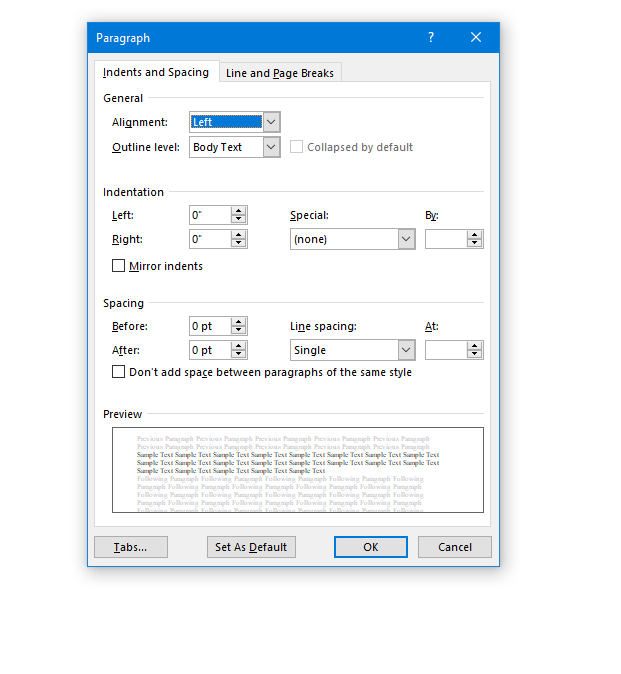
      • Open Paragraph Spacing: Press Alt + O + P.
      • Set Spacing to Single: Press Alt + P and change to single spacing.
      • Set Default for All Documents: Press Alt + D followed by Alt + A and then Enter.

    Customize Document further

    1. Change Font:
      • Select All Text: Press Ctrl + A.
      • Open Font Dialog: Press Ctrl + D.
      • Change Font to Times New Roman: Type “Times New Roman” and set size to 12.
      • Set Default for All Documents: Press Alt + D followed by Alt + A and then Enter.
    2. Create Columns:
      • Open Page Layout: Press Alt + P.
      • Select Columns: Press J for columns.
      • Set Number of Columns: Press Alt + O + C and choose the number of columns.
    3. Change Page Color:
      • Open Page Layout: Press Alt + P.
      • Open Colors: Press PC.
      • Select Color: Use arrow keys to choose a color and press Enter.
    4. Add Border:
      • Open Borders: Press Alt + O + B.

    These commands will help you efficiently navigate and customize documents. See other Setup options 

    windows page setup for defaults
    Essential WORD keyboard commands for windows page setup for defaults

    Other WORD Lessons

    Optimizing Windows 11 Efficiency for Screen Reader with Key Settings and Configurations

    WORD Efficient Text Navigation and Selection

    Basic WORD JAWS commands with Typing Trick

    Rebuild Microsoft Word Template when it is not working well

    Microsoft Word MLA format with Christopher Duffley

    WORD accessible food chain for class using talking software

    Commands to change mouse -access programs fast, basics in Word font & movement

    Excel line plot graph-copy to Word for Math

    Complete an excel graph and copy into Word document with screen reader

    Essential WORD keyboard commands for setting defaults

    Track changes in Word-How teachers make corrections in work

    Track Changes with Commands-inserting comments and editing work

  • Braille Reading Speed Standards

    So many people ask, “How fast should my child be reading?” When discussing Braille Reading Speed Standards, it’s essential to remember that blind children are just as intelligent as sighted children so standard reading speed should be used for all children. Braille Reading Fast.

    The Jerry Johns Basic Reading Inventory is a widely used tool for assessing reading speeds and comprehension levels in students. It helps educators determine a student’s instructional, independent, and frustration reading levels. This is done by evaluating their speed, accuracy, and comprehension. This inventory is particularly useful for identifying students’ reading capabilities and tailoring instruction to meet their needs. By measuring reading speeds, educators can see how students process text and find areas where they need more help to improve fluency and comprehension.

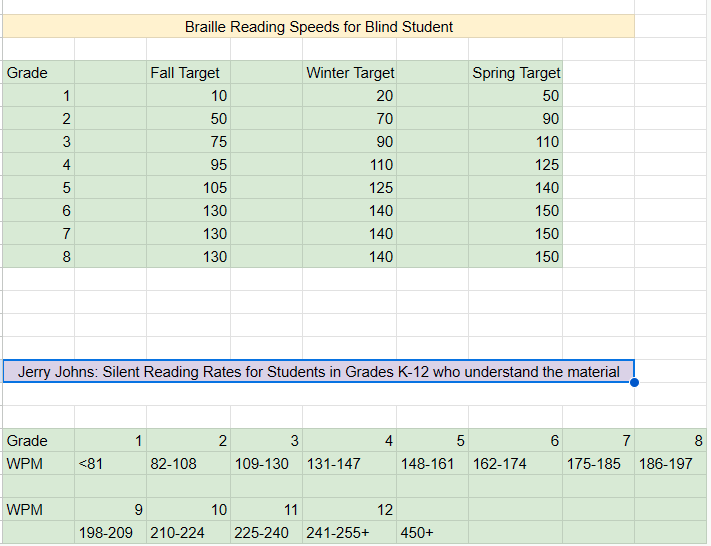
    Here are the national standards as presented by Jerry Johns, a leading reading specialist in the country. 

    Braille Reading Speeds for Blind Student 
             
    Grade Fall Target Winter Target Spring Target  
    1 10 20 50  
    2 50 70 90  
    3 75 90 110  
    4 95 110 125  
    5 105 125 140  
    6 130 140 150  
    7 130 140 150  
    8 130 140 150  


    Jerry Johns: Silent Reading Rates for Students in Grades K-12 who understand the material 
      
             
    Grade12345678
    WPM<8182-108109-130131-147148-161162-174175-185186-197
             
    WPM9101112    
     198-209210-224225-240241-255+450+   
    Braille Reading Standards Chart

    Use the SAME Braille Reading Speed Standards

    For another extensive list of information on Braille standards go to California Reading Standards

    The TechVision Team use these same standards for all blind and low vision students. To name just a couple, Batya reads both Hebrew and English Braille and Dani excels to the top of her class also. If you set high standards then children will meet those standards. We have taken on beginner students and told them how fast they would be reading braille in a couple months, even in middle and high school. Just remember the older you start the longer it will take for them to gain speed.  At the end of the 2 months, as their fingers would fly across the page reading braille, as they were timed with a fast speed, We would ask, “So did you really think you would be able to read that fast?” They would reply, “Of course, because you told me I would be able to.”

    So, tell them, they can, and they will. Our Mission and Purpose is to have students (especially with similar intelligence) at the highest levels they can be with hard work and instruction to get them there as their peers.

    Get to the Highest Levels

    Tricks to use
    Time them every week (sometime everyday), so they see their progress
    Have them reread the same material to get flow and fluency
    Have them braille the material first using contractions, then read what they wrote

    braille reading speed chart
    Visual braille reading speed chart as above accessible version

    Make sure you add in Computer skills with Perfect touch typing to truly allow students to be at the highest levels of learning.

  • Track changes in Word-How teachers make corrections in work

    Track changes in Word for a 9th grade. This student was only using a brailler to braille out all work….a very slow process to get it transcribed, then to the teacher, then back to the student. Now, in 2 months the student has moved to completing all work on a computer, emailing to teacher, teacher corrects and sends back.

    Virtual lesson-teaching blind student how to use track changes in Word-how teachers correct

    Track Changes in Microsoft Word using keyboard shortcuts, and you can adjust for Low Vision and mouse

    1. Activate/Deactivate Track Changes:
    2. Navigate Changes:
      • Next Change: Press Alt + Shift + N.
      • Previous Change: Press Alt + Shift + P.
    3. Accept or Reject Changes:
      • Accept Change: Press Alt + Shift + A.
      • Reject Change: Press Alt + Shift + R.
    4. Add a Comment:
    5. Access ALL Comments: CTRL + ALT +’

    Detailed Steps with Keyboard Shortcuts

    1. Activate/Deactivate Track Changes in WORD:
      • Shortcut: Press Ctrl + Shift + E.
      • Action: This toggles Track Changes on or off. When activated, Word will start tracking all edits.
    2. Make Edits:
      • Insertions: Type normally to add new text. It will appear underlined and in a different color.
      • Deletions: Select the text you want to delete and press Delete. The text will show up with a strikethrough.
    3. Navigate Changes:
      • Next Change: Press Alt + Shift + N to move to the next tracked change.
      • Previous Change: Press Alt + Shift + P to move to the previous tracked change.
    4. Accept or Reject Changes:
      • Accept Change: Press Alt + Shift + A to accept the current change.
      • Reject Change: Press Alt + Shift + R to reject the current change.
    5. Add a Comment:
      • Shortcut: Highlight the text and press Ctrl + Alt + M.
      • Action: This will add a comment balloon in the margin where you can type your comment.
    Track changes in Word
    Track changes in Word

    Other WORD Lessons

    Optimizing Windows 11 Efficiency for Screen Reader with Key Settings and Configurations

    WORD Efficient Text Navigation and Selection

    Basic WORD JAWS commands with Typing Trick

    Rebuild Microsoft Word Template when it is not working well

    Microsoft Word MLA format with Christopher Duffley

    WORD accessible food chain for class using talking software

    Commands to change mouse -access programs fast, basics in Word font & movement

    Excel line plot graph-copy to Word for Math

    Complete an excel graph and copy into Word document with screen reader

    Essential WORD keyboard commands for setting defaults

    Track changes in Word-How teachers make corrections in work

    Track Changes with Commands-inserting comments and editing work

  • Accessible UEB Braille Training Online class

    Introducing UEB Online Training


    Welcome to UEB Online!

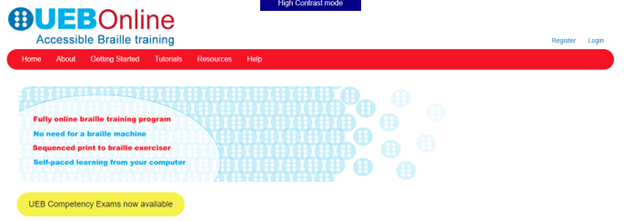
    Welcome to the UEB Online website, administered by the NextSense Institute. This website offers online training programs and competency exams in braille literacy and mathematics using the Unified English Braille (UEB) code.

    The purpose of the UEB Online website is to provide systematic instruction and accreditation in UEB for people worldwide who are teaching and promoting braille for persons with blindness, low vision, and deafblindness.

    Target Audience

    The UEB Online training programs and competency exams are suitable for anyone who wants to learn and teach braille. This includes educators, families, allied health professionals, and administrators and decision makers who promote the use of braille as a medium for information access and communication.

    Website Accessibility Options

    Accessible, inclusive digital technologies enable equitable information access for all through UEB Online.

    • Visual access mode: For people with sufficient sight to access regular sized print-based information on the website,
    • High contrast mode: For people with low vision who wish to adjust the font size, background colour or text color,
    • Non-Visual access mode: For people who wish to use a screen reader for accessing website information.

    UEB Online is a training program for sighted people to learn Unified English Braille (UEB). Many countries have adopted Unified English Braille, replacing standard English braille. This program is the first online UEB training tool. The program is suitable for classroom and specialist teachers, parents, teacher aides and other professionals supporting children and adults with vision impairment.

    The Royal Institute for Deaf and Blind Children’s Renwick Centre created this program.  We acknowledge the support and permission from the Round Table on Information Access for People with Print Disabilities and Australian Braille Authority for the adaptation of content from the Unified English Braille: Australian Training Manual, 2013 (edited by Howse, J., Riessen, K., & Holloway, L.).

    I am presently taking this online class. I like to get the jump on knowledge so I can teach my students along the way to keep updated with braille in general. This class is excellent, self-paced…on either a Mac or PC…learning the new (2016) UEB Braille code. I highly recommend this great and easy way to learn. When you finish, get the certification you need….and it is free!

    UEB online Accessible Braille Training
    UEB online Accessible Braille Training

    UEB Math videos and more on TechVision Youtube

  • Instant Shapes for Math, etc.-Instamorph

    instamoph moldable plastic
    Instamorph moldable plastic-Mold your Imagination

    Instant shapes for Math using InstaMorph, which is a versatile, reusable thermoplastic that transforms your creative projects. First, you simply heat the InstaMorph beads in hot water until they become moldable. Then, you can shape them with your hands or tools. As it cools, InstaMorph hardens into a strong, durable plastic. This material is perfect for a wide range of applications, including crafting, prototyping, and repairs.

    Next, consider the endless possibilities InstaMorph offers. It is not just for Instant shapes for Math, but you can create custom grips, brackets, or even cosplay accessories. Additionally, if you make a mistake, you can reheat and reshape it, making it incredibly forgiving and easy to use. Moreover, InstaMorph can be painted, machined, and carved, allowing for further customization.

    Furthermore, InstaMorph is non-toxic and safe for all ages, making it an excellent choice for educational projects and family activities. Its lightweight nature ensures that it is easy to handle and manipulate, even for beginners. Finally, by sharing your InstaMorph creations on social media with the hashtag #InstaMorph, you can join a community of makers and gain inspiration from others.

    In conclusion, InstaMorph empowers you to bring your ideas to life with ease and flexibility. Whether you’re a hobbyist, artist, or DIY enthusiast, InstaMorph is the perfect tool to unleash your creativity.

    Incredible Instamorph -watch video, solves those Geometry and other math problems with making instant shapes….of any kind. Think big and do just about anything you need. YouTube video at: Instamorph

  • Inclusive Multi-Sensory Learning Tools

    Sensational Books offers Inclusive Multi-Sensory Learning Tools. These tools provide a multi-sensory approach to early learning, focusing on tactile and visual experiences. Their products include books and tools designed for both sighted and visually impaired children. For example, “Sadie Can Count” is a children’s book with large print, Braille text, and fully embossed pictures. This book helps beginning readers, including those with visual impairments, to enjoy reading with their friends and family.

    Inclusive Multi-Sensory Learning- from sensational books
    Inclusive Multi-Sensory Learning- from Sensational Books

    Another notable product is the Sensational BlackBoard, which allows users to create raised-line drawings. This tool is lightweight, portable, and uses standard copy paper and a ballpoint pen. It’s designed to help users feel their drawings as they create them, making it an excellent resource for both new and experienced artists.

    Sensational Books also offers workshops and tactile artwork, promoting sensory integration and early literacy. Their products are suitable for diverse populations, including Montessori students and children with autism. The website provides a comprehensive overview of their offerings, including detailed product descriptions and testimonials from users. Some users need other types of tactile tools also.

    One example is Sensational BlackBoard which offers a fun, fast, easy and inexpensive way to get tactile access to images. Draw your own raised line pictures or you can have photo copy images of text book or research materials quickly traced. More on this site for Inclusive Multi-Sensory Learning Tools. Make sure you incorporate audio reading as a skill to add to braille reading.

    More information and lessons at: TechVision YouTube