Search results for: “word options”

  • Math Work in Excel: Solving Inequalities with Keyboard Shortcuts

    Dr. Robinson introduces a lesson on using Microsoft Excel to solve math work, specifically focusing on inequalities and graphs. She begins by guiding students on how to put Excel in focus to tackle various math problems in Excel. This helps students to optimize their math work in Excel effectively. Next, she instructs them to create a template using a number line. To insert symbols like less than or greater than signs, students use the Alt + N and then U commands to insert bullets or symbols.

    For students with a numpad, Alt + 7 and Alt + 9 quickly insert a hollow or solid bullet, respectively. For those without a numpad, they can use the Insert + Symbols option. Students then align their number line by inserting a bullet in the middle, ensuring four dashes on each side for perfect centering when solving math work in Excel.

    Math Work in Excel and More
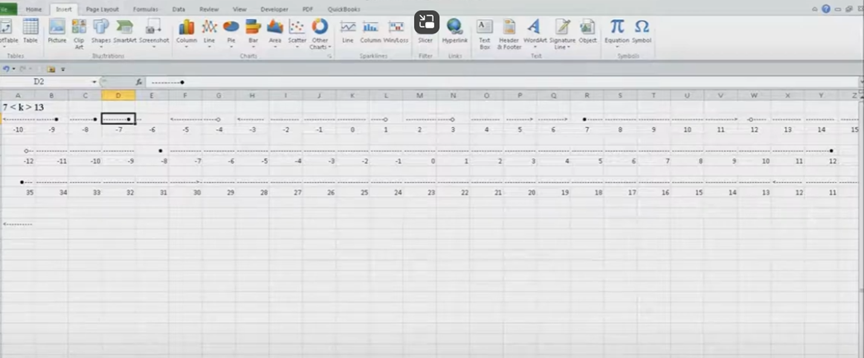
    image of excel to solve math problems with inequality graph lines

    To center content, students use the Applications key and press F. They adjust the horizontal and vertical alignment to ensure everything is perfectly centered. This is a useful step when handling math problems in Excel. After completing their problems, students select the content using Shift + Right Arrow and copy it using Ctrl + C. This entire process enhances their skills in doing math work in Excel.

    When pasting into Microsoft Word with Ctrl + V, students have various formatting options. By pressing the Control key and right arrow, they can select different formatting options for their pasted content. They can also Alt H to home and V to paste and right arrow through options. This flexibility allows blind students to format and customize their graphs just like their sighted peers when solving math problems in Excel. After the student pastes an image, they press the Applications key and up arrow to select Alt Text and type the description. Once they finish typing, they press Ctrl + Space and C to close the navigation pane and return to the document.

    Dr. Robinson concludes by showing examples of completed math problems in Excel and graphs, demonstrating how well-formatted the number lines and inequalities look. Blind students can confidently create hollow and solid bullets, as well as inequalities, just like other students, thanks to the accessible features in Excel. This process ensures they stay engaged in their learning, achieving the same results as their peers when doing math work in Excel. Make sure your display is working well.

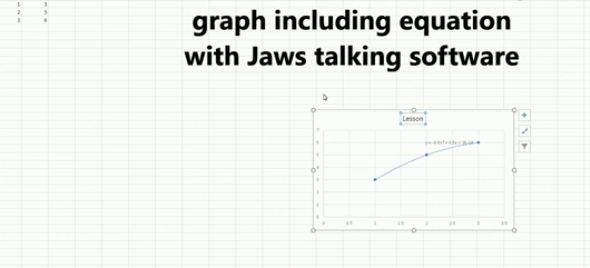
    Excel Quadratic Trend-line with scatter plot graph including equation in Excel with Jaws talking software

    Curved line in Excel graph with screen reader

    Excel Scatter Plot with Trendline

    Solving inequalities

    Create Histogram

    Excel Trend-line with Scatter Plot
    Other Excel Lessons that you can do in Sheets

    Flashcard Study

    Other excel lessons with commands.

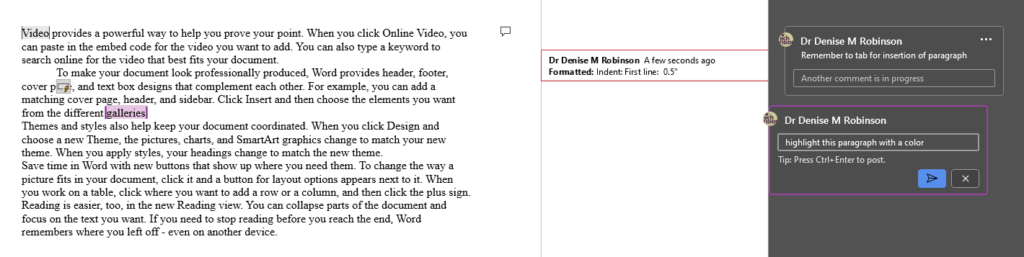
  • Track Changes with Commands-inserting comments and editing work

    Track Changes in Microsoft Word is an essential tool for collaborative editing and document management. It allows multiple users to make and review edits, providing a clear, organized record of all changes. This feature is invaluable for maintaining the integrity of the original document while incorporating feedback from various contributors. By visually displaying insertions, deletions, and comments, Track Changes enhances transparency and accountability in the editing process. It also simplifies the task of accepting or rejecting modifications, ensuring that the final document meets the desired standards. The typical use is for students to create work and teachers to edit with comments, and it is possible to easily track changes with commands. This is easily done with any screen reader.

    Track Changes with Commands in Microsoft Word is a powerful tool for collaborative editing and document management. Here are some key details on its importance and usage:

    Key Benefits

    1. Transparency: Track Changes provides a clear, organized record of all modifications made to a document.
    2. Accountability: By displaying who made each change, Track Changes holds contributors accountable for their edits.
    3. Efficiency: Track Changes streamlines the editing process by allowing users to accept or reject changes with a single click. This efficiency saves time and reduces the likelihood of errors3.
    4. Enhanced Communication: The ability to add comments and suggestions directly within the document fosters better communication among team members. This feature helps clarify the intent behind changes and facilitates constructive feedback4.
    Track Changes with Commands and comments
    Track Changes with Commands and comments

    How to Use Track Changes with keystrokes

    1. Turning On/Off: Press Ctrl + Shift + E to toggle Track Changes on or off. Alternatively, go to the Review tab and click on the Track Changes button1.
    2. Viewing Changes: Use the Display for Review menu to choose how edits and comments are displayed. Options include Simple Markup, All Markup, No Markup, and Original2.
    3. Ctrl Shift ‘ opens all tracks with JAWS screen reader
    4. Accepting/Rejecting Changes: Navigate to the Review tab with Alt R and use the Accept or Reject buttons to manage changes. You can also right-click on a change to accept or reject it3.
    5. Adding Comments: Press Ctrl + Alt + M to insert a new comment. Navigate through comments using Alt + R, then N for the next comment or P for the previous comment1.

    Other Lessons

    Optimizing Windows 11 Efficiency for Screen Reader with Key Settings and Configurations

    WORD Efficient Text Navigation and Selection

    Document formatting editing elements: Edit margins, tab, headers, footers & more

    Basic WORD JAWS commands with Typing Trick

    Rebuild Microsoft Word Template when it is not working well

    Microsoft Word MLA format with Christopher Duffley

    WORD accessible food chain for class using talking software

    Commands to change mouse -access programs fast, basics in Word font & movement

    Excel line plot graph-copy to Word for Math

    Complete an excel graph and copy into Word document with screen reader

    Essential WORD keyboard commands for setting defaults

    Track changes in Word-How teachers make corrections in work

    How Colleges Help Visually Impaired Students Succeed

    Get your 1:1 instruction on any skill today

    If you are Low Vision, this lesson may help you

    and if you have having issues with WORD–rebuild it

  • Fixing Jaws typing echo and cursor issues in google classroom by Taylin

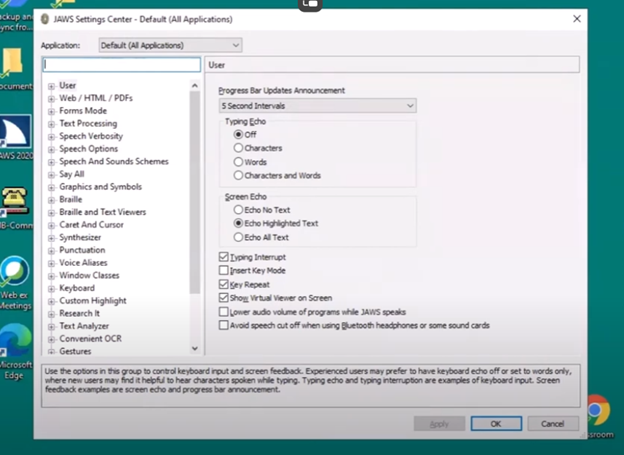
    Miss Taylin and Dr. Robinson addressed two common accessibility issues students face while navigating educational tools with JAWS. First, they resolved the issue of characters not being heard when typed, which prevents users from verifying their input. After adjusting the typing echo settings in JAWS, they enabled the device to read both characters and words aloud, providing better control and feedback during typing. Fixing Jaws typing echo significantly improved user experience. On the fly, you can also insert + 2 to change echo options.

    The second issue involved difficulties navigating through web links in the classroom browser, with JAWS sometimes reporting “no form fields” or “no lists available.” The problem arises when both the virtual and PC cursors are not enabled. Dr. Robinson explained that the virtual cursor is essential for browsing web pages, while the PC cursor helps manage navigation within a page. Miss Taylin accessed the links list and navigated classroom content efficiently by using “Insert + Z” to enable the virtual cursor. She ensured the PC cursor was active with the command “Insert + ;” which improved her browsing experience. Fixing Jaws typing and echo settings along with other settings changes, enhances productivity.

    Jaws settings and set default to permanently make changes to fix Jaws typing echo issues
    Jaws settings and set default to permanently make changes to typing echo

    Dr. Robinson emphasized the need to regularly check both cursor settings whenever JAWS encounters issues. This practice ensures smooth and uninterrupted navigation for users. Additionally, these steps empower students using screen readers to interact more effectively with digital learning platforms. These adjustments create an efficient workflow for students to complete assignments and navigate classroom tools seamlessly. Overall, addressing the issue of fixing Jaws typing echo and other settings ensure that students can fully participate in their learning environment with complete accessibility.

    See other lessons for navigation. For more on fixing Jaws typing echo, explore related resources.

  • Blind Teacher Lucas Navigates the Canvas Platform Using a Screen Reader

    Dr. Robinson and Lucas began the session by navigating Canvas, focusing on essential screen reader commands for effective navigation. They highlighted the importance of commands like Insert + F5, F6, and F7 to explore the page layout before moving through various elements. When discussing the Canvas school platform navigation, Dr. Robinson highlighted the need to recognize interactive elements like radio buttons and check-boxes to ensure smooth navigation in Canvas. By understanding these features, students can efficiently move through the platform and complete tasks effectively. Understanding Canvas school platform navigation is key for accessibility.

    To streamline their workflow, they used first-letter navigation, such as hitting “C” to quickly jump to courses. This method enables users to navigate faster without manually tabbing through multiple options. Lucas demonstrated how to access different sections of the Canvas interface, including courses and messages, using the appropriate keyboard commands. Mastering the navigation of the Canvas school platform efficiently requires knowing these shortcuts.

    InBox Management in Canvas school Platform Navigation

    For inbox management, Lucas efficiently used first-letter navigation to filter unread emails and compose a new message. Dr. Robinson guided him through composing an email, showing how typing the recipient’s name narrows down the list of available contacts. Lucas learned how to navigate, select recipients, and send messages within the Canvas interface. Canvas school platform navigation strategies significantly improved his inbox management skills.

    After addressing the inbox, they moved on to class assignments. Using heading and link navigation commands, Lucas accessed assignments and checked due dates. Dr. Robinson stressed the importance of using key commands, such as Insert + F7, to bring up lists of assignments and quickly navigate to relevant tasks on the Canvas school platform.

    Lastly, they tackled PDF accessibility. Dr. Robinson showed Lucas how to download and convert PDFs into Word documents for better accessibility and interaction. By converting documents, Lucas could add notes, adjust content, and work more effectively. These steps reinforced the power of screen reader commands, helping users stay organized and fully engaged in digital learning environments on the Canvas school platform.

  • Connect Focus 40 braille display to Jaws

    Connecting a Focus Braille Display to a computer using JAWS screen reader enhances accessibility for blind and visually impaired users. The process of connecting a Connect Focus 40 Braille display allows users to interact with digital content through tactile feedback, improving independence and productivity. By following a few simple steps, you can seamlessly connect the Braille display via USB or Bluetooth and configure it in JAWS for optimal use. This guide provides an easy-to-follow approach for setting up your Focus Braille Display and ensuring smooth integration with JAWS.

    Here are the steps to connect a Focus Braille Display to your computer using JAWS screen reader:

    Connect Focus 40 Braille Display or other displays

    1. Power on the Focus Braille Display

    Ensure the Focus Braille Display is fully charged and powered on before connecting.

    1. Connect the Display to the Computer

    Use either USB or Bluetooth to connect the Focus Braille Display to your computer.

    For USB: Plug the USB cable into both the Braille display and the computer.

    For Bluetooth: Enable your computer’s Bluetooth and pair the Focus display in the Bluetooth settings.

    1. Enable Braille in JAWS

    Open JAWS by pressing Insert + J. Then, press Alt + O to open the Options menu.

    Press B to select Braille or use the arrow keys to navigate, then press Enter.

    1. Select the Braille Display

    In the Braille settings window, ensure the “Focus” display is selected under the Default Braille Display dropdown.

    If it’s not selected, use the arrow keys to choose “Focus” or manually type the model of the Braille display.

    1. Check Braille Display Connection

    After selecting the correct display, click OK or press Enter to confirm the connection.

    JAWS should now detect the Focus Braille Display. Braille output should appear, and the display keys will control JAWS.

    1. Configure Settings (Optional)

    To further customize settings like verbosity and Braille output, go to Braille options via Insert + J, Alt + O, and B.

    1. Test the Connection

    Use JAWS commands on your keyboard or the Focus Braille Display keys to navigate.

    If the connection works, the Braille display will respond to the text output from the computer.

    By following these steps, you should successfully connect your Focus Braille Display to a computer using JAWS.

    Braille Display and Other Lessons

    Quadratic Formulas with UEB Math or Nemeth and/or display with JAWS audio & MathCat

    Complete Advanced Math with LaTex to finish math fast using Mathkicker.AI, JAWS, NVDA and/or display

    Transcribe Math into Word documents for blind students using Math editor, Jaws and a Braille Display

    Track Changes with Commands-inserting comments and editing work

    Essential WORD keyboard commands for setting defaults

    Excel line plot graph-copy to Word for Math

    Complete an excel graph and copy into Word document with screen reader

    Basic WORD JAWS commands with Typing Trick

    Rebuild Microsoft Word Template when it is not working well

    Other Focus Display lessons

  • Excel for Geometry: Create Shapes and Label Graphs with JAWS

    Using Excel for geometry tasks, such as inserting shapes and labeling graphs, can be highly effective, especially for visually impaired students. By leveraging keyboard commands, students can efficiently navigate through Excel’s features. For instance, pressing Alt + N opens the Insert tab, and SH brings up the Shapes menu, allowing users to select and draw shapes. To label a graph, students can use Alt + JC to access the Chart Tools Design tab, followed by A to add chart elements like data labels and titles. These steps not only enhance the learning experience but also demonstrate the power of assistive technology in making complex tasks accessible and manageable

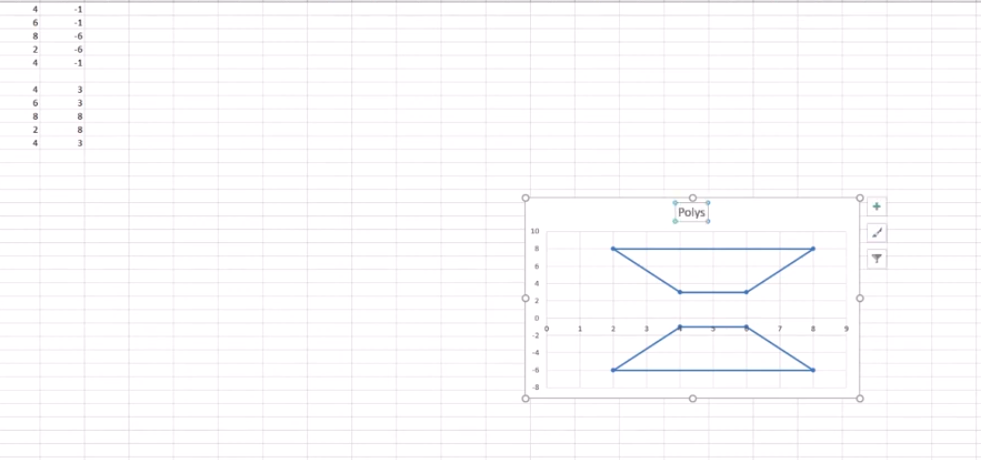
    Start at the top of A1 and start adding data in both A and B. Make sure you add a space between you 2 Geometric shapes so they can mirror each other or whatever the assignment requires.

    Here are other options for Geometry shapes

    Here’s how you can insert shapes and label a graph in Excel using keyboard commands:

    Geometry: create Shapes and label graphs
    Geometry: create Shapes and label graphs

    Excel for Geometry: Create Shapes and Label Graph

    Inserting Shapes

    1. Open Excel and navigate to the worksheet where you want to insert shapes.
    2. Press Alt to activate the ribbon shortcuts.
    3. Press N to go to the Insert tab.
    4. Press SH to open the Shapes menu.
    5. Use the arrow keys to select the shape you want, then press Enter.
    6. Click and drag (or use arrow keys) to draw the shape on your worksheet.

    Labeling a Graph

    1. Select your chart by pressing Ctrl + Arrow keys to navigate to it.
    2. Press Alt to activate the ribbon shortcuts.
    3. Press JC to go to the Chart Tools Design tab.
    4. Press A to open the Add Chart Element menu.
    5. Press D to select Data Labels, then choose the desired position using the arrow keys and press Enter.

    Adding a Chart Title to Excel for Geometry

    1. Select your chart.
    2. Press Alt to activate the ribbon shortcuts.
    3. Press JC to go to the Chart Tools Design tab.
    4. Press A to open the Add Chart Element menu.
    5. Press T to add a chart title, then type your title and press Enter.

    These steps should help you efficiently create Shapes and label graphs in Excel using keyboard commands. If you need more detailed instructions or have any specific questions, feel free to ask!

    Other Excel Lessons

    Another Student Mastering Excel with PPT integration

    Create a Histogram

    Scatter plot with trendline

    Excel line plot graph-copy to Word for Math

    Complete an excel graph and copy into Word document with screen reader

    If your fingers need to see multiple lines on your display, then this lesson will help

  • Desmos Graphing Calculator Solution for Blind and Low Vision

    In this Video lesson, Dr. Denise Robinson demonstrates the Desmos calculator, an online tool used in schools for graphing solution for even Geometry. She highlights its fun and accessible nature, noting that while she can’t cover all its features in 1 video, she will guide through the basics of using the Desmos.

    First, she instructs users to press Control + O for 1 option for a new graph. Using JAWS screen reader. But any screen reader will work. After pressing Control + O, users hit Enter to create a new blank graph. They can navigate through options using the down arrow also for many other types of graphs. Dr. Robinson then guides users to type in formulas to create parabolas and lines, making use of various functionalities in the Desmos Graphing Calculator Solution.

    Visual Calculator and PC Calculator for Desmos Graphing Calculator Solution

    A keyboard appears at the bottom of the screen, which is manageable for low vision children. For low vision children, she recommends using Control + Plus to zoom in, allowing them to adjust the size as needed. Control + Zero returns the display to normal size. Blind students will use the PC built in calculator for full access, ensuring the best use of the Desmos Graphing Calculator Solution.

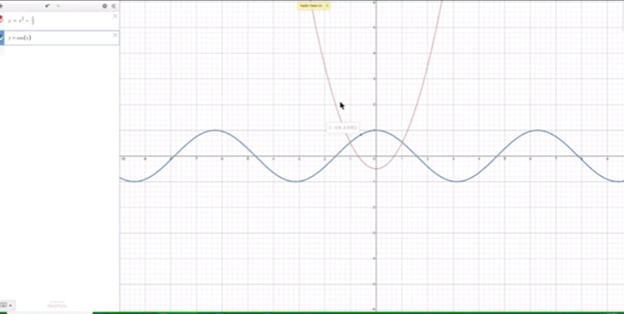
    Desmos graphing solutions- picture of parabola and formulas
    Desmos Calculator Graphing Solutions- picture of parabola and formulas

    Next, Dr. Robinson explains how to open the field dialogues or share or export to emboss a graph by pressing Insert + F5. She mentions Desmos works well in Chrome, Edge and sometimes in Firefox based on updates. She advises users to label their graph. Insert + F5 also assists in many other JAWS screen reader functionalities, enhancing the use of the Desmos Graphing Calculator Solution.

    Dr. Robinson then demonstrates typing formulas, such as X superscript 2 minus 1/2. She shows how the graph forms visually and explains using Shift + 6 for superscript. Users can listen to the graph’s details by using H and the arrow keys, with the right arrow moving right and the left arrow moving left, providing detailed information about the graph’s points. Desmos Keyboard Shortcuts and other Math Lessons further elaborate on how to effectively use the Desmos Graphing Calculator Solution.

    Find more with Desmos:

    Desmos 3D graphing

    for Geometry in Desmos

    for STEM and Embossing in Desmos

    Desmos and inserting graphs into Math Work in WORD

    Creating shaded Parabolas in Desmos

    Games with Desmos with Drag and Drop

  • Switch Focus Braille Display Modes Quickly

    Dr. Robinson explains the three toggles to Switch Focus Braille Modes quickly on your Braille display. One toggle puts you into Braille mode for all Braille tasks. Another toggle switches to computer braille which inputs direct Nemeth code for math. The third toggle is for computer in and contracted out for either Nemeth or UEB math.

    Access Jaws settings to set up Focus Braille Mode Options

    First, press Insert + 6 to check your settings. Type “braille m” and down arrow to “Braille mode.” You can access options one by one with arrow keys or press F6 to jump to structured then Alt+T to jump to output. Press down arrow to UEB Grade 2 then tab to input and c to computer braille first to uncheck the box that says “Show current word in computer Braille”. Shift tab back up to input and choose UEB for both input and output. You can have other options also but this is what used here.

    Tab through back to For structured Braille mode, check “Active cursor follows Braille cursor” and “Braille cursor follows active cursor.” These settings help beginners, especially when working with sighted personnel learning Braille to following along visually for instructor. Always have a certified Braille instructor (TVI) to teach reading and writing Braille correctly.

    Always press Alt + A to apply settings before exiting. However, if you do not like the extra information at the start of your display, shift tab back to search in settings and type status and enter. Down arrow to status and F6 and down to right (to place status on the right of display) and down to none and apply that and close. When you first turn on your Braille display, the status characters may be confusing to young learners. Additional Braille Display Lessons here.

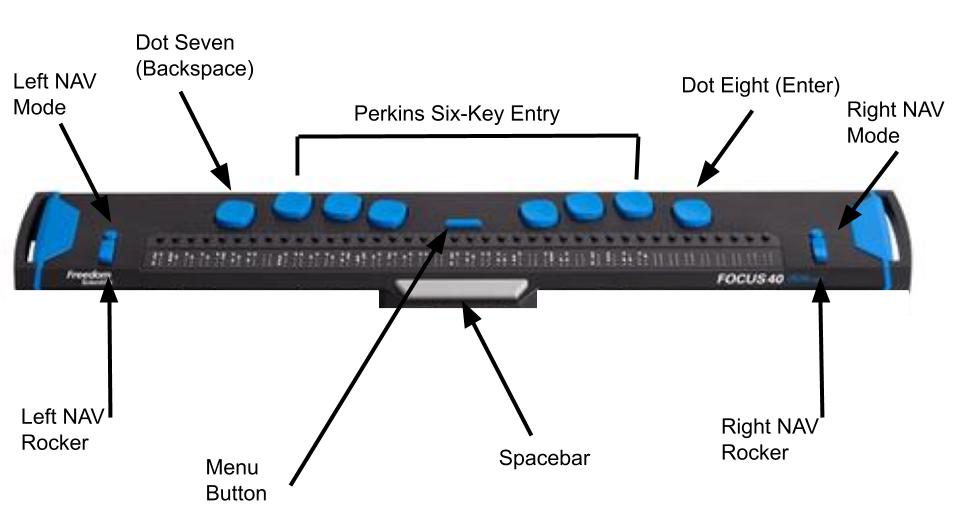
    Focus Braille Display Image with Button options

    switch Focus display modes quickly on display
    Switch Focus Braille display modes quickly on display

    For advanced users, status dots help in tables and other navigation. Beginners should start with “none.” Press Alt + A to apply changes, then enter to close. The Braille display functions like a Braille writer. Keys 1 2 3 are on the left, and keys 4 5 6 are on the right with space in between the left and right side. The left pinky key is backspace, which changes to dot 7, and the right pinky is enter or dot 8 in combination with other keys.

    More Videos Lessons

  • Excel Quadratic Trendline with Scatter Plot Graph Including Equation Using JAWS

    A quadratic trendline with a scatter plot shows the relationship between two sets of data that form a curved pattern. Instead of a straight line, it fits a U-shaped or upside-down U-shaped curve, helping to see trends when data increases or decreases at different rates. Using an Excel Quadratic Trendline with scatter plot makes it useful for predicting changes that don’t happen in a straight line, like acceleration or deceleration. The equation on the graph helps explain this relationship and can be used for future predictions.

    Using keyboard commands in Excel, combined with JAWS screen reader, makes it possible to create a quadratic trendline on a scatter plot while also displaying the equation. This process is essential for visually impaired users who need accessible methods to perform complex data analysis. By using commands like Alt + N + S to insert the scatter plot and Alt + J + F to add the quadratic trendline and display the equation, you can efficiently work with Excel’s graphing tools while maintaining full accessibility with JAWS.

    Excel Quadratic Trendline with scatter plot Keyboard commands

    Excel Quadratic Trendline with scatter plot
    Excel Quadratic Trendline with scatter plot

    Here are the keyboard commands to add a quadratic trendline with a scatter plot and display the equation in Excel using JAWS:

    1. Create Scatter Plot:
    • Select data with Shift + Arrow Keys.
    • Press Alt + N, then S to insert a scatter plot.
    1. Add Quadratic Trendline:
    • Select the graph with Arrow Keys.
    • Press Alt + J + F, then A for chart options.
    • Press T to add a trendline, then press Q for polynomial (quadratic).
    1. Show Equation:
    • Press Alt + J + F, then T to show the trendline equation on the chart.

    These steps work seamlessly with JAWS for accessible chart creation. Learn more Excel graphing

    Solving inequalities

    Create Histogram

    Excel Trendline with Scatter Plot

    Other Excel Lessons that you can do in Sheets

    Flashcard Study

    Other Tech Lessons for more skills

  • Save a Google Doc as Plain Text Using Keyboard Commands

    Google offers several tools to make inaccessible images of work accessible through translation and text extraction. Google Translate includes an image translation feature, where users can upload an image and the tool will detect and translate the text within it into another language. Additionally, Google Drive and Google Docs use Optical Character Recognition (OCR) to convert images, like scanned PDFs, into editable text. This makes visual content, such as images with embedded text, accessible for screen readers, helping blind or low vision users engage with the content more easily. Using Google Docs as plain text can further streamline this process.

    Here’s how to save a Google Doc as plain text using keyboard commands:

    1. Open your document.
    2. Press Alt + Shift + F to open the “File” menu. (Many times you can just use Alt+F)
    3. Press Down Arrow to navigate to Download.
    4. Press Right Arrow to expand the options, then press Down Arrow to select Plain Text (.txt).
    5. Press Enter to download the document as a plain text file.
    6. Open the .txt file, select with CTRL + A, Copy it with CTRL+C and paste into WORD with CTRL+ V

    These steps will extract text then download the document with no formatting, leaving only the raw text. Then transfer it into WORD for easy reading

    Google Doc as Plain Text Using Keyboard due to doc being side ways image
    Google Doc as Plain Text Using Keyboard due to doc being side ways image

    More Tech Lessons here and more on adapting work