Search results for: “word options”

  • Math & AI: Using MathKicker to Convert PDF Math into Accessible Word Documents

    Dr. Robinson introduces Mathify, now called Mathkicker.AI, an AI program designed to convert inaccessible math content into accessible formats. This tool is especially beneficial for the blind community, providing a solution for one of the most challenging aspects of accessible education: converting math from inaccessible formats into usable, accessible ones.

    In this tutorial, Dr. Robinson demonstrates how to use Mathify to convert a PDF image file into a DOCX file. She focuses on a table of math, one of the most problematic types of files to translate. Dr. Robinson opens the file, which prompts a save and loads in a private window. This process is typically faster in a standard window.
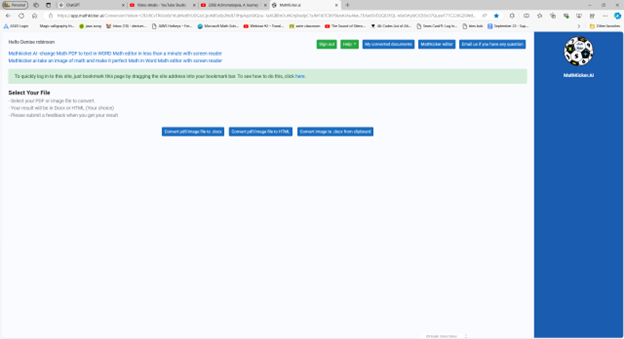
    mathkicker options for converting inaccessible items to accessible into WORD

    As the document loads, Mathkicker.AI effectively transforms the original images of X and Y tables into accessible tables. These tables allow students to later convert them into graphs, giving them the ability to independently create and emboss their graphs. Dr. Robinson scrolls through the document, highlighting the images now converted into accurate math tables. Small squares around each equation make them easily identifiable.

    She explains that students can use the “Alt + Equals” command in Word’s math editor to navigate to the last cell in the table and type out their equations. This feature highlights how Mathify translates PDFs into accessible, editable text. The original PDF is titled “Equivalent Ratios Practice Number One.” It converts successfully into clear and accessible text.

    Now a New Mathkicker Editor

    Dr. Robinson emphasizes that Mathkicker AI continues to improve with user feedback. She notes her preference for left alignment and how the program adapts to these preferences. Despite being a new tool, Mathkicker excels at handling math and other content, making it a versatile resource. Dr. Robinson encourages viewers to use Mathkicker and look forward to more tutorials, as the program has continued to evolve and improve utilizing a Mathkicker editor now.
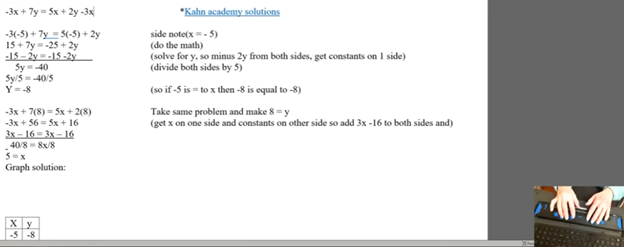

  • Blind Student Doing Algebra in Word Using a Focus Braille Display and JAWS

    Using a Focus 40 Braille Display and JAWS, students can efficiently complete algebra assignments in Word, ensuring both speed and accuracy. They can navigate through documents, input mathematical symbols for their Algebra work, and graph equations using Desmos. The Braille Display provides tactile feedback while JAWS offers audio guidance, allowing students to efficiently edit, correct mistakes, and organize data into tables. With these tools, they can seamlessly complete algebraic tasks and submit their work via email, ensuring full participation in math activities.

    To complete algebra problems in Word using a Focus 40 Braille Display and JAWS, students should follow these steps for effective Algebra with Focus Display:

    FOCUS and JAWS Display Commands

    Using the Focus 40 Braille Display, Dr. Robinson demonstrates how to efficiently braille out algebra problems in Word.
    Using the Focus 40 Braille Display, Dr. Robinson demonstrates how to efficiently braille out algebra problems in Word.
    1. Set the Braille Display to Input Mode: Begin by pressing G.7 + Space to switch through the display modes. Set it to Input Mode for algebra.
    2. Navigate the Document: Use 1 + Space to move to the top of the document. To navigate the document, students press the left-side buttons for backward movement. They then use the right-pan buttons to move forward, ensuring smooth progress while working on Algebra with the Focus Display.
    3. Enter Algebraic Symbols: Students can easily type algebraic symbols, like Delta (Δ), by using the keyboard. After typing, copy the symbol using Shift + C to avoid repeating it manually later.
    4. Work with Mathematical Formulas: To type formulas like “Rise over Run” (Δy/Δx), use the keyboard to input characters. Make sure to add spaces around operations for clarity, especially when sharing with sighted peers. For example, input the formula as “Δy = 2” and “Δx = 3” with a the Focus Display and JAWS.
    5. Navigate Through Graphing: To access graph, students can use the rocker bars or 1 + Space for upward navigation and 4 + Space for downward movement.
    6. Input Values into Desmos: After entering algebraic equations, students can switch to Desmos by pressing Shift + 4 + 5 (Alt + Tab equivalent). They can then input values and trace graphs using the Alt + T command for audio tracing.
    7. Copy and Paste Graphs: Once the graph is complete in Desmos, use Alt + Print Screen to capture the graph. Paste it into Word with Shift + V for documentation.
    8. Submit the Assignment: When the algebra problem is finished, the student can email the document by navigating to File using Alt + F and attaching it in Outlook. Then open Outlook, use F9 to quickly send the email once Outlook is open.

    These steps help students efficiently solve algebra problems in Word while using their Braille Display for input. Additionally, students can smoothly navigate Desmos for graphing, enhancing their algebra skills with the Focus 40 Display

    Enable Students to Efficiently complete Algebra with Focus Display

    1. Using Tables for Data: If the algebra assignment involves creating tables, students can use Alt + N to insert a table. On the Braille Display, press 6 + 8 + Space to activate the Alt command and navigate to the Table option. Once a table is created, pressing Tab will move between cells, and 4 + 5 + Space adds more rows as needed, making tables part of their Algebra workflow using a Focus Display.
    2. Auto-fitting Tables: To ensure tables fit content properly, use Alt + J + L to access the layout options. Select AutoFit Contents to adjust the table size automatically. This helps in organizing the data neatly for submission in Algebra with Focus Display assignments.
    3. Editing and Correcting Mistakes: If a student makes an error, they can use 3 + Space on the Braille Display to move by character and correct the mistake. Use Shift + 6 + 7 + Space to select the incorrect portion and retype it. The Braille Display’s tactile feedback helps ensure precision when editing formulas.
    4. Reviewing the Work: To review algebra problems, students can move back through the document using 1 + 4 + Space to navigate line by line. Press Insert + Up Arrow to have JAWS read back the current line, ensuring that everything is correct before submission.
    5. Final Submission Process: Once the assignment is complete, the student can go to Alt + F to access the File menu. Choose Share. From there, they can attach the document directly in an email. Using F9 forces Outlook to send the email quickly. Make sure their work is submitted on time, thereby completing their Algebra with Focus Display workflow.

    More Lessons for Math

    By following this step-by-step guide, students can efficiently complete algebra problems using the Focus 40 Braille Display, JAWS, and Word. The tactile feedback from the display, combined with JAWS’ audio guidance, enhances both speed and accuracy. This combination helps students solve math problems, graph equations, and organize data effectively. When using the Focus Display, students experience seamless transitions between tasks, ensuring smooth navigation throughout their algebra assignments.

  • Focus Display Navigation options

    Dr. Robinson demonstrates how to navigate with the Focus 40 Braille Display, highlighting various commands and features for efficient use. She introduces the Focus 40 Braille Display, explains the importance of navigation commands, and demonstrates various navigation techniques. Additionally, she covers Focus Display Navigation Options to help users maximize their efficiency.

    Focus Display Navigation Options Video Highlights

    • Introduction to navigation
      • Dr. Robinson introduces the Focus 40 Braille Display.
      • Explains the importance of navigation commands.
      • Prepares to demonstrate various navigation techniques.
    • Basic navigation commands
      • Shows how to move to the top and bottom of the display.
      • Uses specific key combinations for navigation:
        • Move to Bottom: Press dots 4-5-6 + Space.
        • Move to Top: Press dots 1-2-3 + Space.
      • Emphasizes the logic behind the commands.
    • Line and word navigation
      • Demonstrates moving one line at a time.
      • Uses key combinations for precise movement:
        • Move Down One Line: Press dot 4 + Space.
        • Move Up One Line: Press dot 1 + Space.
      • Explains how to navigate by words:
        • Move Forward One Word: Press dot 5 + Space.
        • Move Back One Word: Press dot 2 + Space.

    Other Display Navigation

    Focus braille display navigation options using router key
    Focus Braille Display navigation options using router keys
    • Router keys and mode buttons
      • Highlights the use of router keys for quick cursor movement.
      • Introduces mode buttons for different navigation options:
        • Router Keys: Press the router key above the desired character.
        • Mode Buttons: Located on the left and right sides.
      • Shows how to navigate by paragraphs and sentences:
        • Move Forward One Paragraph: Press the right rocker switch down.
        • Move Back One Paragraph: Press the right rocker switch up.
        • Move Forward One Sentence: Press the left rocker switch down.
        • Move Back One Sentence: Press the left rocker switch up.
    • Panning and rocker switches
      • Explains the function of panning buttons:
        • Move Forward One Display Width: Press the right panning button.
        • Move Back One Display Width: Press the left panning button.
      • Demonstrates the use of rocker switches for line navigation:
        • Move Up One Line: Press the right rocker switch up.
        • Move Down One Line: Press the right rocker switch down.
      • Highlights the benefits for sighted individuals working with Braille learners.

    Benefits of Focus Display

    The Focus 40 Braille Display offers numerous benefits. Firstly, it enhances Braille literacy through intuitive navigation commands. Additionally, its versatile features support efficient reading and writing. Moreover, students can easily move through text, improving their skills. The Focus Display can be used exclusively to control the computer–that means, you DO NOT need to use the keyboard if you cannot or do not want to. This makes for VERY efficient math calculations. The device’s compatibility with various screen readers ensures accessibility. Furthermore, its portability allows seamless use in different environments. Overall, the Focus 40 empowers users, boosting their independence and confidence in learning.

    Options for going between the display to take notes and the computer give many more options also

  • WORD Accessible Food Chain for Class Using Talking Software

    The current page provides instructions on creating a food chain for a class using talking software. It includes steps for saving a document in a specific format and navigating through menus using keyboard shortcuts. Additionally, it references the video below to help you each step of the way.

    F12 and save as 97-2023 so after you F12 you will have file and tab once and down arrow or up arrow to 97-2023 doc and enter, then the commands will work for you.

    • Alt + N then M and right arrow to Food Chain and enter
    • Listen to recording to add information as you need

    WORD accessible food chain and why we use them

    A food chain is a sequence that shows how energy and nutrients flow from one organism to another within an ecosystem. Here’s a simple breakdown:

    1. Producers: These are usually plants or algae that create their own food through photosynthesis. They form the base of the food chain.
    2. Primary Consumers: Herbivores that eat the producers. Examples include rabbits and deer.
    3. Secondary Consumers: Carnivores that eat the herbivores. For instance, a fox that eats rabbits.
    4. Tertiary Consumers: These are predators that eat secondary consumers. An example would be an eagle that eats foxes.
    5. Decomposers: Organisms like bacteria and fungi that break down dead plants and animals, returning nutrients to the soil.

    Each step in the food chain is called a trophic level. Energy is transferred from one level to the next, but with each transfer, some energy is lost as heat, making the chain less efficient as it goes up12.

    Food chains often interconnect to form a food web, which provides a more comprehensive picture of how energy flows through an ecosystem2.

    WORD accessible food chain
    WORD accessible food chain

    Other WORD Lessons

    Optimizing Windows 11 Efficiency for Screen Reader with Key Settings and Configurations

    WORD Efficient Text Navigation and Selection

    Basic WORD JAWS commands with Typing Trick

    Rebuild Microsoft Word Template when it is not working well

    Microsoft Word MLA format with Christopher Duffley

    WORD accessible food chain for class using talking software

    Commands to change mouse -access programs fast, basics in Word font & movement

    Excel line plot graph-copy to Word for Math

    Complete an excel graph and copy into Word document with screen reader

    Essential WORD keyboard commands for setting defaults

    Track changes in Word-How teachers make corrections in work

    Track Changes with Commands-inserting comments and editing work

    Other accessible IXL options for more learning

    Team Specialists and Access Trainers to deliver the instruction you need

  • Commands to Change Mouse Settings, Access Programs Fast, and Use Basic Word Font & Movement

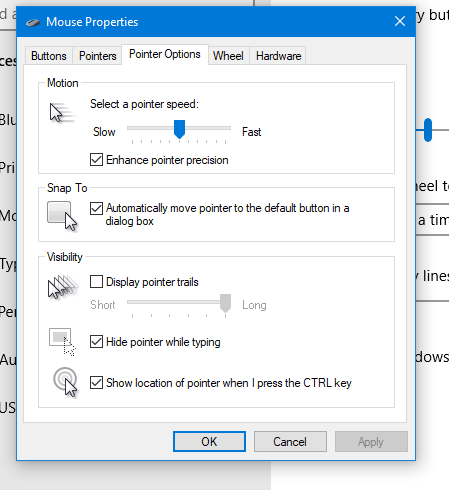
    Using keyboard commands to quickly access and adjust mouse settings allows for efficient changes to mouse size and behavior, such as “Snap To” functions. These options are accessible through the Mouse Properties window in Windows, which you can open by pressing Windows + R and typing main.cpl. Once inside, you can navigate tabs and options using Ctrl + Tab and arrow keys, adjusting the mouse size or enabling the “Snap To” feature. This provides an easier and faster way to customize your mouse for improved accessibility and functionality.

    To quickly change mouse settings in Windows, use keyboard commands to access Mouse Properties: Another way

    1. Open Mouse Properties: Press Windows and type Mouse then press Enter.
    2. Tab to additional mouse options and enter
    3. Ctrl + Tab to Pointers and Change Mouse Size: arrow to inverted large or extra large based on need
    4. Navigate to the Pointer Options using Ctrl + Tab, then press Tab to “Snap To” or ALT + U to check box
    5. Then press Alt + S to check “Show location of pointer when I press the CTRL key.”
    6. Apply Changes: Press Alt + A to apply the settings and enter to close the window.
    Commands to change mouse
    Commands to change mouse

    These steps streamline navigation without relying on the mouse.

    Lessons on How to SEE your computer better as well as other Tech Lessons

  • Efficiently Converting Braille Files to HTML and Word

    To efficiently convert Braille files to text or HTML, you can change extensions as shown in the video or open the Braille file in software like Duxbury Braille Translator or Braille Blaster. Export the file as plain text. Use a text editor to manually add HTML tags or employ a conversion tool for HTML formatting. This method ensures the content is accessible in both text and web formats, making it easier to efficiently convert Braille files to HTML and Word.

    Guidance on converting Braille files into HTML or text files from this video:

    Efficiently converting Braille files to HTML and Word requires specific software and keyboard commands. Below is the method I used in the Video

    1. Extract Files:
      • Applications Key: Press Applications Key, then Down Arrow to select “Extract”.
    2. Rename Files:
      • Rename: Press Applications Key, then Up Arrow to “Rename”, and Enter.
      • Change Extension: Use Right Arrow to navigate, Backspace to delete .txt, and type .html, then Enter.
    3. Open Files in Notepad:
      • Open File: Press Enter on the file to open it in Notepad.
    4. Save As HTML:
      • Save As: Press Alt + F, then Down Arrow to “Save As”, and Enter.
      • Change File Type: Press Tab to navigate to the file type dropdown, select “All Files”, and Enter.
      • Rename Extension: Press Shift + Tab to navigate back, use Right Arrow to move to the extension, Backspace to delete .txt, type .html, and Enter.
    5. Copy and Paste Text:
      • Select All: Press Ctrl + A.
      • Copy: Press Ctrl + C.
      • Paste in Word: Open Word, then press Ctrl + V.
    6. Show File Extensions:
      • Open File Explorer: Press Alt + D.
      • Open Organize Menu: Press Tab to navigate to the “Organize” button, and Enter.
      • Folder Options: Press Down Arrow to “Folder and search options”, and Enter.
      • View Tab: Press Ctrl + Tab to switch to the “View” tab.
      • Show Extensions: Press Tab to navigate to “Hide extensions for known file types”, press Spacebar to uncheck, and Enter.

    These commands should help you efficiently manage and convert your files.

    Here is another way to convert files

    1. Extract the Braille File:
      Use software like Duxbury (DBT) or Braille Blaster Translator to open BRF or BRL files. This software can convert Braille files into readable text.
    2. Export to Text Format:
      After extraction, use the “Export” function in DBT or other Braille translation software to save the file as a plain text (.txt) file.
    3. Convert to HTML:
      Use a text editor to open the .txt file. You can manually add HTML tags to structure it as an HTML file or use a basic converter tool to help automate the process.

    Other Ways to Fix your computer

    Let us know how we can help you: Contact US: TechVisionTraining@yourtechvision.com

  • How to Adapt Work for Blind or Low Vision Students — Many Options

    The most modern way as of 2024 to adapt work for blind or low vision students is using programs like MathKicker.ai, WORD Immersive Reader and Google Docs, follow these steps to ensure full accessibility for both English, Math and other content:

    1. Use MathKicker.ai for Math Content:
      • Upload or paste math equations into MathKicker.ai. This tool converts complex math problems into formats accessible for screen readers like JAWS or NVDA.
      • Once converted, paste the accessible math text into Google Docs or other word processing platforms for students to use with their screen readers.
    2. Convert Images to Descriptive Text in Google Docs:
      • When images contain important information, use Google Docs’ built-in alt text feature. Right-click the image, select “Alt text,” and enter a detailed description of the image, focusing on its relevance to the content.
      • For math-specific images (e.g., graphs, equations), describe the visual elements and provide the corresponding math in text form or, if needed, through MathKicker.ai to ensure clarity for students using auditory or Braille output.

    How to Adapt Work and Why

    3. Leverage Google Docs Collaboration Features:

    • Share Google Docs with students, allowing them to access the document using their preferred screen reader.
    • Enable real-time collaboration by ensuring that students can work in the document with peers or teachers, making the experience inclusive.

    4. Use Heading and Structure Tools:

    • Make sure to structure documents with proper headings and styles in Google Docs to aid screen readers in navigating the document efficiently.

    By combining MathKicker.ai for math accessibility and using Google Docs to convert visual content into descriptive text, blind or low vision students can access both English and math content effectively.

    There are many ways to adapt work for inclusion. Inaccessible work creates barriers—choose the right tools, because together we achieve more than apart.

     Here are a few ways to do just that.

    Adapting work using Jaws OCR-how to tell if work is image or text in PDF

    The fastest way to adapt inaccessible PDF with graphics when you run out of time

    How to adapt work for low vision–continue on with skills

    Adapt work for Low Vision using shapes for Math or Chemistry

    How to adapt work for blind/low vision students

    Access Technology for Low Vision-See your computer screen better

    Tricks for students to adapt last minute work fast –right in class

    How to adapt More work in general

    Let us know how we can help you!

  • Essential Word Keyboard Commands for Setting Defaults

    Essential WORD keyboard commands to help teachers who teach blind with talking software or sighted who just want to move faster. These are some of the most essential commands everyone should know, especially those mastering the essential commands for WORD keyboard users.

    Here’s a summary of essential WORD keyboard commands for video users.


     Keyboard shortcuts for all WORD versions.

    1. Open Word: Press Windows + 5 to start Word from the taskbar.
    2. Zoom In: Use Alt + V + Z to zoom to 200%.
    3. Change Defaults:
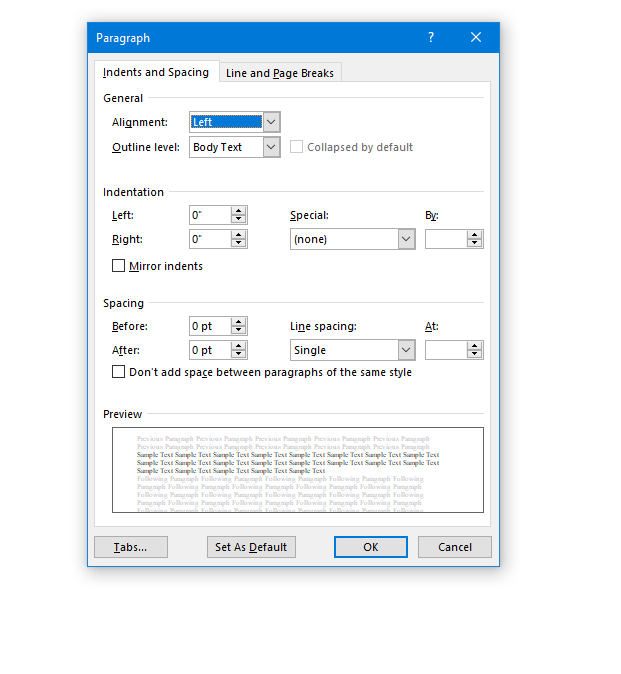
      • Open Paragraph Spacing: Press Alt + O + P.
      • Set Spacing to Single: Press Alt + P and change to single spacing.
      • Set Default for All Documents: Press Alt + D followed by Alt + A and then Enter.

    Customize Document further

    1. Change Font:
      • Select All Text: Press Ctrl + A.
      • Open Font Dialog: Press Ctrl + D.
      • Change Font to Times New Roman: Type “Times New Roman” and set size to 12.
      • Set Default for All Documents: Press Alt + D followed by Alt + A and then Enter.
    2. Create Columns:
      • Open Page Layout: Press Alt + P.
      • Select Columns: Press J for columns.
      • Set Number of Columns: Press Alt + O + C and choose the number of columns.
    3. Change Page Color:
      • Open Page Layout: Press Alt + P.
      • Open Colors: Press PC.
      • Select Color: Use arrow keys to choose a color and press Enter.
    4. Add Border:
      • Open Borders: Press Alt + O + B.

    These commands will help you efficiently navigate and customize documents. See other Setup options 

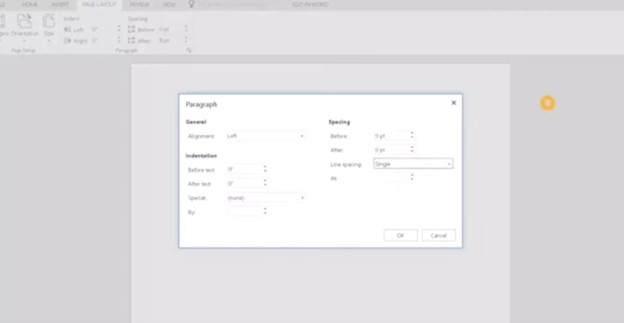
    windows page setup for defaults
    Essential WORD keyboard commands for windows page setup for defaults

    Other WORD Lessons

    Optimizing Windows 11 Efficiency for Screen Reader with Key Settings and Configurations

    WORD Efficient Text Navigation and Selection

    Basic WORD JAWS commands with Typing Trick

    Rebuild Microsoft Word Template when it is not working well

    Microsoft Word MLA format with Christopher Duffley

    WORD accessible food chain for class using talking software

    Commands to change mouse -access programs fast, basics in Word font & movement

    Excel line plot graph-copy to Word for Math

    Complete an excel graph and copy into Word document with screen reader

    Essential WORD keyboard commands for setting defaults

    Track changes in Word-How teachers make corrections in work

    Track Changes with Commands-inserting comments and editing work

  • Office 365 Online Access with Screen Reader

    Office 365 online is fully accessible with screen readers, enhancing the user experience for visually impaired users. Through straightforward keyboard shortcuts, users can navigate and manage their documents efficiently. The interface supports major screen readers like JAWS, NVDA, and VoiceOver, ensuring users can access emails, calendars, and all Office apps without a mouse. This integration empowers users to perform complex tasks seamlessly, from editing documents to collaborating in real time, ensuring a barrier-free environment for all users.

    Here are some other formatting shortcuts for Office 365 that can enhance your productivity:

    1. Align Text:
    • CTRL + L: Align text left.
    • CTRL + R: Align text right.
    • CTRL + E: Center align text.
    • CTRL + J: Justify text alignment.
    1. Text Formatting:
    • CTRL + Shift + >: Increase font size.
    • CTRL + Shift + <: Decrease font size.
    • CTRL + U: Underline text.
    • CTRL + Shift + W: Underline words but not spaces.
    1. Paragraph Formatting:
    • CTRL + M: Increase indent.
    • CTRL + Shift + M: Decrease indent.
    • CTRL + 1: Set single-line spacing.
    • CTRL + 2: Set double-line spacing.
    • CTRL + 5: Set 1.5-line spacing.
    1. Insert Elements:
    • ALT + N, P: Insert a picture.
    • ALT + N, T: Insert a table.
    office 365 online access
    office 365 online access

    These shortcuts are integral for quick editing and formatting within Office 365 online access for applications, streamlining the process of document creation and modification.

    In Office 365 applications like Word, you can quickly apply or change text styles using the Styles pane. The shortcut to open the Styles pane is ALT + CTRL + Shift + S. This allows you to apply predefined styles to your text efficiently. Additionally, you can use CTRL + Shift + S to open the Apply Styles dialog box, where you can type and apply a style name directly to the selected text. These shortcuts help streamline formatting and ensure consistent document styling.

    Other Online Office 365 online access commands

    Here are some essential commands for using Office 365 online efficiently:

    1. Save: Ctrl + S
    2. Undo: Ctrl + Z
    3. Redo: Ctrl + Y
    4. Open: Ctrl + O
    5. Print: Ctrl + P
    6. Copy: Ctrl + C
    7. Paste: Ctrl + V
    8. Cut: Ctrl + X
    9. Bold: Ctrl + B
    10. Italic: Ctrl + I
    11. Underline: Ctrl + U
    12. Insert Hyperlink: Ctrl + K
    13. Refresh the Document: F5
    14. Find: Ctrl + F
    15. Replace: Ctrl + H

    These shortcuts are fundamental for navigating and managing documents in Office 365 online, making your workflow quicker and more efficient.

    Here are more helpful tips for using Office 365 effectively:

    1. Quick Access Toolbar Customization:
    • Customize your Quick Access Toolbar by adding frequently used commands. Right-click any command in the ribbon and select “Add to Quick Access Toolbar.”
    1. Use “Tell Me” Feature:
    • Use the “Tell Me” feature (light bulb icon or ALT + Q) in the ribbon to quickly find features or help with commands you’re unsure about.
    1. Keyboard Shortcut Customization:
    • Customize keyboard shortcuts through the Word Options dialog to tailor your workflow preferences.
    1. Use Version History:
    • Use Version History to view and restore previous versions of your documents, especially useful in collaborative settings.
    1. Collaborate in Real-Time:
    • Use the collaboration tools in Word, Excel, and PowerPoint to work with others in real-time, seeing changes as they happen.

    These tips can help you navigate Office 365 more efficiently and make the most out of its extensive features and more lessons here.

  • iPhone Setup: Turning On Siri and VoiceOver

    iPhone Setup: Turning  on Siri and Voice Over
    iPhone Setup: Turning on Siri and Voice Over

    Lesson:

    Step 1: Turn On Siri Using the Home or Side Button

    If the phone is locked: Here’s how you can begin the process for iPhone Setup: Turning On Siri and VoiceOver.

    1. Press and hold the Home button (older phones)
      OR
      Press and hold the Side button (newer phones)
    2. When you hear the Siri tone, say clearly:

    “Turn on Siri.”

    If Siri is already enabled, continue.


    Step 2: Use Siri to Turn On VoiceOver

    Once Siri responds, say:

    “Turn on VoiceOver.”

    The phone will say:

    “VoiceOver on.”

    Now the screen is accessible.


    Now the Lesson Can Begin

    Once VoiceOver is on, the learner can use gestures.


    Basic VoiceOver Navigation

    Move Forward

    Flick right with one finger.

    Move Backward

    Flick left with one finger.

    Activate Item

    Double-tap anywhere on the screen.

    Stop Speech

    Two-finger tap.

    Go Back

    Two-finger scrub (draw a Z).


    Moving Around the Home Screen

    Move Between Apps

    Flick right or left.

    Open an App

    Double-tap.

    Move Between Pages

    Three-finger swipe left or right.


    Using the Rotor

    1. Place two fingers on the screen.
    2. Twist like turning a dial.
    3. Listen for options such as:
      • Words
      • Characters
      • Headings
      • Links
    4. Flick up or down to move within that selection.

    The rotor allows precise navigation.

    Change rotor based on need, based on App


    Using Siri After VoiceOver Is On

    Siri continues to work alongside VoiceOver.

    Activate Siri:

    • Say “Hey Siri”
      OR
    • Hold Side button

    Examples:

    “Open Maps.”
    “Call Mom.”
    “Send a text.”
    “What’s around me?”
    “Turn Bluetooth on.”

    VoiceOver confirms each action.


    Critical Teaching Order

    Teach in this order:

    1. Turn on Siri
    2. Turn on VoiceOver
    3. Flick right
    4. Flick left
    5. Double-tap
    6. Three-finger swipe
    7. Rotor
    8. 4 finger double tap teaches child “VoiceOver help mode”

    Confidence comes from mastering movement first.


    Go to All iPhone Lessons

    Drop Pins and Navigate with Maps: iPhone and VoiceOver Skills for the Blind