Search results for: “team”

  • Preventing Due Process, upholding Rights

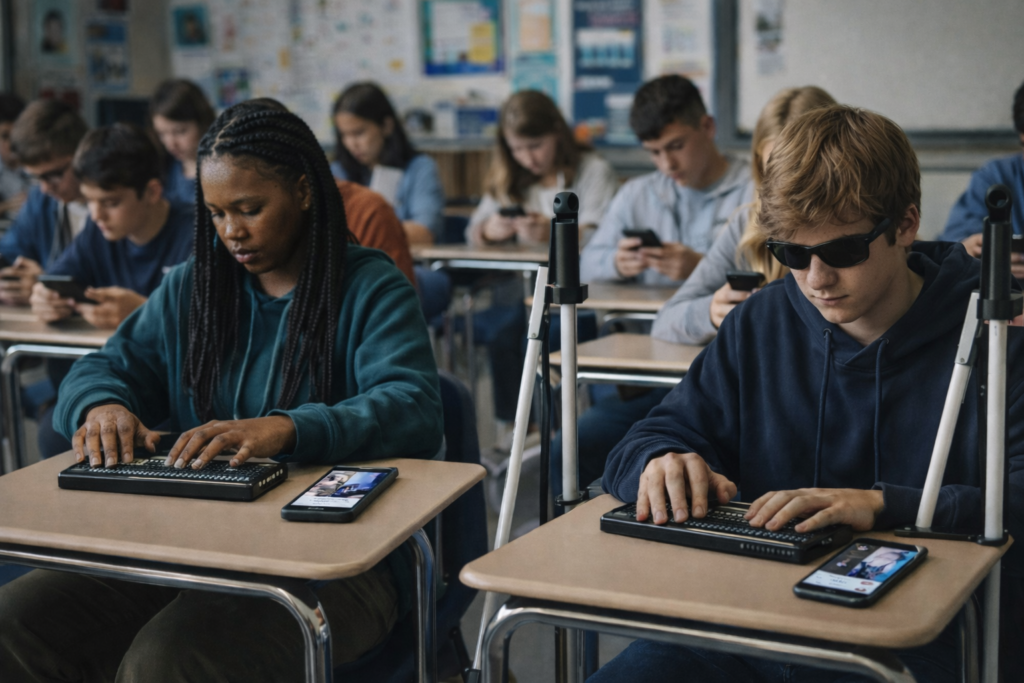
    The way to prevent due process for blind and visually impaired students is by proactively addressing their specialized needs. Ensuring compliance with FAPE (Free Appropriate Public Education) is essential. This fosters an educational environment that gives full access to all students. For blind and visually impaired students, this means specialized instruction using access technology, Braille, Nemeth/UEB Math, tactile tools, and more. TechVision ensures the right team is in place to teach your child in real time. Students learn exactly what their peers are learning. They use a PC computer, screen reader, and Braille display. They receive remote instruction from a TechVision staff member. This can be in their room or in a session with their TVI and transcriber.

    TechVision Staff educate teachers on accessibility and train transcribers to make work accessible. Additionally, they help schools and parents understand what access to education truly means. Consequently, this approach enables schools and parents at home to support the independence of blind children. When these supports and accommodations are in place, visually impaired students can fully access their education and home environment, but ONLY with appropriate Access Technology Instructors.

    Appropriate Instructors mean Access Instructors can totally use the technology themselves in all areas and subjects with keyboard commands, screen readers and braille display. As a result, students experience inclusion and have their right to a Free Appropriate Public Education (FAPE) upheld. Everything together allows FAPE. The right tools are nothing without proper instruction with it. Ultimately, this stops due process if it has begun or prevents it before it gets to this point. By utilizing these strategies, parents and schools play a crucial role in preventing any due process issues from arising.

    Knowledgeable Instructors the STOP Due Process

    TechVision, LLC, led by Dr. Denise M. Robinson, specializes in providing comprehensive educational services for blind and visually impaired students. Here are some ways TechVision can help prevent issues related to FAPE (Free Appropriate Public Education) violations:

    1. Specialized Instruction: TechVision offers 1:1 remote instruction in technology, Braille, Nemeth code, and other blind skills. This ensures that students receive the necessary support to access their education effectively.

    2. Collaboration with Schools: TechVision works closely with school districts, teachers, and other educational personnel to ensure that the needs of visually impaired students are met. This collaboration helps in creating an inclusive learning environment.

    3. Training for Educators: TechVision provides training for school teams, including transcribers and teachers of the blind. This training equips educators with the skills and knowledge needed to support visually impaired students.

    4. Advocacy and Support: TechVision advocates for the rights of visually impaired students and ensures that their educational needs are addressed. This includes working with families and schools to develop and implement appropriate educational plans.

    5. Use of Technology: By leveraging cutting-edge technology, such as screen readers, Braille displays, and other assistive tools, TechVision empowers students to access information and navigate their education on an equal footing with their sighted peers.

    By providing these services, TechVision helps ensure that visually impaired students receive the education they deserve, while also supporting parents and schools in creating an inclusive and effective learning environment. By providing these services, TechVision can help prevent FAPE violations and ensure that visually impaired students receive the education they deserve.

    We are dedicated to resolving FAPE challenges in schools, ensuring that every student receives the education they need to access their education fully by supporting teachers, and helping schools on this exciting path to full inclusion.

    Investing in Education: Redirecting Funds for Maximum Impact

    When funds are no longer tied up in pre-process meetings or due process proceedings, they can be redirected to directly benefit students and teachers. This means more resources for specialized instruction, assistive technology, and accessible materials for visually impaired students, thus preventing due process from being needed. Teachers can receive better training and support, ensuring they are well-equipped to meet the needs of all students. Additionally, schools can invest in creating inclusive environments that foster independence and success for visually impaired children. By obtaining the right teachers for specialized instruction, like those from TechVision, schools can provide direct instruction tailored to each child’s needs. Ultimately, reallocating these funds enhances the overall educational experience and promotes a more equitable learning environment for everyone.

    Story of a full inclusive society: Lessons from Martha’s Vineyard

    FAPE Laws to Prevent Due Process

    Resources on FAPE (Free Appropriate Public Education) laws and Educational Access:

    1. Disability Discrimination: Providing a Free Appropriate Public Education (FAPE) – U.S. Department of Education.
    2. Free Appropriate Public Education – U.S. Department of Education.
    3. What is and isn’t covered under FAPE – Understood.

    These links provide detailed information about FAPE laws, including what is covered and how they protect the rights of students with disabilities. Familiarizing with these laws is crucial in preventing due process issues from arising in the first place.

    Access TechVision Instructors have helped many states and school districts resolve conflicts before reaching due process. We can teach your child the skills they need to succeed in school and life. Contact us for assistance in resolving any issues related to creating an accessible program for the blind and visually impaired at your school.

    TechVisionTraining@yourtechvision.com

  • Blind Baseball Announcer Keith Bundy Lives his Dream

    Keith Bundy, a blind baseball announcer, shared his journey of overcoming obstacles to live his dream as a sports announcer. Mr. Bundy, blind since childhood, longed to play sports but lacked opportunities in Southern Indiana. Listening to baseball broadcasts fueled his dream. In 2001, he received an invitation to announce an American Legion Baseball game. With family support and a refreshable braille display, Bundy began announcing for teams semi-professionally.

    Blind Baseball Announcer Keith Bundy Inspiring Journey-watch on YouTube

    On August 29th and 30th, significant events took place in Madison, South Dakota. The Dakota State University Trojans and the Madison Bulldogs both won their first games in their new stadiums. However, a less noticed but equally significant event occurred on August 29th. Keith Bundy, who grew up blind in Southern Indiana, fulfilled a lifelong dream by becoming an announcer in stadiums. It was a monumental day for Blind Baseball Announcer Keith Bundy.

    Growing up, Keith was passionate about sports but couldn’t participate due to his blindness. He spent many nights listening to baseball broadcasts and dreaming of being part of a team. In 2001, a chance opportunity to announce an American Legion Baseball game changed his life. With the support of his family and the use of assistive technology like a refreshable braille display, Keith began announcing baseball games. Over the years, he announced for various teams, including Dakota State University and the Madison Broncos.

    Blind baseball announcer Keith reading stats from braille display
    Blind baseball announcer Keith reading stats from braille display

    Keith is FIRST person to in new stadium

    On August 29th, Keith became the first person to announce an event in the new stadium, a moment he described as humbling and significant. He emphasized that blindness is not an insurmountable obstacle and credited his success to the right circumstances, a strong work ethic, and the support of many people, including his wife Peggy and his friend Tom Frel. Blind Baseball Announcer Keith Bundy has shown that anything is possible with the right support.

    Keith’s story is a testament to perseverance and proper education. Most of all, the power of community support in achieving one’s dreams.

    Blind individuals, with the right instruction and tools, can achieve their dreams just like anyone else. By learning essential skills, such as using assistive technology, braille, or orientation and mobility training, they can overcome obstacles that once seemed insurmountable. With guidance tailored to their needs, they gain confidence, independence, and the ability to pursue passions, whether in academics, sports, or careers. By embracing the right resources and support, blind people can turn their dreams into reality and thrive in any field they choose.

    Lessons to Help you Live YOUR Dreams

    Braille Math in Word with editor, JAWS, braille display and ease for multi-line math problems

    Graphing Inequalities, functions and shading with Desmos and screen reader

    Create Geometry Shapes from Math Work in Desmos with screen reader

    Geometry in DESMOS graphing Calculator with screen reader

    Desmos graphing calculator with shaded Parabolas, screen reader, braille display and embosser

    MLA APA format paper writing-Tech Tip

    Other Inspiring Stories

    Braille Math editor Contracted out, computer in mode with Tay–most efficient

    Jaws Braille Math editor in Word by Aubrey

    Braille Math Editor in Word with Jaws, Focus Braille Display by Campbell

    Atlanta Teen para-climber heading to Switzerland Olympics- Raveena Alli

    Microsoft Word MLA format with Christopher Duffley

  • TechVision Access Instruction-Empowering Blind and Visually Impaired

    TechVision Access Instruction is the TechVision Difference. Dr. Robinson and her Tech Vision team provide one-on-one and school team remote instruction for visually impaired individuals in real time. They enhance technology skills for students, adults, and groups by teaching them to use assistive technologies like PC computers, screen readers (JAWS, NVDA, Narrator), and Braille displays. This approach ensures students complete their work alongside peers without needing extra time

    TechVision Access Instruction aims to transform education for the blind and visually impaired. They combine the right technology with effective instruction. They offer teaching internships to advanced students, providing hands-on job skills that enhance resumes for future employment or college applications. Their goal is to empower visually impaired individuals to achieve their full potential and navigate the world confidently.

    TechVision Access Instruction
    TechVision Website

    Our Mission and Purpose is enable blind and visually impaired students the ability to access and complete work as their sighted peers. This requires, screen readers, braille displays and other access technology.

    Technology that gives you VISION with Access Instruction

    The TechVision mission and purpose, led by Dr. Robinson and her highly skilled TechVision Specialists, are to change lives via instruction in access technology, enabling inclusion and educational equality.

    The TechVision Specialists are uniquely skilled in teaching blind and low vision students. They focus on direct instruction on all technology like computers(requires Local Admin Access), screen readers, Braille displays, and smartphones. This approach has revolutionized the educational experience for blind and low vision students and clientele. Their expertise and global reach have significantly impacted students. They empower students to access information and navigate the world on an equal footing with sighted peers.

    Additionally, TechVision collaborates with school districts and private entities to address the evolving needs of education. This collaboration promotes independence and inclusion in both classrooms and the job market. By equipping students with essential skills, TechVision creates an environment of true equality. As a result, opportunities become accessible to everyone, regardless of visual impairment.

    TechVision specializes in teaching all subjects, especially advanced mathematics, to blind and visually impaired students. This enables them to succeed academically. Many of these students pursue majors in Applied Mathematics at prestigious institutions, including Harvard University. They use innovative methods to ensure blind and low vision students perform at the same high level as their sighted peers.

    Integration

    Additionally, TechVision integrates tools like Artificial Intelligence (AI), word processors, screen readers, and Braille displays to support student success. These tools allow visually impaired students to produce work comparable to their classmates. Consequently, this promotes integration and equal opportunities in academic environments: Even to the point that you can Make an Electronic Signature -Then insert it into a Document.

    Big issues occur and you can learn to resolve them via Find and restore deleted files or lost files & folders

    We offer:

    1:1 or whole Team Instruction

    Access Training

    Get to know the Team Specialists

    Expertise in Math Instruction

    What you need to do to Find a JOB

    And if you want to try your hand: Mac with VoiceOver and Key Commands

    Let us know how we can help you: Contact US: TechVisionTraining@yourtechvision.com

  • Create and Emboss Graphics with Tiger Designer

    Embossing graphics for Blind Students: Dr. Robinson offers this video for families and transcribers needing to adapt images for blind students to “see.” This video offers a straightforward approach to creating accessible Venn diagrams using the technique to emboss graphics with Tiger.

    Dr. Robinson begins by explaining how to handle a Venn Diagram or any graphic. She demonstrates using a Venn diagram with two large, intertwined circles, where all parts are shaded. Such images blur when transferred into Tiger Designer, a common tool for producing tactile graphics. She recommends redrawing the diagram for clarity, ease, and speed. This approach is more effective than fixing the shaded areas when you emboss graphics with Tiger.

    How to Emboss the Tiger Graphic

    To show blur issues, she creates a new diagram, by opening Tiger Designer and pressing Control + N to start a new document. After ensuring the default settings are correct, pasting an image using Control + V will result in a blurry output due to the shading. In this case, Dr. Robinson suggests redrawing the Venn diagram. Ctrl + N for new again and Alt+O or click on Tools. Select a line width of 2.5 or 3, as thicker lines are easier for students to feel when you emboss graphics with Tiger.

    Dr. Robinson then demonstrates how to draw two circles from the tool’s menu, representing the basic structure of the Venn diagram. She emphasizes the importance of labeling the sections and typing in uncontracted Braille works fine. She notes that while parents may not be familiar with contractions, students are accustomed to reading uncontracted Braille. It’s crucial to use these steps to emboss graphics with Tiger accurately.

    Finally, Dr. Robinson shows how to emboss the Tiger graphic with Ctrl + P to emboss. Ensure the correct printer model and settings are applied. The final result will be a clear and accessible tactile diagram that the student can easily interpret.

    This and more lessons provide a simple and effective way for parents and transcribers to create accessible Venn diagrams for visually impaired students. Need Training?. Ask away. We are tech specialists in all areas.

    UEB Math to emboss also

    But first make sure that computer is working well.

  • Spanish Braille Display or Keyboard Output/Input

    Learning Spanish Braille

    Learning Spanish Braille involves understanding the unique characteristics of the Braille system used for the Spanish language. Then build on the foundational skills of Braille reading and writing. Here’s how to approach it:

     1. Understand the Braille Alphabet in Spanish

       Spanish Braille follows the same 6-dot system as English Braille.  

    Extra characters are included to represent letters with accents and special characters used in Spanish.

      Key additions include:

         Ñ: Represented by a unique Braille symbol.

         Accented vowels: Á, É, Í, Ó, Ú have distinct Braille symbols.

         Punctuation: Spanish uses inverted question marks (¿) and exclamation marks (¡), and these have their own symbols in Spanish Braille.

     2. Start with the Basics

       – Begin by learning the standard Braille alphabet for unaccented letters, numbers, and common punctuation marks.

       – Practice reading and writing these basic symbols to build fluency.

     3. Familiarize Yourself with the Extra Characters

       – Learn the Braille symbols for accented vowels (á, é, í, ó, ú) and ñ.

       – Practice using these in words and sentences.

    Gain Fluency Through Access Training

     4. Use Spanish Braille Materials

       – Read and practice with materials specifically written in Spanish Braille to develop fluency.

       – You can find books, articles, or educational materials written in Spanish Braille to improve your reading skills online.

     5. Engage with Digital Tools

       – Tools like Braille displays and screen readers can be set to Spanish to help reinforce learning. See below list of all  Spanish symbols

       – Software like JAWS or NVDA can be configured to support Braille output in Spanish. This allows for real-time practice with written content.

     6. Practice Writing Spanish Braille

       – Use a Braille writer to practice writing in Spanish Braille. Focus on mastering punctuation and special characters.

       – The fastest and easiest to edit option will be to practice typing or brailling on a display. The FOCUS 40 Braille Display or Brailliant Braille Display to write out Spanish words and sentences.

     7. Learn through Immersive Activities

       – Reinforce learning, engage in practical activities like labeling objects in Spanish Braille. Work with bilingual Braille texts (Spanish and English).

     8. Find a Teacher or Tutor

       – If possible, work with an instructor who is fluent in Spanish Braille and the language. They can guide you through the nuances of the language and provide feedback on your progress.

       – Organizations specializing in Braille education, like TechVision, can help offer resources or tutors for Spanish Braille.

    8. Go to a Spanish Speaking Country

    -Totally immerse yourself within a culture that will speak the language you want to learn well.

    Spanish-Española Symbols

    Spanish-Española 1. Jaws settings: Set up braille profile – insert 6 (ctrl shift D) for default. After completing the steps, open settings again to ensure they apply only to Word settings. Next, type “braille mode” twice, press F6, and use Alt+G to access languages and set your preferences. For those requiring a Spanish Braille display or keyboard, ensure your device is compatible with your software settings. More Video lessons can help.

    This lesson is Spain (international) Input and Output are Spanish Grade 1

    2. Tab to profile languages and set those up and enter to close Jaws settings

    3. Alt 8 to make sure dots 7,8 show on display-accept and close settings

    1. Set up Voice profile in Jaws-open context menu, options, voices, add a profile

    1. In Word-change voice quickly:  2 options: on keyboard- ctrl shift window L to change profile or on Focus -2,3,4,5,7, space to change languages)

    2. Insert+ctrl+S to change to Spanish profile or to other language

    3. G+7+space on Focus to computer braille (which will output Spanish grade 1)– capital is dot 7 under capital letter on display

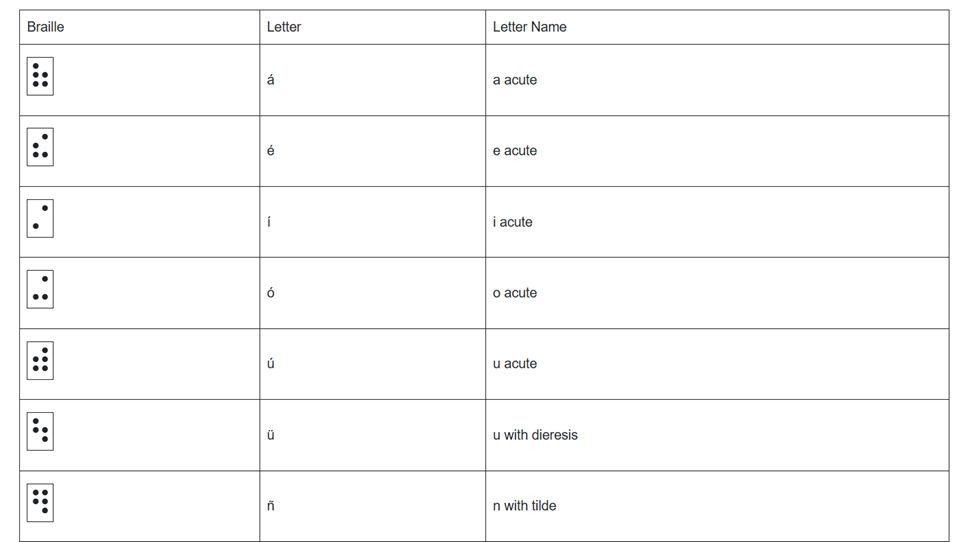
    Spanish Braille display or keyboard image of braille dots that are in this accessible page for auditory learners

    For Braille with Braille Display on Computer

    Práctica: 

    á 1,2,3,5,6   

    é 2,3,4,6   

    í 3,4 

    ó 3,4,6  

    ú 2,3,4,5,6  

    ü 1,2,5,6,8 

    ñ 1,2,4,5,6, 8  

    Punctuation for Spanish Braille using Braille Display

    ! 2,3,5, 7 is exclamation mark

    inverted ! is 2,3,5, 7, 8 is upside down exclamation mark

    Period is . is dot 3 

    Comma is , is dot 2 for comma

    question mark is ? is dot 2, 6 

    upside down question mark or inverted ? is 2,6,7

    Spanish Braille for Keyboard and JAWS

    Lower Case Letters

    á   (lower case a, acute accent)  =  Press Ctrl + ‘ (apostrophe), then the letter a
    é   (lower case e, acute accent)  =  Press Ctrl + ‘ (apostrophe), then the letter e
    í   (lower case i, acute accent)  =  Press Ctrl + ‘ (apostrophe), then the letter i
    ó   (lower case o, acute accent)  =  Press Ctrl + ‘ (apostrophe), then the letter o
    ú   (lower case u, acute accent)  =  Press Ctrl + ‘ (apostrophe), then the letter u
    ñ   (lower case n, tilde accent)  =  Press Ctrl + Shift + ~ (tilde), then the letter n
    ü   (lower case u, diaeresis accent)  =  Press Ctrl + Shift + : (colon), then the letter u

    Upper Case Letters

    Á   (upper case A, acute accent)  =  Press Ctrl + ‘ (apostrophe), then Shift + a
    É   (upper case E, acute accent)  =  Press Ctrl + ‘ (apostrophe), then Shift + e
    Í   (upper case I, acute accent)  =  Press Ctrl + ‘ (apostrophe), then Shift + i
    Ó   (upper case O, acute accent)  =  Press Ctrl + ‘ (apostrophe), then Shift + o
    Ú   (upper case U, acute accent)  =  Press Ctrl + ‘ (apostrophe), then Shift + u
    Ñ   (upper case N, tilde accent)  =  Press Ctrl + Shift + ~ (tilde), then Shift + n
    Ü   (upper case U, diaeresis accent)  =  Press Ctrl + Shift + : (colon), then Shift + u

    Punctuation Marks

    ¿   (inverted question mark)  =  Press Alt + Ctrl + Shift + ? (question mark)
    ¡   (inverted exclamation mark)  =  Press Alt + Ctrl + Shift + ! (exclamation mark)
    «   (opening angle quotation mark)  =  Press Ctrl + ` (grave accent), then Shift + < (less than symbol)
    »   (closing angle quotation mark)  =  Press Ctrl + ` (grave accent), then Shift + > (greater than symbol)

    Practice Spanish Braille with Braille Display or Keyboard

    Practice Perfect Touch Typing for accuracy as this helps tremendously with any language typing skills.

    Práctica: You can Use JAWS insert+4 on keyboard for any special symbol also

    ¿Qué hora es por favor, señor? 

    Soy de México.  

    !Mucho gusto, Marta! Hola.

    ¡Mucho gusto, Marta! Hola!

     ¿Qué hora es por favor, señor?

    ¿Qué hora es por favor, señor?

    Practice Conversational Spanish

    If you find your computer is working odd–here is a video on how to fix it then continue

    1. ¡Buenos días! ¡Hola! / Good morning!
    2. ¡Buenas tardes!  Good afternoon!
    3. ¡Buenas noches! Good evening! / Good night!
    4. ¡Hola! / ¡Chao!  ¡Hi! / Bye!
    5. Adiós.  Goodbye.
    6. Por favor.  Please.
    7. Hasta la vista / Hasta luego. See you / See you later.
    8. Hasta pronto. See you soon.
    9. Hasta mañana. See you tomorrow.
    10. (Muchas) Gracias. 
    11. Thank you (very much).
    12. De nada. You’re welcome.
    13. Bienvenidos  Welcome
    14. Lo siento  I’m sorry
    15. Con permiso / Perdón / Disculpe  Excuse me / Pardon me 
    16. ¡Vamos!  Let’s go!
    17. ¿Cómo está usted?  How are you? (formal) 
    18. ¿Cómo estás?  How are you? (informal)
    19. Insert+4 for eacute in
    20. ¿Qué tal?   How’s it going?
    21. Bien / Muy bien  Good / Very good
    22. Insert+4 for acute in Más below
    23. Mal / Muy mal / Más o menos  Bad / Very bad / OK
    24. Sí / No Yes / No
    25. ¿Cómo?
    26. ¿Cómo se llama usted? What is your name? (formal)
    27. ¿Cómo te llamas?  What is your name? (informal)
    28. Me llamo…  / Mi nombre es… My name is…
    29. Mucho gusto. / Encantado.  Nice to meet you.

    Immersion in Language

    Here is the sequence of learning in order to learn any language well:

    The time it takes to learn a new language, like Spanish, while living in a country where it is the only language spoken, depends on several factors. However, here are general timelines and considerations:

     1. Immersion Benefits

       Living in a Spanish-speaking country accelerates learning because you’re constantly exposed to the language in real-life situations like:

       Listening: Conversations, TV, radio, and announcements.

       Speaking: Daily interactions with locals, from shopping to asking for directions.

       Reading and Writing: Street signs, menus, newspapers, and more.

     2. Language Learning Proficiency Levels

       The Common European Framework of Reference for Languages (CEFR) breaks language learning into six levels:

       A1 (Beginner): Basic phrases and conversations (3–6 months).

       A2 (Elementary): Can understand simple texts and conversations (6–12 months).

       B1 (Intermediate): Hold conversations on familiar topics and function in everyday life (12–18 months).

       B2 (Upper Intermediate): Fluent in most situations, including work and travel (18 months–2 years).

       C1 (Advanced): Understand complex topics and engage in nuanced conversation (2–3 years).

       C2 (Proficient): Full mastery of the language, similar to a native speaker (3+ years).

    Factors that will Determine Speed

     3. Factors That Affect Learning Speed

       Motivation and Attitude: Strong motivation and a positive mindset can accelerate your progress.

       Practice Consistency: Daily practice, speaking, listening, and reading in Spanish speeds up learning.

       Prior Language Experience: If you’re already familiar with Romance languages (e.g., Italian or French), learning Spanish might be faster due to similarities in vocabulary and grammar.

       Formal Education: Taking classes, whether in person or online, and using language apps like Duolingo or Babbel can help structure your learning and improve your skills more quickly.

       Social Interaction: Making friends who are native speakers or joining local groups can enhance your conversational abilities.

     4. Realistic Expectations

       – For basic conversational fluency (A2-B1), expect about 6 months to 1 year of immersion if you’re dedicated and practicing regularly.

       – To reach an advanced level (C1), you might need 2 to 3 years of living and interacting in the language full-time.

     5. Cultural Immersion

       Your understanding of Spanish will deepen faster if you immerse yourself in the local culture, customs, and idiomatic expressions. Engaging in local activities, reading newspapers, and watching TV shows will all help you learn the language more organically.

     Summary:

       On average, 6 months to 1 year of immersion in a Spanish-speaking country should allow you to gain conversational fluency, with full mastery taking about 2–3 years, depending on your dedication and resources.

    Adult Learning Speed

    Sequence of learning for an adult

    For adults, learning a new language like Spanish while living in a country where it’s the only language spoken can still be highly effective, but several factors can influence the timeline. Here’s what an adult learner can expect:

     1. General Time frames for Adult Learners

       Conversational fluency (A2-B1 level): Typically achievable in 6 months to 1 year of immersion.

       Advanced proficiency (B2-C1 level): May take 1.5 to 2.5 years of consistent use and practice.

       Full fluency (C2 level): Can take 3 years or more, depending on factors like exposure, practice, and language complexity.

     2. Factors Affecting Adult Learning Speed

       Cognitive Flexibility: Adults tend to be more methodical learners than children, but they can sometimes struggle with retaining new vocabulary and adapting to different grammar structures.

       Prior Experience: If the adult already speaks a Romance language (like Italian or French), they will likely learn Spanish more quickly because of the structural similarities.

       Learning Environment: The more opportunities for immersion—such as interacting with native speakers, engaging in cultural activities, and using Spanish in daily tasks—the faster the progress.

       Language Learning Methods: Adults often benefit from a combination of formal learning (e.g., classes, tutors) and informal learning (e.g., conversations, media consumption).

       Motivation and Consistency: Adults with clear goals and regular practice (even just 30 minutes a day) tend to progress faster. Maintaining consistent practice is key to long-term retention.

    Challenges for Adult Learners

     3. Challenges for Adult Learners

       Accent and Pronunciation: Adults might find it harder to develop a native-like accent, though this doesn’t prevent them from becoming highly fluent.

       Work and Life Responsibilities: Adults often juggle work and personal responsibilities, which can limit the time available for focused language learning.

       Grammar: Grasping grammatical structures, verb conjugations, and nuances may take longer for adults compared to younger learners, who tend to absorb new patterns more intuitively.

     4. Accelerating Adult Learning

       Use Daily Immersion: Engage in conversations, read signs, watch TV shows, and use apps like Duolingo or Babbel to reinforce lessons in real-life situations.

       Structured Learning: Enroll in Spanish classes or hire a tutor to build a strong foundation in vocabulary and grammar.

       Use Technology: Utilize language-learning apps, podcasts, or online lessons. Watching Spanish media with subtitles can help you pick up common phrases and pronunciation.

       – Join Social Circles: Engage with locals, participate in group activities, and use Spanish in daily interactions. This practical experience will help reinforce what you’ve learned.

       – Set Realistic Goals: Adults benefit from having clear, incremental goals (e.g., mastering a certain level of vocabulary or holding a 10-minute conversation) to track progress and stay motivated.

    Adult Experience

     5. Common Experiences for Adults

       After 3-6 months, most adults can hold basic conversations, ask for directions, and manage daily interactions in Spanish.

       By 1 year, many can discuss familiar topics, navigate most social situations, and understand much of what they hear or read.

       Within 2 years, a dedicated adult learner can likely achieve strong conversational fluency and understand complex topics, though nuances and slang may still be challenging.

    Summary

    For an adult, achieving conversational fluency in Spanish typically takes 6 months to 1 year with immersion and regular practice. Advanced proficiency may take 1.5 to 2.5 years, while full fluency could require 3 years or more, depending on the learner’s background, motivation, and exposure to the language.

    Team Specialists to Train YOU

    Learn UEB Braille on your own

    Make sure to keep your display clean and learn to read Braille Fast

    Advance to UEB Math learning

    Dr. Robinson and her Team at TechVision have made a significant global impact via their Team Mission and Purpose. TechVision specializes in 1:1 remote instruction in education for the blind and visually impaired, serving individuals of all ages. We also train School Teams: transcribers, Teachers of the Blind and other School Personal and work with parents. Their expertise is delivered through personalized, real-time 1:1 remote instruction. This approach empowers students and clients to compete equally with their sighted peers in both education and work.

    Other Spanish Setup Lessons

    Braille Setup for Spanish

    Spanish Braille input output

    Spanish Braille with Jaws

  • Matrices in WORD Math Editor-Braille Math editor with Jaws using LaTex, auditory and/or Braille

    Matrices in WORD Math Editor

    In this video, Dr. Denise M. Robinson demonstrates how to use the WORD Math Editor and Braille Math Editor with JAWS using LaTeX or Braille. This tutorial is designed for screen reader users, with or without braille displays, who want to improve their math skills.

    First, Dr. Robinson introduces the essential tools for using matrices in WORD, including JAWS, a Braille display (if desired), and the WORD Math Editor. She explains how to set up each tool to work together smoothly, which is crucial for creating and editing math content.

    Next, the video focuses on creating matrices. Dr. Robinson uses LaTeX to input mathematical expressions. She explains each step clearly, making it easy to follow along. Viewers will learn how to enter rows and columns in a matrix, helping them understand matrix structure.

    Then, Dr. Robinson demonstrates how to use auditory feedback, which allows users to hear the math content they are working on. This feature helps ensure accuracy and makes it easier to catch mistakes. Additionally, she shows how to switch between auditory and Braille feedback, providing flexibility for different learning styles.

    matrices addition problem

    The video also covers using the Braille display with the math editors. Dr. Robinson explains how to navigate through the matrix using Braille and provides tips on reading and editing the content efficiently. This section is particularly helpful for users who rely on Braille for their work.

    Finally, the tutorial concludes with a review of the key points. Dr. Robinson summarizes the steps for creating and editing matrices. She encourages viewers to practice using the tools and techniques demonstrated in the video. By the end of the tutorial, users will feel more confident in their ability to work with math content.

    1:1 or School Team Remote lessons to get you to where you want to be!

    Other Math Lessons

    Transcribe Math Images

    Quadratic Math

    STEM with Embossing

    Perfect Digital Math

    JAWS and MathCat

    Unicode with UEB Math

    UEB Math with Jaws

    Braille Math in WORD Editor-Multi-line

    Split Braille for Buffer Mode

    or MathType with JAWS

    But make sure your computer is first setup to work the best with screen reader

    More Tech Lessons: @DrDenisemRobinsontech

  • Atlanta Teen Para‑Climber Raveena Alli Heads to the Switzerland Olympics

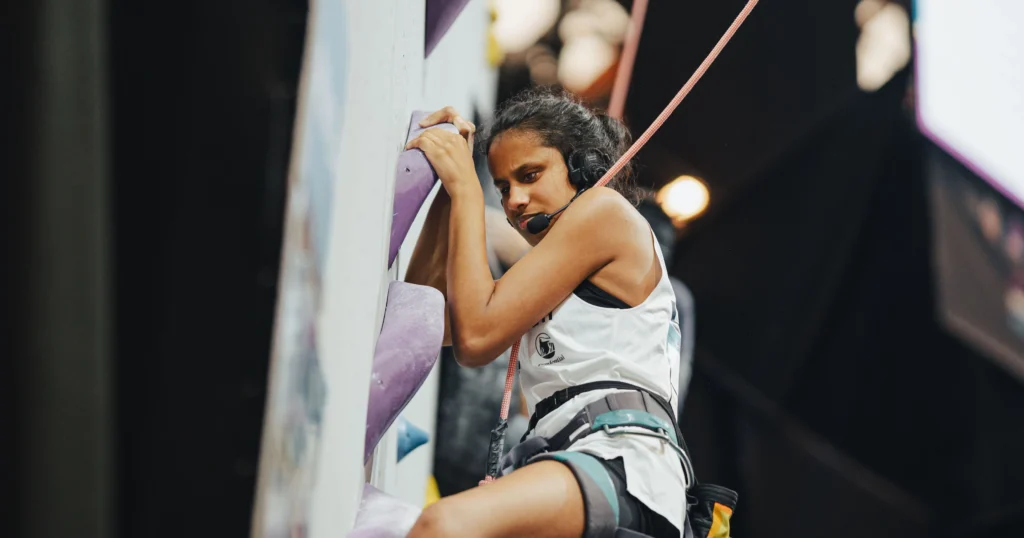
    Seventeen-year-old Olympic paraclimber Raveena Alli, a rising senior at Atlanta Girls’ School, is making waves in the world of paraclimbing. Born in India and blind since birth, Raveena has not let her visual impairment hinder her passion for climbing. She began climbing in second grade and has since become an elite para-athlete, representing Team USA. Raveena’s dedication and skill have already earned her numerous accolades, including a third-place finish at the 2022 Paraclimbing World Cup. This Olympic blind paraclimbing student is reaching new heights.

    Raveena climbing high on rock wall, speaker in her ears to listen to coach on next climb

    In the picture, Raveena Alli is seen scaling a high rock wall with determination. She wears a focused expression as she ascends, a small speaker in her ears. The speaker allows her to listen to her coach’s guidance, providing real-time feedback on her next moves. The scene captures both the physical and mental challenges she faces as a blind paraclimber, showcasing her remarkable ability to navigate the climb with her coach’s support, even without sight.

    Olympic Blind Student Para-climbing

    This year, Raveena is competing in the Para-climbing World Championships in Bern, Switzerland, a significant milestone in her climbing career. The competition, held from August 1-12, brings together top athletes from around the globe, all vying for the prestigious title. Raveena’s journey to the championships is a testament to her resilience and determination. She hopes to inspire others, particularly her blind peers, to pursue their dreams and recognize their unique abilities.

    Raveena’s ambitions extend beyond climbing; she also aspires to enter the legal field, focusing on human rights law. With a shortlist of colleges that includes Emory, UGA, and Georgetown, Raveena is preparing for a future where she can make a significant impact both in sports and in her professional life.

    Her story is not just about personal achievement but also about breaking barriers and challenging perceptions. Supported by her family, particularly her mother, who is her biggest cheerleader, Raveena continues to climb to new heights, both literally and figuratively. Her participation in the World Championships is just one step in her ongoing journey of empowerment and advocacy for people of all abilities (WSB-TV Channel 2 – Atlanta,USA Climbing).

    Story to view

    Sports board that will go anywhere you want to “see” sports

    How Colleges Help Visually Impaired Students Succeed

    Thought-Provoking Ideas on Raising Children

    Are you Color Blind–take this test

    Blind Dog Guided by Sighted Dog

    Blind Baseball Announcer Keith Bundy Lives his Dream

    Google Slides Shortcut Commands with screen reader by Campbell

    Blind Teen Masters JAWS

  • Employment Summit for Blind Professionals: Gena Harper on Becoming Indispensable at Work

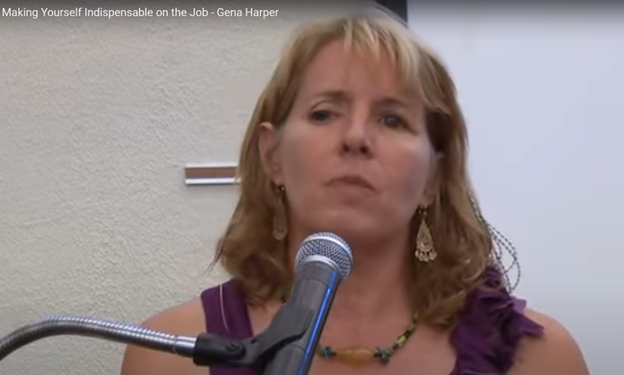
    At the Employment Summit, Gena Harper delivered an insightful presentation on making oneself indispensable in the workplace. She emphasized the importance of adaptability in an ever-changing job market. Harper explained that employees must continuously develop new skills to remain valuable. She encouraged attendees to identify gaps in their current knowledge and seek training opportunities to fill them.

    Highlights-Be open and Honest about Who you are

    Harper also highlighted the power of proactive communication. By regularly updating supervisors on progress and challenges, employees demonstrate their commitment to the organization’s goals. This proactive approach builds trust and positions employees as reliable problem solvers. Even if you are physically limited, you can still do it.

    Another key point was the value of networking within the company. Harper advised forming strong connections with colleagues across departments. These relationships not only enhance teamwork but also increase visibility within the organization. When employees are well-connected, they are more likely to be considered for new opportunities.

    Gena at speaker talking about how to become indispensable at work as a blind person

    More Strategies for Becoming Indispensable at Work

    Harper stressed the importance of understanding the company’s vision and aligning personal goals with it. By showing that your work directly contributes to the organization’s success, you reinforce your indispensable role. She recommended that employees regularly review their contributions to ensure they align with the company’s objectives.

    In addition, Harper discussed the significance of a positive attitude. She noted that a can-do attitude and a willingness to take on new challenges make employees stand out. Positive employees often inspire their peers, creating a more productive work environment. Dive in and learn.

    In conclusion, Gena Harper provided valuable strategies for becoming indispensable at work. By focusing on continuous learning, proactive communication, strong networking, goal alignment, and maintaining a positive attitude, employees can secure their place as vital members of their organizations. These practices not only enhance individual careers but also contribute to the overall success of the company.

    Education is Crucial for Finding a Job

    More information on all things blind here

    and Power Training: and Video Lessons to become indispensable at Work

    Other Stories:

    Google Slides Shortcut Commands with screen reader by Campbell

    Blind Baseball Announcer Keith Bundy Lives his Dream

    Atlanta Teen para-climber heading to Switzerland Olympics- Raveena Alli

  • Track Changes with Commands-inserting comments and editing work

    Track Changes in Microsoft Word is an essential tool for collaborative editing and document management. It allows multiple users to make and review edits, providing a clear, organized record of all changes. This feature is invaluable for maintaining the integrity of the original document while incorporating feedback from various contributors. By visually displaying insertions, deletions, and comments, Track Changes enhances transparency and accountability in the editing process. It also simplifies the task of accepting or rejecting modifications, ensuring that the final document meets the desired standards. The typical use is for students to create work and teachers to edit with comments, and it is possible to easily track changes with commands. This is easily done with any screen reader.

    Track Changes with Commands in Microsoft Word is a powerful tool for collaborative editing and document management. Here are some key details on its importance and usage:

    Key Benefits

    1. Transparency: Track Changes provides a clear, organized record of all modifications made to a document.
    2. Accountability: By displaying who made each change, Track Changes holds contributors accountable for their edits.
    3. Efficiency: Track Changes streamlines the editing process by allowing users to accept or reject changes with a single click. This efficiency saves time and reduces the likelihood of errors3.
    4. Enhanced Communication: The ability to add comments and suggestions directly within the document fosters better communication among team members. This feature helps clarify the intent behind changes and facilitates constructive feedback4.
    Track Changes with Commands and comments
    Track Changes with Commands and comments

    How to Use Track Changes with keystrokes

    1. Turning On/Off: Press Ctrl + Shift + E to toggle Track Changes on or off. Alternatively, go to the Review tab and click on the Track Changes button1.
    2. Viewing Changes: Use the Display for Review menu to choose how edits and comments are displayed. Options include Simple Markup, All Markup, No Markup, and Original2.
    3. Ctrl Shift ‘ opens all tracks with JAWS screen reader
    4. Accepting/Rejecting Changes: Navigate to the Review tab with Alt R and use the Accept or Reject buttons to manage changes. You can also right-click on a change to accept or reject it3.
    5. Adding Comments: Press Ctrl + Alt + M to insert a new comment. Navigate through comments using Alt + R, then N for the next comment or P for the previous comment1.

    Other Lessons

    Optimizing Windows 11 Efficiency for Screen Reader with Key Settings and Configurations

    WORD Efficient Text Navigation and Selection

    Document formatting editing elements: Edit margins, tab, headers, footers & more

    Basic WORD JAWS commands with Typing Trick

    Rebuild Microsoft Word Template when it is not working well

    Microsoft Word MLA format with Christopher Duffley

    WORD accessible food chain for class using talking software

    Commands to change mouse -access programs fast, basics in Word font & movement

    Excel line plot graph-copy to Word for Math

    Complete an excel graph and copy into Word document with screen reader

    Essential WORD keyboard commands for setting defaults

    Track changes in Word-How teachers make corrections in work

    How Colleges Help Visually Impaired Students Succeed

    Get your 1:1 instruction on any skill today

    If you are Low Vision, this lesson may help you

    and if you have having issues with WORD–rebuild it

  • Blind Sports

    Playing basketball as a blind individual involves using adaptive techniques and modified equipment. For example, Playing Basketball without sight typically has a bell inside so players can track it by sound. Teams communicate frequently, using verbal cues to help navigate the court. Players rely on spatial awareness, memorizing the court’s dimensions, and practicing positioning with the help of sighted guides or teammates. Basketball in the dark, involves dribbling, passing, and shooting all adjusted for touch and sound, rather than sight, allowing blind players to fully engage in the game.

    Humberto is with his Spanish interpreter (and both are learning English) while basketball coach directs him and where to shoot the ball. Playing Basketball without sight can be challenging, but Blind students can do any activity with the right access tools in place.

    Humberto Playing Basketball without sight being directed by coach

    More on YouTube