Search results for: “fix”

  • Fix Digital Accessibility Before Title II Enforcement-April 24, 2026-Now 2027

    Fix Digital Accessibility Before Title II Enforcement-No access to work
    Fix Digital Accessibility Before Title II Enforcement-No access to work

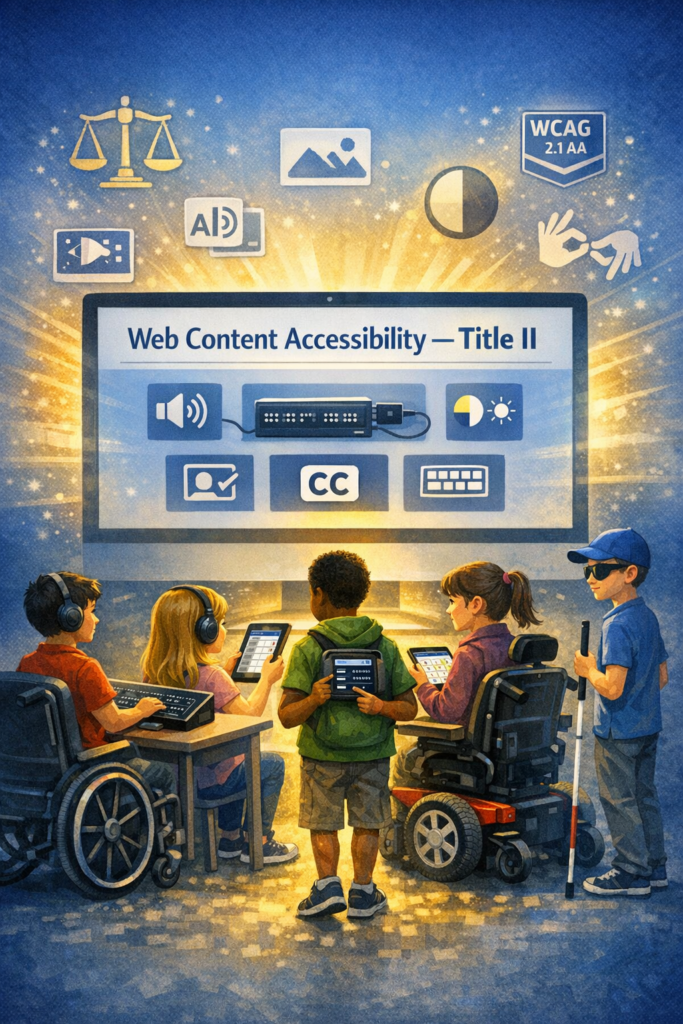
    Schools and colleges face serious gaps in digital access. These gaps harm blind and deaf students the most, and they also affect every learner who needs clear, structured content. Title II now requires full WCAG 2.1 AA compliance. Schools must shift from crisis responses to real systems. The good news is that this work is fixable when they follow a clear plan.


     1. Start With an Accessibility Audit: Blind and Deaf Students Face the Sharpest Access Gaps    

        Every school should begin with a full digital audit. This audit must involve experts who use screen readers and braille displays every day on the platforms used in education. Without these specialists, audits miss the barriers that blind students face. Any image-based video must include described content throughout. Schools can find strong examples and guidance at Described and Captioned Media Program (DCMP).

    Schools should also check whether interactive elements, buttons, and menus work with keyboard-only navigation. Many blind students rely on keyboard access, and inaccessible controls often block them before the lesson even begins.

                The audit should include websites, LMS content, Google Classroom, PDFs, worksheets, videos, vendor platforms, parent portals, and staff materials. Real blind access testers expose problems that automated tools never find. Audits reveal the true accessibility debt. Schools need this view before anything else.

                Most deaf learners use ASL as their primary language. They often need an actual signer on digital content as well as written text. Captions alone rarely provide full access, because captions do not follow ASL structure. Find out full details from DCMP.org also.

    Schools should start with embedded text on all visual content first. This step creates a basic access layer while teams prepare for ASL. Once content stabilizes, schools can add ASL signers during development.

    Schools must include ASL interpretation on videos, lessons, and major digital materials. An ASL signer keeps the message clear, complete, and culturally accurate.

    This work must also be audited by a deaf professional who signs. Without that review, digital content remains incomplete and inaccessible.


     2. Fix PDFs and Scanned Worksheets First

    Most access failures start with inaccessible PDFs-which are actually images of work. Schools can convert scanned worksheets to readable text, add proper heading structure, insert alt text, tag tables, and ensure text reflows on mobile. These steps give blind students access at the same time as their peers. For easy full access, Just put everything into Microsoft WORD and if you can move a mouse cursor through the content, it will be accessible to a screen reader. make sure you add proper headings throughout.


     3. Enforce Accessible Google Docs, Slides, and Assignments

    Teachers create inaccessible content daily by pasting images of work into what was accessible if typed out properly in google. Schools should require headings, proper contrast, real alt text, logical reading order, described images, and accessible math. This one shift removes thousands of barriers. Currently Math is only fully accessible in Microsoft WORD using the Math editor. Google does not have all the appropriate tools in place to recreate what OFFICE 365 has already done.

    Typically, only images of words appear in products from Google, which makes the content completely inaccessible to blind students. Embedded videos also stay inaccessible for deaf learners, because images never give enough detail or language to explain the lesson. Math remains inaccessible across Google products, and blind students cannot access equations without proper structure.


     4. Make All Video Content Accessible

    Videos must serve blind and deaf students. Schools should ensure accurate captions, audio descriptions, clear narration, and safe visual design. This protects access and reduces legal risk.


     5. Replace Inaccessible Vendor Platforms

    Many learning apps and platforms still fail WCAG standards. Schools must request VPATs, require WCAG 2.1 AA, demand remediation timelines, and remove non-compliant tools. Title II holds the school responsible, not the vendor. When schools stop buying inaccessible products, vendors will change their design or leave the market.


     6. Train Staff in Real Accessibility Skills

    Accessibility training must move beyond awareness. Staff need training in screen reader testing, accessible document workflows, caption skills, alt text guidelines, accessible math support, and LMS accessibility checks. Blind and deaf students rely on technology, not sight or hearing. Staff must understand these tools, so they must receive direct instruction from experts who use these tools daily. These specialists can walk staff through the fine details needed to make content fully accessible quickly and easily (relative to what content they already have).


    7. Provide Blind and Deaf Students With Real-Time Access

    Access cannot arrive days later. Schools should deliver materials at the same time as sighted peers, provide braille or screen-reader-ready files, use CART or interpreters, and ensure accessible assessments. This reduces OCR complaints and supports equal learning.


     8. Build an Accessibility Governance Team

    Districts need structure to stay compliant. This team sets policy, provides training, monitors compliance, reviews content, approves vendors, and reports progress. Governance turns accessibility from a reaction into a system.


     9. Bring in Specialists When Needed

    Most schools lack internal expertise. They can partner with certified blindness professionals, deaf education specialists, accessibility technologists, braille experts, and WCAG consultants. Title II allows districts to use outside experts when staff lack training.


     10. Address a Damaging Message Still Circulating in Schools

    Many professors and teachers still hear, “Check your materials, but don’t worry about them.” This message shows how long schools have ignored accessibility laws. Title II removes the option to delay. Schools must fix inaccessible content, not simply acknowledge it.


    11. The Word “Accommodation” Must Go

    The word “accommodation” was not removed from Title II, but the new DOJ rule shifts the focus toward accessibility from the start, especially for digital content.

    Schools must stop relying on the word accommodation. The term assumes students start with barriers and then wait for fixes. Blind and deaf students lose time every day when access comes after instruction. They fall behind because the content was inaccessible from the start.

    Title II requires full access at the moment instruction begins. Students must receive materials in the same format, at the same time, as their peers. This shift removes delay, reduces frustration, and ends the cycle of constant catch-up. True access begins when schools design content correctly, not when they repair barriers later.


     12. Make Accessibility Part of School Culture

    Accessibility becomes sustainable when it becomes normal. Schools can add accessibility checks to grading policies, include accessibility in evaluations, require captions, post accessible templates, and adopt accessible curriculum materials. Small habits prevent massive remediation later.


    13. Remove and Archive All Inaccessible Content by April 23

                Schools must remove inaccessible digital content by April 23. They must secure this content so only the original creator can access it. If old materials stay public, anyone can use them to file an accessibility complaint. This creates immediate legal risk for the educational institutions.

                Most schools will find it easier to build fully accessible content from the start. Rebuilding old, image-based, untagged, or uncaptioned materials often takes far more time than creating new accessible versions. Schools protect themselves and their students when they remove inaccessible work, archive it safely, and rebuild content using WCAG 2.1 AA standards now so they can be fully uploaded on April 24, 2026.


     Closing Note: Access Protects Everyone

    Blind and deaf students face the hardest barriers, yet accessible design lifts all learners. Clear content improves structure, readability, quality, and learning across every classroom. Schools that begin this work now protect their students, their staff, and their programs.


    Dates to Follow

    What this means for schools and colleges

    Larger districts and colleges (≥ 50,000 population)

    • Deadline: April 24, 2026
    • Standard: WCAG 2.1 AA
    • Scope: Websites, web content, mobile apps, PDFs, forms, LMS content, videos, social media, and anything accessed through a browser
    • Smaller districts and colleges (<50,000 population): April 26, 2027

    DOJ Title II Explained

    Teacher Marketplace Worksheets Are Failing Title II Accessibility Standards

    Fix Digital Accessibility Before Title II Enforcement-April 24, 2026-Now 2027

    Title II Meaning for Vocational Rehabilitation and Adult Rehab Centers

    Who Pushed the New Title II Accessibility Rule Through? The Forces Behind America’s New Access Mandate

    Title II Non-Compliance Can Lead to Job Loss in K–12 Schools and Colleges

    Penalties for Noncompliance With DOJ Title II and WCAG 2.1 AA Requirements

    Private Schools and Title II With Teeth: How the New DOJ Accessibility Rule Changes Everything

    Title II With Teeth: How the DOJ’s New Accessibility Rule Transforms Education for All Children With Disabilities

    Why K–12 Is Scrambling: What the DOJ’s Title II WCAG 2.1 Rule Means for Every School District

    DOJ Title II Requires Web Content Accessibility : What Colleges & Schools Must Do Next

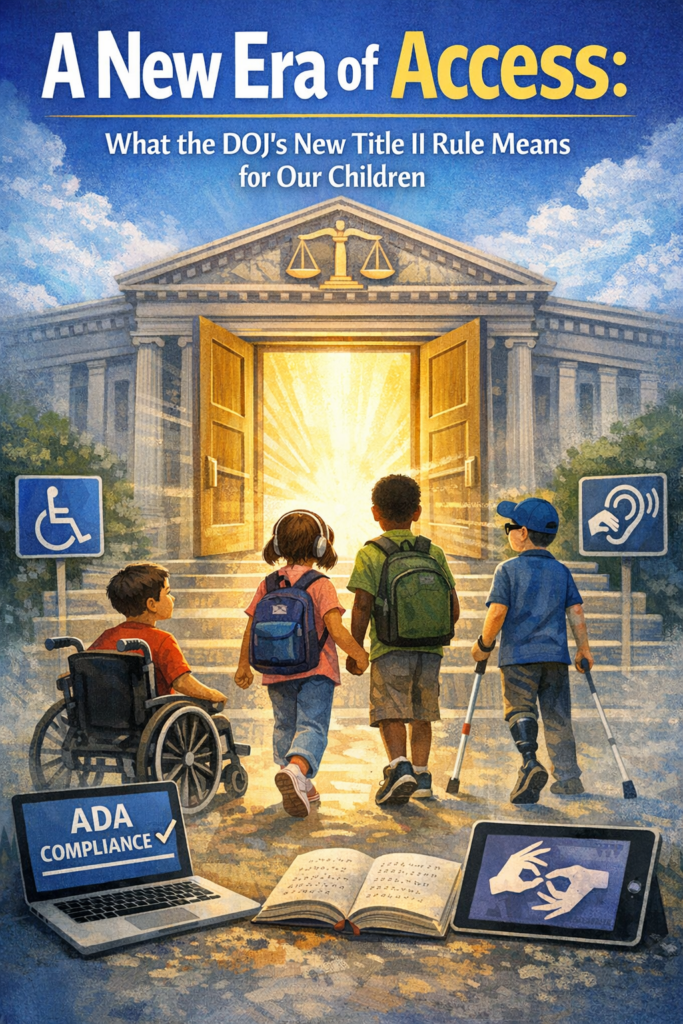
    A New Era of Access: DOJ’s New Title II Rule Transforms Education at all levels for Every Child in America

    Accessibility Barriers in Standardized Testing for Blind Students

    How Do Blind Students Learn?

    Preventing Due Process, upholding Rights

    Professional Development for Teachers

    TechVision Access Instruction-Empowering Blind and Visually Impaired

    How Colleges Help Visually Impaired Students Succeed

    Title II Meaning for Vocational Rehabilitation and Adult Rehab Centers

  • Speed Up a Slow Computer: Easy Fixes and Access Tech Tips

    Speed up a Slow Computer
    Speed up a Slow Computer

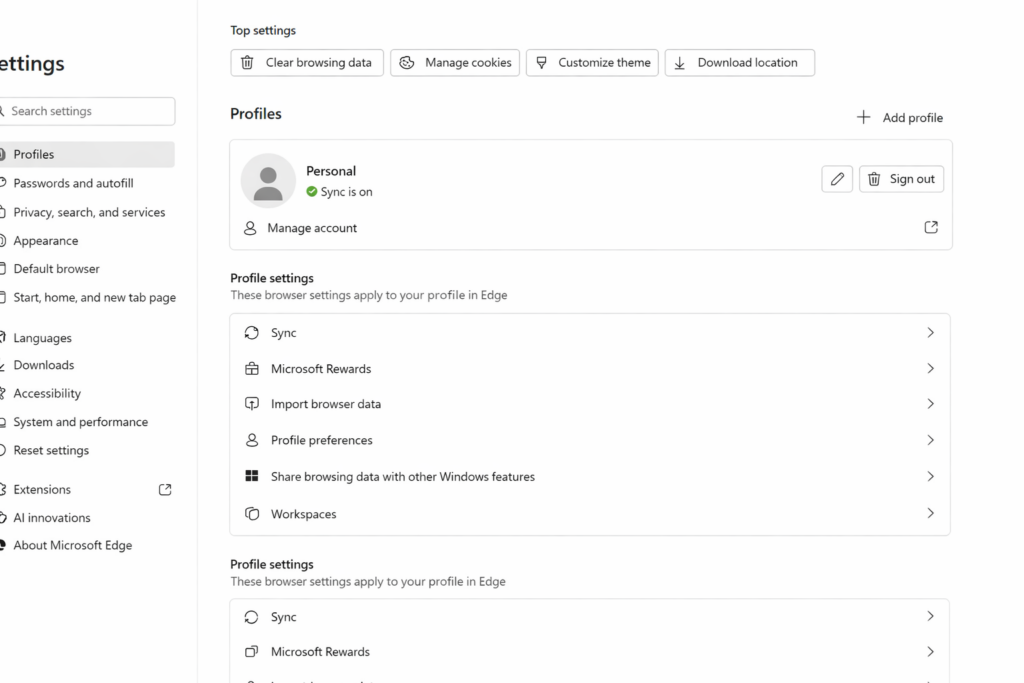
    Is your computer running slow, freezing, or taking forever to start up? Speed Up a Slow Computer with a few simple maintenance steps can make a huge difference. This is especially true for beginners and blind/low‑vision users who rely on consistent performance with JAWS or NVDA.

    In this TechVision tutorial, I walk you through practical, real‑life steps to speed up your PC and keep it running smoothly:

    ✔ Update your .NET Framework
    Having the latest .NET installed in your Control Panel helps programs run correctly. It also reduces system errors.

    ✔ Manage your startup programs
    Too many apps launching at boot can slow everything down. Turning off unnecessary startup items gives you a faster, cleaner start.

    Keep Windows and Office updated

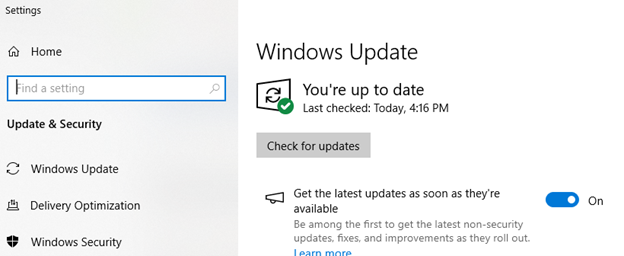
    Regular updates improve performance, stability, and security — and prevent many common slow‑computer issues.

    ✔ Declutter your system
    Uninstall programs you don’t use and delete temporary files to free up space. This also reduces background load.

    ✔ Run a full antivirus scan
    Malware can dramatically slow down your system. A full scan helps identify and remove hidden threats.

    ✔ Perform regular maintenance
    Disk Cleanup, defrag (for HDDs), or optimize for SSD and clearing temp files all help your computer run more efficiently.

    These steps are simple, effective, and perfect for anyone building independence and confidence with their technology.

    TechVision: Empowering real‑life tech skills with clarity, accessibility, and confidence. Video with steps here

    Other computer fixes and skills

    Microsoft Edge Switching Accounts? Here’s the Fix

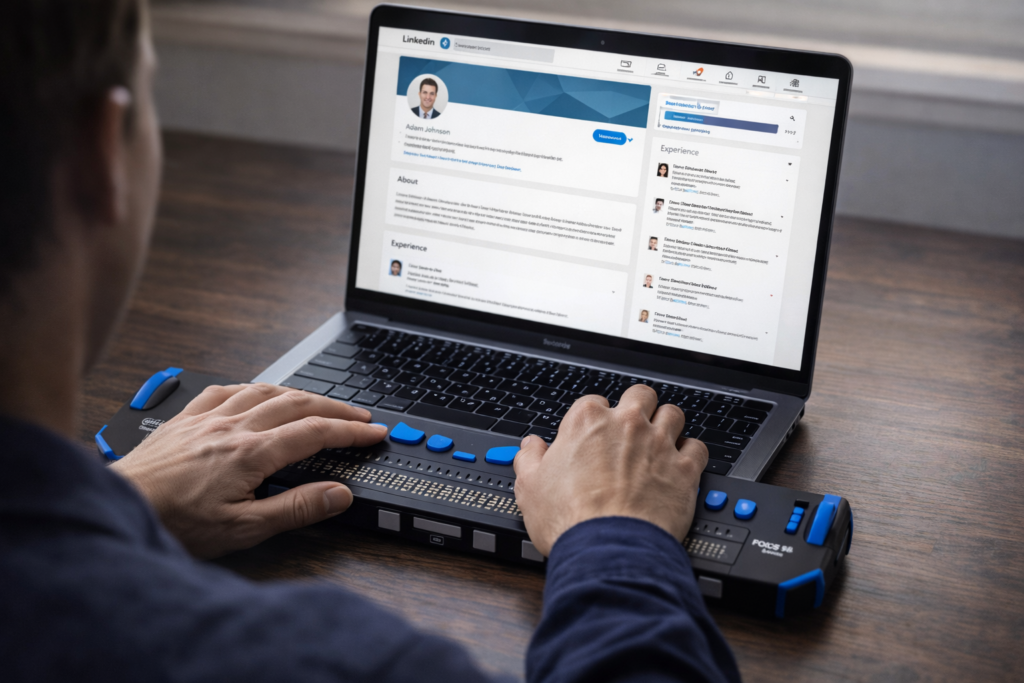
    LinkedIn with JAWS Commands for total Access

    Can’t Log In? Fix Password Problems Fast

    Fix and Speed Up Windows Computer in Minutes

    Best Computer Specs Guide: RAM, SSD, CPU and What .NET Really Does

    Restore System & Fix PC issues

    Speed up and Fix a SLOW Computer

    Easily Add “This PC” to Your Desktop for Fast Drive Access


  • Stop Annoying Ding Sounds on Windows Fix Filter Keys & Toggle Keys

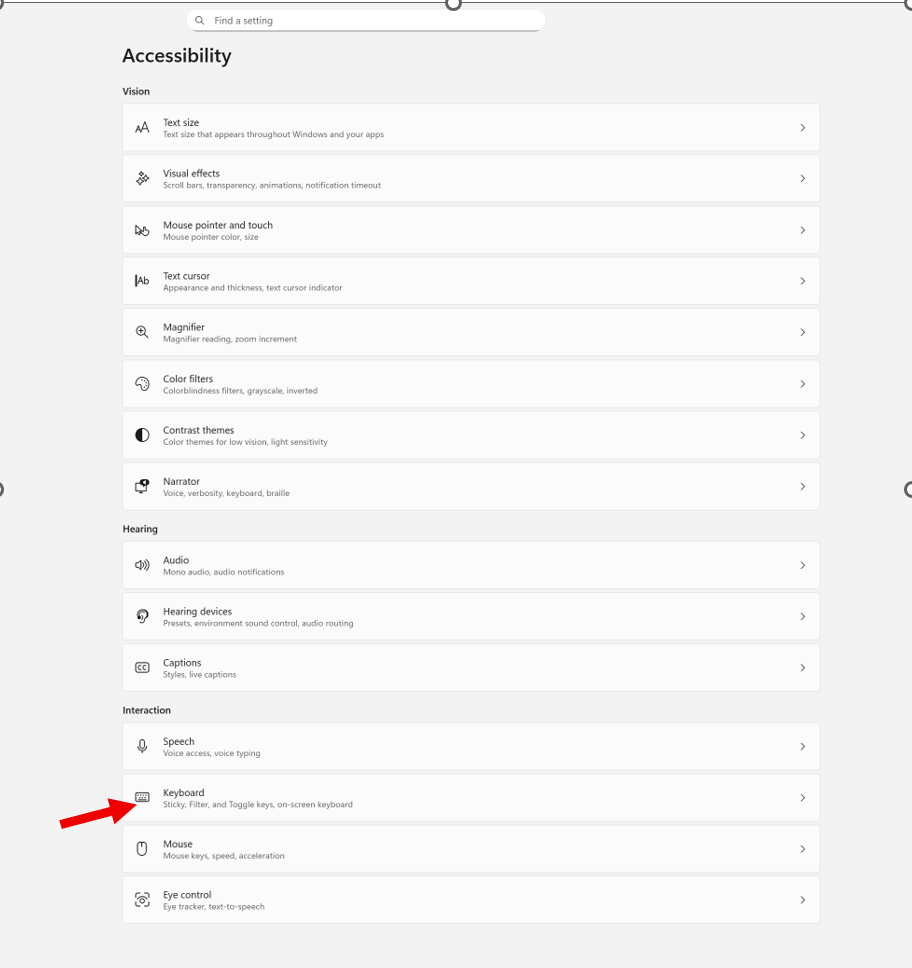
    accessibility options in windows i go to keyboard

    Windows + I to settings and find Accessibility on the far left column and open then open keyboard. If you want to stop annoying ding sounds on Windows, the following steps will help you do that.

    If your computer keeps chiming, dinging, or beeping at the worst possible moments, or when you press a particular key, you can silence or customize every system sound in just a few steps.

    If you like to follow a video through the steps, this will help: Stop Annoying Ding Sounds on Windows Fix Filter Keys & Toggle Keys

    In this video, you’ll learn:

    • How to check whether Filter Keys or Toggle Keys are turned on
    • How to turn them off if you don’t need them
    • How to adjust them properly if you do use them
    • How to prevent Windows from enabling them by mistake
    • How to silence or customize the sounds they make

    Commands & Navigation Steps

    Open Windows Accessibility Settings (Keyboard Section)

    • Windows + I → opens Settings
    • down arrow to Accessibility, press Enter, then tab down to Keyboard
    • or press windows (start menu) or using keyboard type Accessibility in the search box

    Check all these Features

    Turn Sticky Keys, Filter Keys, or Toggle Keys On/Off

    • Tab to the setting you want
    • Press Space bar to toggle it on or off

    Hear What Toggle Keys Sounds Like

    • Turn on Toggle Keys → Windows plays a beep when pressing Caps Lock, Num Lock, or Scroll Lock
    • Turn it off again → sound stops immediately

    Notification Preferences for Accessibility Keys

    Windows will play a sound when:

    • Sticky Keys is turned on
    • Filter Keys is turned on
    • Toggle Keys is turned on

    This helps you know when you’ve activated something by accident.


    On‑Screen Keyboard (for mouse users or one‑handed typing)

    • Turn on On‑screen keyboard in the Keyboard settings
    • Click keys with your mouse if typing is difficult

    Underline Access Keys

    • Turn on Underline access keys
    • This shows keyboard shortcuts even when you’re not holding Alt

    Print Screen Behavior (Updated in Windows 11)

    • While you are here adjust Print Screen
    • Arrow to Print Screen and enter → opens the Snipping Tool options at the top of the screen
    • Screen reader users:
      • Tab through options
      • Go to the last one
      • Press Spacebar, then Down Arrow to choose screenshot type-then you have options

    When you cannot do something: Take a Screenshot & Send It to your help person

    • Take screenshot- which literally is copy
    • Press Ctrl + V to paste into an email
    • Send to your tech instructor or support person

    Whether you’re troubleshooting your own device or helping someone else, this quick fix will bring instant peace and quiet — and give you full control over your keyboard behavior.

  • Fix and Speed Up Windows Computer in Minutes

    woman sitting at computer smiling as it is fixed and fast
    Fixed and Cleaned up Computer for Speed

    Computer acting up, freezing up, slowing down, moving like a snail so you have to walk away (before you do something you will regret to it)?
    Browser freezing?
    Apps slowing down or refusing to open?

    Network working like a snail?

    These issues affect every Windows user — teachers, professionals, students, and anyone trying to get work done. The good news is that many of the most common problems can be fixed quickly with a few simple steps.

    Here are essential Windows fixes every user should know:


    1️. When your browser freezes

    • Press Ctrl + R or F5 to refresh the page.
    • If a site should be loading but isn’t, use a force refresh: Ctrl + Shift + R.
      This clears cached elements and forces the browser to reload everything.

    2️. Speed up your computer by managing startup apps

    • Open Task Manager instantly with Ctrl + Windows + Escape.
    • Press Ctrl + Tab to move to Startup Apps.
    • Right‑click any program you don’t need at startup and choose Disable.

    This doesn’t remove or break anything — it simply gives you control over what opens and when. Most computers are slowed down by unnecessary bloatware launching automatically. If you do not disable what you do not need it is slow to start up and remains slow because those programs are ALWAYS running in the background whether you know or not. Most do not hence the slow speed of your computer.


    3️. Uninstall programs you don’t use

    • Press Windows and type in remove a which will take you to add remove programs
    • Arrow down through all programs and uninstall what you do not need or use. Picture yourself weighing 500 pounds and you are taking off 50 pounds at a time with each remove. You get lighter, you move faster.
    • With commands, Find programs you no longer need, press Tab once to reach the three dots, then select Uninstall.

    Removing unused software frees space, reduces background activity, and improves overall performance.


    4️. Fix sound issues quickly

    • Press Windows + I to open Settings.
    • Type Sound and open Sound Settings.
    • Check each device (input and output) and adjust as needed.
    • Go through all options and adjust it to fit your needs.

    This solves many audio problems without needing a full restart.


    5️. Clear your Temp folder daily to improve speed

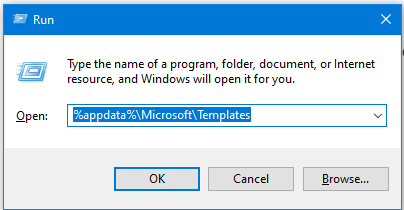
    • Press Windows + R to open the Run box.
    • Type %temp% and press Enter.
    • Press Ctrl + A to select everything.
    • Press Shift + Delete to permanently remove the files.
    • When prompted, enter on Yes, and another box opens, check the box that says do this for all (or ctrl A) , and press Alt + S to skip files currently in use.

    Clearing this folder removes clutter and can even improve your internet speed by eliminating old cached data.


    Clean Out System Garbage with Disk Cleanup

    Next, press your Windows key and type disk.
    You’ll see Disk Cleanup populate — press Enter to open it.

    Once it opens, press Enter again to scan your system.
    This reveals all the garbage that’s quietly collected on your computer.

    Now Tab to or click on “Clean up system files.”
    Press Enter — and be patient. If you’ve never done this before, it may take a while to populate.

    When the box opens, select everything you can see.
    You’ll notice gigabytes of waste clogging your system — old logs, temp files, update leftovers, and more.

    Delete it all.
    One caveat: don’t delete your Downloads folder from here.
    Instead, go to Downloads manually and clean it out one item at a time.
    You may still need backups or haven’t saved things to proper folders yet.

    These steps help all users, and they’re especially important for blind and visually impaired individuals who rely on consistent system behavior with JAWS or NVDA.

    A few quick fixes can save time, reduce frustration, and keep your computer running the way it should.


  • Restore System & Fix PC issues

    Restore and Fix Computer
    Restore and Fix Computer

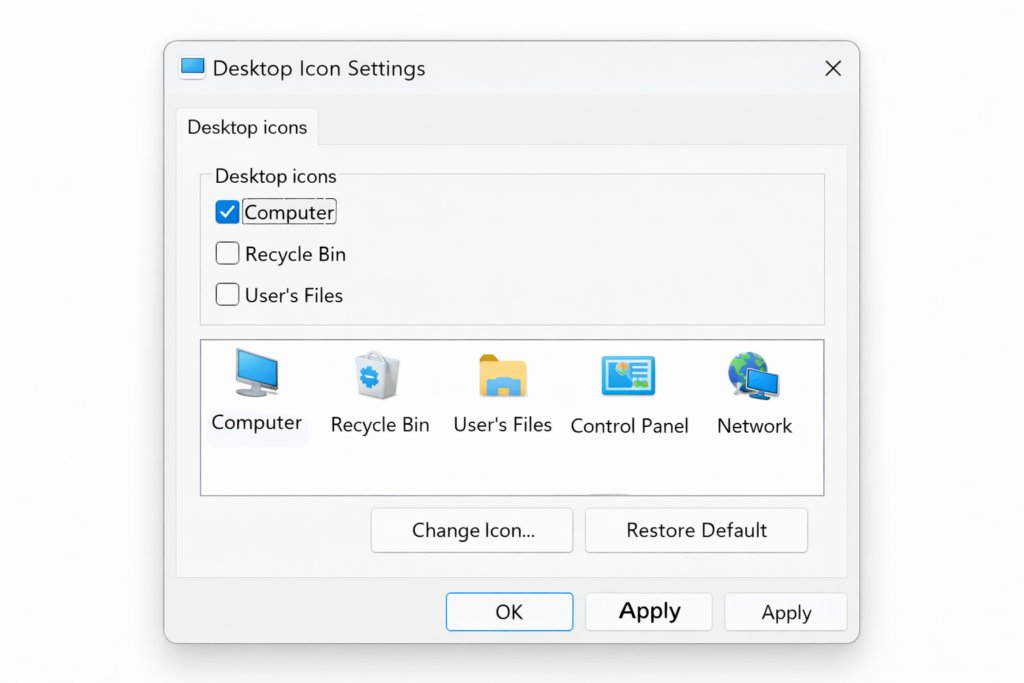
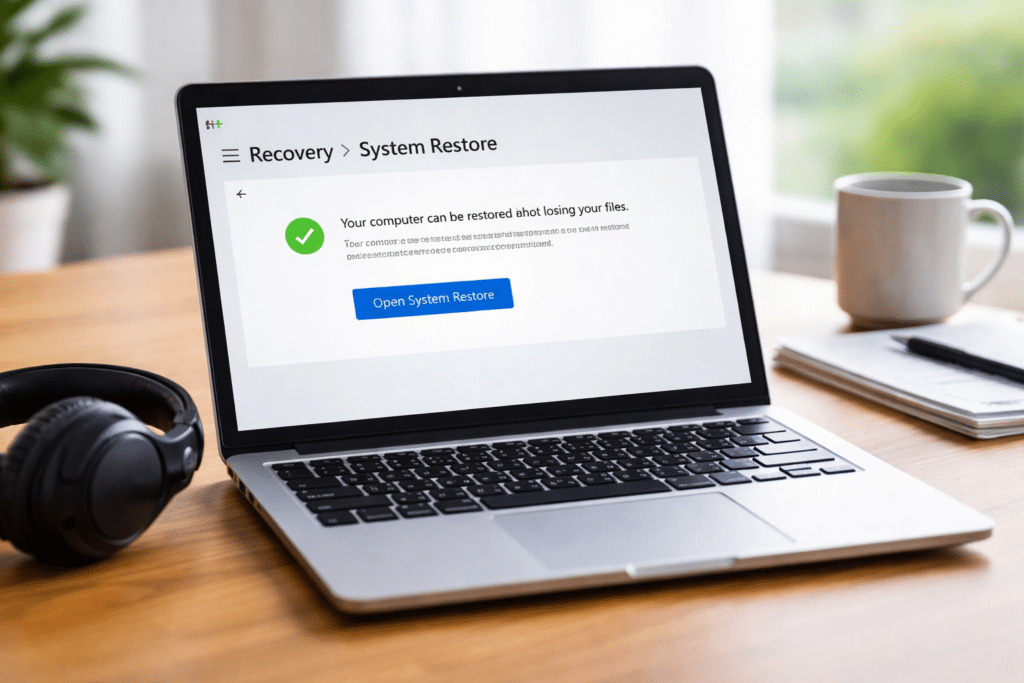
    Restore System & fix PC issues, Word Auto-save & Copilot, Restoring Desktop Icons, etc. This guide resolves big or small PC issues. The video explains how to use System Restore to fix various problems on your computer. It also provides tips for ensuring your work is always saved automatically in Microsoft Word and shows commands to keep or remove Copilot in 365. Additionally, it demonstrates steps to restore desktop icons if they disappear. Designed to help viewers troubleshoot and resolve these issues efficiently using keyboard commands or a mouse. This video is part of the #TechTricks series, aimed at making tech tutorials accessible and easy to follow.

    In addition to these essential tips, the video explains how to optimize your PC’s performance by managing startup programs and clearing unnecessary files. Viewers will also learn how to customize their system settings for a smoother user experience. Moreover, the guide emphasizes practical solutions that can be easily implemented, making it a valuable resource for both novice and experienced users. By following the steps outlined in the video, you can ensure your computer runs efficiently and remains free of common issues, such as needing to restore your system to fix PC issues.

    Resolve PC problems with Daily Tasks

    Performing daily maintenance tasks on your PC is essential for keeping it running smoothly and efficiently. For example, fixing PC issues can prevent long-term problems. Additionally, using System Restore helps you quickly resolve unexpected issues. Ensuring your work is always saved automatically in Microsoft Word prevents data loss and keeps your projects on track. Furthermore, keeping your desktop icons organized and visible helps maintain a clutter-free workspace. By incorporating these habits into your daily routine, you can prevent common problems and ensure your computer remains in optimal condition. This proactive approach saves time and enhances your overall productivity and user experience. Remember to restore your system and fix PC issues as part of your routine.

    Other #TECHTRICKS

    Find and restore deleted files or lost files & folders

    Tricks to Learning Math

    JAWS Cursors: Enhancing Navigation and Control for Blind Users by Finn

    Best Computer Specs Guide: RAM, SSD, CPU .NET

  • Speed up and Fix a SLOW Computer

    Speed up your computer and fix slow-loading programs with a few adjustments and updates. Ensure all necessary .NET runtimes for programs are installed in the control panel. This allows programs to run smoothly.Regularly update your computer system to improve performance. Maintain a clean computer system, optimize performance, and disable unnecessary startup applications to keep your computer running efficiently.

    Fix a Slow computer To Do List:

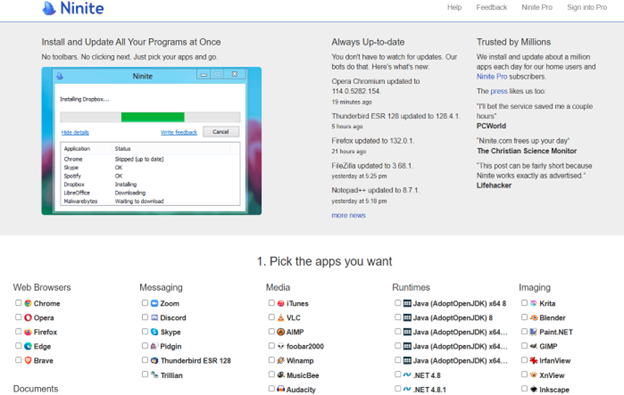
    • Users to update their .NET runtime to version 8 (and version 9 by end of 2024) using ninite.com.
    • Users to clean out their temp folder by running %temp% in Windows Run and deleting the contents to help speed up the computer.
    • Users to disable unnecessary startup apps in Task Manager to improve computer startup speed.

    Details:

    Downloading and Installing Runtimes for better Performance

    Download and install these runtimes using the .NET Microsoft download and the Ninite.com website. Make sure to download the correct versions, specifically 64-bit and 86-bit. Use a screen reader to navigate the download process if needed. Check if the runtimes are correctly installed in programs and features. Update to version 9 by the end of December 2024.

    Ninite.com will help speed up and fix a slow computer
    Ninite.com will help speed up and fix a slow computer

    Improving Computer Speed and Fix slow Computer Network

    Improving computer speed and network connection involves cleaning the computer by removing temporary files and emptying the recycle bin. Regularly check for updates to keep the system running efficiently. Navigate to the temp folder and delete unnecessary files, handling files in use appropriately. Use windows key and type in updates to go to check for updates and do them several times a week. Keep your software updated also and the speed of your computer increases with every fix and adjustment. Here are other Tech Tricks to improve you computer and new commands for Google

  • Fixing Jaws typing echo and cursor issues in google classroom by Taylin

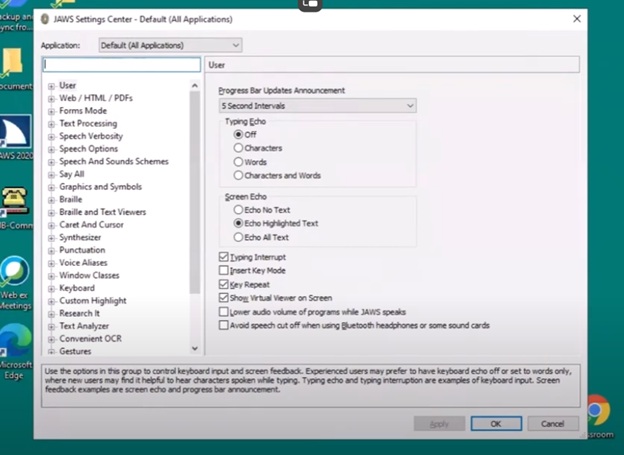
    Miss Taylin and Dr. Robinson addressed two common accessibility issues students face while navigating educational tools with JAWS. First, they resolved the issue of characters not being heard when typed, which prevents users from verifying their input. After adjusting the typing echo settings in JAWS, they enabled the device to read both characters and words aloud, providing better control and feedback during typing. Fixing Jaws typing echo significantly improved user experience. On the fly, you can also insert + 2 to change echo options.

    The second issue involved difficulties navigating through web links in the classroom browser, with JAWS sometimes reporting “no form fields” or “no lists available.” The problem arises when both the virtual and PC cursors are not enabled. Dr. Robinson explained that the virtual cursor is essential for browsing web pages, while the PC cursor helps manage navigation within a page. Miss Taylin accessed the links list and navigated classroom content efficiently by using “Insert + Z” to enable the virtual cursor. She ensured the PC cursor was active with the command “Insert + ;” which improved her browsing experience. Fixing Jaws typing and echo settings along with other settings changes, enhances productivity.

    Jaws settings and set default to permanently make changes to fix Jaws typing echo issues
    Jaws settings and set default to permanently make changes to typing echo

    Dr. Robinson emphasized the need to regularly check both cursor settings whenever JAWS encounters issues. This practice ensures smooth and uninterrupted navigation for users. Additionally, these steps empower students using screen readers to interact more effectively with digital learning platforms. These adjustments create an efficient workflow for students to complete assignments and navigate classroom tools seamlessly. Overall, addressing the issue of fixing Jaws typing echo and other settings ensure that students can fully participate in their learning environment with complete accessibility.

    See other lessons for navigation. For more on fixing Jaws typing echo, explore related resources.

  • Raveena Fixes Computer Issues, Display Problems, and Uploads Perky Duck Program

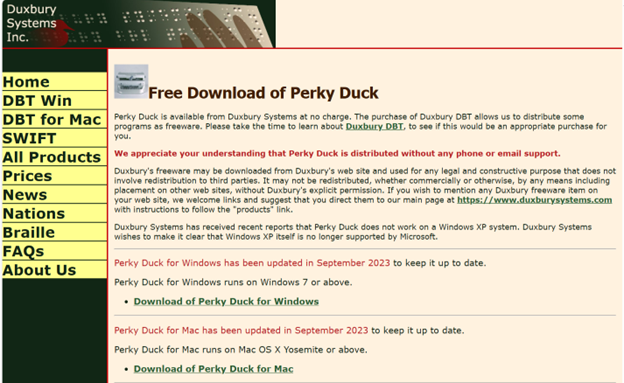
    Raveena shows how to fix basic computer and screen problems and then explains how to install the Perky Duck braille program. She starts by helping users solve common computer or display issues with easy steps. After that, Raveena Fixes Computer Issues by walking through downloading and setting up the Perky Duck program, which helps create and translate braille. Her simple instructions make it easier for students and teachers to use the program and keep their devices running smoothly.

    To upload a file in the Perky Duck braille transcription program, you can follow these steps using keyboard commands. Raveena Fixes Computer Issues by providing clear steps to follow:

    1. Open Perky Duck:
      • Press Windows Key, type “Perky Duck”, and press Enter to open the program.
    2. Open File Dialog:
      • Press Alt + F to open the File menu.
      • Press O to select “Open”.
    3. Navigate to Your File:
      • Use the arrow keys to navigate through your directories.
      • Press Enter to open folders.
      • Once you find your file, press Enter to upload it.
    Perky Duck free braille translator
    Perky Duck free braille translator

    These commands should help you efficiently upload a file in Perky Duck. If you need more detailed instructions or have any other questions, feel free to ask! That’s how Raveena Fixes Computer Issues efficiently. Other ways to fix your computer

    Let us know how we cn help you: Contact US: TechVisionTraining@yourtechvision.com

  • 2.2 Billion People Have Vision Loss: U.S. Statistics, Causes, and What It Means

    2.2 billion people have vision loss
    2.2 billion people have vision loss

    2.2 Billion People Live With Vision Impairment

    Vision loss is one of the most common disabilities on earth, and it’s growing fast. If you work in healthcare, tech, education, or policy, these numbers matter for accessibility, product design, and funding.

    Over 51.9 million adults in the U.S. report some level of vision difficulty. About 6–7 million Americans have significant vision loss or blindness. Globally, 2.2 billion people have vision impairment.

    But those top-line numbers hide urgent trends. Here’s the breakdown with the latest 2024-2026 data, what’s driving it, and what to do about it.

    Key Statistics: U.S. Vision Loss at a Glance

    PopulationEstimateSourceWhat It Means
    U.S. adults with vision difficulty51.9+ millionCDC/NEI estimatesIncludes trouble seeing even with glasses, from mild to severe
    Significant vision loss or blindness6–7 million AmericansNEI/VEHSSLegal blindness 20/200 or worse, or 20/40 or worse with correction
    Adults 71+ with visual impairment>25%NHATS 2021 studyMore than 1 in 4 seniors
    Americans 40+ with eye problems90 millionCDC“More than 3 in 5” adults over 40
    Children under 18 with vision difficulty~625,000ACS 2023Includes blindness and “trouble seeing even with glasses”

    Global Vision Impairment: The 2.2 Billion Number Explained

    The World Health Organization estimates 2.2 billion people worldwide have near or distance vision impairment. Of those, at least 1 billion cases could have been prevented or have yet to be addressed with glasses, cataract surgery, or other treatment.

    Why it’s rising:

    1. Aging: By 2050, U.S. cases of visual impairment/blindness are expected to double to 8+ million as baby boomers age.
    2. Chronic disease: Diabetic retinopathy will increase 72% by 2050. Glaucoma and AMD will double.
    3. Uncorrected refractive error: 16.4 million Americans are expected to have difficulty seeing due to myopia/hyperopia that glasses could fix.

    What Counts as “Vision Impairment”?

    Researchers use different definitions, which is why numbers vary:

    1. Self-reported difficulty: ACS asks “Are you blind or do you have serious trouble seeing, even when wearing glasses?” 3.6M Americans 65+ said yes in 2023.
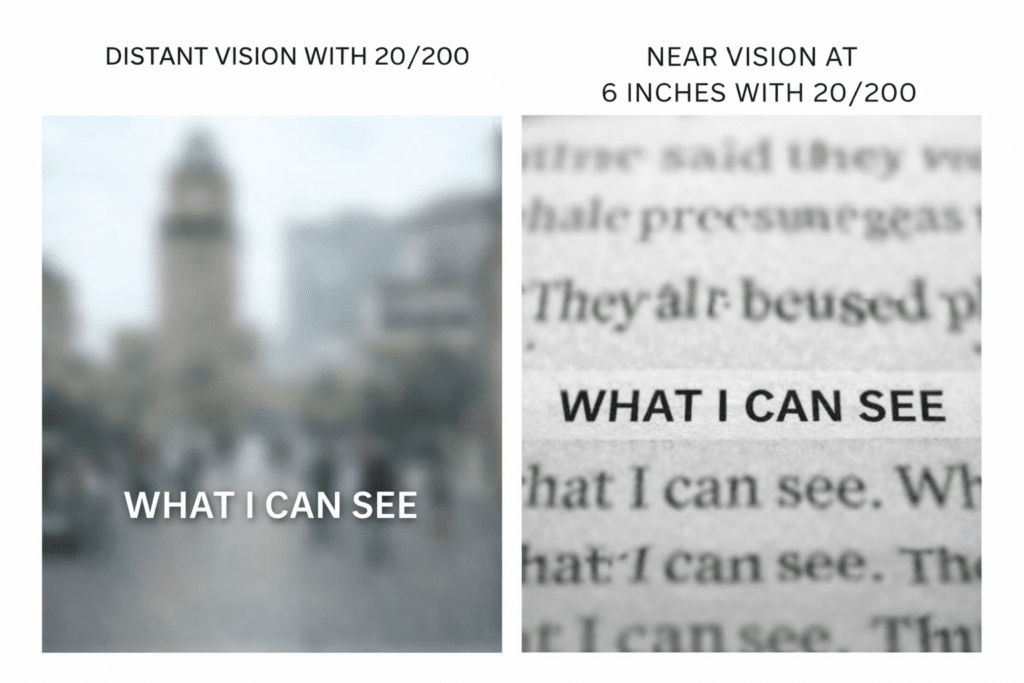
    2. Measured acuity: Legal blindness = 20/200 or worse. Visual impairment = 20/40 or worse with best correction.
    3. Functional vision: Trouble reading newsprint or doing near work even with glasses. About 1 in 8 Americans over 50 have presenting near-vision impairment.

    CDC notes: modeled estimates of “uncorrectable” vision loss differ from self-report, which includes people who lack glasses.

    What you can do to Help Yourself Now

    Why This Matters: Impact Beyond Eyesight

    Vision loss isn’t isolated. People with vision loss are more likely to have:

    • Type 2 diabetes, depression, stroke, hearing loss, chronic kidney disease
    • Isolation, falls, balance problems, risk of early death

    Economic cost: Vision problems will cost the U.S. $373 billion by 2050, a 157% increase.

    Public perception: In polls, losing eyesight ranks as a “10 out of 10” impact on quality of life for ~50% of Americans across racial/ethnic groups.

    1. Aging population: NHATS data shows >25% of adults 71+ have impairment. By 2029, all baby boomers will be 65+.
    2. Diabetes epidemic: Diabetic retinopathy cases rising 72% by 2050.
    3. Screen time & myopia: Uncorrected refractive error affects 8.2M Americans now and will hit 16.4M.
    4. Access gaps: Near-vision impairment is higher for many groups, lower income, and those without private insurance.

    What Can Be Done: Prevention & Accessibility in 2026

    1. Early detection works: “Early detection and intervention—possibly as simple as prescribing corrective lenses—could prevent a significant proportion of avoidable vision loss,” says NEI Director Dr. Paul Sieving.

    2. CDC’s Vision Health Initiative focuses on:

    • Assessing impact + at-risk populations
    • Evidence-based interventions
    • Increasing access to vision care

    3. For tech, web, and product teams:

    • 51.9M U.S. adults need larger text, high contrast, screen reader support, and voice navigation.
    • WCAG 2.2 AA is now baseline. Alt text, keyboard navigation, and captions aren’t “nice to have.”
    • AI tools like voice description and real-time image captioning are exploding because of this market.

    4. For employers & schools:

    • 1 in 8 people over 50 struggle with near vision. That means reading glasses policies, digital accessibility, and flexible print sizes are ADA issues.

    Takeaways for SEO & Content Creators

    If you’re writing about health, aging, tech, or accessibility, target these high-intent keywords:

    • “how many people are blind in the US”
    • “vision impairment statistics 2025”
    • “causes of vision loss over 40”
    • “ADA website requirements for vision”
    • “children with vision loss statistics”

    Bottom line: Vision impairment affects 2.2 billion people globally and 51.9M+ Americans. It’s not rare. With cases projected to double by 2050, design, policy, and healthcare decisions made today will determine whether that’s a crisis or a managed transition.

  • Teacher Marketplace Worksheets Are Failing Title II Accessibility Standards


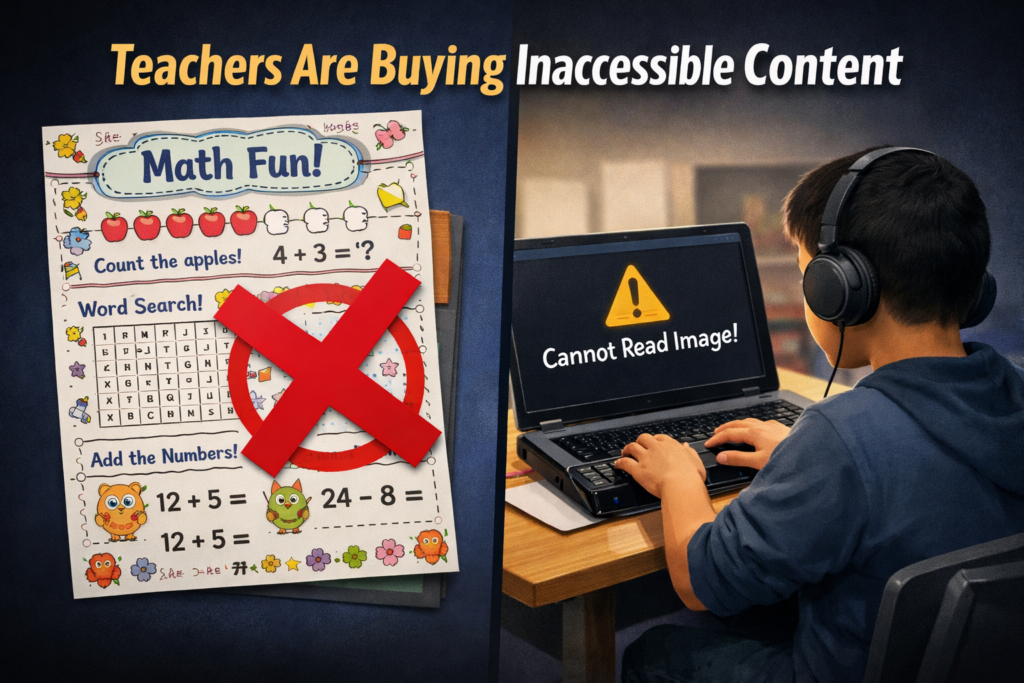
    Inaccessible Images of Work teachers are buying from inaccessible platforms

    Ban inaccessible purchased materials district-wide to prevent Title II failures

    inaccessible image of work
    Why Teacher Marketplace Worksheets Are Failing Title II-inaccessible image of work
    No way Math
    Why Teacher Marketplace Worksheets Are Failing Title II-No way Math
    3 images of total inaccessibility to do the work

    Teachers rely on many marketplace sites for worksheets and classroom materials. These platforms include printable shops, template libraries, curriculum bundles, early childhood packs, subscription marketplaces, and shared teacher resources. Most of this content looks creative, but it is some of the least accessible digital material in education.

    These products often come as scanned pages, image-only PDFs, stylized templates, or graphic-heavy worksheets. Blind and deaf students cannot access any of it, and Title II places full responsibility on schools, not marketplace sellers.


    Why Marketplace Worksheets Fail Title II

    Most marketplace materials violate WCAG 2.1 AA before the lesson begins. Common barriers include:

    • Image-only worksheets with no real text
    • Scanned files that screen readers cannot read
    • Decorative fonts that block OCR
    • Graphics replacing questions or math steps
    • Worksheets without headings or structure
    • Videos without captions or ASL
    • Lessons with images that lack alt text

    Blind students cannot read these materials. Deaf students cannot access embedded videos or audio instructions. Low-vision students cannot enlarge the content without distortion.

    Marketplace content blocks access at the point of instruction, which Title II now prohibits.


    Schools Must Stop Using Inaccessible Marketplace Content

    Title II holds the school accountable for any material assigned to students.
    That includes purchased content—no matter where it came from.

    Schools must:

    1. Remove inaccessible marketplace materials from student access.
    2. Archive them securely so only the original purchaser can access them.
    3. Stop assigning inaccessible products, even if purchased with personal funds.
    4. Approve only accessible content for future lessons.

    If this content stays available to students, the school opens itself to complaints, investigations, and penalties.


    A single inaccessible worksheet can trigger:

    • OCR complaints
    • Federal monitoring
    • Required remediation plans
    • Staff discipline
    • Loss of employment for repeated violations

    Marketplace sellers face no consequences.
    Schools and teachers do.


    Other Marketplaces Also Cause Problems

    This issue extends far beyond one platform. Barriers appear across:

    • Printable shops
    • Early childhood curriculum sites
    • Pinterest-style bundles
    • Etsy printable sellers
    • Canva template libraries
    • Subscription curriculum platforms
    • Teacher “side job” shops
    • Commercial worksheet sites
    • Too Many to State here

    If the file is image-based, untagged, or graphic heavy, it likely violates WCAG.

    Schools must apply the same standard everywhere:
    If it is not accessible, it should not be used.


    Why Remediation Usually Fails

    Teachers often try to “fix” marketplace worksheets. Most cannot be repaired.

    Reasons include:

    • Scanned pages contain no text to tag
    • OCR destroys the layout
    • Math is stylized and unreadable
    • Reading order is broken
    • Copyright prohibits modification

    Rebuilding is often easier than remediation.


    What Schools Must Do Now

    Schools need a clear, enforceable plan:

    1. Ban inaccessible purchased materials district-wide.
    2. Adopt accessible worksheet templates for all staff.
    3. Train teachers to spot inaccessible formats instantly.
    4. Create accessible master curriculum built from scratch.
    5. Require vendors and marketplaces to meet WCAG 2.1 AA.
    6. Audit all teacher-purchased content before it reaches students.
    7. Work with blind and deaf access specialists who test content daily.

    This protects students and reduces legal exposure for teachers and districts.


    Why This Matters Most

    Blind and deaf students lose learning time every day because marketplace content excludes them. They fall behind before the lesson even begins.

    Title II changes that.
    Schools must choose materials that include everyone, not just those who can see or hear the content.


    Closing Note: Access Starts With What Schools Buy

    Teachers want to help their students. Most do not realize the materials they purchase create the very barriers Title II now forbids. Schools protect students and staff when they stop buying inaccessible content and build accessible materials from the start.


    DOJ Title II Explained

    Teacher Marketplace Worksheets Are Failing Title II Accessibility Standards

    Fix Digital Accessibility Before Title II Enforcement-April 24, 2026-Now 2027

    Title II Meaning for Vocational Rehabilitation and Adult Rehab Centers
    Who Pushed the New Title II Accessibility Rule Through? The Forces Behind America’s New Access Mandate

    Title II Non-Compliance Can Lead to Job Loss in K–12 Schools and Colleges

    Penalties for Noncompliance With DOJ Title II and WCAG 2.1 AA Requirements

    Private Schools and Title II With Teeth: How the New DOJ Accessibility Rule Changes Everything

    Title II With Teeth: How the DOJ’s New Accessibility Rule Transforms Education for All Children With Disabilities

    Why K–12 Is Scrambling: What the DOJ’s Title II WCAG 2.1 Rule Means for Every School District

    DOJ Title II Requires Web Content Accessibility : What Colleges & Schools Must Do Next

    A New Era of Access: DOJ’s New Title II Rule Transforms Education at all levels for Every Child in America

    Accessibility Barriers in Standardized Testing for Blind Students

    How Do Blind Students Learn?

    Preventing Due Process, upholding Rights

    Professional Development for Teachers

    TechVision Access Instruction-Empowering Blind and Visually Impaired

    How Colleges Help Visually Impaired Students Succeed

  • Title II Meaning for Vocational Rehabilitation and Adult Rehab Centers
    Title II Meaning for Vocational Rehabilitation: Person learning Technology at Rehab center
    Title II Meaning for Vocational Rehabilitation: Person learning Technology at Rehab center

    Title II creates major changes for vocational rehabilitation programs. It now requires full digital and program access for every adult with a disability. Rehab centers must provide equal access to training, websites, forms, online portals, and instruction. Programs can no longer rely on “we don’t have staff” as a reason for inaccessible services.

    The rule also requires agencies to meet WCAG 2.1 AA for all digital content. This includes job portals, training modules, intake systems, emails, documents, and videos. Adults must receive the same information at the same time as everyone else.

    This shift will affect many rehab centers because they often lack staff who understand blindness, low vision, or screen reader access and other advanced Technology training for all disabilities. Title II now places responsibility on the agency, not on the client. Agencies must ensure that all adults needing help can access training, job preparation, and digital tools without delay.

    Many centers will need outside specialists to train adults in blindness skills and technology in general for all clients. They can partner with qualified programs and companies when they do not have trained staff. This is acceptable and expected under Title II.

    The rule pushes agencies to modernize. It requires stronger systems, better training, and accessible job pathways. It opens the door for consistent and equal access that all adults who have need of services for decades.

    Learning new technology skills at Rehab center
    Learning new technology skills at Rehab center

    DOJ Title II Explained

    Teacher Marketplace Worksheets Are Failing Title II Accessibility Standards

    Fix Digital Accessibility Before Title II Enforcement-April 24, 2026-Now 2027

    Title II Meaning for Vocational Rehabilitation and Adult Rehab Centers

    Who Pushed the New Title II Accessibility Rule Through? The Forces Behind America’s New Access Mandate

    Title II Non-Compliance Can Lead to Job Loss in K–12 Schools and Colleges

    Penalties for Noncompliance With DOJ Title II and WCAG 2.1 AA Requirements

    Private Schools and Title II With Teeth: How the New DOJ Accessibility Rule Changes Everything

    Title II With Teeth: How the DOJ’s New Accessibility Rule Transforms Education for All Children With Disabilities

    Why K–12 Is Scrambling: What the DOJ’s Title II WCAG 2.1 Rule Means for Every School District

    DOJ Title II Requires Web Content Accessibility : What Colleges & Schools Must Do Next

    A New Era of Access: DOJ’s New Title II Rule Transforms Education at all levels for Every Child in America

    Accessibility Barriers in Standardized Testing for Blind Students

    How Do Blind Students Learn?

    Preventing Due Process, upholding Rights

    Professional Development for Teachers

    TechVision Access Instruction-Empowering Blind and Visually Impaired

    How Colleges Help Visually Impaired Students Succeed

    Penalties for Noncompliance With DOJ Title II and WCAG 2.1 AA Requirements

    A New Era of Access: DOJ’s New Title II Rule Transforms Education at all levels for Every Child in America

    Private Schools and Title II With Teeth: How the New DOJ

  • Who Pushed the New Title II Accessibility Rule Through? The Forces Behind America’s New Access Mandate

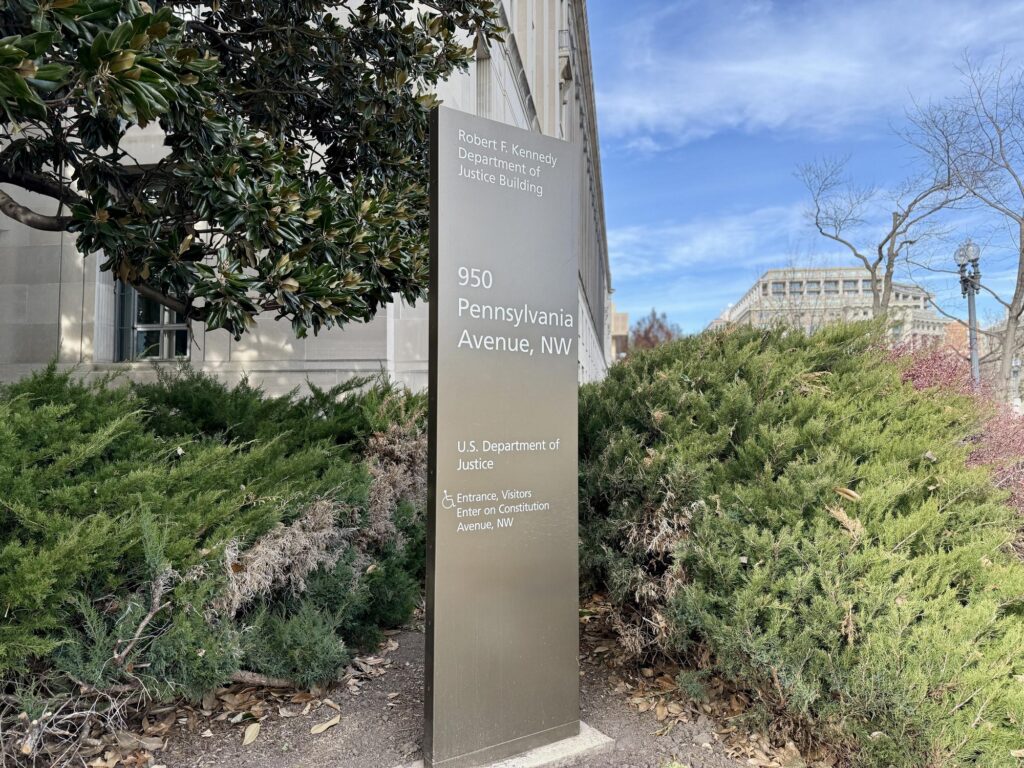
    Who Pushed the New Title II Accessibility Rule Through?- DOJ building and marker
    Who Pushed the New Title II Accessibility Rule Through? DOJ building and marker

    The rule was created, written, and finalized by the U.S. Department of Justice (DOJ).

    Specifically, it came from the Civil Rights Division, which is responsible for enforcing the Americans with Disabilities Act (ADA).

    The DOJ explains that it followed the full federal rule-making process — drafting, public comment, revisions, and final publication in the Federal Register on April 24, 2024. Though has been revised to release on Nov 2027 now.

     How Did It Get Through?

    The rule went through the formal federal regulatory process:

    1. DOJ drafted the rule

    The Civil Rights Division identified widespread digital barriers in state and local government services — including schools — and drafted a rule to address them.

    2. Public comment period

    Thousands of disability advocates, parents, educators, and organizations submitted comments urging the DOJ to adopt WCAG 2.1 AA.

    3. DOJ revised the rule

    They incorporated feedback, clarified requirements, and finalized the technical standard.

    4. Final rule published

    The rule was officially published in the Federal Register on April 24, 2024.

    Once published, it became binding law.

     Why Now?

    The DOJ gave several reasons in its fact sheet:

    1. Government services have moved online

    Schools, colleges, and agencies now rely heavily on websites, apps, portals, and digital documents. When these are inaccessible, people with disabilities are excluded from essential services.

    2. Digital barriers were widespread and harmful

    The DOJ cited examples like blind users being unable to access images without alt text, inaccessible forms, and barriers to participating in school and civic activities.

    3. The ADA had no technical standard

    For 30+ years, the ADA required access but never named a specific digital standard. This rule finally closes that gap.

    4. Pressure from states and lawsuits

    States like Colorado had already passed strict digital accessibility laws, and courts were increasingly using WCAG as the de facto standard.
    The DOJ needed a unified national standard.

     So Who Is the Person Behind It All?

    There is no single individual publicly credited as “the architect” of the rule — because federal regulations are created by teams, not one person.

    But the driving force is:

     The U.S. Department of Justice Civil Rights Division

    They are the ones who:

    • Identified the problem
    • Drafted the rule
    • Collected public comments
    • Finalized the WCAG 2.1 AA requirement
    • Published the rule in the Federal Register

    This is the same division responsible for ADA enforcement nationwide.

    If you want to name the entity behind the change, it is:

     The DOJ Civil Rights Division — the federal body responsible for protecting the rights of people with disabilities.

    They pushed it.
    And wrote it.
    They finalized it.
    And enforce it.

    And they did it because inaccessible digital content was excluding millions of Americans from essential public services — including education.

    “The U.S. Department of Justice Civil Rights Division is the force behind this new rule. They created it to ensure that every child with a disability can finally access their education in real time.”

    DOJ Title II Explained

    A New Era of Access: How DOJ’s New Title II Rule Transforms Education for Every Child in America

    Title II With Teeth: How the DOJ’s New Accessibility Rule Transforms Education for All Children With Disabilities

    Why K–12 Is Scrambling: What the DOJ’s Title II WCAG 2.1 Rule Means for Every School District

    DOJ Title II Requires Web Content Accessibility : What Schools Must Do Next

    Private Schools and Title II With Teeth: How the New DOJ Accessibility Rule Changes Everything

    Title II Meaning for Vocational Rehabilitation and Adult Rehab Centers

    Who Pushed the New Title II Accessibility Rule Through? The Forces Behind America’s New Access Mandate

    Penalties for Noncompliance With DOJ Title II and WCAG 2.1 AA Requirements

    Title II Non-Compliance Can Lead to Job Loss in K–12 Schools and Colleges

    Fix Digital Accessibility Before Title II Enforcement-April 24, 2026

  • Title II Non-Compliance Can Lead to Job Loss in K–12 Schools and Colleges

    Title II Non-Compliance Can Lead to Job Loss--Please don't let this be your school
    Title II Non-Compliance Can Lead to Job Loss–Please don’t let this be your school

    There are four major pathways where staff positions can be eliminated, reassigned, or replaced if institutions fail to comply with the new accessibility rule. Educational systems who do not take this law seriously will feel the impact from unhappy students and parents.

    None of these are hypothetical — they’re based on what has already happened in past OCR/DOJ cases.


    Federal Funding Risk → Budget Cuts → Job Loss

    If a school or college refuses to comply with a DOJ or OCR Resolution Agreement, the federal government can move to restrict or terminate:

    • IDEA funds
    • Title I funds
    • Title II funds
    • Pell Grants
    • Federal student aid
    • Research grants

    When federal money disappears, institutions compensate by:

    • Cutting staff
    • Freezing hiring
    • Eliminating positions
    • Outsourcing services

    This is the largest and most direct path to job loss.


    Cost of Remediation → Reallocation of Staff

    When a district or college is forced into a multi‑year remediation plan, they often must:

    • Hire outside accessibility consultants
    • Hire remediation teams
    • Purchase new platforms
    • Pay for audits and monitoring
    • Retrain entire staff

    To pay for this, institutions frequently:

    • Cut non‑essential positions
    • Reduce paraeducator hours
    • Eliminate part‑time roles
    • Consolidate departments
    • Reduce adjunct faculty

    Accessibility failures become budget problems, and budget problems become staffing problems.


    Leadership Accountability → Administrative Turnover

    When a school or college is found non‑compliant, the first people held responsible are:

    • Superintendents
    • Assistant superintendents
    • CIOs / CTOs
    • Directors of curriculum
    • Directors of special education
    • Deans
    • Provosts

    OCR and DOJ investigations often result in:

    • Forced resignations
    • Non‑renewal of contracts
    • Administrative restructuring
    • Replacement of leadership teams

    This is extremely common in accessibility cases.


    If a student is denied equal access and the institution is sued under:

    • ADA Title II
    • Section 504

    the institution may face:

    • Damages
    • Attorney’s fees
    • Court‑ordered remediation
    • Public reporting requirements

    To manage the fallout, institutions often:

    • Replace staff who failed to meet compliance
    • Reassign or remove personnel responsible for digital content
    • Hire new accessibility leadership
    • Restructure departments

    This is not about punishment — it’s about restoring compliance and protecting the institution.


    So how many jobs could be lost?

    There is no fixed number, because it depends on:

    • The size of the institution
    • The severity of non‑compliance
    • Whether federal funding is threatened
    • Whether litigation occurs
    • Whether leadership failed to act

    But here’s the reality:

    Non‑compliance puts jobs at risk across entire institutions — from administrators to IT staff to faculty to support roles.

    And the higher the level of non‑compliance, the greater the risk.


    The Good Side to Be On

    Compliance doesn’t eliminate jobs.
    Non‑compliance does.

    But compliance also creates jobs:

    • Accessibility coordinators
    • Digital accessibility specialists
    • Access technology trainers
    • Remediation teams
    • WCAG compliance officers
    • TVI and AT specialist positions
    • Web accessibility developers

    Districts and colleges that take this seriously will grow, not shrink.

    This is totally preventable, and the better option begins when leaders choose accessibility before consequences arrive.

    Title II and Access

    Teacher Marketplace Worksheets Are Failing Title II Accessibility Standards

    Fix Digital Accessibility Before Title II Enforcement-April 24, 2026-Now 2027

    Title II Meaning for Vocational Rehabilitation and Adult Rehab Centers
    Who Pushed the New Title II Accessibility Rule Through? The Forces Behind America’s New Access Mandate

    Title II Non-Compliance Can Lead to Job Loss in K–12 Schools and Colleges

    Penalties for Noncompliance With DOJ Title II and WCAG 2.1 AA Requirements

    Private Schools and Title II With Teeth: How the New DOJ Accessibility Rule Changes Everything

    Title II With Teeth: How the DOJ’s New Accessibility Rule Transforms Education for All Children With Disabilities

    Why K–12 Is Scrambling: What the DOJ’s Title II WCAG 2.1 Rule Means for Every School District

    DOJ Title II Requires Web Content Accessibility : What Colleges & Schools Must Do Next

    A New Era of Access: DOJ’s New Title II Rule Transforms Education at all levels for Every Child in America

    Accessibility Barriers in Standardized Testing for Blind Students

    How Do Blind Students Learn?

    Preventing Due Process, upholding Rights

    Professional Development for Teachers

    TechVision Access Instruction-Empowering Blind and Visually Impaired

    How Colleges Help Visually Impaired Students Succeed

  • Penalties for Noncompliance With DOJ Title II and WCAG 2.1 AA Requirements

    Penalties for Noncompliance With DOJ- Judge states compliance
    Penalties for Noncompliance With DOJ- Judge states compliance

    There are penalties, and they are serious for those educational systems that do not take this law seriously. Most people still don’t understand what they look like in real practice. This applies to K–12 schools, colleges, universities, and all state and local government entities. The DOJ didn’t just set new rules — it created enforceable consequences. Because WCAG 2.1 AA is now the legal standard, districts and colleges can no longer claim “we didn’t know” or “we’re working on it.”
    Here is what non-compliance triggers.


     1. Federal Investigations (OCR or DOJ)

    If a parent, student, or advocate files a complaint, the Office for Civil Rights (OCR) or the Department of Justice (DOJ) can open a formal investigation.

    These investigations can require the school to:

    • Turn over digital content
    • Provide accessibility audits
    • Provide staff training records
    • Provide procurement contracts
    • Provide evidence of accessibility testing
    • Provide timelines for remediation

    Investigations can last months or years — and they are public record.


    2. Legally Binding Resolution Agreements

    Most investigations end with a Resolution Agreement, which is legally enforceable.

    These agreements typically require the school to:

    • Fix inaccessible websites and apps
    • Remediate thousands of PDFs
    • Train all staff
    • Hire accessibility experts
    • Conduct annual audits
    • Report progress to OCR or DOJ for years

    These agreements are not optional.
    They are monitored and enforced.


    3. Loss of Federal Funding (Including IDEA & Title I)

    This is the penalty that gets districts’ attention.

    If a school or college refuses to comply with a Resolution Agreement, OCR can recommend termination of federal financial assistance, including:

    • IDEA funding
    • Title I funding
    • Title II funding
    • Pell Grants
    • Federal student aid
    • Research grants

    This is extremely rare — because schools comply once their funding is threatened — but it is absolutely within the law.


    4. DOJ Civil Enforcement Actions

    The DOJ can file a civil action in federal court.

    This can result in:

    • Court orders
    • Mandated remediation
    • Mandatory training
    • Court‑appointed monitors
    • Strict timelines
    • Public reporting requirements

    These cases are expensive, public, and reputation‑damaging.


    5. Monetary Penalties (Civil Penalties & Damages)

    While Title II itself does not impose “fines,” the DOJ can seek:

    • Civil penalties
    • Compensatory damages for individuals harmed
    • Attorney’s fees
    • Costs of compliance

    Colleges are especially vulnerable here because inaccessible digital systems can directly impact:

    • Admissions
    • Financial aid
    • Course registration
    • Housing
    • Online learning

    6. Private Lawsuits

    Individuals can file lawsuits under:

    • ADA Title II
    • Section 504 of the Rehabilitation Act

    These lawsuits can result in:

    • Damages
    • Attorney’s fees
    • Court‑ordered remediation

    Colleges have already faced many of these cases — and the new rule strengthens the legal basis for them.


    7. Public Accountability & Reputational Damage

    When a school or college is found non‑compliant, the findings are:

    • Public
    • Searchable
    • Often covered by the media
    • Shared by disability advocacy groups

    This affects:

    • Enrollment
    • Community trust
    • Accreditation reviews
    • State oversight

    The Bottom Line

    Schools and colleges cannot ignore this rule.
    The penalties are real, enforceable, and already being used in digital accessibility cases.

    But here’s the hopeful part — and the message you can deliver to parents:

    **For the first time, blind, low‑vision and all students have a federal rule with teeth.

    Districts, schools and colleges must comply.
    And if they don’t, families have powerful enforcement tools.**

    This is the strongest legal protection our students have ever had.

    DOJ Title II Explained

    A New Era of Access: How DOJ’s New Title II Rule Transforms Education for Every Child in America

    Title II With Teeth: How the DOJ’s New Accessibility Rule Transforms Education for All Children With Disabilities

    Why K–12 Is Scrambling: What the DOJ’s Title II WCAG 2.1 Rule Means for Every School District

    DOJ Title II Requires Web Content Accessibility : What Schools Must Do Next

    Private Schools and Title II With Teeth: How the New DOJ Accessibility Rule Changes Everything

    Title II Meaning for Vocational Rehabilitation and Adult Rehab Centers
    Who Pushed the New Title II Accessibility Rule Through? The Forces Behind America’s New Access Mandate

    Penalties for Noncompliance With DOJ Title II and WCAG 2.1 AA Requirements

    Title II Non-Compliance Can Lead to Job Loss in K–12 Schools and Colleges

    Fix Digital Accessibility Before Title II Enforcement-April 24, 2026

  • Private Schools and Title II With Teeth: How the New DOJ Accessibility Rule Changes Everything

    title II with teeth-ADA compliant
    Title II With Teeth-ADA compliant

    The new Title II rule applies directly to all state and local government entities — which includes public K–12 schools, public colleges, and public universities.

    Private schools are not automatically covered under Title II.
    But that does not mean they are exempt from accessibility requirements.

    Here’s the real picture


     1. Private Schools Are Covered Under ADA Title III (Not Title II)

    Private schools — including:

    • Private K–12 schools
    • Private colleges
    • Private universities
    • Religious schools (with some exceptions)

    are covered under ADA Title III, which prohibits discrimination by “places of public accommodation.”

    Education is explicitly listed as a public accommodation.

    This means private schools must still provide equal access, including digital access.


     2. Title III Does Not Name WCAG 2.1 AA — But Courts and DOJ Use It Anyway

    Even though Title III doesn’t name a specific standard, the DOJ and federal courts have repeatedly used WCAG as the benchmark for accessibility.

    And now that the DOJ has formally adopted WCAG 2.1 AA for public entities, it becomes the default expectation for private schools too.

    In practice:

    If a private school’s website, LMS, or digital content is inaccessible, they can still be found in violation of the ADA.


     3. Private Schools Can Still Face:

    • DOJ investigations
    • OCR complaints (if they receive federal funds)
    • Lawsuits under ADA Title III
    • Section 504 complaints (if they receive federal funds)
    • Court‑ordered remediation
    • Damages and attorney’s fees

    Private schools are sued for digital inaccessibility every year, and the new Title II rule strengthens the legal argument families can use.


     4. Private Schools That Receive Federal Funding Must Follow Section 504

    If a private school receives any federal funding — even a single program — they must comply with Section 504 of the Rehabilitation Act, which requires:

    • Equal access
    • Non‑discrimination
    • Accessible digital content

    This includes:

    • Private schools with lunch programs
    • Private schools receiving IDEA funds
    • Private colleges receiving federal student aid
    • Private schools receiving grants

    Section 504 is powerful — and enforceable.


     5. Private Schools Are Already Feeling Pressure to Match Public School Standards

    Here’s the part families will care about:

    Private schools cannot fall behind public schools.

    If public schools must meet WCAG 2.1 AA:

    • Parents will expect the same from private schools
    • Students will demand equal access
    • Lawsuits will reference the new rule
    • Vendors will shift to WCAG 2.1 AA
    • Accreditation bodies will begin asking questions

    Private schools that ignore accessibility will lose:

    • Students
    • Reputation
    • Competitive standing

     6. What This Means for Families in Private Schools

    Your child has the right to:

    • Accessible digital content
    • Accessible websites
    • Accessible apps
    • Accessible videos
    • Accessible documents
    • Accessible learning platforms
    • Equal participation
    • Real‑time access

    Even in a private school.

    And now, with the new Title II rule setting a national standard, families have more leverage than ever to demand accessibility.


     7. What This Means for Private School Teachers and Administrators

    Private schools must now:

    • Train staff in accessible digital design
    • Ensure LMS platforms are accessible
    • Fix inaccessible PDFs and documents
    • Caption and describe videos
    • Ensure apps and websites work with assistive technology
    • Provide accessible materials in real time

    Even though Title II doesn’t apply directly, the expectations and legal pressure absolutely do.


     Bottom Line: Private Schools Are Not Exempt From Accessibility

    They may not fall under Title II, but they are still bound by:

    • ADA Title III- https://www.accessibility.works/blog/higher-ed-ada-compliance-requirements-road-map/
    • Section 504 (if federally funded)
    • Civil rights laws
    • Court precedent
    • DOJ enforcement
    • Parent advocacy
    • Market pressure

    And now that WCAG 2.1 AA is the national standard for public education, private schools will be expected — and pushed — to meet it too.


    DOJ Title II Explained

    A New Era of Access: How DOJ’s New Title II Rule Transforms Education for Every Child in America

    Title II With Teeth: How the DOJ’s New Accessibility Rule Transforms Education for All Children With Disabilities

    Why K–12 Is Scrambling: What the DOJ’s Title II WCAG 2.1 Rule Means for Every School District

    DOJ Title II Requires Web Content Accessibility : What Schools Must Do Next

    Private Schools and Title II With Teeth: How the New DOJ Accessibility Rule Changes Everything

    Title II Meaning for Vocational Rehabilitation and Adult Rehab Centers
    Who Pushed the New Title II Accessibility Rule Through? The Forces Behind America’s New Access Mandate

    Penalties for Noncompliance With DOJ Title II and WCAG 2.1 AA Requirements

    Title II Non-Compliance Can Lead to Job Loss in K–12 Schools and Colleges

    Fix Digital Accessibility Before Title II Enforcement-April 24, 2026

  • Title II With Teeth: How the DOJ’s New Accessibility Rule Transforms Education for All Children With Disabilities

    For decades, families of children with disabilities have carried a quiet, heavy burden.
    You’ve watched your child struggle to access schoolwork that wasn’t designed for them.
    And You’ve fought for accommodations that came too late — or didn’t come at all.
    You’ve watched your child work twice as hard for half the access.
    You’ve been told to “wait,” “be patient,” or “we’ll try.”

    But now, something extraordinary has changed. Those educational systems that do not comply will feel the impact as families who are affected by inaccessible schools have power to change what is happening.

    In April 2024, the U.S. Department of Justice issued a landmark update to Title II of the Americans with Disabilities Act, requiring every public school, college, and state/local government to make their websites, digital learning platforms, documents, videos, and mobile apps accessible by following WCAG 2.1 Level AA — the most widely recognized accessibility standard in the world.

    This is not a suggestion.
    It is not a guideline.
    This is federal law.

    And for the first time, every child with a disability has a clear, enforceable right to full, equal, real‑time access to their education.

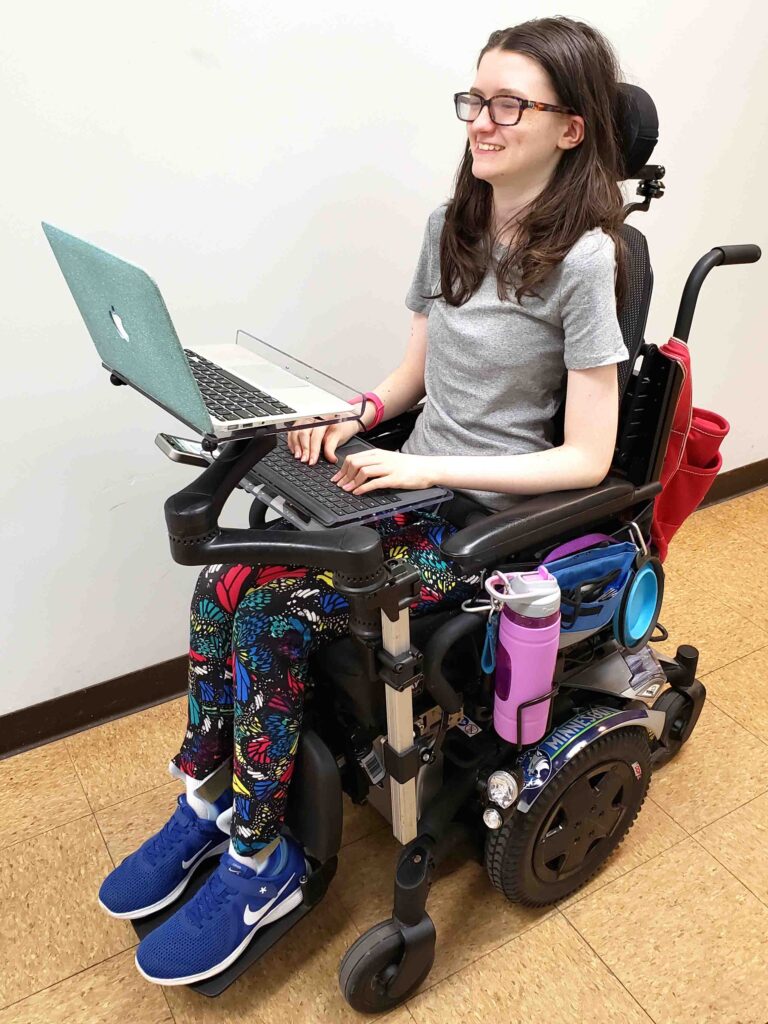
    Title II With Teeth-young lady in Wheelchair with laptop
    Title II With Teeth-young lady in Wheelchair with laptop

     What This Means for Your Child — No Matter Their Disability

    This rule protects children with:

    • Blindness or low vision
    • Deafness or hearing loss
    • Learning disabilities
    • Cognitive disabilities
    • Autism
    • Mobility impairments
    • Speech/language disabilities
    • Chronic health conditions
    • Multiple disabilities

    Every child who needs accessible digital content is now covered.

    Your child now has the right to:

    • Access schoolwork at the same time as their peers
    • Use assistive technology without barriers
    • Receive accessible videos, documents, and online lessons
    • Navigate school websites and apps independently
    • Participate fully in online learning
    • Receive materials in formats that work for them
    • Learn without waiting for someone to “fix” inaccessible content

    This is the strongest protection children with disabilities have ever had.


    Why This Rule Is a Turning Point

    For years, schools relied on “accommodations” — reactive fixes that often came too late.
    This rule requires proactive accessibility, meaning:

    • Teachers must create accessible materials from the start
    • Districts must train staff
    • Vendors must provide accessible platforms
    • Colleges must ensure accessible admissions, financial aid, and coursework
    • Schools must test content for accessibility
    • Students must receive equal access in real time

    This is a complete shift in how education must operate.

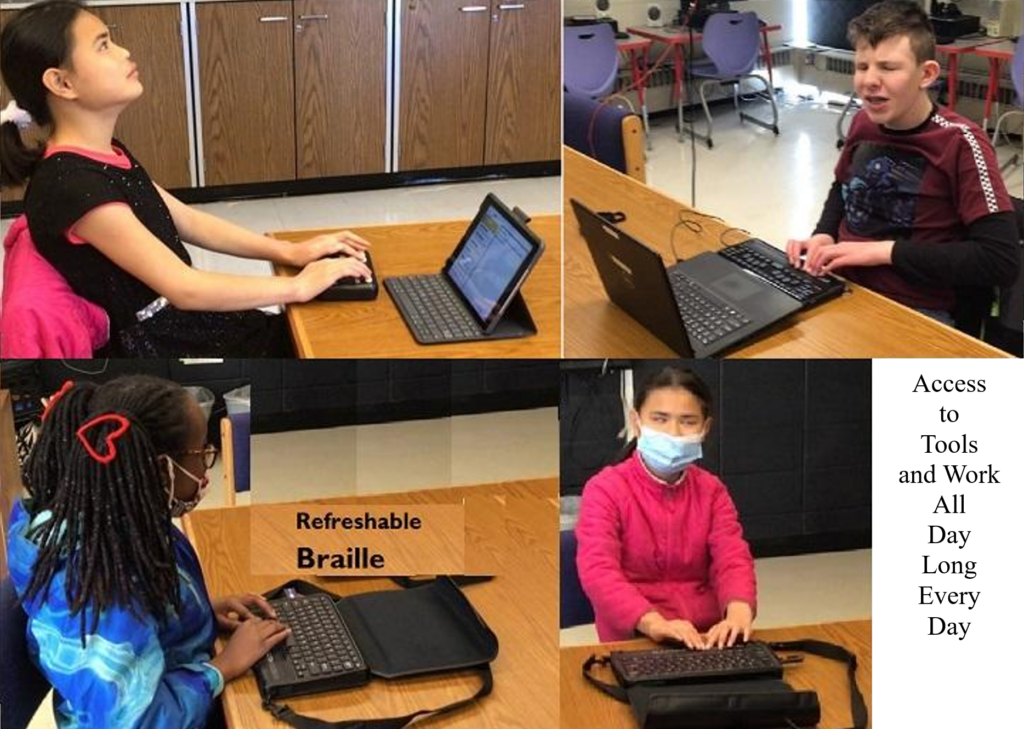
    Title II With Teeth-Access All Work with peers
    Title II With Teeth-Access All Work with peers

    Why This Is Good News — Even If Schools Are Scrambling

    Yes, schools and colleges are panicking.
    They are overwhelmed.
    Yes, they are realizing how much work they must do.

    But that panic is not a bad thing.

    It means the system is finally being held accountable.
    That families no longer have to beg for access.
    It means students no longer have to wait.
    It means the law is finally on your child’s side.

    For the first time, the federal government has said clearly:

    “Your child deserves equal access — and schools must provide it.”


    What This Means for Teachers

    Teachers are not expected to become accessibility experts overnight.
    But they are expected to learn the basics of accessible design — and districts are required to train them.

    This rule gives teachers:

    • Clarity
    • Structure
    • Support
    • Training
    • Tools
    • A roadmap

    And it gives them the ability to reach every learner, not just those who can see, hear, read, or process information in typical ways.


    What This Means for Families

    You now have:

    • A clear legal standard
    • A federal rule with deadlines
    • A right to accessible digital content
    • A right to equal participation
    • A right to real‑time access
    • A right to file complaints if access is denied

    You no longer have to accept:

    • “We don’t know how”
    • “We’ll fix it later”
    • “We don’t have time”
    • “We don’t have training”
    • “We didn’t think about that”

    Your child’s right to access is no longer negotiable.


    What This Means for Students

    This rule opens the door to:

    • Independence
    • Confidence
    • Dignity
    • Participation
    • Inclusion
    • Real learning
    • Real opportunity

    Every child deserves to learn without barriers.
    And Every child deserves to be included.
    Every child deserves to be seen, heard, and supported.

    And now, the law finally reflects that truth.


    A Message of Hope

    For every parent who has cried at the kitchen table.
    And For every teacher who has tried to help without the tools.
    For every child who has felt left out, behind, or invisible.

    This is your moment.

    A new era of accessibility has begun — one where your child’s right to learn is protected, enforced, and honored.

    And we are going to make sure every child gets the education they deserve.

    DOJ Title II Accessibility Rule Explained

    A New Era of Access: How DOJ’s New Title II Rule Transforms Education for Every Child in America

    Title II With Teeth: How the DOJ’s New Accessibility Rule Transforms Education for All Children With Disabilities

    Why K–12 Is Scrambling: What the DOJ’s Title II WCAG 2.1 Rule Means for Every School District

    DOJ Title II Requires Web Content Accessibility : What Schools Must Do Next

    Private Schools and Title II With Teeth: How the New DOJ Accessibility Rule Changes Everything

    Title II Meaning for Vocational Rehabilitation and Adult Rehab Centers
    Who Pushed the New Title II Accessibility Rule Through? The Forces Behind America’s New Access Mandate

    Penalties for Noncompliance With DOJ Title II and WCAG 2.1 AA Requirements

    Title II Non-Compliance Can Lead to Job Loss in K–12 Schools and Colleges

    Fix Digital Accessibility Before Title II Enforcement-April 24, 2026

  • Why K–12 Is Scrambling: What the DOJ’s Title II WCAG 2.1 Rule Means for Every School District

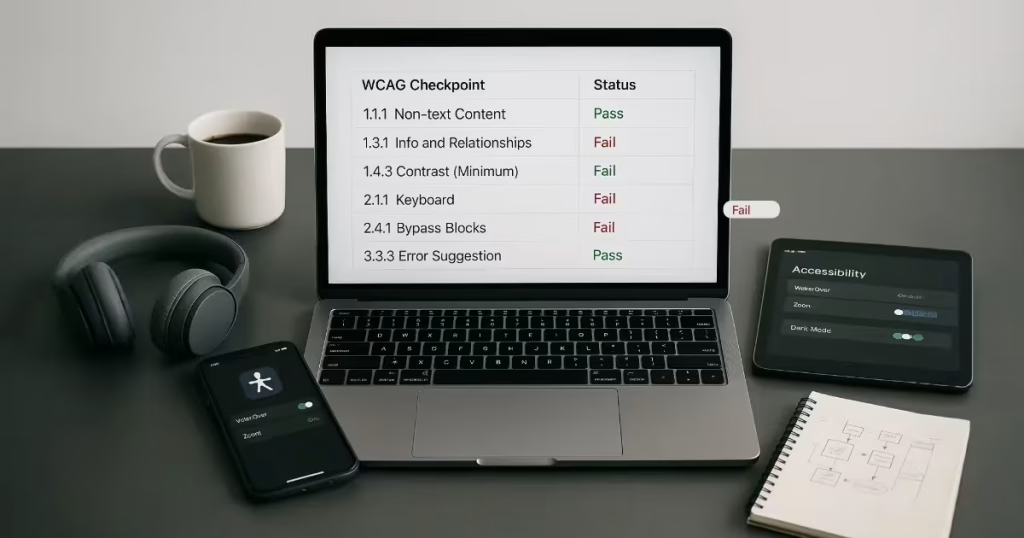
    Access Chekcer
    Why K–12 Is Scrambling-Access Checker

    K–12 isn’t just panicking — they’re in a full‑scale scramble, and for reasons that are even more urgent than higher ed. The DOJ’s Title II rule hits K–12 systems right where they’re already stretched thin: staffing, training, legacy content, and compliance culture.

    Here’s the landscape, laid out clearly and grounded in what districts are now realizing.


     Why K–12 districts are suddenly alarmed about the Title II WCAG 2.1 rule

    1. Districts assumed “accommodations” were enough — now they’re not

    For decades, K–12 has relied on:

    • TVIs to “fix” inaccessible content
    • Disability services to retrofit materials
    • Parents to advocate
    • Students to “make do”

    The new rule requires proactive accessibility, not reactive fixes.
    That’s a seismic shift.


    2. K–12 has enormous accessibility debt — bigger than higher ed in some ways

    Districts are realizing they must remediate:

    • Thousands of PDFs
    • Teacher‑made worksheets
    • Google Classroom content
    • LMS modules
    • Vendor platforms
    • Parent portals
    • IEP systems
    • School websites
    • Mobile apps

    Most of this content was never designed with WCAG in mind.


    3. Teachers generate inaccessible content every single day

    This is the part that’s scaring administrators.

    Every day teachers create:

    • Google Docs
    • Slides
    • Worksheets
    • Videos
    • Scanned PDFs
    • Classroom posts

    Almost none of it meets WCAG 2.1 AA.
    And now it legally must.


    4. Districts don’t have accessibility governance

    Most K–12 systems lack:

    • A digital accessibility policy
    • A compliance officer
    • A remediation workflow
    • A content review process
    • Training for staff
    • A way to monitor thousands of pages

    They’re realizing they need infrastructure, not just training.


    5. Vendors are a huge liability

    Districts rely on:

    • Curriculum platforms
    • Assessment systems
    • Parent communication apps
    • Scheduling tools
    • Payment portals
    • Transportation apps

    Many of these tools are not WCAG 2.1 AA compliant, and the DOJ rule makes the district responsible for the accessibility of third‑party tools.

    This is causing real panic.


    6. The deadlines are tight for K–12 too

    Large districts (50,000+ population) must comply by April 2026.
    Smaller districts by April 2027.

    Given the volume of content and the lack of staff, these timelines feel impossible to many administrators.


    7. OCR complaints are already rising

    Families are becoming more aware of their rights.
    Advocacy groups are watching.
    Blind/low‑vision access issues are among the most common complaints.

    Districts know enforcement is coming.


     What this means for an accessible world

    This rule gives you extraordinary leverage because it legally validates everything people have been advocating for so long:

    • Real‑time access
    • Non-visual design
    • Proper alt text
    • Accessible math (Nemeth, tactile, digital)
    • Keyboard‑only navigation
    • Accessible PDFs
    • Structured documents
    • Captioned and described media
    • Accessible learning platforms

    Districts can no longer say:
    “Just give the student an accommodation.”
    or
    “We’ll fix it when needed.”

    Now they must design access from the start.

    DOJ Title II Explained

    A New Era of Access: How DOJ’s New Title II Rule Transforms Education for Every Child in America

    Title II With Teeth: How the DOJ’s New Accessibility Rule Transforms Education for All Children With Disabilities

    Why K–12 Is Scrambling: What the DOJ’s Title II WCAG 2.1 Rule Means for Every School District

    DOJ Title II Requires Web Content Accessibility : What Schools Must Do Next

    Private Schools and Title II With Teeth: How the New DOJ Accessibility Rule Changes Everything

    Title II Meaning for Vocational Rehabilitation and Adult Rehab Centers

    Who Pushed the New Title II Accessibility Rule Through? The Forces Behind America’s New Access Mandate

    Penalties for Noncompliance With DOJ Title II and WCAG 2.1 AA Requirements

    Title II Non-Compliance Can Lead to Job Loss in K–12 Schools and Colleges

    Fix Digital Accessibility Before Title II Enforcement-April 24, 2026

  • DOJ Title II Requires Web Content Accessibility : What Colleges & Schools Must Do Next

    DOJ Title II Requires Web Access for All
    DOJ Title II Requires Web Access for All

    In April 2024, now delayed to Nov 2027, the U.S. Department of Justice published its final rule updating Title II of the ADA to require that state and local governments make their websites and mobile apps accessible by conforming to WCAG 2.1 Level AA. (WCAG 2.1 AA) or face the consequences.

    This is the first time the DOJ has formally adopted a specific technical standard for digital accessibility under Title II.

    What changed? https://collegiseducation.com/insights/title-2-web-accessibility-higher-ed/


    Who must comply?

    All state and local government entities, including:

    • State agencies
    • Counties, cities, municipalities
    • Independent school districts
    • Special district governments
    • Contractors or vendors providing public‑facing digital services on behalf of these entities

    This includes any third‑party platform used to deliver services (payment portals, scheduling systems, learning platforms, etc.).


    Compliance deadlines

    The DOJ set two compliance timelines:

    • April 24, 2026 → Entities with 50,000+ population

    These dates apply to full conformance with WCAG 2.1 AA for all covered digital content.


    What WCAG 2.1 AA requires

    WCAG 2.1 AA addresses barriers affecting people with:

    • Blindness or low vision
    • Deafness or hearing loss
    • Cognitive or learning disabilities
    • Mobility or dexterity impairments

    Key requirements include:

    • Text alternatives for images
    • Captioning and audio description for video
    • Keyboard accessibility for all functions
    • Sufficient color contrast
    • Logical heading structure
    • Resizable text and responsive layouts
    • Avoiding motion‑based inputs (e.g., shaking a device)
    • Touch target size and spacing for mobile apps

    What content is covered?

    The rule applies to all web content and mobile apps a public entity provides or makes available.
    This includes:

    • Websites
    • Mobile apps
    • Online forms
    • PDFs and digital documents
    • Portals and dashboards
    • Learning platforms
    • Third‑party tools used to deliver public services

    What content is not required to comply?

    The rule includes limited exceptions:

    • Archived web content
    • Preexisting traditional electronic documents (e.g., old PDFs)
    • Content posted by non‑affiliated third parties
    • Password‑protected individual documents
    • Preexisting social media posts

    These exceptions are narrow—most active, public‑facing content must meet WCAG 2.1 AA.


    Why the DOJ adopted WCAG 2.1 AA

    The DOJ emphasized that inaccessible digital services create real barriers—for example:

    • Blind users unable to access images without alt text
    • Inaccessible forms blocking access to voting, tax info, or school services
    • Barriers to participating in civic events

    The rule aims to ensure equal access to essential public services.


    What this means schools, colleges and any educational institution

    For  blind/low‑vision students and families receive real‑time, nonvisual access to digital content. WCAG 2.1 AA now gives legal backbone for the accessibility standards people advocate for—especially around:

    • Alt text
    • Keyboard access
    • Logical structure
    • Screen‑reader compatibility
    • Accessible PDFs
    • Mobile app access ease with braille display or Voice Over
    • Captioning and audio description

    This is a powerful tool for your advocacy with districts, IEP teams, and state agencies.

    You’re not imagining it — public colleges and universities really are scrambling, and the panic is coming from several very real, structural reasons that the higher‑ed sector has been avoiding for years. Here’s what the current reporting and expert analysis show, grounded in the sources we just pulled.


     Why colleges and Schools are panicking about the new Title II WCAG 2.1 rule

    1. The rule is no longer “guidance” — it’s enforceable law

    Public colleges and universities are now legally required to meet WCAG 2.1 AA across all digital services. This is a major shift from the old “best practice” era.

    For higher ed, which has thousands of pages, PDFs, videos, portals, and legacy systems, this is a massive lift.


    2. The deadlines are tight — especially for large institutions

    Public institutions serving populations of 50,000+ must comply by April 24, 2026.
    Smaller ones have until April 26, 2027.

    Most colleges are nowhere near WCAG 2.1 AA compliance today.


    3. Higher ed has huge accessibility debt

    Experts note that colleges have:

    • Decentralized web teams
    • Fragmented domains
    • Thousands of legacy PDFs
    • Inaccessible videos
    • Third‑party tools that aren’t compliant

    This means they’re not starting from zero — they’re starting from negative.


    4. Colleges have been relying on “accommodations,” not accessible design

    For years, many institutions leaned on disability services offices to “fix” inaccessible content after the fact.
    The new rule requires proactive accessibility, not reactive accommodations.

    This is a cultural shift higher ed has resisted for decades.


    5. The exceptions are narrow — and colleges hoped they’d be broader

    The DOJ’s exceptions (archived content, pre‑existing social media posts, third‑party content, etc.) are very limited.

    Most active content must be fully accessible.


    6. Colleges and schools fear litigation and OCR complaints

    Higher ed is already a top target for ADA and Section 504 complaints.
    Now that WCAG 2.1 AA is the explicit legal standard, colleges know enforcement will increase.


    7. They know they can’t fix this with a one‑time project

    Experts warn that accessibility must become a digital operating model, not a “compliance project.”

    That means governance, training, workflows, and accountability — areas where higher ed is historically weak.


    Colleges and schools are panicking — because they’re unprepared.Rules to follow from ADA

    DOJ Title II Explained

    A New Era of Access: How DOJ’s New Title II Rule Transforms Education for Every Child in America

    Title II With Teeth: How the DOJ’s New Accessibility Rule Transforms Education for All Children With Disabilities

    Why K–12 Is Scrambling: What the DOJ’s Title II WCAG 2.1 Rule Means for Every School District

    DOJ Title II Requires Web Content Accessibility : What Schools Must Do Next

    Private Schools and Title II With Teeth: How the New DOJ Accessibility Rule Changes Everything

    Title II Meaning for Vocational Rehabilitation and Adult Rehab Centers
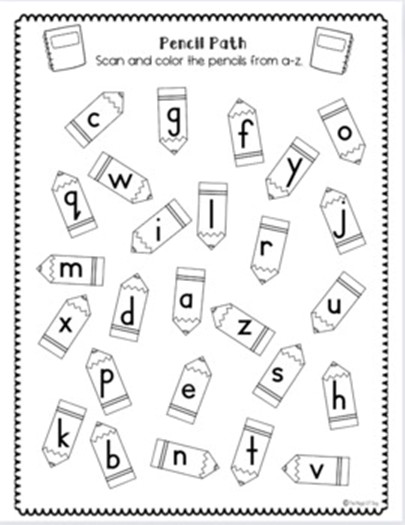
    Who Pushed the New Title II Accessibility Rule Through? The Forces Behind America’s New Access Mandate

    Penalties for Noncompliance With DOJ Title II and WCAG 2.1 AA Requirements

    Title II Non-Compliance Can Lead to Job Loss in K–12 Schools and Colleges

    Fix Digital Accessibility Before Title II Enforcement-April 24, 2026

  • A New Era of Access: DOJ’s New Title II Rule Transforms Education at all levels for Every Child in America

    new Era of Access
    New Era of Access

    As Our team teaches blind low vision, this article is directed toward that population but this is true for ALL populations of children.

    For decades, blind and low‑vision students have been expected to “make do” with inaccessible schoolwork, delayed accommodations, and digital tools that were never designed for them. Parents have fought and Teachers of the visually impaired have patched and remediated-transcribed work until late in the evenings. Students have worked twice as hard for half the access.

    But now, everything is changing.

    In April 2024, the U.S. Department of Justice issued a landmark update to Title II of the Americans with Disabilities Act, requiring all state and local governments — including every public school district in the country — to make their websites, digital learning platforms, documents, and mobile apps accessible by following WCAG 2.1 Level AA.

    This is not guidance or a suggestion.
    This is federal law.

    And for the first time, our children have a clear, enforceable right to full, equal, real‑time access to their education.


    Why this rule matters so much for blind and low‑vision students

    Blind and low‑vision students have always been the most impacted by inaccessible digital content. When a worksheet is posted as an image, when a math assignment is scanned sideways, when a teacher uploads a PDF with no tags, when a learning platform isn’t keyboard accessible — that student is locked out.

    The new rule changes that.

    WCAG 2.1 AA requires schools to ensure:

    • All images have alt text
    • All documents are structured for screen readers
    • All videos have captions and audio description
    • All platforms work with keyboard navigation
    • All math and STEM content is accessible
    • All mobile apps are operable for non-visual users
    • All content is perceivable, operable, understandable, and robust

    This is the first time the federal government has said, in clear language:
    “Your digital content must be accessible from the start.”

    No more waiting or retrofitting.
    No more “we’ll fix it later” or “we didn’t know.”


    Why schools are scrambling or should be scrambling— and why that’s good news

    K–12 districts are suddenly realizing that:

    • Teachers create inaccessible content every day
    • Thousands of PDFs and worksheets must be remediated
    • Google Classroom, Schoology, Canvas, and other platforms must meet WCAG
    • Vendor tools must be accessible — and the district is responsible if they’re not
    • They need training, workflows, and accountability
    • They must comply by 2026 or 2027, depending on district size

    This is overwhelming for them — but it’s also the first time blind and low‑vision students have the law fully on their side… as do all students!

    So if you hear panic you’re it is not a bad thing.
    It’s the sound of a system finally being required to do what it should have done all along.


    What this means for your child

    It means your child has the right to:

    • Access their schoolwork at the same time as their peers
    • Use screen readers, magnification, braille displays, and other tools without barriers
    • Receive accessible math, science, and STEM content
    • Navigate school websites and portals independently
    • Access digital textbooks and curriculum materials
    • Participate fully in online learning
    • Receive materials in formats that work for them — every time

    This is not optional.
    Or “if the teacher has time.”
    This is not “if the district can figure it out.”

    This is their legal right.


    What this means for teachers

    Teachers are not expected to become accessibility experts overnight. But they are expected to learn the basics of accessible digital design — and districts are required to train them.

    This rule gives teachers clarity, structure, and support.
    It gives them a roadmap.
    It gives them permission to slow down and do things right.

    And it gives them the tools to reach every learner, not just those who can see the screen.


    What this means for TVIs and accessibility professionals

    For years, TVIs have been forced into the role of “fixer” — remediating inaccessible content after the fact, often late at night, often under pressure, often without the authority to change the system.

    This rule changes your role.

    You are no longer the emergency repair technician.
    You are now the accessibility leader your district must rely on.

    Your expertise is finally recognized as essential, not optional.


    Why this is a moment of hope

    For the first time in U.S. history, blind and low‑vision (and all) students have a federal rule that:

    • Names the standard
    • Sets the deadlines
    • Defines the expectations
    • Holds districts accountable
    • Protects students’ right to equal access

    This is the beginning of a new era — one where our children can learn, participate, and thrive without barriers.

    And for families who have spent years advocating, fighting, and explaining the same issues over and over, this rule is a long‑awaited validation:

    Your child deserves full access.
    A
    ll children deserve independence.
    Your child deserves equal opportunity.
    And now, the law finally backs you up.

    DOJ Title II Explained

    Teacher Marketplace Worksheets Are Failing Title II Accessibility Standards

    Fix Digital Accessibility Before Title II Enforcement-April 24, 2026-Now 2027

    Title II Meaning for Vocational Rehabilitation and Adult Rehab Centers
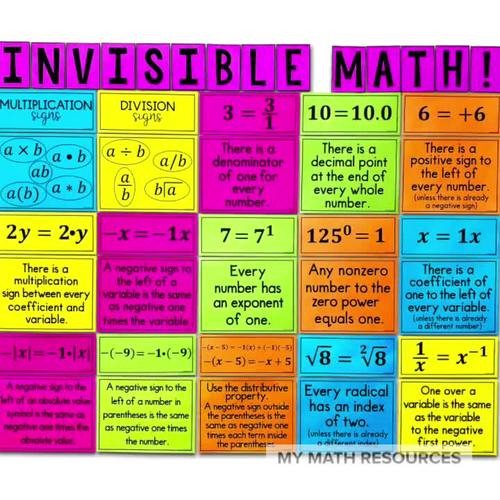
    Who Pushed the New Title II Accessibility Rule Through? The Forces Behind America’s New Access Mandate

    Title II Non-Compliance Can Lead to Job Loss in K–12 Schools and Colleges

    Penalties for Noncompliance With DOJ Title II and WCAG 2.1 AA Requirements

    Private Schools and Title II With Teeth: How the New DOJ Accessibility Rule Changes Everything

    Title II With Teeth: How the DOJ’s New Accessibility Rule Transforms Education for All Children With Disabilities

    Why K–12 Is Scrambling: What the DOJ’s Title II WCAG 2.1 Rule Means for Every School District

    DOJ Title II Requires Web Content Accessibility : What Colleges & Schools Must Do Next

    A New Era of Access: DOJ’s New Title II Rule Transforms Education at all levels for Every Child in America

    Accessibility Barriers in Standardized Testing for Blind Students

    How Do Blind Students Learn?

    Preventing Due Process, upholding Rights

    Professional Development for Teachers

    TechVision Access Instruction-Empowering Blind and Visually Impaired

    How Colleges Help Visually Impaired Students Succeed

    Penalties for Noncompliance With DOJ Title II and WCAG 2.1 AA Requirements

    A New Era of Access: DOJ’s New Title II Rule Transforms Education at all levels for Every Child in America

    Private Schools and Title II With Teeth: How the New DOJ

  • Google Drive Keyboard Shortcuts for Screen Reader Users

    Google Drive Keyboard Shortcuts
    Google Drive Keyboard Shortcuts

    Google Drive Keyboard shortcuts become much easier — and faster — when you know the right screen reader keyboard commands. In this TechVision tutorial, I walk you through how JAWS and NVDA users can move through folders, open files, switch views, and manage Drive content without ever touching a mouse.

    These skills build confidence, speed, and independence for blind and low‑vision users, students learning digital literacy, and anyone who prefers keyboard‑based navigation. You’ll learn how to open menus, jump between items, select files, search your Drive, and access settings with predictable, repeatable commands.

    Whether you’re organizing schoolwork, managing shared folders, or teaching students how to work in the cloud, these shortcuts make Google Drive more accessible and efficient for everyone.

    TechVision: Empowering real‑life tech skills with clarity, accessibility, and confidence.

    Video here for details: Google Drive Keyboard Shortcuts for Screen Reader Users

    Google Drive Shortcuts for full navigation

    Other computer fixes and skills

    Microsoft Edge Switching Accounts? Here’s the Fix

    LinkedIn with JAWS Commands for total Access

    Can’t Log In? Fix Password Problems Fast

    Fix and Speed Up Windows Computer in Minutes

    Best Computer Specs Guide: RAM, SSD, CPU and What .NET Really Does

    Restore System & Fix PC issues

    Speed up and Fix a SLOW Computer

    Easily Add “This PC” to Your Desktop for Fast Drive Access

  • Easily Add “This PC” to Your Desktop for Fast Drive Access

    Easily Add “This PC” to Your Desktop
    Easily Add “This PC” to Your Desktop

    Struggling to find your drives or open File Explorer quickly?
    Adding the This PC icon to your desktop is one of the fastest ways to navigate Windows — especially for beginners, blind/low‑vision users, and anyone building confidence with their computer.

    In this quick TechVision tutorial, I show you how to turn on desktop icons, place This PC right where you need it, and get instant access to your drives, folders, and storage. A simple change that makes a big difference in independence and efficiency.

    Whether you’re teaching students, supporting a family member, or learning for yourself, this step gives you a clean, predictable starting point every time you sit down at the computer.

    TechVision: Building real‑life tech skills with clarity, confidence, and accessibility at the center.

    Add PC to Desktop Video

    Other computer fixes and skills

    Microsoft Edge Switching Accounts? Here’s the Fix

    LinkedIn with JAWS Commands for total Access

    Can’t Log In? Fix Password Problems Fast

    Fix and Speed Up Windows Computer in Minutes

    Best Computer Specs Guide: RAM, SSD, CPU and What .NET Really Does

    Restore System & Fix PC issues

    Speed up and Fix a SLOW Computer

  • LinkedIn with JAWS Commands for total Access

    Person navigating linkedin using braille display and screen reader
    Person navigating LinkedIn with JAWS commands using braille display and screen reader

    Navigating LinkedIn with JAWS commands or any screen reader doesn’t have to be overwhelming. With the right JAWS commands, blind and visually impaired professionals can confidently connect, network, apply for jobs, and build a strong online presence. This guide walks you through the essential JAWS shortcuts and navigation strategies that make LinkedIn fully accessible — whether you’re a student preparing for your first job search, a professional expanding your network, or an educator supporting blind learners. TechVision is committed to empowering every user with the tools they need for independence, confidence, and success online.

    Keyboard shortcuts for LinkedIn with Jaws

    Use LinkedIn with JAWS commands to move quickly through the interface. Press Ctrl+Home, then Tab through the first three items until you reach the options you want. Press Enter to open the shortcut menu and enable quick‑navigation features on the page. These are essential LinkedIn with JAWS commands for efficient navigation

    Change your cursor insert z on or off based on what you need to do

    To read every line insert z on and insert ; on then down arrow

    Other shortcuts below

    ActionShortcut
    Open cheat-sheetShift+?
    Search/
    Go to Homeg h
    Regionr
    move through menu itemsi
    Go to Messagingg m
    Go to Notificationsg n
    Start a post-cursor offn
    Next updatej
    Previous updatek
    React to updatel
    Comment on updatec
    Repost updater
    Share updates

    Watch Full Video of steps here: Navigating LinkedIn with JAWS screen reader

  • 20/200 Vision Explained: What Everyone Gets Wrong About “Legal Blindness”

    20/200 vision explained-in the distance and up close with 1 line seen at 20/20 perfect vision
    20/200 vision explained-in the distance and up close with 1 line seen at 20/20 perfect vision

    Many people misunderstand what 20/200 vision actually means. The term appears simple, yet the truth often surprises families and teachers. Many assume 20/200 equals total blindness, but it does not. This number describes legal blindness, not the absence of sight. People with 20/200 vision may still see shapes, motion, and colors. However, they cannot see detail clearly enough for daily tasks without support. Understanding this difference matters, because it guides education, training, and future independence. Clear knowledge empowers parents, schools, and professionals to build the right plan.


    Misunderstanding 1: “20/200 means total blindness”

    20/200 is the legal definition of blindness in the United States, but it is not the functional definition. Many people with 20/200:

    • See light, color, and large shapes
    • Navigate familiar spaces
    • Recognize faces at close distances
    • Read with magnification or large print

    The myth comes from assuming “blindness” means “no vision at all,” when in reality it describes a range of usable vision.


    Misunderstanding 2: “If someone has 20/200, they can’t read”

    Reading ability depends far more on print size, contrast, and lighting than on the acuity number alone. Someone with 20/200 may read:

    • Large print
    • High‑contrast text
    • Digital text with zoom
    • Braille, depending on preference and fatigue

    The real barrier is often visual clutter, not the acuity itself.


    Misunderstanding 3: “20/200 looks the same for everyone”

    Two people with the same acuity can have completely different experiences depending on:

    • Field loss
    • Light sensitivity
    • Glare
    • Contrast sensitivity
    • Stability of the condition

    Acuity is only one slice of functional vision.


    Misunderstanding 4: “If you get close enough, everything becomes clear”

    Distance helps, but clarity depends on contrast, lighting, and the condition causing the vision loss. Someone with 20/200 may still struggle with:

    • Low‑contrast text
    • Faded pencil writing
    • Busy backgrounds
    • Dim rooms
    • Bright glare

    Getting closer doesn’t fix those.


    Misunderstanding 5: “20/200 means you can’t be independent”

    People with 20/200 routinely:

    • Work full‑time
    • Travel independently
    • Use smartphones and computers
    • Parent
    • Cook
    • Drive with bioptics in some states

    Independence is shaped by training, tools, and environment, not just acuity.

    With the right tools, students with 20/200 vision:

    • read using laptops and screen readers
    • work independently with braille, braille displays and tactile graphics
    • navigate confidently with cane and GPS
    • complete assignments alongside their peers using access technology

    If instruction begins early and stays consistent, they thrive.


    Misunderstanding 6: “20/200 is the same in every situation”

    Someone with 20/200 may function very differently depending on:

    • Indoors vs. outdoors
    • Daylight vs. fluorescent lighting
    • High‑contrast vs. low‑contrast environments
    • Familiar vs. unfamiliar spaces

    Functional vision is context‑dependent, not fixed.


    Misunderstanding 7: “If you have 20/200, you’ll eventually lose all your vision”

    Acuity doesn’t predict the future.
    Some conditions are stable for life.
    Most vision fluctuates daily and hourly.
    Some improve with treatment.
    Some decline slowly or unpredictably.

    The number describes today, not destiny.


    Misunderstanding 8: “20/200 means you can’t see faces”

    Most people with 20/200 can see faces at close range. What’s difficult is:

    • Recognizing faces across a room
    • Reading expressions from a distance
    • Catching subtle social cues

    This is why students may appear “uninterested” or “unaware” when they’re actually working twice as hard to interpret the room.


    Misunderstanding 9: “Glasses can fix 20/200”

    If glasses could correct it, it wouldn’t be classified as 20/200.
    The number reflects best‑corrected vision, not uncorrected vision.


    Misunderstanding 10: “20/200 is rare”

    It’s more common than people think, especially among:

    • Students with albinism
    • Individuals with optic nerve conditions
    • Adults with diabetic retinopathy
    • People with congenital low vision

    The number shows up across many diagnoses.


    Globally, more than 33 million people meet the legal blindness threshold of 20/200 vision or worse, making this level of sight loss far more common than most people realize.

    Understanding Vision in Children: What Visual Acuity Really Means

      Signs of Low Vision in Children Even when they Pass Screening

      What 20/40 Vision Means and Why “Almost Normal” Still Matters

      20/70 Vision Explained: What It Really Means and How It Affects Daily Life

      What does 20/100 vision look like?

      20/200 Vision Explained: What Everyone Gets Wrong About “Legal Blindness”

      What Does 20/400 Vision Look Like?

      What does 20/800 vision look like?

      When Vision Problems Look Like Misbehavior: What Parents and Teachers Miss

  • How to Get a Job Today: Must-Have Technology Skills for Success

    How to get a Job-Woman at PC with display
    How to get a Job-Woman at PC with display and iPhone

    Most jobs today use the same tools: a PC, a smartphone, and Windows workplace software. If students want a job later, they must learn these tools early. If anyone wants a job, you must master those tools with excellence. Character, consistency, loyalty, and trust — combined with strong tech skills — help people gain and keep lasting employment.

    Blind and low-vision students need the same skills. They also need a screen reader, braille display, and tactile learning to access the world on equal terms.

    This is why instruction cannot start late.
    It must start educationally at age three-as a baby from the womb just teaching parents how to help child.

    Early learning builds kindergarten readiness. It keeps blind students even with their peers. Strong IEPs then protect continued teaching in tech, tactiles, and braille each year so they can keep pace with their peers.

    When schools teach the right tools early, blind students enter the future ready to work, ready to compete, and ready to thrive.


    Global Employment — All People

    According to the International Labour Organization (ILO) and global labor data:

    Employment Rate Worldwide

    • About 58% of people aged 15–64 are employed globally.
      (This includes full-time, part-time, formal and informal work.)
    • Another ~26% are outside the labor force (students, homemakers, retired)
    • ~6–10% are officially unemployed (actively seeking work)

    Key takeaway: Most people around the world have some form of work.


    People use a mixture of technology on the job depending on industry, income level, and region.

    Most tech adoption statistics come from large surveys, including:

    • International Telecommunication Union (ITU)
    • Statista digital economy surveys
    • World Bank ICT data
    • Global Workplace Analytics

    These show broad patterns across sectors.


    Computer Access at Work (Global Estimate)

    • About 70–75% of office workers worldwide use a computer at work.
      This includes laptops, desktops, and workstation terminals.

    This varies by region:

    • High-income countries: ~85–90% computer use at work
    • Middle-income countries: ~60–75%
    • Low-income countries: ~30–50%

    Smartphone Use at Work

    Smartphones are extremely common globally, even where desktop PC penetration is lower.

    Global estimates show:

    • 85–90% of working adults use a smartphone at least daily for communication, email, scheduling, messaging, and business apps.
    • In many service, retail, field, and informal jobs, the smartphone is the primary computing tool.

    PC vs. Mac vs. Other at Work (Global Split)

    There is no exact global “one number,” but multiple tech market share sources give a snapshot of the device ecosystem used professionally:

    PC / Windows

    Windows dominates business environments because:

    • Longstanding enterprise support
    • Broad software compatibility
    • Legacy systems in large organizations

    Mac (macOS)

    • Estimated 15–20% of workplace computers.
    • Higher share in:
      • creative industries (design, media, publishing)
      • education and research institutions
      • startups and technology firms
      • some small business environments

    Other (Linux, Chrome OS, Thin Clients)

    • 5–10% combined share. These are more common in:
      • tech-savvy organizations
      • cloud-centric workplaces
      • specialized development environments

    Technology People Use on the Job

    Here is how technology breaks down by task:

    Office / Knowledge Work

    • PC (Windows + Office)
    • Laptops, desktops
    • Email, Office suites, cloud apps
    • Collaboration tools (Slack, Teams, Zoom)
    • Data entry, spreadsheets

    Creative / Design / Media

    • Mac systems are popular
    • Adobe Creative Suite
    • Video and audio editing tools

    IT / Development

    • Split between Mac, PC, and Linux
    • Code editors (VS Code, Vim)
    • Cloud and DevOps tools

    Data / Analysis

    • PCs for spreadsheets and databases
    • Macs for visualization and coding

    Mobile-First Roles

    • Smartphones for:
      • communication (call, message)
      • scheduling
      • mobile apps (CRM, logistics)
    • Especially in:
      • retail
      • transportation
      • field service

    Global Smartphone vs Computer at Work

    Here’s a broad estimate:

    Technology TypeApprox. Global Usage at Work
    Smartphones~85–90%
    Desktop/Laptop Computers~70–75%
    Windows PCs~75–80% of computer share
    Macs~15–20%
    Other OS (Linux, Chrome OS)~5–10%

    Note: These percentages overlap — most people use both smartphones and computers.


    WHY TECH ADOPTION LOOKS THIS WAY

    Smartphones have high adoption because:

    • They are affordable
    • Widely available
    • Used for email, messaging, forms
    • Often required by employers for mobile work

    PC (Windows) dominates because:

    • Enterprise software is built for it
    • IT infrastructure around Windows is mature
    • It’s cost-effective at scale

    Mac is strong in:

    • Creative industries
    • Technology startups
    • Higher education
    • Design and media fields

    SUMMARY — GLOBAL View

    Employment: ~58% of adults globally are employed
    Smartphone use: ~85–90% use at work
    Computer use (general): ~70–75% use a PC/laptop
    Windows share: ~75–80%
    Mac share: ~15–20%
    Other OS: ~5–10%

    Go Professional: LinkedIn with Jaws

  • LinkedIn with JAWS Commands

    Person navigating linkedin using braille display and screen reader
    Person navigating LinkedIn with JAWS commands using braille display and screen reader

    Navigating LinkedIn with JAWS commands or any screen reader doesn’t have to be overwhelming. With the right JAWS commands, blind and visually impaired professionals can confidently connect, network, apply for jobs, and build a strong online presence. This guide walks you through the essential JAWS shortcuts and navigation strategies that make LinkedIn fully accessible — whether you’re a student preparing for your first job search, a professional expanding your network, or an educator supporting blind learners. TechVision is committed to empowering every user with the tools they need for independence, confidence, and success online.

    Keyboard shortcuts for LinkedIn with Jaws

    Use LinkedIn with JAWS commands to move quickly through the interface. Press Ctrl+Home, then Tab through the first three items until you reach the options you want. Press Enter to open the shortcut menu and enable quick‑navigation features on the page. These are essential LinkedIn with JAWS commands for efficient navigation

    Change your cursor insert z on or off based on what you need to do

    To read every line insert z on and insert ; on then down arrow

    Other shortcuts below

    ActionShortcut
    Open cheat-sheetShift+?
    Search/
    Go to Homeg h
    Regionr
    move through menu itemsi
    Go to Messagingg m
    Go to Notificationsg n
    Start a post-cursor offn
    Next updatej
    Previous updatek
    React to updatel
    Comment on updatec
    Repost updater
    Share updates

    Watch Full Video of steps here: Navigating LinkedIn with JAWS screen reader

  • Best Computer Specs Guide: RAM, SSD, CPU and What .NET Really Does

    Best Computer PC Specs buying Guide for 2025 and beyond: RAM, CPU, SSD, graphics card, gaming and more explained

    If you’re planning to buy a computer now, pause before diving into the best PC specs. Keep in mind that dealers often clear out older models during holiday sales. To make sure you know exactly what you’re getting, skip down to the section on ‘Older and Newer Naming’ of laptops.


    Specs You Need and PC Details Explained

    • Memory (RAM):
      64 GB DDR5 (4800–5600 MHz, dual channel, expandable to 128 GB on some models). Continue for more detailed advice, for Best Computer Specs Guide.
    • Storage (SSD):
      2 TB PCIe Gen 4 NVMe SSD (blazing fast read/write speeds, optional dual SSDs up to 4–8 TB total)
    • Graphics (GPU):
      NVIDIA GeForce RTX 5090 Laptop GPU (16–24 GB GDDR7 VRAM)
      or workstation option: NVIDIA RTX 6000 Ada (48 GB VRAM)
    • Display:
      14‑inch UHD (3840 × 2160) Mini‑LED, 120 Hz refresh rate, HDR support
      or 14- 16‑inch OLED, 240 Hz for gaming/creative workloads

    Reduce Eye Strain with a High Resolution Curved Screen

    • Ultra HD / 4K: 3840 × 2160 pixels
    • 8K UHD: 7680 × 4320 pixels
    • Highest Resolutions Available (2025)
    • 8K UHD (7680 × 4320):
      • Currently the highest mainstream resolution for TVs and monitors.
      • It is Extremely sharp, but requires powerful GPUs and large screens to notice the difference.

    Best Curved Monitors (2025)

    BrandBest ModelSize / ResolutionUse CaseKey Strengths
    SamsungOdyssey OLED G949″ Dual QHD (5120×1440)Gaming / Immersion240 Hz refresh, deep 1000R curve, HDR OLED
    Dell / AlienwareAlienware AW3425DW34″ QD‑OLED (3440×1440)Gaming / EsportsFast response, vivid colors, G‑Sync Ultimate
    Dell UltraSharpU4025QW40″ 5K2K (5120×2160)Productivity / MultitaskingHuge workspace, USB‑C hub, color accuracy
    LGUltraGear 45GR75DC45″ WQHD (3440×1440)Gaming / CreativeOLED panel, 240 Hz, immersive ultrawide
    HPE45c G545″ Dual QHD (5120×1440)Productivity / OfficeReplaces dual monitors, ergonomic design
    GigabyteG27FC27″ Full HD (1920×1080)Budget Gaming / Entry LevelAffordable, decent curve, FreeSync support

    Quick Recommendations

    • For Gaming Immersion: Samsung Odyssey OLED G9 or Alienware AW3425DW.
    • For Productivity/Work: Dell UltraSharp U4025QW or HP E45c G5.
    • For Budget Buyers: Gigabyte G27FC.
    • For Hybrid Use (Gaming + Creative): LG UltraGear 45GR75DC.

    Other items you need for laptop and more USBs for a desktop

    • Ports & Connectivity:
      • 2 × Thunderbolt 4 / USB‑C
      • 3 × USB‑A 3.2
      • HDMI 2.1
      • Ethernet RJ‑45
      • Wi‑Fi 7 + Bluetooth 5.4
      • Keyboard:
        QWERTY keyboard, with Applications/Menu key
      • Around 4 pounds ≈ 1.81 kilograms.

    How to Find Your Computer Specs (Windows 11, December 2025)

    1: Using System Settings

    1. Press Windows key + E to open File Explorer.
    2. Press Shift + Tab to move focus to the Navigation Pane.
    3. Arrow down to This PC (usually near the bottom).
    4. Right‑click on This PC and choose Properties (or press Enter).
    5. A window will open showing basic system information, including:
      • Device name
      • Processor (CPU)
      • Installed RAM
      • System type (32‑bit or 64‑bit)
      • Windows edition and version

    2: Using Settings → About

    1. Press Windows key + I to open Settings.
    2. Navigate to System.
    3. Scroll down and select About.
    4. Under Device specifications, you’ll see:
      • Processor (CPU)
      • Installed RAM
      • Device ID
      • Product ID
      • System type
    5. Under Windows specifications, you’ll see:
      • Edition (e.g., Windows 11 Pro)
      • Version and build number

    3: Advanced Specs (Optional)

    For deeper details like graphics card, storage, and drivers:

    • Press Windows key + R, type dxdiag, and press Enter.
    • This opens the DirectX Diagnostic Tool, showing CPU, RAM, GPU, and driver versions.

    Summary

    • Basic specs (CPU, RAM, Windows version) → System → About or This PC → Properties.
    • Detailed specs (graphics card, drivers) → dxdiag.
    • These steps work with keyboard navigation and are accessible for screen reader users.

    Find information in MSINFO32

    • MSINFO32 is the command that opens the System Information utility in Windows.
    • It provides a comprehensive overview of your computer’s hardware, software, and system components.
    • Unlike the simple “About” page, MSINFO32 gives deep technical details useful for troubleshooting, upgrades, or support.

    How to Open MSINFO32

    1. Press Windows key + R to open the Run dialog.
    2. Type msinfo32 and press Enter.
    3. The System Information window will appear.

    What You’ll See in MSINFO32

    • System Summary (default view):
      • OS name and version
      • System manufacturer and model
      • Processor type and speed
      • Installed RAM
      • BIOS version/date
      • Boot mode (UEFI or Legacy)
    • Hardware Resources:
      • IRQs, DMA, I/O ports, memory addresses
      • Useful for diagnosing hardware conflicts
    • Components:
      • Display (graphics card details)
      • Storage (drives, controllers)
      • Network (adapters, protocols)
      • Input devices
    • Software Environment:
      • Loaded drivers
      • Running tasks
      • Services
      • Environment variables

    Why It’s Useful

    • Troubleshooting: Quickly check BIOS version, drivers, and hardware conflicts.
    • Upgrades: Confirm RAM slots, CPU type, and expansion options.
    • Support: Export system info to share with IT or tech support.

    Memory Details

    These values describe how your computer uses RAM (physical memory) and virtual memory:

    • Installed Physical Memory (RAM): 64.0 GB
      The total amount of RAM physically installed in your system.
    • Total Physical Memory: 63.8 GB
      The usable portion of your installed RAM. A small amount is reserved for system hardware.
    • Available Physical Memory: 56.2 GB
      The amount of RAM currently free and available for use by applications and the system.
    • Total Virtual Memory: 67.8 GB
      This includes physical RAM plus page file space. Virtual memory allows your system to use disk space as extra memory when RAM is full.
    • Available Virtual Memory: 58.9 GB
      The portion of virtual memory that’s currently unused and available.
    • Page File Space: 4.00 GB
      The size of the page file (a reserved portion of your hard drive used as virtual memory).

    Go to Programs and features and make sure you have all your security and power to run programs so do a find command for “run” and look for your .nets.

    What .NET Does for a Computer—let’s just say it IS REALLY IMPORTANT

    • Runs Applications:it is software framework/platform
      .NET provides the Common Language Runtime (CLR), which acts like a virtual machine. It takes code written in languages like C#, F#, or VB.NET and makes sure it runs correctly on your computer.
    • Manages Resources:
      The CLR handles memory management, security, thread management, and error handling. This means programs don’t have to reinvent these functions — they rely on .NET to do it safely.
    • Provides Libraries:
      The Framework Class Library (FCL) is a huge collection of pre‑built code for everyday tasks:
      • Reading/writing files
      • Connecting to databases
      • Networking and internet communication
      • User interface controls
      • Math, cryptography, and more
    • Supports Multiple Languages:
      Developers can write programs in C#, F#, VB.NET, and others. .NET makes them interoperable, so code written in one language can work with another.
    • Cross‑Platform Evolution:

    Go get those important computer items at: Ninite.com

    Beat Graphics card for computers using screen readers or other access technologies: NVIDIA

    Image of NVIDIA control panel for its graphics card running on computer

    GRAPHICs card RUN that screen reader–get a good one GAMING computers will get you the specs you need for a screen reader or just regular use

    NVIDIA RTX cards dominate the high‑end market with unmatched ray tracing, AI features (DLSS, CUDA, Omniverse), and raw compute power.–the BEST for screen readers and older students–middle school up

    • AMD Radeon RX cards offer better value for money, strong rasterization performance, and more efficient power use, especially at 1440p and 4K gaming.

    The applications key– is KEY of importance-the funny looking horseshoe on a gaming computer or square with lines in it on general computers–it is a right click of a mouse or 1 press of a key.

    applications key on gaming computer looks like a horseshoe
    applications key on all other computers is a box with 3 lines in it

    Basic specifications for a laptop: gaming computer will have the speed and video card needed for performance

      Processor (CPU): some use the words i5, i7, i9 but the new words are Ultra 5,7 or 9 on machines–i9 is compared to ultra 9 and so on like this

    Intel Naming Shift

    Older naming convention (up to 13th Gen): so if you have this then know it is an older model and during holidays, this is what companies are selling cheaply to get rid of–so just be aware–

    • Intel Core i3, i5, i7, i9
    • Example: Intel Core i7‑12700H
    • New naming convention (14th Gen and newer):
    • Intel Core Ultra 5, Ultra 7, Ultra 9
    • Example: Intel Core Ultra 9 185H
    • The “Ultra” branding emphasizes AI acceleration and new architecture (Meteor Lake, Lunar Lake).

    How They Compare

    • Core i5 → Core Ultra 5
    • Core i7 → Core Ultra 7
    • Core i9 → Core Ultra 9


    Intel Core Ultra 9 285HX (24 cores, up to 5.5 GHz turbo)
    or AMD Ryzen 9 7945HX (16 cores, up to 5.4 GHz turbo)

    • Graphics (GPU):
      NVIDIA GeForce RTX 5090 Laptop GPU (16–24 GB GDDR7 VRAM)
      or AMD Radeon RX 7900M (16 GB GDDR6 VRAM)
    • Memory (RAM):
      64 GB DDR5 (4800–5600 MHz, dual channel, expandable to 128 GB on some models)
    • Storage (SSD):
      1 TB PCIe Gen 4 NVMe SSD (with option for dual SSDs up to 4 TB total)
    • Display:
      17.3‑inch UHD (3840 × 2160) Mini‑LED, 120 Hz refresh rate, HDR support
      or 16‑inch OLED, 240 Hz for gaming/creative work

    Favorite computers for running software such as JAWS, NVDA and other blind ware–You must have HIGH RAM and speed

    Top Favorite: ASUS

    ASUS Laptop Weights–based on student–

     ZenBook Series (ultralight)

     New ZenBook A14: as low as 2.18 lbs (0.99 kg)

      VivoBook Series (mid‑range everyday use series)

     ROG Gaming Series (heavy duty)

      Zephyrus G14: ~3.53 lbs (1.6 kg)

      Strix G15: ~5.07 lbs (2.3 kg)

    A black keyboard with yellow lights
ASUS laptop  showing an applications key shared with right CTRL Pic of ASUS-ROG-heavier with numpad

    Surface Pro-top Favorite

    Microsoft Surface Pro Weights–lightest and most powerful of laptops

    • Surface Pro 3–7: ~1.7 lbs (0.77 kg)
    • Surface Pro 8–10: ~1.94–1.96 lbs (0.88–0.89 kg)
    • Surface Pro 11 (latest): ~1.96 lbs (0.89 kg)
    • Surface Pro X (ARM model): ~1.7 lbs (0.77 kg)

     comparing true laptop form factors, ASUS ultrabooks and Surface Laptop models are closer in weight, while Surface Pro remains the lightest option in the 2‑in‑1 category.

    •  
    Surface pro keyboard with applications key--great laptop

    Different versions and do not suggest this collapsible one for students, that flips up–just too easy to flip down

    image of the flip back surface pro which is to be avoided for a student

    Get Surface Pro with a true laptop lid that opens easily

    image of surface pro computer-top choice

    HP computers

    Be careful as most do not come with applications key any more–yes you can use Insert F10 but … takes 2 keys to implement a keystroked of right click

    HP EliteBook 645 G10 includes a dedicated Applications/Menu key on its keyboard layout.

    Build your computer: EliteBook 645 G10 is a lightweight, secure, and efficient business laptop with AMD Ryzen 7000 series power

     Processor Options:

    • AMD Ryzen 5 7530U: 6 cores / 12 threads, up to 4.5 GHz-elementary and middle school
    • AMD Ryzen 7 7730U: 8 cores / 16 threads, up to 4.5 GHz-high school
    • These are efficient 7nm chips with solid multitasking and productivity performance.
    • Graphics:
      • Integrated AMD Radeon RX Vega 6 GPU
      • Suitable for office work, media playback, and light graphics tasks
      • Not designed for gaming or heavy 3D rendering.–but that is fine as that is not why you buy it
    • Memory:
      • Configurable up to 64 GB DDR4 RAM
      • Dual SO-DIMM slots, user-upgradable.
    • Storage:
      • PCIe SSD options, typically up to 1 TB
    image of HP Elitebook

    HP HP EliteBook 870 G11 (17‑inch) -4.1 lbs–keep in mind you want a laptop carry case for laptops

    High‑Performance PC Laptop Models

    • HP ZBook Fury 16 G11 – workstation powerhouse for engineering, CAD, and 3D rendering
    • MSI Raider 18 HX AI – top‑tier gaming laptop with desktop‑class GPU
    • ASUS ROG Strix G18 / Zephyrus G16 – high‑end gaming and creator laptops

    Best Computer Specs Guide with how to place bump dots- to create muscle memory in fast typing skills

    Do NOT overdo bump dots on keyboard to find position for touch typing-then student start counting dots to get to keys–create muscle memory which means you want to have them repeat typing skills–explanation below dot placements.

    Place bump dots on keys: 5 and 0 on num row above qwerty keys-backspace is already large

    Place dots on F4, F12–if all the keys run together  then either F8 or F9. My F keys are broken up in panels from F1 to F4 and F5 to F8 and F9 to F12 so I do not need any bump dots–a gaming keyboard is divided up for speed of access so no bump dots needed

    Many computers share the arrow keys with home, end pg up and pg down–only put a bump dot on up arrow to quickly move hand to the right while left hand holds down the FN key and right hand to do the pg up and so forth

    Remember, the keyboard already has built in bump dots on f and j so do not place any more bump dots on keys

    Dell is not my top choice of a computer but is a fine machine with specs you can get with:

    Processors: Intel Core Ultra 7/9 or AMD Ryzen 9 HX — powerful x86 chips for heavy workloads.

    Serviceability: Easier to upgrade storage, RAM, and wireless adapters

    Memory: Configurable up to 64–128 GB DDR5 RAM, far beyond Surface’s 16–32 GB.

    Storage: Options up to 2–8 TB PCIe NVMe SSDs.

    Graphics: Dedicated NVIDIA RTX GPUs (e.g., RTX 5090 or workstation Ada cards).

    Displays: Larger 16–18″ screens, often 2.5K or 4K OLED, high refresh rates.

    Ports: Rich I/O (USB‑A, USB‑C/Thunderbolt, HDMI, Ethernet, SD card).

    Weight: Heavier (≈4 lbs / 1.8 kg), but more versatile for gaming, AI, or workstation tasks.

    What I Use on a Daily Basis-I work very long hours

    So I do have a Ultra HD / 4K: 3840 × 2160 pixels and it has changed my life with no more headaches from long hours at my screen and always have night light on-if you do not know about this feature, press your windows key and type night and night light will generate–decrease the brightness to more muted colors and it takes out more blue light which reduces eye strain. But the 4k does that by itself, then the night light takes away brightness–I am very light sensitive so light in general causes my eyes pain which gives headaches (I no longer have that issue with the 4k.). I use my screen reader often–hence the needed power in general.

    My PC Computer Specs Explained

    CLX computers are made by CLX Gaming, which is a division of Cybertron International Inc., a long‑standing U.S. system integrator based in Wichita, Kansas and an incredible company to work with for any product they sell.

    About CLX

    • Founded: January 29, 2016, as a brand under Cybertron International.
    • Focus: Custom gaming PCs, workstations, and desktops tailored for gamers, content creators, and professionals.
    • Specialty:
      • Fully customizable builds (CPU, GPU, RAM, cooling, case design).
      • Award‑winning custom paint and chassis designs.
      • Product families named after Egyptian mythology (Ra, Set, Scarab, Horus, Osiris, Anubis).
    • Support: Free lifetime technical support, up to 3 years parts warranty, and lifetime labor coverage.

    Why CLX Stands Out and why I picked it–I could build exactly what I wanted and needed and their service support is exceptional in the industry as if or when you call, you get a person who knows anything you ask.

    • Customization: You can configure nearly every component, from Intel/AMD CPUs to NVIDIA/AMD GPUs.
    • Performance: Builds range from mid‑tier gaming rigs to extreme workstations with 64–128 GB RAM and multi‑GPU setups.
    • Design: Known for bold, artistic case designs and RGB lighting.
    • Reliability: As part of Cybertron International (established in 1997), CLX benefits from decades of PC integration experience.
    • Takeaway
    • CLX computers are custom‑built in the USA by CLX Gaming (Cybertron International), offering high‑performance, highly customizable systems for gamers and professionals who want both power and personalization.

    The CLX is the Best machine I have every owned and then I go portable with my Surface Pro which is also exceptional for power and portability

    More Help for you on computers:

    Speed up and Fix a SLOW Computer

    Restore System & fix PC issues

    Optimizing Windows 11 Efficiency for Screen Reader with Key Settings and Configurations

  • Screen Readers Can’t Read This!

    Fix Google Slides and other work Fast with AI

    What Screen Readers Can’t See: A Wake-Up Call for Educators

    Many teachers rely on tools like Snip & Clip or download entire packets of image-based worksheets. But it’s important to understand that most resources on popular teacher websites—especially those behind paywalls—are completely inaccessible to blind and low vision students. These materials are often just images or scanned PDFs. Consequently, screen readers can’t read this type of content at all.

    This video demonstrates how these inaccessible formats appear to a screen reader user. It shows how nothing reads, nothing speaks, and the content remains out of reach.

    It also shows how older students who have been taught tech skills for years, transcribers or teachers, can quickly make the material accessible. This is especially helpful for a screen reader user who is not yet able to do it independently.

    google slide image of work-all inaccessible to a screen reader user
    Google slide image of work-all inaccessible to a screen reader user

    Watch Video to show you all the steps: Screen Readers Can’t Read This! Fix Google Slides and other work Fast with AI

    Commands to know: Use EDGE and its built in AI with -CTRL+Shift+period, so the AI can see the pages you are on. (Do not do banking of any kind without using a private window and a non-AI browser.)

    Watch the video to get all the steps down. It can change your life to the inaccessible world. Alternatively, transcribers and teachers can do it for you until you learn the skills well yourself.

    Other School Platforms that are inaccessible can be resolved with this solution also now

    Other Options to Make Work accessible

    Math & AI = Mathify.ai convert PDF math or any work into WORD docx. to make inaccessible to accessible

    Difference between inaccessible and accessible website content

    Changing inaccessible to accessible text using Google Docs

    Be My Eyes for Computer: Describe Images, Graphs, and Screens Instantly

  • Braille Display with Jaws-auto read

    This session shows how users can start auto-read on the Focus Braille display with JAWS, adjust reading speed, and activate a full-read mode with ER + Space, even though many believed this feature did not exist. This video demonstrates the feature in action and explains how it works along with other useful commands. These commands allow you to fully control your computer exclusively using the Focus 40 or 80 Braille display-See video below

    Focus Braille Display auto-read or auto scroll mode to increase reading speed or just read quietly-from YouTube Video

    Focus Braille Display Commands to control computer for auto-read or auto-scroll

    Modifier Keys

    Use the modifier keys to simulate key combinations (keystrokes) that include CTRL, ALT, WINDOWS Key, SHIFT, or the JAWS Key (INSERT). To use these modifiers for the Focus Braille Display when typing a keystroke, do the following:

    1. Hold down DOT 8 CHORD and then press the corresponding modifier keys in the keystroke. Modifier keystrokes are listed in the following table.
    2. After you create the modifier portion of the keystroke, release the keys and press the remaining part of the keystroke. For example, to perform the keystroke CTRL+SHIFT+V, you press DOTS 3-7-8 CHORD, release the keys, and then press V (DOTS 1-2-3-6).

    Focus Display combo Commands

    Modifier Keys
    Key NameKeystroke
    Function Keys (F1 through F12)
    For more information, see the Function Keys description.
    DOT 1
    INSERTDOT 2 8 space
    CTRLDOT 3 8 space
    WINDOWS KeyDOT 4 8 space
    JAWS KeyDOT 5 8 space
    ALTDOT 6 8 space
    SHIFTDOT 7 8 space
    APPLICATION KeyRIGHT SHIFT+DOT 2 CHORD
     TABDOTS 4-5 CHORD 
     SHIFT+TABB CHORD 
     HOMEK CHORD 
     ENDDOTS 4-6 CHORD 
    Select Prior LineDOTS 1-7 CHORD 
    Select Next LineDOTS 4-7 CHORD 
    Select to End of LineDOTS 4-6-7 CHORD or 4,7, space
    ESCRIGHT SHIFT+DOT 1 or Z CHORD
    DELETEFOR CHORD
    Select word5,7, space

    Selection Commands

    DescriptionBraille SignBraille Dot Patterns
    Select Next CharacterLEFT SHIFT+DOT 6LEFT SHIFT+DOT 6
    Select Prior CharacterLEFT SHIFT+DOT 3LEFT SHIFT+DOT 3
    Select Next LineLEFT SHIFT+DOT 4LEFT SHIFT+DOT 4
    Select Prior LineLEFT SHIFT+DOT 1LEFT SHIFT+DOT 1
    Select to End of LineLEFT SHIFT+DOT 5LEFT SHIFT+DOT 5
    Select from Start of LineLEFT SHIFT+DOT 2LEFT SHIFT+DOT 2
    Select from TopLEFT SHIFT+LLEFT SHIFT+DOTS 1-2-3
    Select to BottomLEFT SHIFT+DOTS 4-5-6LEFT SHIFT+DOTS 4-5-6
    Select Next ScreenLEFT SHIFT+DOTS 4-6LEFT SHIFT+DOTS 4-6
    Select Prior ScreenLEFT SHIFT+KLEFT SHIFT+DOTS 1-3
    Select AllLEFT SHIFT+FOR SignLEFT SHIFT+DOTS 1-2-3-4-5-6
    Select a FrameRIGHT SHIFT+9RIGHT SHIFT+DOTS 3-5
    Select a HeadingRIGHT SHIFT+6RIGHT SHIFT+DOTS 2-3-5
    Select a LinkRIGHT SHIFT+7RIGHT SHIFT+DOTS 2-3-5-6
    Windows Commands
    DescriptionBraille SignDOTS Pattern
    ALT+TABLEFT SHIFT+DOTS 4-5LEFT SHIFT+DOTS 4-5
    Paste from ClipboardLEFT SHIFT+VLEFT SHIFT+DOTS 1-2-3-6
    Copy to ClipboardLEFT SHIFT+CLEFT SHIFT+DOTS 1-4
    Cut to ClipboardLEFT SHIFT+XLEFT SHIFT+DOTS 1-3-4-6
    UndoLEFT SHIFT+ZLEFT SHIFT+DOTS 1-3-5-6
    DeleteLEFT SHIFT+DLEFT SHIFT+DOTS 1-4-5

    Table of Multi-Control Functions

    FunctionCommand
    Toggle Auto Advance Mode or auto readLEFT SELECT+RIGHT SELECT to start and stop down arrow – er+space is read all – if you want to auto read and hear words then down arrow and speed up as you want
    Decrease Auto Advance SpeedLEFT SELECT
    Increase Auto Advance SpeedRIGHT SELECT
    Left Mouse ClickPANNING BUTTON+CURSOR ROUTING BUTTON or
    PANNING ROCKER UP+CURSOR ROUTING BUTTON or
    PANNING ROCKER DOWN+CURSOR ROUTING BUTTON
    Control+Left Mouse ClickROUTING BUTTON CHORD
    Page DownLEFT or RIGHT SELECT+ROCKER DOWN
    Page UpLEFT or RIGHT SELECT+ROCKER UP
    Top of FileLEFT PANNING BUTTON+SELECT BUTTON or
    SELECT BUTTON+PANNING ROCKER UP
    Bottom of FileRIGHT PANNING BUTTON+SELECT BUTTON or
    SELECT BUTTON+PANNING ROCKER DOWN
    EndPANNING BUTTON+ROCKER BAR DOWN
    HomePANNING BUTTON+ROCKER BAR UP
    Next LineROCKER BAR DOWN
    Prior LineROCKER BAR UP
    Pan LeftLEFT PANNING BUTTON or
    LEFT PANNING ROCKER UP
    Pan RightRIGHT PANNING BUTTON or RIGHT PANNING ROCKER UP
    Select TextRIGHT SELECT BUTTON+CURSOR ROUTING BUTTON
    Select BlockSELECT BUTTON+CURSOR ROUTING BUTTON at beginning of block; repeat at end of block

    Examples to show you how it all goes together:

    restart jaws 2,8,space space,  1,8,space d

    Windows search box with–  right shift, 4

    alt tab is 6,8, space then 4,5 space—or  right shift 4 5

    F6, space/1-8 f

    Ctrl tab – 3 8 space the tab with 4,5 space

    alt f4  – 1 6 8 space then d

    read all, space/1-2-4-5-6, ER cord

    say title of window – right shift/dots 1-2

    Say time– right shift/dots1-2-3

    read all — er chord 

    refresh screen  -right shift z

    in drive get contractions off and cursor off

    Then –insert z cursor off-2,8,space then z

    Or do slash for search—contractions off with g,7,space then dots 3,4

    hush up jaws—3,8, space

    HOME- K CHORD

    END-DOTS 4-6 CHORD

    PAGE UP-LEFT SHIFT+ROCKER BAR UP or RIGHT SHIFT+ROCKER BAR UP or DOTS 2-3-7 CHORD

    PAGE DOWN-LEFT SHIFT+ROCKER BAR DOWN or RIGHT SHIFT+ROCKER BAR DOWN or DOTS 5-6-7 CHORD

    DELETE–FOR CHORD as in 1,2,3,4,5,6 and space –the word chord is the language I grew up with, they made it space a couple decades ago as new people did not get term “chord”

    Commands to get you going on Understanding more skills

    esc is right shift dot 1

    alt right shift dot 2 is

    right click right shift dot 3

    Windows search box with right shift+4

    right shift dot 5 is window list

    left shift 1 – select line

    left shift 3  – select character

    dot 6 8 space then d to URL

    3 8 space that opens new tab

    dot 3 8 space the tab with 4,5 space

    alt tab is 6,8, space then 4,5 space

    PC cursor is p space

    taskbar is 4,8,6 then t

    alt f4  – right shift dot then 1 6 8 space then d for do

    F6, space/1-8 then f

    read all, space/1-2-4-5-6, ER cord

    Went over, say title of window using the Focus, right shift/dots 1-2

    Space 4 8 to desktop

    Say time with the Focus, right shift/dots1-2-3

    say time with right shift 1 2 3

    right shift z refresh screen

    er chord is read all

    8 4 space then t to taskbar

    8 4 space then d to desktop

    title with space/8-5 followed by T, but the shift/1-2 is just so much nicer.

    ESC–RIGHT SHIFT+DOT 1 or Z CHORD

    ALT–RIGHT SHIFT+DOT 2

    APPLICATION Key–RIGHT SHIFT+DOT 2 CHORD

    BACKSPACE–DOT 7

    ENTER-DOT 8

    CTRL+BACK SPACE- DOTS 1-2-3-4-5-6-7 CHORD

    TAB DOTS – 4-5 CHORD

    SHIFT+TAB–B CHORD

    Other Focus Display Lessons

    Focus Braille Display and SD to and from Scratchpad and PC

    Spanish Braille setup or any language with JAWS and Focus Display

    Algebra with Focus Display and JAWS in Word- YouTube

    Advanced math: Mathtype & LaTex for using Word for blind students, using Focus Display & JAWS with Professor Betsey- YouTube

  • Professional Development for Teachers

    FOR the Blind-VI, Transcribers, etc. learning to your needs

    Professional development for teachers and other personnel is generally designed for the broader teaching community. However, teachers of the blind and visually impaired can request specialized instruction on these days. TechVision offers tailored learning experiences for teaching and learning with screen readers, braille displays, and other access technology. With TechVision, educators can acquire the specific skills   needed to help their students learn and access education. This Professional Development for Teachers allows their students to be on the same level as their peers over time. It also helps teachers develop tech competencies for the year. Specialized professional development helps to guide and ensure that all students, regardless of their visual abilities, can compete on an equal footing with their sighted peers.

    It’s that time of year when everyone signs up for professional hours. You can join the Regular Pack, but if you need something specific for teachers of the blind, TechVision offers specialized instruction. Learn how to teach students and develop your own skills, including transcriber skills. Professional Development for Teachers often includes learning how to deal with specialized educational needs. Contact TechVision Training to learn like our students who use screen readers.

    Learn math, low vision tricks, and screen reader commands. Learn all things Google, braille embossers, and Tiger software. Master JAWS or NVDA commands, browser skills, and voice profiles. We teach everything, from box and whiskers in Excel or Google to formatting APA and MLA papers in Google Docs or Word. Learn PowerPoint or Google Slides, making them accessible and visually appealing. We offer professional development throughout the year, including one-on-one or group sessions. This ensures that during big professional development days, you are already well-prepared for exactly what you need to learn. TechVision provides another avenue to learn the skills necessary to teach your students effectively with Professional Development for Teachers. Let us know if we can help: TechVisiontraining@yourtechvision.com. In the meantime, improve the speed of your computer.

    Professional hours list and you add what you need
    Professional hours list and you add what you need

    Professional Development Opportunities for Teachers and More

    Digital Math in WORD and Braille Math Editor for Nemeth or UEB Input/Output via MathCat with JAWS or NVDA

    Teach or Learn UEB Math with JAWS and Braille Display

    UEB Math Lessons Galore with AI

    Desmos Graphing Calculator

    Creating Geometry Tables in Desmos from WORK

    Geometry in DESMOS graphing Calculator with screen reader

    STEM: Desmos with JAWS and Embossing

    Use Desmos graphing calculator to emboss graphs & insert Graphs into Math Work for teacher

    3D graphing calculator with screen reader commands in Desmos

    Desmos graphing calculator with shaded Parabolas, screen reader, braille display and embosser

    Drag and Drop with Desmos using graphing games with JAWS

    Desmos Graphing Calculator: Creating and Exporting Graphs

  • UEB Math Lessons Galore with AI

    Unified English Braille (UEB) was officially adopted by the Braille Authority of North America (BANA) in November 2012. However, the implementation of UEB, including its use for math and science, began in January 2016. It’s important to note that while UEB was adopted, the Nemeth Code for Mathematics and Science Notation continues to be used in the United States. Many students learn both UEB Math and Nemeth Code, allowing them to advance in their learning regardless of the math materials they receive, giving them access to UEB Math Lessons Galore.

    Today, over eight countries, including Australia, Canada, South Africa and the United Kingdom, use UEB Math. Other countries lack access to assistive technologies, including braille, is a significant challenge globally. Nearly one billion people with disabilities, particularly in low- and middle-income countries, lack access to these essential tools1. Additionally, almost half of the world’s population, around 3.7 billion people, remain offline and disconnected from digital technologies2.

    For those people in poorer countries who can acquire access technology but not braille, there are auditory options for learning. Here is a way to Teach or learn UEB Math in WORD.

    More options for JUST auditory learners or braille learners and taking totally inaccessible images of WORD and making them accessible using Mathkicker.AI.

    UEB math Lessons galore with Mathkicker AI
    UEB math Lessons Galore with Mathkicker AI

    Setup Computer and Screen Readers first

    Optimizing Windows 11 for Screen Reader Efficiency with Key Settings and Configurations

    MathCAT-set it up with NVDA or JAWS, UEB MATH or Nemeth with screen readers

    Hayes learns proper Word setup for Math with Math Editor and Jaws commands with brailliant display

    Setting up Braille Math editor in WORD to left justify and work in computer and contracted braille

    UEB Math Lessons Galore with JAWS or NVDA

    Prepare for College: Trigonometry with Math Editor: LaTex or Braille, JAWS or NVDA

    Highlights of 8 videos in: Nemeth or UEB via MathCat: Math Access in WORD and Braille Math Editor with JAWS or NVDA

    Digital UEB Math & Braille Math Editor in WORD with JAWS UEB Mode

    UEB Math using Braille Math and Word Math Editors with Jaws and split-braille-for-buffer-mode

    UEB Math with NVDA in WORD using unicode-LaTex or Braille -easy to advanced math

    Digital Math with UEB Math, NVDA completing Matrices in WORD Math Editor 365

    JAWS or UEB Math in WORD Math Editor-Unicode-LaTex Braille=learning easy to advanced math

    Quadratic Formulas with UEB Math or Nemeth and/or display with JAWS audio & MathCat

    Matrices in WORD Math Editor-Braille Math editor with Jaws using LaTex, auditory and/or Braille

    MathKicker. AI- Solutions to Math Issues

    Digital Quadratic Math with Jaws or NVDA in Mathkicker.ai – auditory and/or braille display

    Complete Advanced Math with LaTex to finish math fast using Mathkicker.AI, JAWS, NVDA and/or display

    Math & AI =Mathkicker.ai convert PDF math or any work into WORD docx.

    Perfect Digital Math at all levels using only audio or tactile Braille or both in Mathkicker.ai

    Math & AI is MathKicker.ai — convert to .docx from clipboard- make inaccessible accessible

    Mathkicker.ai-take an image of math and make it perfect Math in Word Math editor with screen reader

    Mathkicker.AI -change Math PDF to text in WORD Math editor in less than a minute with screen reader

    Graphing, Split Braille and More

    Transcribe Math into Word documents for blind students using Math editor, Jaws and a Braille Display

    Quadratic equation and how to fix math mistakes, braille math editor, Jaws in Word Math editor

    Braille Math in Word with editor, JAWS, braille display and ease for multi-line math problems

    Graphing Inequalities, functions and shading with Desmos and screen reader

    Create Geometry Shapes from Math Work in Desmos with screen reader

    Geometry in DESMOS graphing Calculator with screen reader

    Desmos graphing calculator with shaded Parabolas, screen reader, braille display and embosser

    Students with Math

    Braille Math editor Contracted out, computer in mode with Tay–most efficient

    Jaws Braille Math editor in Word by Aubrey

    Braille Math Editor in Word with Jaws, Focus Braille Display by Campbell

    More YouTube Channel solutions

  • Create and Emboss Graphics with Tiger Designer

    Embossing graphics for Blind Students: Dr. Robinson offers this video for families and transcribers needing to adapt images for blind students to “see.” This video offers a straightforward approach to creating accessible Venn diagrams using the technique to emboss graphics with Tiger.

    Dr. Robinson begins by explaining how to handle a Venn Diagram or any graphic. She demonstrates using a Venn diagram with two large, intertwined circles, where all parts are shaded. Such images blur when transferred into Tiger Designer, a common tool for producing tactile graphics. She recommends redrawing the diagram for clarity, ease, and speed. This approach is more effective than fixing the shaded areas when you emboss graphics with Tiger.

    How to Emboss the Tiger Graphic

    To show blur issues, she creates a new diagram, by opening Tiger Designer and pressing Control + N to start a new document. After ensuring the default settings are correct, pasting an image using Control + V will result in a blurry output due to the shading. In this case, Dr. Robinson suggests redrawing the Venn diagram. Ctrl + N for new again and Alt+O or click on Tools. Select a line width of 2.5 or 3, as thicker lines are easier for students to feel when you emboss graphics with Tiger.

    Dr. Robinson then demonstrates how to draw two circles from the tool’s menu, representing the basic structure of the Venn diagram. She emphasizes the importance of labeling the sections and typing in uncontracted Braille works fine. She notes that while parents may not be familiar with contractions, students are accustomed to reading uncontracted Braille. It’s crucial to use these steps to emboss graphics with Tiger accurately.

    Finally, Dr. Robinson shows how to emboss the Tiger graphic with Ctrl + P to emboss. Ensure the correct printer model and settings are applied. The final result will be a clear and accessible tactile diagram that the student can easily interpret.

    This and more lessons provide a simple and effective way for parents and transcribers to create accessible Venn diagrams for visually impaired students. Need Training?. Ask away. We are tech specialists in all areas.

    UEB Math to emboss also

    But first make sure that computer is working well.

  • Spanish Braille Display or Keyboard Output/Input

    Learning Spanish Braille

    Learning Spanish Braille involves understanding the unique characteristics of the Braille system used for the Spanish language. Then build on the foundational skills of Braille reading and writing. Here’s how to approach it:

     1. Understand the Braille Alphabet in Spanish

       Spanish Braille follows the same 6-dot system as English Braille.  

    Extra characters are included to represent letters with accents and special characters used in Spanish.

      Key additions include:

         Ñ: Represented by a unique Braille symbol.

         Accented vowels: Á, É, Í, Ó, Ú have distinct Braille symbols.

         Punctuation: Spanish uses inverted question marks (¿) and exclamation marks (¡), and these have their own symbols in Spanish Braille.

     2. Start with the Basics

       – Begin by learning the standard Braille alphabet for unaccented letters, numbers, and common punctuation marks.

       – Practice reading and writing these basic symbols to build fluency.

     3. Familiarize Yourself with the Extra Characters

       – Learn the Braille symbols for accented vowels (á, é, í, ó, ú) and ñ.

       – Practice using these in words and sentences.

    Gain Fluency Through Access Training

     4. Use Spanish Braille Materials

       – Read and practice with materials specifically written in Spanish Braille to develop fluency.

       – You can find books, articles, or educational materials written in Spanish Braille to improve your reading skills online.

     5. Engage with Digital Tools

       – Tools like Braille displays and screen readers can be set to Spanish to help reinforce learning. See below list of all  Spanish symbols

       – Software like JAWS or NVDA can be configured to support Braille output in Spanish. This allows for real-time practice with written content.

     6. Practice Writing Spanish Braille

       – Use a Braille writer to practice writing in Spanish Braille. Focus on mastering punctuation and special characters.

       – The fastest and easiest to edit option will be to practice typing or brailling on a display. The FOCUS 40 Braille Display or Brailliant Braille Display to write out Spanish words and sentences.

     7. Learn through Immersive Activities

       – Reinforce learning, engage in practical activities like labeling objects in Spanish Braille. Work with bilingual Braille texts (Spanish and English).

     8. Find a Teacher or Tutor

       – If possible, work with an instructor who is fluent in Spanish Braille and the language. They can guide you through the nuances of the language and provide feedback on your progress.

       – Organizations specializing in Braille education, like TechVision, can help offer resources or tutors for Spanish Braille.

    8. Go to a Spanish Speaking Country

    -Totally immerse yourself within a culture that will speak the language you want to learn well.

    Spanish-Española Symbols

    Spanish-Española 1. Jaws settings: Set up braille profile – insert 6 (ctrl shift D) for default. After completing the steps, open settings again to ensure they apply only to Word settings. Next, type “braille mode” twice, press F6, and use Alt+G to access languages and set your preferences. For those requiring a Spanish Braille display or keyboard, ensure your device is compatible with your software settings. More Video lessons can help.

    This lesson is Spain (international) Input and Output are Spanish Grade 1

    2. Tab to profile languages and set those up and enter to close Jaws settings

    3. Alt 8 to make sure dots 7,8 show on display-accept and close settings

    1. Set up Voice profile in Jaws-open context menu, options, voices, add a profile

    1. In Word-change voice quickly:  2 options: on keyboard- ctrl shift window L to change profile or on Focus -2,3,4,5,7, space to change languages)

    2. Insert+ctrl+S to change to Spanish profile or to other language

    3. G+7+space on Focus to computer braille (which will output Spanish grade 1)– capital is dot 7 under capital letter on display

    Spanish Braille display or keyboard image of braille dots that are in this accessible page for auditory learners

    For Braille with Braille Display on Computer

    Práctica: 

    á 1,2,3,5,6   

    é 2,3,4,6   

    í 3,4 

    ó 3,4,6  

    ú 2,3,4,5,6  

    ü 1,2,5,6,8 

    ñ 1,2,4,5,6, 8  

    Punctuation for Spanish Braille using Braille Display

    ! 2,3,5, 7 is exclamation mark

    inverted ! is 2,3,5, 7, 8 is upside down exclamation mark

    Period is . is dot 3 

    Comma is , is dot 2 for comma

    question mark is ? is dot 2, 6 

    upside down question mark or inverted ? is 2,6,7

    Spanish Braille for Keyboard and JAWS

    Lower Case Letters

    á   (lower case a, acute accent)  =  Press Ctrl + ‘ (apostrophe), then the letter a
    é   (lower case e, acute accent)  =  Press Ctrl + ‘ (apostrophe), then the letter e
    í   (lower case i, acute accent)  =  Press Ctrl + ‘ (apostrophe), then the letter i
    ó   (lower case o, acute accent)  =  Press Ctrl + ‘ (apostrophe), then the letter o
    ú   (lower case u, acute accent)  =  Press Ctrl + ‘ (apostrophe), then the letter u
    ñ   (lower case n, tilde accent)  =  Press Ctrl + Shift + ~ (tilde), then the letter n
    ü   (lower case u, diaeresis accent)  =  Press Ctrl + Shift + : (colon), then the letter u

    Upper Case Letters

    Á   (upper case A, acute accent)  =  Press Ctrl + ‘ (apostrophe), then Shift + a
    É   (upper case E, acute accent)  =  Press Ctrl + ‘ (apostrophe), then Shift + e
    Í   (upper case I, acute accent)  =  Press Ctrl + ‘ (apostrophe), then Shift + i
    Ó   (upper case O, acute accent)  =  Press Ctrl + ‘ (apostrophe), then Shift + o
    Ú   (upper case U, acute accent)  =  Press Ctrl + ‘ (apostrophe), then Shift + u
    Ñ   (upper case N, tilde accent)  =  Press Ctrl + Shift + ~ (tilde), then Shift + n
    Ü   (upper case U, diaeresis accent)  =  Press Ctrl + Shift + : (colon), then Shift + u

    Punctuation Marks

    ¿   (inverted question mark)  =  Press Alt + Ctrl + Shift + ? (question mark)
    ¡   (inverted exclamation mark)  =  Press Alt + Ctrl + Shift + ! (exclamation mark)
    «   (opening angle quotation mark)  =  Press Ctrl + ` (grave accent), then Shift + < (less than symbol)
    »   (closing angle quotation mark)  =  Press Ctrl + ` (grave accent), then Shift + > (greater than symbol)

    Practice Spanish Braille with Braille Display or Keyboard

    Practice Perfect Touch Typing for accuracy as this helps tremendously with any language typing skills.

    Práctica: You can Use JAWS insert+4 on keyboard for any special symbol also

    ¿Qué hora es por favor, señor? 

    Soy de México.  

    !Mucho gusto, Marta! Hola.

    ¡Mucho gusto, Marta! Hola!

     ¿Qué hora es por favor, señor?

    ¿Qué hora es por favor, señor?

    Practice Conversational Spanish

    If you find your computer is working odd–here is a video on how to fix it then continue

    1. ¡Buenos días! ¡Hola! / Good morning!
    2. ¡Buenas tardes!  Good afternoon!
    3. ¡Buenas noches! Good evening! / Good night!
    4. ¡Hola! / ¡Chao!  ¡Hi! / Bye!
    5. Adiós.  Goodbye.
    6. Por favor.  Please.
    7. Hasta la vista / Hasta luego. See you / See you later.
    8. Hasta pronto. See you soon.
    9. Hasta mañana. See you tomorrow.
    10. (Muchas) Gracias. 
    11. Thank you (very much).
    12. De nada. You’re welcome.
    13. Bienvenidos  Welcome
    14. Lo siento  I’m sorry
    15. Con permiso / Perdón / Disculpe  Excuse me / Pardon me 
    16. ¡Vamos!  Let’s go!
    17. ¿Cómo está usted?  How are you? (formal) 
    18. ¿Cómo estás?  How are you? (informal)
    19. Insert+4 for eacute in
    20. ¿Qué tal?   How’s it going?
    21. Bien / Muy bien  Good / Very good
    22. Insert+4 for acute in Más below
    23. Mal / Muy mal / Más o menos  Bad / Very bad / OK
    24. Sí / No Yes / No
    25. ¿Cómo?
    26. ¿Cómo se llama usted? What is your name? (formal)
    27. ¿Cómo te llamas?  What is your name? (informal)
    28. Me llamo…  / Mi nombre es… My name is…
    29. Mucho gusto. / Encantado.  Nice to meet you.

    Immersion in Language

    Here is the sequence of learning in order to learn any language well:

    The time it takes to learn a new language, like Spanish, while living in a country where it is the only language spoken, depends on several factors. However, here are general timelines and considerations:

     1. Immersion Benefits

       Living in a Spanish-speaking country accelerates learning because you’re constantly exposed to the language in real-life situations like:

       Listening: Conversations, TV, radio, and announcements.

       Speaking: Daily interactions with locals, from shopping to asking for directions.

       Reading and Writing: Street signs, menus, newspapers, and more.

     2. Language Learning Proficiency Levels

       The Common European Framework of Reference for Languages (CEFR) breaks language learning into six levels:

       A1 (Beginner): Basic phrases and conversations (3–6 months).

       A2 (Elementary): Can understand simple texts and conversations (6–12 months).

       B1 (Intermediate): Hold conversations on familiar topics and function in everyday life (12–18 months).

       B2 (Upper Intermediate): Fluent in most situations, including work and travel (18 months–2 years).

       C1 (Advanced): Understand complex topics and engage in nuanced conversation (2–3 years).

       C2 (Proficient): Full mastery of the language, similar to a native speaker (3+ years).

    Factors that will Determine Speed

     3. Factors That Affect Learning Speed

       Motivation and Attitude: Strong motivation and a positive mindset can accelerate your progress.

       Practice Consistency: Daily practice, speaking, listening, and reading in Spanish speeds up learning.

       Prior Language Experience: If you’re already familiar with Romance languages (e.g., Italian or French), learning Spanish might be faster due to similarities in vocabulary and grammar.

       Formal Education: Taking classes, whether in person or online, and using language apps like Duolingo or Babbel can help structure your learning and improve your skills more quickly.

       Social Interaction: Making friends who are native speakers or joining local groups can enhance your conversational abilities.

     4. Realistic Expectations

       – For basic conversational fluency (A2-B1), expect about 6 months to 1 year of immersion if you’re dedicated and practicing regularly.

       – To reach an advanced level (C1), you might need 2 to 3 years of living and interacting in the language full-time.

     5. Cultural Immersion

       Your understanding of Spanish will deepen faster if you immerse yourself in the local culture, customs, and idiomatic expressions. Engaging in local activities, reading newspapers, and watching TV shows will all help you learn the language more organically.

     Summary:

       On average, 6 months to 1 year of immersion in a Spanish-speaking country should allow you to gain conversational fluency, with full mastery taking about 2–3 years, depending on your dedication and resources.

    Adult Learning Speed

    Sequence of learning for an adult

    For adults, learning a new language like Spanish while living in a country where it’s the only language spoken can still be highly effective, but several factors can influence the timeline. Here’s what an adult learner can expect:

     1. General Time frames for Adult Learners

       Conversational fluency (A2-B1 level): Typically achievable in 6 months to 1 year of immersion.

       Advanced proficiency (B2-C1 level): May take 1.5 to 2.5 years of consistent use and practice.

       Full fluency (C2 level): Can take 3 years or more, depending on factors like exposure, practice, and language complexity.

     2. Factors Affecting Adult Learning Speed

       Cognitive Flexibility: Adults tend to be more methodical learners than children, but they can sometimes struggle with retaining new vocabulary and adapting to different grammar structures.

       Prior Experience: If the adult already speaks a Romance language (like Italian or French), they will likely learn Spanish more quickly because of the structural similarities.

       Learning Environment: The more opportunities for immersion—such as interacting with native speakers, engaging in cultural activities, and using Spanish in daily tasks—the faster the progress.

       Language Learning Methods: Adults often benefit from a combination of formal learning (e.g., classes, tutors) and informal learning (e.g., conversations, media consumption).

       Motivation and Consistency: Adults with clear goals and regular practice (even just 30 minutes a day) tend to progress faster. Maintaining consistent practice is key to long-term retention.

    Challenges for Adult Learners

     3. Challenges for Adult Learners

       Accent and Pronunciation: Adults might find it harder to develop a native-like accent, though this doesn’t prevent them from becoming highly fluent.

       Work and Life Responsibilities: Adults often juggle work and personal responsibilities, which can limit the time available for focused language learning.

       Grammar: Grasping grammatical structures, verb conjugations, and nuances may take longer for adults compared to younger learners, who tend to absorb new patterns more intuitively.

     4. Accelerating Adult Learning

       Use Daily Immersion: Engage in conversations, read signs, watch TV shows, and use apps like Duolingo or Babbel to reinforce lessons in real-life situations.

       Structured Learning: Enroll in Spanish classes or hire a tutor to build a strong foundation in vocabulary and grammar.

       Use Technology: Utilize language-learning apps, podcasts, or online lessons. Watching Spanish media with subtitles can help you pick up common phrases and pronunciation.

       – Join Social Circles: Engage with locals, participate in group activities, and use Spanish in daily interactions. This practical experience will help reinforce what you’ve learned.

       – Set Realistic Goals: Adults benefit from having clear, incremental goals (e.g., mastering a certain level of vocabulary or holding a 10-minute conversation) to track progress and stay motivated.

    Adult Experience

     5. Common Experiences for Adults

       After 3-6 months, most adults can hold basic conversations, ask for directions, and manage daily interactions in Spanish.

       By 1 year, many can discuss familiar topics, navigate most social situations, and understand much of what they hear or read.

       Within 2 years, a dedicated adult learner can likely achieve strong conversational fluency and understand complex topics, though nuances and slang may still be challenging.

    Summary

    For an adult, achieving conversational fluency in Spanish typically takes 6 months to 1 year with immersion and regular practice. Advanced proficiency may take 1.5 to 2.5 years, while full fluency could require 3 years or more, depending on the learner’s background, motivation, and exposure to the language.

    Team Specialists to Train YOU

    Learn UEB Braille on your own

    Make sure to keep your display clean and learn to read Braille Fast

    Advance to UEB Math learning

    Dr. Robinson and her Team at TechVision have made a significant global impact via their Team Mission and Purpose. TechVision specializes in 1:1 remote instruction in education for the blind and visually impaired, serving individuals of all ages. We also train School Teams: transcribers, Teachers of the Blind and other School Personal and work with parents. Their expertise is delivered through personalized, real-time 1:1 remote instruction. This approach empowers students and clients to compete equally with their sighted peers in both education and work.

    Other Spanish Setup Lessons

    Braille Setup for Spanish

    Spanish Braille input output

    Spanish Braille with Jaws

  • Google Drive screen reader navigation with keyboard commands

    Dr. Robinson explains how to navigate the new Google Drive update using a screen reader, focusing on commands that will be essential after the August 1st, 2024 update shortcuts. She begins by demonstrating basic navigation through Google Drive, emphasizing the importance of learning the updated keyboard shortcuts-use FireFox when you have Chrome and Edge Chromium issues with navigation. The point it, same commands but use a different browser when 1 or 2 decide not to work well. Then if you have done that and still issues exist, set up computer to work the best with screen readers.

    To start, Dr. Robinson guides users through accessing the settings menu with “Control + Shift + S,” where updates and new keyboard shortcuts can be found. She highlights the automatic update that will apply the new shortcuts starting August 1st. After closing the settings menu with “Escape,” she demonstrates navigating Google Drive using the “Alt + G” command, followed by “N” to access the navigation region.

    New Google Drive Update

    Dr. Robinson continues by explaining first-letter navigation which presently only works in Firefox but as updates occur Chrome and Edge should start to work again also. List View is where users can jump to items by pressing the first letter of the item’s name. She shows how this method, combined with the updated shortcuts, makes navigation faster and more efficient. For example, to create a new document, she uses “Alt + C” followed by “T,” which quickly opens a new Google Doc and other google items.

    She then discusses how to use the “Alt + A” command to open the context menu, allowing users to perform actions like downloading, sharing, or renaming files. The context menu provides additional options, accessible via hotkeys. Dr. Robinson points out the ease of using these commands once learned, making it simpler to manage files within Google Drive.

    To demonstrate the process, she creates a new presentation with “Alt + C” followed by “P.” After navigating back to her list view with “Alt + G” followed by “I,” she explains how to use the context menu for specific actions. Dr. Robinson concludes by encouraging users to familiarize themselves with these new commands, ensuring a smooth transition.

    Google Drive navigation is more intuitive and accessible for those using screen readers if you use the browser that works . Learn Google Slides navigation with complicated slides to improve navigation and echo also.

    Make Google Accessible

    Making Google Accessible with EDGE: Screen Readers Can’t Read This!

  • Drag n Drop with Jaws, in Macmillan Learning online

    Raveena demonstrates how to navigate and complete a drag-and-drop exercise on the Macmillan Learning website using JAWS Drag n Drop screen reader commands. She begins by turning off the virtual cursor with “Insert + Z” and then tabs to the answer bank. To lift an answer, she presses “Space,” then uses “Shift + Tab” to move the item to the correct bin and presses “Space” again to drop it.

    She describes the process while placing items into three bins: Abundant Inputs, Mass Production, and Specialized Skills. As she navigates through the answer bank, she explains each action, ensuring clarity for users following along. For instance, when encountering the answer “Japan’s comparative advantage in automobile manufacturing,” Raveena picks up the item with “Space,” shift tabs to the correct bin, and drops it with “Space” again.

    Double Check Work after JAWS Drag n Drop

    drag n drop bins to place items

    Raveena emphasizes the importance of verifying answers. After placing an item, she recommends tabbing back to the answer bank to ensure no items are left. She also notes that when an item is correctly placed, JAWS will confirm it by saying “item dropped in.” If the item is incorrectly placed, it will say “placed in item,” prompting users to recheck their work.

    To submit the answers, Raveena turns the virtual cursor back on with “Insert + Z” and uses the “Control + F” command to search for the “Submit Answer” button. She enters “submit” and presses “Enter” to locate the button quickly. After submitting, JAWS provides feedback, indicating whether the answers were correct.

    Raveena concludes by highlighting the effectiveness of using these commands for JAWS drag n drop tasks. She encourages users to practice these steps to enhance their efficiency and accuracy when completing similar exercises. This method ensures that visually impaired users can fully engage with interactive online content, making learning accessible and manageable. JAWS Drag n Drop is just one component of learning advanced keyboard commands in College. Make sure you computer is working well to keep your screen reader happy.

    As a side note, getting a hobby like rock climbing, makes one well rounded as Raveena also demonstrates by scaling a wall at the Olympics.

    Find more with Desmos:

    Desmos 3D graphing

    for Geometry in Desmos

    for STEM and Embossing in Desmos

    Desmos and inserting graphs into Math Work in WORD

    Creating shaded Parabolas in Desmos

    Lessons with Desmos with Drag and Drop

  • Hayes Learns Proper Word Setup for Accessible Math Using a Brailliant Braille Display

    Student Hayes has issues completing math in WORD as her label number do not read. Dr. Robinson demonstrates how to resolve issues with auto-numbering in Word. She first identifies that automatic numbering is causing issues for the student using dot 2 and space in the Brailliant Braille display, especially when numbers appear incorrectly on the Braille display. To address this, she instructs to press “Alt + F” to open the File menu, followed by “T” for options, then “P” for proofing, and finally “Alt + A” to access AutoCorrect options.

    She guides users through unchecking five specific boxes that affect text formatting, ensuring the correct settings are applied. Dr. Robinson emphasizes the importance of turning off automatic numbered lists, which often causes unexpected changes in documents.

    After confirming the settings, she instructs on how to apply these changes by pressing “Enter” to save them. This step ensures the document is correctly formatted and ready for the student to use in MathKicker.AI.

    Braille Viewer to accurately solve math problems

    Next, Dr. Robinson advises turning on the Braille viewer. Using the Jaws context menu and U, to navigate to the utilities to access the Braille viewer. Braille viewer allows the teacher to view the math problems correctly on student screen in Braille. While student uses fingers to read display.

    Then Dr. Robinson explains how to use the Math Viewer by pressing “Insert + Space + Equals.” This enables the student to navigate through the math content character by character. This command helps ensure accuracy in reading and solving math problems, especially when using Braille displays.

    Finally, she explains how to open the Braille Math Editor now that auto numbering issues are resolved. Eventually, she will learn how to use split braille on her display. Student can braille equations in Nemeth code, and ensure that each step of the problem is correct to accurately solve math problems. Dr. Robinson highlights how the Math Editor will not accept incomplete or incorrect inputs. The student cannot close the editor without fixing errors. This method reinforces correct equation formatting. It ensures students accurately solve math problems using auditory and Braille math tools.

    Other Math Lessons

    Other Math Lessons:

    Transcribe Math Images

    Quadratic Math

    STEM with Embossing

    Perfect Digital Math

    JAWS and MathCat

    Unicode with UEB Math

    UEB Math with Jaws

    UEB LaTex math with Jaws

    Braille Math in WORD Editor-Multi-line

    Split Braille for Buffer Mode

    Braille Blaster

    More Desmos Lessons:

    Desmos 3D graphing

    for Geometry in Desmos

    for STEM and Embossing in Desmos

    Desmos and inserting graphs into Math Work in WORD

    Creating shaded Parabolas in Desmos

    Games with Desmos with Drag and Drop

    Drag n Drop in Macmillan Learning

    Creating Geometry Table

    Venn Diagram

    Solving inequalities

    Create Histogram

    Excel Trend line with Scatter Plot

    Other Excel Lessons that you can do in Sheets

    Flashcard Study

    Here is a younger student using the Braille Math Editor also.

  • Special hands using braille display with screen reader

    Two Young ladies have Special hands using a braille display with screen reader. The Focus Braille Display, particularly the Focus 40 Blue 5th Generation, is a robust and portable device designed for visually impaired users. It features a durable aluminum and steel housing with bumpers to absorb shocks, making it ideal for everyday use.

    Kaleigh was born with very special hands. So, whether you have 10 fingers or 2 or 3, there is always an easy way to use a braille display to control your computer.

    Special hands can be part of your journey Many other lessons on the use of a braille display

    special hands on display
    special hands on display
    Totally control the computer with a braille display

    For Math Lessons on all subjects and YES even with limited fingers:

    Setup Computer and Screen Readers first

    Optimizing Windows 11 for Screen Reader Efficiency with Key Settings and Configurations

    MathCAT-set it up with NVDA or JAWS, UEB MATH or Nemeth with screen readers

    Hayes learns proper Word setup for Math with Math Editor and Jaws commands with brailliant display

    Setting up Braille Math editor in WORD to left justify and work in computer and contracted braille

    UEB Math Lessons Galore with JAWS or NVDA

    Digital UEB Math & Braille Math Editor in WORD with JAWS UEB Mode

    UEB Math using Braille Math and Word Math Editors with Jaws and split-braille-for-buffer-mode

    UEB Math with NVDA in WORD using unicode-LaTex or Braille -easy to advanced math

    Digital Math with UEB Math, NVDA completing Matrices in WORD Math Editor 365

    JAWS or UEB Math in WORD Math Editor-Unicode-LaTex Braille=learning easy to advanced math

    Quadratic Formulas with UEB Math or Nemeth and/or display with JAWS audio & MathCat

    Matrices in WORD Math Editor-Braille Math editor with Jaws using LaTex, auditory and/or Braille

    MathKicker. AI- Solutions to Math Issues

    Digital Quadratic Math with Jaws or NVDA in Mathkicker.ai – auditory and/or braille display

    Complete Advanced Math with LaTex to finish math fast using Mathkicker.AI, JAWS, NVDA and/or display

    Math & AI =Mathkicker.ai convert PDF math or any work into WORD docx.

    Perfect Digital Math at all levels using only audio or tactile Braille or both in Mathkicker.ai

    Math & AI is MathKicker.ai — convert to .docx from clipboard- make inaccessible accessible

    Mathkicker.ai-take an image of math and make it perfect Math in Word Math editor with screen reader

    Mathkicker.AI -change Math PDF to text in WORD Math editor in less than a minute with screen reader

    Graphing, Split Braille and More

    Transcribe Math into Word documents for blind students using Math editor, Jaws and a Braille Display

    Quadratic equation and how to fix math mistakes, braille math editor, Jaws in Word Math editor

    Braille Math in Word with editor, JAWS, braille display and ease for multi-line math problems

    Graphing Inequalities, functions and shading with Desmos and screen reader

    Create Geometry Shapes from Math Work in Desmos with screen reader

    Geometry in DESMOS graphing Calculator with screen reader

    Desmos graphing calculator with shaded Parabolas, screen reader, braille display and embosser

    Students with Math

    Braille Math editor Contracted out, computer in mode with Tay–most efficient

    Jaws Braille Math editor in Word by Aubrey

    Braille Math Editor in Word with Jaws, Focus Braille Display by Campbell

    More YouTube Channel solutions

    Let us know how we can help you: Contact US: TechVisionTraining@yourtechvision.com

  • Accessible Math for All Ages: Bridging the Gap for Blind Students

    Math for all ages, Math Team, Dr. Robinson, along with Professor Betsey, Campbell Rutherford (teacher intern), led the session. Nate Kile (Access Tech Specialist) was the moderator. Math Team emphasized the importance of ensuring blind students can access their technology independently and efficiently. Nate Kile assisted by handling participant questions during the presentation, allowing attendees to type inquiries in the Zoom chat box. Mr Kile would ask the Math Team from the virtual attendees.

    Each presenter built on the others’ lessons. Dr. Robinson began with elementary math training skills and how JAWS and other assistive technologies play crucial roles in blind students’ education. Teaching math for all ages, she typed out typically math problems in elementary school to show audience how easily math is completed in WORD. Nate provided opportunities for participants to unmute themselves using Alt + A or Alt + M to ask questions.

    Math for all Ages: Dr Robinson

    The Math Team turned off their videos to optimize bandwidth. When teaching virtually, turning off video offers better bandwidth for a flow of uninterrupted instruction. Dr. Robinson started the discussion by running JAWS, a screen reader. She explained how to troubleshoot JAWS issues, recommending minimizing programs and restarting the software for optimal performance.

    The session highlighted key JAWS commands, such as Windows + D for quick access to the desktop. Dr. Robinson demonstrated how blind students could use Braille displays for math, including Nemeth code. She showed how blind students control their computers by personalizing settings like screen readers and Bluetooth. Customizing the setup is essential for supporting math learning at all ages.

    Math for all ages math formulas in word
    Math for all ages math formulas in Word

    Math for all Ages: Professor Betsey

    Professor Betsey demonstrated how to effectively use Braille displays, including advanced setups for students. She went into MathType and LaTex and how to use advanced Math techniques to accomplish all math levels. She emphasized the importance of maintaining accessibility and autonomy for students through personalized settings. As a college-level math professor, she explains that using a PC for math enables full inclusion of blind students. Prof. Betsey emphasizes that this technology allows blind students to participate equally in all aspects of their education. This approach supports the goal of providing math for all ages.

    Math for all Ages: Campbell

    Campbell Rutherford, a teacher intern, demonstrated how to integrate graphing and mathematical functions using accessible technology for blind students. Campbell began by demonstrating how to write a function in Word using LaTeX. She then transitioned to graphing that function in Desmos, an online graphing calculator. Using her braille display and screen reader, she input and analyzed the graph. Campbell explained how blind students can explore mathematical properties like intercepts and undefined points. After reviewing the graph, she took a screenshot and pasted it into a Word document. This tied together the written mathematical properties and the visual representation. Throughout, Campbell stressed the importance of accessible math for students of all ages.

    Throughout the session, the Math Team emphasized the importance of managing constant software updates. They explained how providing local admin rights empowers students to update their programs and devices independently. This in-turn prepares them for both academic success and future employment. The TechVision team’s approach ensures that students can fully access their education and maintain control of their technology. This ultimately sets them up for long-term success but especially the STEM field. More Math Lessons here:
    Math Lessons Galore

    Setup Computer and Screen Readers first

    Optimizing Windows 11 for Screen Reader Efficiency with Key Settings and Configurations

    MathCAT-set it up with NVDA or JAWS, UEB MATH or Nemeth with screen readers

    Hayes learns proper Word setup for Math with Math Editor and Jaws commands with brailliant display

    Setting up Braille Math editor in WORD to left justify and work in computer and contracted braille

    UEB or Nemeth Math Lessons Galore with JAWS or NVDA

    Digital UEB Math & Braille Math Editor in WORD with JAWS UEB Mode

    UEB Math using Braille Math and Word Math Editors with Jaws and split-braille-for-buffer-mode

    UEB Math with NVDA in WORD using unicode-LaTex or Braille -easy to advanced math

    Digital Math with UEB Math, NVDA completing Matrices in WORD Math Editor 365

    JAWS or UEB Math in WORD Math Editor-Unicode-LaTex Braille=learning easy to advanced math

    Quadratic Formulas with UEB Math or Nemeth and/or display with JAWS audio & MathCat

    Matrices in WORD Math Editor-Braille Math editor with Jaws using LaTex, auditory and/or Braille

    MathKicker. AI- Solutions to Math Issues

    Digital Quadratic Math with Jaws or NVDA in Mathkicker.ai – auditory and/or braille display

    Complete Advanced Math with LaTex to finish math fast using Mathkicker.AI, JAWS, NVDA and/or display

    Math & AI =Mathkicker.ai convert PDF math or any work into WORD docx.

    Perfect Digital Math at all levels using only audio or tactile Braille or both in Mathkicker.ai

    Math & AI is MathKicker.ai — convert to .docx from clipboard- make inaccessible accessible

    Mathkicker.ai-take an image of math and make it perfect Math in Word Math editor with screen reader

    Mathkicker.AI -change Math PDF to text in WORD Math editor in less than a minute with screen reader

    Graphing, Split Braille and More

    Transcribe Math into Word documents for blind students using Math editor, Jaws and a Braille Display

    Quadratic equation and how to fix math mistakes, braille math editor, Jaws in Word Math editor

    Braille Math in Word with editor, JAWS, braille display and ease for multi-line math problems

    Graphing Inequalities, functions and shading with Desmos and screen reader

    Create Geometry Shapes from Math Work in Desmos with screen reader

    Geometry in DESMOS graphing Calculator with screen reader

    Desmos graphing calculator with shaded Parabolas, screen reader, braille display and embosser

    Students with Math

    Prof Betsey with Mathtype

    Braille Math editor Contracted out, computer in mode with Tay–most efficient

    Jaws Braille Math editor in Word by Aubrey

    Braille Math Editor in Word with Jaws, Focus Braille Display by Campbell

    do video for website: Complete Advanced Math with LaTex to finish math fast using Mathkicker.AI, JAWS, NVDA and/or display

    Create Geometry Shapes from Math Work in Desmos with screen reader

    Quadratic equation and how to fix math mistakes, braille math editor, Jaws in Word Math editor

    Transcribe Math into Word documents for blind students using Math editor, Jaws and a Braille Display

    MathCAT-set it up with NVDA or JAWS, UEB MATH or Nemeth with screen readers

    Setting up Braille Math editor in WORD to left justify and work in computer and contracted braille

    Braille Math Editor in Word with Jaws, Focus Braille Display by Campbell

    Learn how to Get a JOB with your knowledge

  • Focus 40 Braille Display for Subtraction in IXL Math

    Navigating IXL with a screen reader like JAWS allows blind students to access educational content easily. Using specific keyboard commands enables quick access to various elements on the page. For example, pressing H moves between headings, helping students locate sections in lessons or practice activities. When working on subtraction exercises in Focus 40 IXL, pressing B navigates to buttons like “Submit” or “Check Answer,” allowing students to interact with controls smoothly.

    Another helpful command is Insert + F7, which opens a list of links on the page. This makes moving between sections, such as practice questions and feedback, more efficient. Students can also use F to quickly jump to answer boxes or search fields. To read questions or instructions, pressing Insert + Up Arrow reads the current line, while Ctrl + Down Arrow skips ahead to the next section when working on Focus 40 IXL subtraction.

    JAWS Navigation Commands

    By using these commands, students navigate IXL independently, completing exercises and reviewing answers efficiently. The screen reader provides real-time feedback, guiding students as they interact with IXL’s educational content related to subtraction problems. This empowers students to fully engage in their learning experience.

    Essential IXL keyboard commands for navigating with JAWS:

    1. Navigate headings: Press H to jump between headings, allowing you to quickly move through sections of the page during subtraction practice.
    2. Navigate links: Use Insert + F7 to bring up a list of all links, and then use the arrow keys to select the desired one.
    3. Move to next button: Press B to navigate through buttons on the screen, such as “Submit” or “Check Answer” while working on subtraction in Focus 40 IXL.
    4. Move to form fields: Use F to jump between input fields, such as answer boxes or search fields.
    5. Navigate by list: Press L to move through lists of questions or answer choices, ensuring efficient navigation during subtraction lessons.
    6. Read the current line: Press Insert + Up Arrow to read the current line, useful for verifying questions or feedback.
    7. Repeat the last spoken phrase: Use Insert + 5 on the numpad to repeat the last spoken message.
    8. Skip to the next section: Press Ctrl + Down Arrow to quickly skip paragraphs and reach the next section of text, which can be especially useful in Focus 40 IXL subtraction lessons.

    Focus Display Commands

    Navigating IXL subtraction math using the Focus 40 Braille Display and JAWS enhances accessibility for blind students. By combining keyboard commands and tactile feedback, students can efficiently work through subtraction problems. Solving subtraction on a display is also easier than just audio feedback. Pressing H on the keyboard or using the Router Keys on the Focus 40 allows them to jump between headings, locating sections like instructions or problem sets quickly.

    Taylin using Focus 40 Display with 1 finger on left hand and 2 knuckles on right hand
    Taylin using Focus 40 Display with 1 finger on left hand and 2 knuckles on right hand

    For Focus 40 IXL subtraction problems, students can use E for edit or the Cursor Routing Buttons to jump directly to the answer input fields. As they enter their responses, the Braille display provides real-time feedback, ensuring accuracy. Pressing Insert + Up Arrow or using the Braille Display’s Line Reading feature reads the current subtraction problem, helping students verify their work. To check answers or move to the next problem, they can press B to navigate to buttons like “Submit,” or use the Panning Buttons to scroll through the page.

    Focus 40 Braille Display with JAWS

    The Focus 40 Braille Display, paired with JAWS, offers students the tactile and auditory support they need to complete all math problems independently in IXL. This combination enhances their confidence and accuracy in solving subtraction problems.

    These JAWS commands allow smooth and efficient navigation on IXL, enhancing the learning experience for blind and visually impaired students.

    Other videos for special hands:

    Typing 77 words per minute

    Other typing speed

    Math with 3 Fingers using Braille Display

    Fixing Typing Echo on Display

  • Advanced Accessible Math: MathType and LaTeX in Word Using JAWS and a Focus Braille Display with Professor Betsey

    Dr. Betsey Doane shared her experience teaching math for over 50 years and the importance of making math accessible to all students, including those with visual impairments. She began by introducing the software MathType, essential for creating accessible math content. The software integrates into Word and allows users to write math that is accessible to both screen readers and braille displays. Her efforts truly embody the concept of Advanced Math Made Accessible.

    Dr. Doane explained the basics of LaTeX, a text-based language used for writing math. She demonstrated how to input and translate common math expressions such as fractions, square roots, and equations using LaTeX in Word. Her instructions included using the Focus 40 Braille Display and ensuring proper configurations for students to view math content in braille. This approach makes advanced math more accessible for everyone.

    LaTex using Mathtype to insert perfect Advanced math made accessible
    LaTex using Mathtype to insert perfect Advanced math made accessible

    She emphasized the importance of understanding both the visual and non-visual ways of presenting math, highlighting that students need the right software and commands to work effectively. By using LaTeX and MathType, both sighted and blind students can access and solve math problems, ensuring inclusion in any classroom setting. This makes advanced math accessible and easier to understand.

    She highlighted the use of MathType software, which integrates seamlessly with Microsoft Word, allowing users to create and present math content that is accessible through screen readers like JAWS and braille displays like the Focus 40. Dr. Doane explained how MathType enables students and educators to write complex equations, such as fractions, square roots, and exponents, in both visual and non-visual formats. This ensures that blind students can access the same content as their sighted peers, making advanced math more accessible.

    Advanced Math Made Accessible with LaTex

    Dr. Doane also provided an introduction to LaTeX, a powerful text-based language used for writing mathematical expressions. She demonstrated how to write math using LaTeX syntax, such as using backslashes for commands like fractions and square roots. By using LaTeX in Word with MathType, math content can be rendered correctly on both screen readers and braille displays, making it easier for blind students to follow along in class and complete assignments. This is another way to make advanced math accessible.

    Furthermore, Dr. Doane stressed the importance of configuring braille displays correctly, ensuring that input is set to computer braille and output is set to grade 2. She provided step-by-step instructions for adjusting these settings on the Focus 40 Braille Display, ensuring that students can navigate math content effectively, contributing to the overall goal of making advanced math accessible.

    In conclusion, Dr. Doane encouraged educators to adopt these tools and techniques to create an inclusive learning environment where both sighted and blind students can excel in mathematics. Her detailed instructions and practical advice offer a clear path toward accessible math education for all.

    Other Math Lessons

    Hayes learns proper Word setup for Math with Math Editor and Jaws commands with brailliant display

    Setting up Braille Math editor in WORD to left justify and work in computer and contracted braille

    UEB Math Lessons Galore with JAWS or NVDA

    Digital UEB Math & Braille Math Editor in WORD with JAWS UEB Mode

    UEB Math using Braille Math and Word Math Editors with Jaws and split-braille-for-buffer-mode

    UEB Math with NVDA in WORD using unicode-LaTex or Braille -easy to advanced math

    Digital Math with UEB Math, NVDA completing Matrices in WORD Math Editor 365

    JAWS or UEB Math in WORD Math Editor-Unicode-LaTex Braille=learning easy to advanced math

    Quadratic Formulas with UEB Math or Nemeth and/or display with JAWS audio & MathCat

    Matrices in WORD Math Editor-Braille Math editor with Jaws using LaTex, auditory and/or Braille

    MathKicker. AI- Solutions to Math Issues

    Digital Quadratic Math with Jaws or NVDA in Mathkicker.ai – auditory and/or braille display

    Complete Advanced Math with LaTex to finish math fast using Mathkicker.AI, JAWS, NVDA and/or display

    Math & AI =Mathkicker.ai convert PDF math or any work into WORD docx.

    Perfect Digital Math at all levels using only audio or tactile Braille or both in Mathkicker.ai

    Math & AI is MathKicker.ai — convert to .docx from clipboard- make inaccessible accessible

    Mathkicker.ai-take an image of math and make it perfect Math in Word Math editor with screen reader

    Mathkicker.AI -change Math PDF to text in WORD Math editor in less than a minute with screen reader

    Graphing, Split Braille and More

    Transcribe Math into Word documents for blind students using Math editor, Jaws and a Braille Display

    Quadratic equation and how to fix math mistakes, braille math editor, Jaws in Word Math editor

    Braille Math in Word with editor, JAWS, braille display and ease for multi-line math problems

    Graphing Inequalities, functions and shading with Desmos and screen reader

    Create Geometry Shapes from Math Work in Desmos with screen reader

    Geometry in DESMOS graphing Calculator with screen reader

    Desmos graphing calculator with shaded Parabolas, screen reader, braille display and embosser

    Students with Math

    Braille Math editor Contracted out, computer in mode with Tay–most efficient

    Jaws Braille Math editor in Word by Aubrey

    Braille Math Editor in Word with Jaws, Focus Braille Display by Campbell

    How to Get a Job

    How to Stop Cheating

    And Even 3 fingers can do all of these lessons

    And start with IXL on a display

  • Blind Student Campbell Demonstrates Google Slides Shortcut Commands with a Screen Reader

    Campbell demonstrates slides today. She opens a new tab (Ctrl +T) in Google Chrome and types “drive.google.com.” She navigates to her Google Drive and selects the presentation. Campbell prefers using the “Recents” tab to find files quickly. Campbell opens the presentation after discussing different search methods. To make her work more efficient, she uses various Google Slides shortcut commands. PowerPoint offers numerous accessibility and design features that enhance usability, making presentations more inclusive and visually appealing. Dr Robinson emphasizes the importance of picture placement and alt text for accessibility. She reviews the slides, noting that the designs are good but the pictures need adjustment. She guides through the process of fixing picture placement in Google Slides.

    google slide shortcut commands with picture adjusted properly
    Google Slides shortcut commands with picture adjusted properly

    Google Slides Shortcut Commands

    1. Open a new tab in Google Chrome:
      • Command: Ctrl + T
      • Action: Opens a new tab.
    2. Navigate to Google Drive:
      • Command: Ctrl + L, then type drive.google.com and press Enter
      • Action: Focuses on the address bar, types the URL, and navigates to Google Drive.
    3. Search in Google Drive:
      • Command: Ctrl + /
      • Action: Opens the search bar in Google Drive.
    4. Open the “Recents” tab:
      • Command: Ctrl + Alt + R
      • Action: Navigates to the “Recents” tab in Google Drive.
    5. Open a selected file:
      • Command: Enter
      • Action: Opens the selected file.
    6. Add alt text to pictures:
      • Command: Ctrl + Alt + Y is an essential Google Slides Shortcut Command
      • Action: Opens the alt text dialog for the selected picture.
    7. Move to the canvas for picture placement:
      • Command: Ctrl + Alt + Shift + C
      • Action: Moves focus to the canvas for adjusting picture placement.

    Crucial Alt Text= Ctrl + Alt +Y using More Google Shortcuts

    More Google Shortcuts

    Here are some additional useful keyboard shortcuts for Google Slides:

    Navigating Slides

    • Next slide: Right Arrow or Down Arrow
    • Previous slide: Left Arrow or Up Arrow
    • Jump to a specific slide: Ctrl + Shift + F

    Formatting Text

    • Bold: Ctrl + B
    • Italic: Ctrl + I
    • Underline: Ctrl + U
    • Increase font size: Ctrl + Shift + >
    • Decrease font size: Ctrl + Shift + <

    Working with Objects

    • Group objects: Ctrl + G
    • Ungroup objects: Ctrl + Shift + G
    • Duplicate object: Ctrl + D
    • Bring to front: Ctrl + Shift + Up Arrow
    • Send to back: Ctrl + Shift + Down Arrow

    Editing Slides

    • New slide: Ctrl + M
    • Duplicate slide: Ctrl + D
    • Delete slide: Ctrl + Shift + D
    • Move slide up: Ctrl + Up Arrow
    • Move slide down: Ctrl + Down Arrow

    Presenting Slides

    • Start presentation from current slide: Shift + F5
    • Start presentation from beginning: F5
    • Exit presentation mode: Esc

    General Shortcuts

    • Undo: Ctrl + Z
    • Redo: Ctrl + Y
    • Save: Ctrl + S
    • Find: Ctrl + F

    These shortcuts can help streamline your workflow and make navigating and editing your presentations more efficient.

    Creating PPT Sound transitions for all audiences to download slides to PPT

    These commands help streamline the process and ensure accessibility. 

  • Rebuild the Microsoft Word Template When It Is Not Working Well

    You want to Rebuild Microsoft Word Template when you close WORD and it starts to ask: There are changes to the Normal Template, “Do you want to save the normal template?” You always want to say “NO” because if you do not it will start opening with the last work you did in it. If you want WORD to STOP asking that question or fix your goof, here is how to rebuild that Normal Template

    Commands to rebuild Word template when it gets messed up and constantly asks if you want to save it. Other Lessons to fix Tech

    Rebuild Microsoft Word Template with RUN
    Rebuild Microsoft Word Template with RUN
    1. Open the Run Dialog Box:
      • Press Windows + R.
      • Type %appdata%\Microsoft\Templates and press Enter.
    2. Delete the Normal Template:
      • In the opened folder, find normal.dotm (or the equivalent for your Office version).
      • Select it and press Delete.
    3. Reopen Word:
      • This action will rebuild the normal template automatically.
    4. Reconfigure Your Settings:
      • Fonts:
        • Press Ctrl + D to open the Font dialog box.
        • Set your desired font (e.g., Times New Roman, 12 pt).
        • Press Alt + D to set as default for all documents.
      • Paragraph Spacing:
        • Press Alt + O, then P to open the Paragraph dialog box.
        • Adjust spacing settings (e.g., single spacing).
        • Press Alt + D to set as default for all documents.

    This process ensures your Word template is reset and configured to your preferences. Here are some more fixes you can do

    Other WORD Lessons

    Optimizing Windows 11 Efficiency for Screen Reader with Key Settings and Configurations

    WORD Efficient Text Navigation and Selection

    Basic WORD JAWS commands with Typing Trick

    Rebuild Microsoft Word Template when it is not working well

    Microsoft Word MLA format with Christopher Duffley

    WORD accessible food chain for class using talking software

    Commands to change mouse -access programs fast, basics in Word font & movement

    Excel line plot graph-copy to Word for Math

    Complete an excel graph and copy into Word document with screen reader

    Essential WORD keyboard commands for setting defaults

    Track changes in Word-How teachers make corrections in work

    Track Changes with Commands-inserting comments and editing work

    Let us know how we can help you: Contact US: TechVisionTraining@yourtechvision.com

  • Teaching a Guardian to Set Up a Computer with a Braille Display for a Blind Child

    Teaching a guardian or parent to set up a computer with a braille display for their blind child is key to supporting the child’s learning and independence. In this video on teaching guardian computer setup, you’ll see me, Dr. Denise, working with the child’s guardian as I explain how to set up the technology and guide her on how to assist her granddaughter. When guardians understand how the technology works, they can help their child access school materials and keep up with their classmates. This not only makes learning easier for the child but also equips the guardian with the tools to actively support their education at home, creating a positive and inclusive environment for the child’s growth.

    Teaching a guardian how to set up a computer with a braille display for their blind child provides many benefits. Here are the key advantages:

    Teaching Guardian Computer Setup Reasons

    1. Increased Independence: When a guardian knows how to use the technology, this enables more independence. The child can access learning materials, without always needing help.
    2. Consistent Learning: A properly set up computer with a braille display ensures the child has the needed tools.
    3. Empowerment for Guardians: When guardians understand the technology, they feel more confident in helping their child. This allows them to play a bigger role in their child’s progress.
    4. Better Communication: A braille display allows the child to share schoolwork. This makes it easier for the child to keep up with assignments.
    5. Building Future Skills: Learning to set up and use a computer with a display teaches the child life skills. Guardians who know the technology can guide their child in mastering these tools.
    6. Access Anytime, Anywhere: Knowing how to set up and fix the technology allows the child to access learning materials at home. This removes barriers to their education.

    Teaching tech skills gives the child a strong support system at home. It helps them achieve greater independence and success in learning. More on YouTube

  • Apply Latest Computer Update-Tech Tip for the Day

    Regularly updating your computer is crucial for keeping it secure, efficient, and running smoothly. It’s important to apply the latest computer update to take advantage of these benefits. Software updates provide important improvements, such as enhanced security, better performance, and bug fixes. These updates also ensure that your computer stays compatible with the latest software and hardware, while offering new features to improve your user experience. Keeping your system up to date is a simple yet effective way to protect your device and ensure it operates at its best.

    Regularly updating your computer as new updates are released is essential for several reasons:

    Reasons to Apply Latest Computer Update

    Regularly updating your computer is crucial for several reasons, starting with security. Updates often fix vulnerabilities that hackers could exploit. By keeping your system updated, you protect it from viruses, malware, and cyberattacks.

    Computer updates in Settings
    Computer updates in Settings

    Secondly, updates improve performance by making your computer faster and more efficient. They address bugs and glitches that can slow down your system.

    Next, applying the latest updates introduce new features or improve existing tools, enhancing both your user experience and productivity.

    As software evolves, updates also ensure compatibility with the latest programs, hardware, and devices.

    Finally, many updates focus on fixing bugs and stability issues, helping your computer run smoothly and preventing crashes.

    By consistently updating, you keep your computer secure, fast, and fully functional, avoiding many common problems.

    Other Tech Tips

    Schoology with Jaws

    Schoology navigation

    Teach how to set up computer

    Google dictation

    Apply latest update

    APA-MLA tech tip

    Here is how you fix WORD also

  • Find and Restore Deleted Files or Lost Files & Folders

    To find and restore deleted or lost files, open File Explorer. Right-click the folder and select “Restore previous versions.” Choose a version and click “Restore” to recover your files. This method helps you retrieve important data efficiently. So that panic you were or are feeling can go away now as you move through these steps. Take 5 deep breaths first to calm yourself. We have ALL done it!

    Steps to find and restore deleted files or folders

    1. Open File Explorer:
      • Press Windows + E to open File Explorer.
    2. Navigate to the Folder:
      • Go to the folder that contained the deleted or lost file.
    3. Right-Click the Folder:
      • Right-click on the folder and select Restore previous versions from the context menu.
    4. Select a Previous Version:
      • In the “Previous Versions” tab, you’ll see a list of available versions. Select the version you want to restore.
    5. Restore the File or Folder:
      • Click the Restore button to recover the file or folder to its original location. Alternatively, you can click Restore To and choose a different location to save the restored version.
    restore deleted or lost files
    restore deleted or lost files

    Other lessons on how to find things on your computer

    If you need to restore your whole system–this fixes all issues

    More secret Weapon lessons:

  • Efficiently Converting Braille Files to HTML and Word

    To efficiently convert Braille files to text or HTML, you can change extensions as shown in the video or open the Braille file in software like Duxbury Braille Translator or Braille Blaster. Export the file as plain text. Use a text editor to manually add HTML tags or employ a conversion tool for HTML formatting. This method ensures the content is accessible in both text and web formats, making it easier to efficiently convert Braille files to HTML and Word.

    Guidance on converting Braille files into HTML or text files from this video:

    Efficiently converting Braille files to HTML and Word requires specific software and keyboard commands. Below is the method I used in the Video

    1. Extract Files:
      • Applications Key: Press Applications Key, then Down Arrow to select “Extract”.
    2. Rename Files:
      • Rename: Press Applications Key, then Up Arrow to “Rename”, and Enter.
      • Change Extension: Use Right Arrow to navigate, Backspace to delete .txt, and type .html, then Enter.
    3. Open Files in Notepad:
      • Open File: Press Enter on the file to open it in Notepad.
    4. Save As HTML:
      • Save As: Press Alt + F, then Down Arrow to “Save As”, and Enter.
      • Change File Type: Press Tab to navigate to the file type dropdown, select “All Files”, and Enter.
      • Rename Extension: Press Shift + Tab to navigate back, use Right Arrow to move to the extension, Backspace to delete .txt, type .html, and Enter.
    5. Copy and Paste Text:
      • Select All: Press Ctrl + A.
      • Copy: Press Ctrl + C.
      • Paste in Word: Open Word, then press Ctrl + V.
    6. Show File Extensions:
      • Open File Explorer: Press Alt + D.
      • Open Organize Menu: Press Tab to navigate to the “Organize” button, and Enter.
      • Folder Options: Press Down Arrow to “Folder and search options”, and Enter.
      • View Tab: Press Ctrl + Tab to switch to the “View” tab.
      • Show Extensions: Press Tab to navigate to “Hide extensions for known file types”, press Spacebar to uncheck, and Enter.

    These commands should help you efficiently manage and convert your files.

    Here is another way to convert files

    1. Extract the Braille File:
      Use software like Duxbury (DBT) or Braille Blaster Translator to open BRF or BRL files. This software can convert Braille files into readable text.
    2. Export to Text Format:
      After extraction, use the “Export” function in DBT or other Braille translation software to save the file as a plain text (.txt) file.
    3. Convert to HTML:
      Use a text editor to open the .txt file. You can manually add HTML tags to structure it as an HTML file or use a basic converter tool to help automate the process.

    Other Ways to Fix your computer

    Let us know how we can help you: Contact US: TechVisionTraining@yourtechvision.com

  • Type directly on PDF for Geometry with screen reader

    You can perform all these tasks using current PDF versions, even with inaccessible scanned images. First, demonstrate how to write text directly on scanned PDFs, then save the edited file. Next, show students how to type directly on PDF and email the completed PDF to their teacher for submission. Perfect touch typing is always preferred for ease.

    For low vision users, all math content with voice output offers additional support. Combine this tool with text manipulation in PDFs to make materials more accessible. This approach ensures students can interact with complex materials efficiently, despite any visual challenges.

    Here are some useful keyboard commands for working with PDFs in Adobe Acrobat, focusing on enlarging the screen and typing on the document:

    Type directly on PDF commands

    Enlarge Screen (Zoom In/Out)

    1. Zoom In:
      • Press Ctrl + + (Plus sign) on Windows.
      • Press Cmd + + (Plus sign) on Mac.
    2. Zoom Out:
      • Press Ctrl + - (Minus sign) on Windows.
      • Press Cmd + - (Minus sign) on Mac.
    3. Fit to Screen:
      • Press Ctrl + 0 (Zero) on Windows.
      • Press Cmd + 0 (Zero) on Mac.

    Typing on a PDF

    Typing on PDF
    Type Directly on PDF
    1. Add Text:
      • Select the Text Box Tool by pressing Ctrl + Shift + T on Windows.
      • On Mac, you might need to manually select the tool from the toolbar.
    2. Type in a Form Field:
      • Navigate to the form field using the Tab key.
      • Press Enter to start typing.
    3. Add a Comment:
      • Press Ctrl + 6 to open the comment tool on Windows.
      • Press Cmd + 6 on Mac.
    4. Save Changes:
      • Press Ctrl + S to save the document on Windows.
      • Press Cmd + S on Mac.

    More PDF Lessons:

    Math and taking inaccessible to accessible in WORD

    Type directly on a PDF

    Transcribe Math Images from PDF

    Take Large PDFs and Print to PDF for a few pages

    If you have any computer issues, fix it up yourself and get going on work.

    These commands should help you navigate and edit PDFs more efficiently.

    Video on How to SEE your computer better with Low vision is also very helpful.

  • Family Tree with Smart Art and Screen Reader

    Using your newest WORD version, Create a family tree in Microsoft Word using (1997-2023) keyboard commands is straightforward and efficient. Most importantly, it is accessible. After you open WORD, press F12 for save as and name it then tab to save as an arrow to 1997-2023 and enter. Then press Alt + N to open the Insert tab, then press M to select SmartArt. In the SmartArt dialog box, (typically the first item, so listen) or use the arrow keys to navigate to the “Hierarchy” category and select a suitable layout for your Family Tree with Smart Art, such as “Organizational Chart.” Press Enter to insert the SmartArt graphic into your document.

    This is the method of creating a Family Tree with Smart Art and screen reader. You can then use the Tab key to move between different elements of the chart and Enter to add new family members. To edit text within the SmartArt, simply press F2 to enter text editing mode. This method allows you to create a detailed and visually appealing family tree using just your keyboard and screen reader.

    When you are looking to do sophisticated work such as Family trees, etc., always do as save as to 97-2023 as that Version was fully accessible and still is IF you remember the commands. Here is a few below Family Tree:

    Family Tree with Smart Art and screen reader

    family tree using smart art
    Family Tree with Smart Art

    Here are the keyboard commands for accessing the Insert menu in Microsoft Word (1997-2023):

    1. Open Insert Menu in WORD:
      • Press Alt + N.
    2. Insert Picture:
      • After pressing Alt + N, press P.
    3. Insert Table:
      • After pressing Alt + N, press T.
    4. Insert Shapes:
      • After pressing Alt + N, press S.
    5. Insert SmartArt:
      • After pressing Alt + N, press M.
    6. Insert Chart:
      • After pressing Alt + N, press C.
    7. Insert Hyperlink:
      • After pressing Alt + N, press I.
    8. Insert Text Box:
      • After pressing Alt + N, press X.
    9. Insert Header:
      • After pressing Alt + N, press H.
    10. Insert Footer:
      • After pressing Alt + N, press O.
    11. Insert Page Number:
      • After pressing Alt + N, press NU.

    Another lesson that works just as well: Venn Diagrams with Screen Reader

    These commands should help you efficiently navigate and use the Insert menu in Word. However, if you are experiencing computer issues, fix it and get it setup correctly for speed.

    Now learn to convert braille file into WORD or learn from hundreds of other video lessons

  • Braille Reading Speed Standards

    So many people ask, “How fast should my child be reading?” When discussing Braille Reading Speed Standards, it’s essential to remember that blind children are just as intelligent as sighted children so standard reading speed should be used for all children. Braille Reading Fast.

    The Jerry Johns Basic Reading Inventory is a widely used tool for assessing reading speeds and comprehension levels in students. It helps educators determine a student’s instructional, independent, and frustration reading levels. This is done by evaluating their speed, accuracy, and comprehension. This inventory is particularly useful for identifying students’ reading capabilities and tailoring instruction to meet their needs. By measuring reading speeds, educators can see how students process text and find areas where they need more help to improve fluency and comprehension.

    Here are the national standards as presented by Jerry Johns, a leading reading specialist in the country. 

    Braille Reading Speeds for Blind Student 
             
    Grade Fall Target Winter Target Spring Target  
    1 10 20 50  
    2 50 70 90  
    3 75 90 110  
    4 95 110 125  
    5 105 125 140  
    6 130 140 150  
    7 130 140 150  
    8 130 140 150  


    Jerry Johns: Silent Reading Rates for Students in Grades K-12 who understand the material 
      
             
    Grade12345678
    WPM<8182-108109-130131-147148-161162-174175-185186-197
             
    WPM9101112    
     198-209210-224225-240241-255+450+   
    Braille Reading Standards Chart

    Use the SAME Braille Reading Speed Standards

    For another extensive list of information on Braille standards go to California Reading Standards

    The TechVision Team use these same standards for all blind and low vision students. To name just a couple, Batya reads both Hebrew and English Braille and Dani excels to the top of her class also. If you set high standards then children will meet those standards. We have taken on beginner students and told them how fast they would be reading braille in a couple months, even in middle and high school. Just remember the older you start the longer it will take for them to gain speed.  At the end of the 2 months, as their fingers would fly across the page reading braille, as they were timed with a fast speed, We would ask, “So did you really think you would be able to read that fast?” They would reply, “Of course, because you told me I would be able to.”

    So, tell them, they can, and they will. Our Mission and Purpose is to have students (especially with similar intelligence) at the highest levels they can be with hard work and instruction to get them there as their peers.

    Get to the Highest Levels

    Tricks to use
    Time them every week (sometime everyday), so they see their progress
    Have them reread the same material to get flow and fluency
    Have them braille the material first using contractions, then read what they wrote

    braille reading speed chart
    Visual braille reading speed chart as above accessible version

    Make sure you add in Computer skills with Perfect touch typing to truly allow students to be at the highest levels of learning.